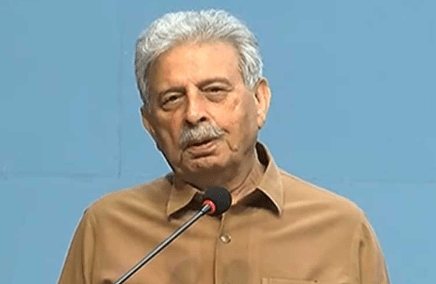
This text comprises an interview exploring complex socio-political issues in India and Pakistan. Key themes include religious harmony between Hindus and Muslims, the impact of historical events like the demolition of the Babri Masjid and the revocation of Article 370, economic disparities, and the role of political leadership. The discussion also touches upon the legacies of Gandhi and Jinnah, examining their influence on the partition and subsequent tensions. Finally, the interview concludes by emphasizing the importance of humanity above religious or political affiliations.
Analyzing Indian Society: A Critical Perspective
Instructions: Answer each question in 2-3 sentences.
- What is the speaker’s perspective on the role of the government and administration in addressing wrongdoing, particularly in the context of communal issues?
- How does the speaker connect economic policies and population to the relative success of India compared to Pakistan?
- What are the speaker’s arguments concerning Article 370 and its removal?
- How does the speaker describe the legacy of Mahatma Gandhi and Nathuram Godse?
- What is the speaker’s view on the Uniform Civil Code and why does he suggest caution in its implementation?
- How does the speaker understand the relationship between justice, caste and religion?
- What is the speaker’s perspective on the comparisons between Rabindranath Tagore and Allama Iqbal?
- How does the speaker describe the current political climate and the alleged influence of the Modi government?
- What does the speaker mean when they say that “humanity” should come before religious identity?
- What is the overall message or plea the speaker tries to communicate at the conclusion of the interview/discussion?
Quiz Answer Key
- The speaker believes that the government and administration should be the first to arrest those doing wrong in communal issues, and that weakness or lack of admission from those in power will only perpetuate negative actions. The speaker also asserts that the administration’s actions will define a state.
- The speaker argues that India’s large population has created a large market, which has led to more economic opportunities for the country, unlike Pakistan which has suffered a monopoly from its increased population.
- The speaker does not support the removal of Article 370, citing that it recognized Kashmir’s unique demographics, and that its removal has ignored the rights of the people in Kashmir, leading to protest.
- The speaker admires both Gandhi and Mahasahab, but finds that Gandhi’s lack of love for “Uday” and his desire to go to Pakistan, angered extremists like Godse, who the speaker links to the RSS.
- The speaker suggests that the government should not rush the implementation of the Uniform Civil Code, as the code should be a collective discussion between the government, religious leaders, and the people to ensure fairness for all groups.
- The speaker believes that justice should come before caste, religion or other group identities. He suggests that while people often believe that religious leaders have the answers, justice is for everyone.
- The speaker does not think that comparisons between Tagore and Iqbal are appropriate. He believes both made valuable contributions in their respective fields and that people prefer the authors they grew up with.
- The speaker feels the current political climate under the Modi government has ruined India’s pride by injecting religious division into society. They allege that Modi prioritizes Hindu happiness at the expense of Muslims.
- The speaker asserts that humanity is the highest ideal and that religious or any other identity should not come before it. They call for unity, and a focus on how humans should be treating each other.
- The speaker concludes by emphasizing the need for love, unity, and humanity over religious division, and asks that people stop following misleading or divisive narratives.
Essay Questions
Instructions: Write an essay of approximately 500 words for each prompt.
- Analyze the speaker’s critique of the Indian government and administration. How do specific examples they use relate to their overall arguments about justice, equality, and governance?
- Discuss the speaker’s understanding of the relationship between religious identity, nationalism, and political power. How does the speaker’s personal perspective inform their interpretation of current events?
- Evaluate the speaker’s perspective on the Uniform Civil Code. How does their view on this law connect to their broader concerns about religious diversity and equality in India?
- Compare and contrast the speaker’s interpretation of Gandhi and Godse. What do these contrasting figures represent within the broader context of Indian history and identity?
- How does the speaker’s use of economic concepts, like market growth and supply chain issues, support their more general political and social commentary? How does this use of economics connect to the other themes discussed in the source?
Glossary of Key Terms
Article 370: A special provision in the Indian constitution that granted special autonomous status to the state of Jammu and Kashmir. It was revoked by the Indian government in 2019.
Babri Masjid: A mosque in Ayodhya that was demolished in 1992, which led to widespread communal violence between Hindus and Muslims.
Communalism: A concept denoting loyalty to one’s own community or ethnic group rather than to the broader society or nation, often used in the context of religious or cultural divisions, particularly within South Asia.
Indian National Congress: A major political party in India that played a key role in the country’s independence movement.
Mahasahab: Refers to a respected elder or leader, used to denote the importance of a figure.
Mohammed Ghazali: A Turkic conqueror who led several invasions of India during the early 11th century.
Mughals: The dynasty that ruled much of India from the early 16th century to the mid-18th century, known for its contributions to art, architecture, and culture.
Nathuram Godse: The assassin of Mahatma Gandhi, motivated by opposition to Gandhi’s policies and views, as well as his perceived bias towards Muslims.
Rashtriya Swayamsevak Sangh (RSS): A Hindu nationalist organization established in 1925 that is viewed as a far-right Hindu nationalist group. It is often seen as the source of the ideology that assassinated Gandhi.
Taliban: A fundamentalist Islamic organization, currently the de facto government of Afghanistan.
Uniform Civil Code (UCC): A proposal to have a single set of laws governing personal matters such as marriage, divorce, and inheritance for all citizens, regardless of their religion.
Vishwa Hindu Parishad (VHP): A Hindu nationalist organization known for its activism and involvement in various religious and social issues.
India’s Unrest: A Critical Dialogue
Okay, here’s a detailed briefing document summarizing the main themes and ideas from the provided text.
Briefing Document: Analysis of “Pasted Text” Excerpts
Overall Theme: The text presents a wide-ranging, somewhat disjointed, but passionate discussion of various issues impacting India, particularly focusing on social, economic, political, and religious tensions. The speaker(s) express concerns about justice, equality, and the direction the country is heading. It appears to be an interview or a dialogue with multiple participants, giving rise to conversational flow.
Key Themes and Ideas:
- Religious Tensions & Hindu-Muslim Relations:
- Allegations of Targeting Muslims: The text opens with a question about Indian Muslims being “the missile of Muslims,” implying a perceived threat or negative stereotype. The speaker refutes this, emphasizing the diversity within the Muslim community.
- Blame for Discord: The discussion implicates not just the government, but also community leaders and society at large in the creation of disharmony. “Everyone is there, there is the government, there is the administration and there are also those people who are leaders of the community.”
- Historical Grievances: The Babri Masjid demolition is referenced as a point of contention, and the speaker suggests a need for objective historical analysis.
- Concerns of Religious Nationalism: There’s a critique of the idea of creating a nation based on religion, suggesting this is a “matter of man and monkey, it should be between God.”
- Interfaith Harmony: The text stresses the long history of Hindus and Muslims living together in India. However, it acknowledges recent increases in communal tension, particularly during the Holi festival season which has become more polarized.
- “Hindus and Muslims have been living together in India for thousands of years, you will be surprised, that is not the masala, the masala is the one which has spoiled the atmosphere in the Holi season which is still far away.”
- Critique of Political Manipulation of Religious Tensions: The speaker suggests the current government, particularly Modi, have injected “poison” into India, leading to polarization. They are particularly concerned that Modi makes Hindus feel happy but seemingly does not cater to the Muslim population.
- Critique of Governance and Administration:
- Weak Administration: The speaker criticizes a perceived weakness in administration, noting how wrongdoing is not always addressed. “If the administration is a state, then it will immediately first arrest those who are doing wrong and if the administration is weak and does not want admission then it leaves them.”
- Economic Injustice & Inequality: The text highlights the unequal distribution of wealth in India, stating it mostly reaches those already privileged. It states “wealth distribution in India is still not equal, it has come to those people Those who are already good in the eyes of the government.”
- Economic Disparities and Inflation: The speaker points out economic disparities by citing price differences between India and neighboring countries. The increased prices of essential goods in India is also criticized as a problem of ineffective administration. “The price here is up to ₹300 and up to ₹200 I reached there and asked both of my friends there that in Amritsar it was for ₹30 so the thing is that so much download, so good, you have got this on this only, if your administration is not right…”
- Lack of Accountability: The speaker criticizes the system for not holding those who profit through corruption accountable, highlighting the need for active oversight. The speaker also stresses the need for immediate action when injustice is reported.
- Article 370 & Kashmir:
- Critique of the Removal: The speaker expresses strong disagreement with the removal of Article 370, stating it was designed to protect the special status of Kashmir, where the majority population is Muslim. “Under Article 370, the people there were told that you are in India but your rights are different from those of common Indians.”
- Rejection of Terrorism Link: The speaker questions the idea that terrorism in India was linked to Article 370 and calls for conversation as a solution.
- Emphasis on Kashmiri Pride: The speaker suggests Indian Muslims should feel pride in Kashmir being a part of India and should want to be a part of that heritage.
- Historical Figures & Events:
- Gandhi and Godse: The discussion delves into the assassination of Mahatma Gandhi, with the speaker highlighting that Gandhi was against the formation of Pakistan. They also stress that Gandhi was assassinated by a member of a party that is aligned with Modi’s government and that people who support Modi’s party also killed Gandhi. This is used to suggest a historical association with violence of the political ideology that Modi represents.
- “I belonged to this party which is supported by Modi, whose Modi has also come and then you yourself say that you also tried to take Congress into the picture, I told you about that What did you say, Modi is from this party, we have come, a man of this party has killed Gandhi…”
- Jinnah and Partition: The speaker defends Jinnah, arguing he was ready for the formation of Pakistan because there was no other viable leader in the region. This is also framed as a result of a lack of consensus by all parties in India’s transition.
- Social Issues:
- Caste System: The speaker calls for a law to specifically address the discrimination and harm caused by caste. “The thing is that because of caste, a law should be made for heads because of the caste people.”
- Uniform Civil Code: They raise concerns regarding a Uniform Civil Code, highlighting that it could infringe on the religious freedom of minority groups.
- “Uniform Civil Code will be issued, the religious scholars here say that Muslims will again get trapped in this…I think that if we are Muslims, we are Hindus, we are Sikhs, we are Buddhists, some of our principles do not fit in the Uniform Civil Code…”
- Call for Justice and Equality:
- Focus on Humanity: There is a strong emphasis on the importance of justice and human rights over religious differences, the speaker emphasizes: “There is nothing above humanity I have no religion, thank you”
- Emphasis on Common Concerns: The speaker stresses the need to focus on the real problems of ordinary people, rather than being distracted by manufactured religious divisions.
- Importance of Dialogue: The text ends on a positive note, with a call for continued debate and discussion for social reform, emphasizing that humanity must always come before religion.
- Literary and Intellectual Figures
- Iqbal and Tagore: There is a discussion and comparision of Allama Iqbal and Rabindranath Tagore, two prominent literary figures. The speaker acknowledges that for people of the same language, one may be more loved than the other. There is a stated fondness for both authors and an argument against comparing them or stating one is more important than the other.
- Javed Akhtar: There’s an opinion given that Javed Akhtar is a ‘thief’ and that the interviewer should have read the work of Javed Iqbal.
Overall Tone: The tone is passionate, critical, and at times frustrated. The speaker expresses a strong desire for social justice, equality, and a more harmonious society. There’s a sense that India has been led astray by divisive politics and that the common person is suffering because of it.
Conclusion: The text provides a complex and multi-faceted view of India’s current socio-political landscape. The speaker(s) are not afraid to criticize powerful institutions and figures and are clearly motivated by a deep desire for positive change. The conversation is rich in detail and offers a glimpse into the concerns of at least one segment of Indian society.
India’s Fractured Soul: A Critical Analysis
FAQ
1. The speaker mentioned Indian Muslims being like a “missile.” What does this statement mean and who does the speaker hold accountable for this perception?
The speaker uses the term “missile” to describe how Indian Muslims are sometimes perceived, implying they are seen as a dangerous or destabilizing force. He clarifies that he does not believe this to be true, rather this perception has arisen from failures across different sections of society. He places blame on multiple factors, not just one entity: the government and administration for failing to act impartially and enforce the law equally, community leaders for not addressing issues proactively, and even, in a complex way, how the actions of individuals are perceived, as he mentions that attacks from the past shouldn’t color how we see people today. He specifically mentions the government’s responsibility to act decisively against wrongdoing, regardless of the community, and for failing to address biases.
2. What are the speaker’s views on the Babri Masjid demolition and its aftermath?
The speaker references the Babri Masjid demolition in 1993 as an example of how historical events and their narratives are used to fuel division. He mentions that he himself wrote articles suggesting excavation to uncover the truth about its foundations. He criticizes those who immediately jump to conclusions based on religious identity. He also mentions how the Vishwa Hindu Parishad targets specific sites and communities. He suggests that creating nations on the basis of religion is a flawed premise and that faith should be a personal matter, not a source of societal division. He then points out this applies to other nations like Israel and their religious history.
3. The speaker discusses the economic situation of India and Pakistan. What comparisons does he draw and what points does he make about government responsibility?
The speaker compares India and Pakistan, focusing on their economic differences. He notes India’s rapid economic growth and status as the 5th largest power, while Pakistan is struggling. He suggests that India’s population has led to economic growth, especially in the technology sector. He attributes these differences to government policies and administration, citing issues of poor infrastructure, high prices of basic commodities like onions and tomatoes in India. He uses the example of price discrepancies to show how inefficiencies in the administration negatively affect the common citizen. He states that administrations have the responsibility of oversight and to act on complaints.
4. The speaker expresses concern about rising tensions between Hindus and Muslims in India. What, in his opinion, has caused these divisions and how does he see the situation evolving?
The speaker is deeply concerned about the rise in Hindu-Muslim tensions, which he sees as a departure from the historical peace and co-existence in India. He attributes the current atmosphere of division to the injection of “poison” by political elements, specifically referencing the current government (though he avoids mentioning any individual directly). He notes a trend where there is an effort by this government to appease Hindus while not doing so with Muslims, which he views as problematic. He laments that a “Hindu vs Muslim” mindset is becoming prevalent, even outside of real conflict or cause. He believes this has damaged the pride of India.
5. What is the speaker’s perspective on Article 370 in Kashmir and its revocation?
The speaker opposes the abrogation of Article 370, arguing that it was a special provision for Kashmir, a sensitive state with a Muslim majority. He believes that by stripping Kashmir of its special status, the Indian government is taking away their rights rather than integrating them with India. He also suggests the act of removing Article 370 is not in the interest of Indian unity, and that it may be a cause of the terrorism in the region. He notes that Article 370 did not hinder Kashmiris from living in India, going to school in Delhi, and having access to other parts of the country, as well as suggesting that the government didn’t communicate with them as well as they should have on the issue.
6. The speaker discusses Gandhi and Godse in the conversation. What does he say about them and their significance?
The speaker regards both Gandhi and Jinnah as leaders in their respective places and highlights their unique qualities. However, he discusses the circumstances surrounding Gandhi’s assassination. He notes that Gandhi’s assassination was the work of a “special party” with a right-wing ideology. He connects Godse’s actions to a larger movement that he claims is a product of the Rashtriya Swayamsevak Sangh, which he identifies as an extremist organization. He mentions that some people believed Gandhi favored Muslims and that Godse was a product of this sentiment. He also notes that there was a feeling that Jinnah had no choice but to form Pakistan, due to the circumstances. He feels that no one paid attention to his views and that Jinnah did nothing wrong, but that time was an element that caused the events to occur as they did.
7. The speaker mentions the Uniform Civil Code. What is his opinion on the matter?
The speaker expresses concern about the potential pitfalls of implementing a Uniform Civil Code without adequate consultation. He suggests that while he agrees people need to be equal in society, the government needs to consult with religious leaders from different communities to understand why certain groups might not be able to follow the Uniform Civil Code. He also makes the point that “religious freedom” does not mean people should follow these laws automatically. He emphasizes that rushing this decision is not good governance. He also makes the point that religious leaders are imperfect. He states that government officials need to approach this matter more thoughtfully, and suggests that this kind of behavior is what “misleads” people.
8. The speaker talks about the importance of humanity. What does he emphasize when he talks about how people should behave?
The speaker emphasizes the paramount importance of humanity over religious or political identities. He suggests people should be mindful of misleading information, and that people should trust their own hearts. He argues that the divisions are being fueled by misleading narratives and that people shouldn’t blindly follow these narratives. He also says he wants to see the end of the idea that Hindus and Muslims are at odds, especially in matters of day to day life. He calls for justice to be delivered with strict actions and says that this is why people are being misled. He states that people need to know there are more peace loving people than not, and that humanity is the most important thing, and above all religion. He claims he does not have a religion.
India-Pakistan Relations: A Conversation
Okay, here is a timeline and cast of characters based on the provided text:
Timeline of Main Events/Topics Discussed
- 1993: Babri Masjid demolition. This event is mentioned as a key point of conflict and is used to illustrate administrative weakness and bias. There was a supposed serial made about this. The speaker also wrote two articles at the time about the site needing excavation.
- Past (unspecified): Mohammed Ghazali’s attacks on India. This is brought up to challenge the idea that aggression is solely a modern issue or uniquely tied to one religion.
- Recent past (unspecified): The speaker mentions price gouging and lack of oversight on the sale of basic goods. They also refer to price differences between India and Pakistan, noting that prices in Pakistan can be lower.
- Recent past (unspecified): Discussion of India becoming the 5th largest economy with a growing population. This is contrasted with Pakistan’s economic struggles.
- Recent past (unspecified): Kashmiri people are discussed, as well as their educational migration, and the infrastructure of Kashmir. The financial burdens are mentioned, specifically the high cost of living.
- Recent past (unspecified): Discussion of the removal of Article 370 from Kashmir.
- Pre-Independence (unspecified, but likely early 20th century): Discussion of Mahatma Gandhi and his political positions and assassination. Nathuram Godse, the assassin, is placed within the context of the RSS.
- Pre-Independence (unspecified, but likely mid-20th century): The speaker reflects on the creation of Pakistan, Jinnah’s role and how the political leaders of the time are viewed in retrospect.
- Recent past (unspecified): Discussion of a Uniform Civil Code being considered in India.
- Present: Discussion about how to properly interview and ask questions, and the necessity of not discriminating against anyone or their religion.
- Present: Discussion of Allama Iqbal and Rabindranath Tagore, two well known writers.
- Present: The speaker contrasts Indian and Pakistani people’s mindsets. They are hopeful that both sides can move past conflict and division.
- Present: Discussion of an upcoming Holi festival and a hope that it will be peaceful.
Cast of Characters
- Unnamed Speaker (Film Sahab): The primary voice in the provided text. They are opinionated, well-read, and speak on a variety of subjects, from religious conflict and history to economics and social justice. They seem to strive for equality and an end to religious and nationalistic strife.
- Afzal Sahab: A person who is labeled as a criminal and taken out in old times, referenced in connection to the Vishwa Hindu Parishad website. He is used as an example of biased media reporting and targeting. There is another reference to an Afzal Rehan, which might be the same person, but is unclear.
- Mohammed Ghazali: Historical figure. An invader of India. His attacks are used as an argument that violence is not a new concept, and not unique to one religion.
- Subhashree: A person who is referenced in connection to price gouging, she paid an inflated price for gas at the pump.
- Usman: Is referenced in connection to inflated gas prices.
- Modi (Sahab): Current Prime Minister of India. He is criticized for creating division between Hindus and Muslims, and for actions in Kashmir. However the speaker later admits that he believes the average Indian has a sense of pride in Modi’s India, as they have a habit of respecting their leader.
- Mahatma Gandhi: Indian independence leader. His political views and death are discussed in detail. He is portrayed as being non-sectarian, but the speaker also acknowledges the narrative that he was killed because some thought he favored Muslims.
- Nathuram Godse: Gandhi’s assassin. He is described as being tied to the Rashtriya Swayamsevak Sangh (RSS).
- Jinnah (Sahab): Leader of the Muslim League, the individual primarily responsible for the creation of Pakistan. He is presented as a leader with few options and that was simply following the will of the people.
- Allama Iqbal: A well known writer.
- Rabindranath Tagore: A well known writer.
- Javed: The son, or son-in-law of a famous writer, who isn’t well known. The speaker says he doesn’t want to have his thinking spoiled by such nonsense and claims that he prefers to read people like Bal.
- Bal: A writer who has been read by the speaker and whom the speaker is very impressed by.
- Swami Vyas: Someone whom the interviewer did not speak with.
- Unnamed interviewer (You): The person conducting the interview with the primary speaker, and is frequently addressed by the primary speaker to clarify their point.
Additional Notes: *The text is from a conversational setting, the speaker often digresses into different topics. *Some of the names could be misspelled, given the nature of the conversation.
- There are varying levels of specificity as to when events happened. Some have specific dates, some have a general time frame, some are completely unclear as to when they occured.
I hope this is helpful! Let me know if you have any other questions.
India-Pakistan Relations: Conflict and Hope
India-Pakistan relations are complex and have a history of conflict and tension [1, 2]. Here’s an overview of the key points discussed in the sources:
- Historical tensions: The partition of India led to violence and displacement, with Hindus and Muslims being selectively killed [3]. The creation of Pakistan was not universally agreed upon [4].
- Kashmir: Kashmir is a sensitive region with a majority Muslim population [2]. Article 370, which granted special rights to the people of Kashmir, was removed [2, 4]. This action has been a point of contention, with some arguing that it was not necessary for the unity of India [4].
- Accusations and mistrust: Some accuse Pakistan of being India’s biggest enemy [1]. Some believe that India’s current government has injected “poison” into the country by creating divisions between Hindus and Muslims [2]. There is also a sense of mistrust between the two countries [1].
- Economic disparities: Pakistan’s economy is struggling, while India’s is growing rapidly [1, 5]. India’s population size is seen as an economic advantage, while Pakistan’s economy suffers from a lack of resources [1]. The prices of basic goods like onions and tomatoes are much higher in India than in Pakistan [1].
- Calls for peace and understanding: Despite the conflicts, there are calls for justice, peace, and understanding between the two countries [5, 6]. Some people believe that the focus should be on humanity and not on religious differences [7]. There is a desire to move past the divisions and focus on the common problems faced by both countries [6]. There are people who feel that Pakistan is like India and they don’t consider religion or politics important [3].
- Internal issues: The sources also address issues within India, such as the unequal distribution of wealth [5], unemployment [5], and the mistreatment of minorities [2]. It is argued that these problems are not caused by Pakistan but are internal to India [5].
In summary, the sources reveal that India-Pakistan relations are marred by historical conflicts, territorial disputes, economic disparities, and internal issues. Despite these challenges, there are also voices calling for peace, understanding, and a focus on shared humanity.
Hindu-Muslim Relations in India
The sources discuss religious harmony in the context of India, primarily focusing on the relationship between Hindus and Muslims. Here’s a breakdown of the key points:
- Historical Coexistence: Hindus and Muslims have lived together in India for thousands of years [1]. There was peace in India even before the Mughals [2]. This long history of coexistence suggests an underlying potential for harmony.
- Divisions and Tensions: Despite the historical coexistence, there are tensions between the two communities [2]. Some feel that the current government has created divisions between Hindus and Muslims, injecting “poison” into the country [2]. The sources suggest that the atmosphere has been spoiled, with people identifying each other primarily by their religious affiliation (“you are a Hindu, I am a Muslim”) [1, 2]. This division is a cause of concern for some [1].
- Calls for Unity: There are calls for unity, with people expressing the view that religion should not be a primary identifier [3]. They emphasize that humanity is paramount and that all people should be treated equally, regardless of their religion [3]. Some individuals see all Indian Muslims and Hindus as their own [1].
- Misguided Actions and Misinformation: Some believe that misleading writings have divided the people and that they should not be misled by these things [3]. There is also the idea that people should not follow a particular “push” or agenda that divides them [4].
- Importance of Justice and Equality: The sources stress the importance of justice and equality for all, regardless of caste or religion [5]. There is concern that the government is not treating all citizens equally and that some groups are being marginalized [2]. There are calls for the government to consult with religious leaders before making decisions that could affect their communities [6].
- Uniform Civil Code Concerns: There are concerns about the implementation of a Uniform Civil Code, with some religious scholars fearing that Muslims will be trapped by it [6]. Some feel that the government should consult with religious leaders before implementing such a code [6]. The concern is that some principles of various religions might not align with a uniform code [6].
- Focus on Humanity: Many believe that humanity should be the guiding principle, rather than religious divisions [3]. They believe that if there is humanity, then there is no need for concern about religious differences [3].
In summary, while the sources acknowledge the existence of religious harmony in India’s past, they also highlight the present tensions and divisions. However, there are also strong calls for unity, justice, and a focus on shared humanity over religious identity. The sources emphasize that the path to religious harmony involves overcoming misinformation, promoting equality, and prioritizing the common good over divisive agendas.
India’s Political Climate: Government, Citizens, and the Future
The sources touch on political discourse in India, particularly concerning the relationship between the government and its citizens, as well as the broader political climate. Here’s a breakdown of the key themes:
- Government Accountability and Actions: There is a significant focus on the actions and responsibilities of the government. The sources discuss the government’s role in maintaining law and order, ensuring justice, and managing the economy [1, 2]. There are concerns that the government is not always effective in these areas. For example, it is suggested that a weak administration may fail to arrest wrongdoers, and that the government isn’t doing enough to control rising prices [1, 2].
- Criticism of the Current Government: The sources express criticism of the current government, with some claiming that it has “ruined the pride of India” and injected “poison” into the country by creating divisions between Hindus and Muslims [3]. Some believe that the government favors Hindus, while neglecting Muslims, and there is a view that the government’s actions have made it hard for Muslims to be happy [3]. The sources suggest that the government needs to address the concerns of all citizens, not just specific groups [3, 4].
- Article 370 and Kashmir: The removal of Article 370, which granted special rights to Kashmir, is discussed as a controversial political move [3]. Some argue that this action was not necessary for the unity of India and that it has led to unrest in the region [3].
- Unequal Wealth Distribution: The sources highlight the issue of unequal wealth distribution in India [5]. It is argued that the government’s policies have favored those who are already wealthy, leaving the common man struggling with unemployment and financial hardship [5]. This is a theme throughout the discussion, where the economic policies of the government are being scrutinized as well as their affect on citizens [2, 5].
- Importance of Citizen’s Rights: The sources emphasize the importance of protecting the rights of all citizens [6]. It is argued that the Indian Constitution is a blessing for everyone and that the state should protect the rights of every citizen [6]. There is a concern that these rights are not being adequately protected.
- Calls for Dialogue and Consultation: There is a call for the government to engage in dialogue with religious leaders and other stakeholders before making major policy decisions [4]. This is particularly relevant in the discussion about the Uniform Civil Code [4]. Some believe that the government is rushing into these decisions and that it needs to consult with people to understand their concerns [4].
- The Legacy of Gandhi: The sources discuss the legacy of Mahatma Gandhi, who is portrayed as a leader who did not favor one group over another [7, 8]. He is contrasted with current political figures and policies and there is some discussion around the circumstances surrounding his death [7, 8].
- Political Parties and Ideologies: There is reference to the Rashtriya Swayamsevak Sangh (RSS) as an extreme organization [7]. The sources also discuss how some people view the current government as aligned with the ideology of Gandhi’s assassin [8]. There’s a discussion about how supporting a political party is different from adopting its policies [8].
In summary, the sources reveal a critical perspective on the current political discourse in India. There is a strong emphasis on government accountability, equal treatment of all citizens, and the importance of dialogue and consultation in the decision-making process. The sources suggest that there are concerns about the government’s actions and policies, as well as calls for a more inclusive and just approach to governance.
Social Justice in India
The sources address social justice in India, particularly focusing on issues of equality, fairness, and the treatment of marginalized groups. Here’s a breakdown of the key points related to social justice:
- Equality and Discrimination: The sources highlight concerns about discrimination and inequality within Indian society [1-3]. There’s a perception that the government favors certain groups (Hindus) while neglecting others (Muslims) [4]. The discussion about the Uniform Civil Code raises concerns that it may disproportionately affect Muslims [5]. There are also concerns that certain people are being targeted and singled out because of their religious affiliation [1].
- Unequal Wealth Distribution: The sources indicate that there is an unequal distribution of wealth in India, with the benefits of economic growth not reaching the common man [2]. This economic disparity leads to unemployment and financial hardship for many [2]. The government’s policies are criticized for allegedly favoring those who are already wealthy, exacerbating the problem of inequality [2].
- Justice System and Administration: The sources discuss the importance of a fair and effective justice system [6]. There are concerns that the administration may be weak or biased, failing to arrest wrongdoers and enforce the law equally [1, 6]. There is the suggestion that when the administration is weak, it does not address wrongdoings, and that this can lead to injustice [1].
- Marginalized Groups: The sources emphasize the importance of protecting the rights of all citizens, particularly those of marginalized groups [4]. The discussion about Article 370 highlights the concerns about the rights of the people of Kashmir, who are a majority Muslim community [4]. There are references to the mistreatment of Muslims in India [1].
- The Role of Religion: The sources touch on how religious identity can be a source of both unity and division [4]. The sources suggest that some people are being treated differently based on their religious affiliation [1]. However, there are also calls for unity, with people expressing the view that humanity is paramount, and that all people should be treated equally, regardless of their religion [7]. The sources emphasize that there should be justice for all, irrespective of religion [1].
- Calls for Reform: The sources reveal calls for social and economic reforms to address these injustices [6, 7]. There is an emphasis on the importance of dialogue and consultation with religious leaders and other stakeholders before making major policy decisions that may affect their communities [5]. There are discussions about the need to address the root causes of division and inequality in the country [7].
- Need for a Just Society: The sources indicate that there is a desire for a just society where all citizens are treated fairly and equally, where the government protects the rights of all people, and where justice is applied to all regardless of religious affiliation [1, 6].
In summary, the sources reveal significant concerns about social justice in India. These include issues of religious discrimination, economic inequality, an ineffective justice system, and the mistreatment of marginalized groups. The sources also highlight calls for reforms and a more just society where all people are treated equally. The overall message is that India has significant challenges to address to ensure that it lives up to its ideals of equality and justice for all.
India’s Wealth Inequality: A Critical Analysis
The sources discuss wealth distribution in India, highlighting concerns about inequality and its impact on various segments of society. Here’s a breakdown of the key points:
- Unequal Distribution: The sources indicate that wealth distribution in India is not equal [1]. It is suggested that the benefits of economic growth are not reaching the common man and are primarily going to those who are already wealthy and “good in the eyes of the government” [1].
- Economic Hardship for the Common Man: The unequal distribution of wealth leads to unemployment and financial hardship for many ordinary people [1]. The sources suggest that there is a significant gap between the wealthy and the working class, with many people struggling to make ends meet.
- Government’s Role: The government’s economic policies are criticized for allegedly favoring the already wealthy, which exacerbates the problem of inequality [1]. The sources suggest that the government is not doing enough to address the economic struggles of the common man and that the current system reinforces existing wealth disparities.
- Rising Prices: The sources discuss the issue of rising prices of essential commodities, like onions and potatoes, which can cause significant hardship for ordinary people [2]. It is suggested that these prices are not being effectively regulated by the government and that this disproportionately affects those with fewer resources.
- Economic Growth vs. Equity: While India’s economy is said to be growing rapidly and is now the 5th largest in the world, the sources question whether this growth is benefiting all citizens [2]. The sources imply that economic growth alone is not sufficient if it is not accompanied by equitable distribution of wealth. There is a concern that the benefits of economic growth are not reaching the working class [1].
- Monopolies and Economic Manipulation: The sources reference the idea of creating a “monopoly” to increase profits, suggesting that some businesses may be manipulating the economy to their own advantage [2]. There is a concern that the government may not be doing enough to prevent these kinds of practices.
- Comparison with Other Countries: The sources compare the prices of certain goods in India to those in other countries, such as Pakistan, Bangladesh and Nepal, suggesting that India’s economic performance is not as good as it might seem [1, 2]. This highlights that relative economic metrics may not tell the whole story.
- Lack of Representation: The sources indicate a lack of representation of the working class in society [1]. This suggests that those most affected by unequal wealth distribution may not have a voice in the decision making process.
In summary, the sources portray a situation where wealth is not being distributed fairly in India, leading to economic hardship for many. The sources suggest that the government’s policies and actions may be contributing to the problem, rather than solving it. There’s a clear emphasis on the need for economic reforms that promote a more equitable distribution of wealth and ensure that the benefits of economic growth are shared by all citizens.

By Amjad Izhar
Contact: amjad.izhar@gmail.com
https://amjadizhar.blog
Affiliate Disclosure: This blog may contain affiliate links, which means I may earn a small commission if you click on the link and make a purchase. This comes at no additional cost to you. I only recommend products or services that I believe will add value to my readers. Your support helps keep this blog running and allows me to continue providing you with quality content. Thank you for your support!