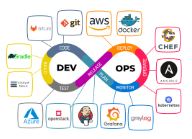
The provided sources explore the landscape of modern software development and deployment practices. One source details the setup of a CI/CD pipeline using GitHub Actions for a Python application, emphasizing automated testing upon code changes. Another source contrasts on-premise and cloud computing, highlighting the scalability, storage, security, and maintenance advantages of the cloud, and introduces cloud computing concepts alongside containerization technologies like Docker and orchestration tools like Kubernetes. Several excerpts focus on Jenkins, a popular open-source automation server, explaining its installation, configuration, integration with tools like Git and Maven, and its role in building CI/CD pipelines, including both basic and more advanced scripted pipeline approaches using Groovy. Finally, the sources touch upon configuration management with Chef, outlining its purpose in automating infrastructure setup and maintenance, and briefly mention Nagios for infrastructure monitoring. Collectively, the texts provide an overview of key DevOps concepts, tools, and practices essential for efficient and reliable software delivery.
DevOps CI/CD and Version Control Essentials
DevOps CI/CD and Version Control Study Guide
Quiz
- What are the main goals of setting up a continuous integration and continuous deployment (CI/CD) pipeline, as demonstrated in the tutorial?
- Explain the role of Git in a distributed Version Control System and why it is preferred for team development.
- What is the fundamental difference between Git and GitHub, and how do they work together in software development workflows?
- Describe the purpose of a “staging area” in Git. How does it relate to the “working directory” and the “local repository”?
- What are GitHub Actions, and how were they used in the tutorial to automate testing and deployment?
- In the context of Jenkins, what is the role of plugins, and why are they considered a crucial aspect of its functionality?
- Explain the concept of a Jenkins “slave node” (or agent). Why and how would you configure one to work with a Jenkins master?
- What is the purpose of Role-Based Access Control (RBAC) in Jenkins, and how does it help manage user permissions?
- Describe the function of Maven in Java-based projects, highlighting its advantages over traditional build tools.
- What are Docker containers, and what are the key benefits they offer over traditional virtual machines in terms of resource usage and portability?
Quiz Answer Key
- The main goals are to automate the testing and deployment processes of a simple application. This ensures that code changes are automatically built, tested, and deployed, leading to faster feedback and more efficient software delivery.
- Git is a distributed Version Control tool that allows multiple developers to work on the same codebase simultaneously. Each developer has a complete copy of the repository, enabling offline work and peer-to-peer sharing, making collaboration more robust and flexible.
- Git is the software tool installed locally for managing version control, while GitHub is a web-based service that hosts Git repositories in the cloud. Developers use Git to track changes locally and then use GitHub to store, collaborate on, and manage their projects remotely.
- The staging area in Git is an intermediate step between the working directory (where you make changes) and the local repository (where you commit changes). It allows you to select which modifications in your working directory you want to include in your next commit.
- GitHub Actions are a feature within GitHub that allows you to automate workflows directly in your repository. In the tutorial, a YAML file defined a workflow to automatically run tests on the Python application whenever code was pushed and potentially deploy it.
- Plugins in Jenkins extend its core functionality by providing integrations with various tools, technologies, and processes. They are essential because they allow Jenkins to adapt to different development environments and automate a wide range of tasks beyond basic building and testing.
- A Jenkins slave node (or agent) is a separate machine or process that is connected to the Jenkins master to offload build and test execution. This is useful for distributing workload, using different operating systems or environments, and improving the scalability of the CI/CD process. You configure it by defining the node in the Jenkins master and then launching an agent process on the slave machine using a command provided by Jenkins.
- Role-Based Access Control (RBAC) in Jenkins is a mechanism to manage user permissions by assigning roles with specific privileges. This allows administrators to control who can access and perform certain actions within Jenkins, enhancing security and ensuring that users only have the necessary permissions for their tasks.
- Maven is a powerful build automation tool primarily used for Java projects that helps manage the entire build lifecycle, including dependencies, compilation, testing, packaging, and deployment. Its advantages include standardized project structure, automatic dependency management, and a vast repository of reusable components, simplifying the build process and improving project consistency.
- Docker containers are lightweight, standalone, executable packages that include everything needed to run an application, including code, runtime, system tools, libraries, and settings. Key benefits over VMs include lower resource consumption (less memory and CPU), faster startup times (milliseconds vs. minutes), and greater portability across different environments because they are isolated from the host OS.
Essay Format Questions
- Discuss the benefits and challenges of implementing a CI/CD pipeline using tools like GitHub Actions and Jenkins, considering factors such as automation, collaboration, and scalability.
- Compare and contrast traditional Version Control Systems with Distributed Version Control Systems like Git, highlighting the advantages that Git offers for modern software development teams.
- Explain the role of Jenkins in the DevOps lifecycle. Describe how its features, such as plugins and agent management, contribute to continuous integration and continuous delivery practices.
- Analyze the significance of dependency management in software projects and discuss how Maven simplifies this process for Java-based applications.
- Evaluate the impact of containerization technology, using Docker as an example, on software deployment and infrastructure management, considering its advantages in terms of efficiency, portability, and isolation.
Glossary of Key Terms
- Continuous Integration (CI): A development practice where developers regularly merge their code changes into a central repository, after which automated builds and tests are run.
- Continuous Deployment (CD): A software release process that automates the deployment of software to production or other environments after successful CI.
- DevOps: A set of practices that combines software development (Dev) and IT operations (Ops) to shorten the systems development life cycle and provide continuous delivery with high software quality.
- Version Control System (VCS): A system that records changes to a file or set of files over time so that you can recall specific versions later.
- Distributed Version Control System (DVCS): A type of VCS where every developer’s working copy of the repository is also a full-fledged repository with complete history. Git is an example.
- Repository (Repo): A storage location for all versions of a file or set of files, usually managed by a Version Control System.
- Clone: The act of creating a local copy of a remote repository.
- Commit: In Git, a snapshot of the changes in the staging area, recorded in the repository’s history.
- Push: In Git, the action of transferring local commits to a remote repository.
- Pull: In Git, the action of fetching changes from a remote repository and merging them into the current local branch.
- GitHub Actions: A platform to automate build, test, and deployment pipelines directly within a GitHub repository.
- Workflow (GitHub Actions): A configurable automated process that you set up in your GitHub repository to build, test, package, release, or deploy any code project on GitHub.
- YAML: A human-friendly data serialization standard used for configuration files, such as those for GitHub Actions workflows and Docker Compose.
- Jenkins: An open-source automation server used for CI/CD, allowing the automation of various tasks involved in building, testing, and deploying software.
- Plugin (Jenkins): An extension that adds specific features or integrations to Jenkins.
- Agent (Jenkins): A node (machine or container) that Jenkins master delegates build and test execution to.
- Role-Based Access Control (RBAC): A method of restricting system access to authorized users based on their roles.
- Maven: A build automation tool primarily used for Java projects, which manages dependencies, builds, documentation, and deployment.
- POM (Project Object Model): The fundamental unit of work in Maven. It is an XML file that contains information about the project, configuration details used by Maven to build the project, dependencies, etc.
- Artifact (Maven): A file produced and/or used by Maven, such as JAR files, WAR files, source code, and documentation.
- Dependency (Maven): An external library or artifact required by a Maven project.
- Build Lifecycle (Maven): A well-defined sequence of build phases in Maven that are executed in order to build and distribute a project. Common lifecycles include clean, default (build), and site.
- Docker: A platform that enables you to develop, ship, and run applications inside isolated containers.
- Container (Docker): A lightweight, standalone, executable package of software that includes everything needed to run an application: code, runtime, system tools, system libraries, and settings.
- Image (Docker): A read-only template with instructions for creating a Docker container.
- Registry (Docker): A stateless, highly scalable server-side application that stores and lets you manage Docker images. Docker Hub is a public registry.
- Docker Compose: A tool for defining and running multi-container Docker applications. You use a YAML file to configure your application’s services.
- Docker Swarm: A container orchestration tool that allows you to manage and scale a cluster of Docker nodes (hosts) as a single virtual system.
DevOps Tools and Practices: A Briefing
## Briefing Document: DevOps Tools and Practices
**Date:** October 26, 2023
**Prepared For:** [Intended Audience – e.g., Project Team, Stakeholders]
**Prepared By:** Gemini AI
**Subject:** Review of Concepts and Tools for DevOps Implementation Based on Provided Sources
This briefing document summarizes the main themes and important ideas presented in the provided sources, focusing on the integration of tools and practices within a DevOps environment. The sources cover a range of topics, from setting up CI/CD pipelines using GitHub Actions and understanding Version Control Systems (VCS) like Git and GitHub, to utilizing Jenkins for continuous integration and exploring configuration management tools like Ansible and Puppet, as well as build automation with Maven and containerization with Docker.
### Main Themes
1. **Continuous Integration and Continuous Deployment (CI/CD):** A central theme across multiple sources is the implementation and benefits of CI/CD pipelines. The “01.pdf” excerpt directly focuses on creating a basic CI/CD pipeline using GitHub Actions to automate the testing and deployment of a simple Python application. This highlights the practical application of DevOps principles for automating software delivery.
> *”let us create a Hands-On beginner DeVos tutorial where we are going to set up a basic continuous integration and continuous deployment pipeline using GitHub actions and in this tutorial we are going to show you how you can automate the testing and the deployment of a simple hello world python application”* – “01.pdf”
2. **Version Control with Git and GitHub:** Several sources emphasize the importance of Version Control Systems (VCS), particularly Git and GitHub, in collaborative software development. They explain the concepts of distributed VCS, the roles of Git for local version management, and GitHub as a service for remote code storage and collaboration. The benefits of VCS include storing multiple versions, facilitating simultaneous work by large teams, and tracking code changes.
> *”The benefits of a VCS system a Version Control system should demonstrates that you’re able to store multiple versions of a solution in a single repository.”* – Excerpt on Version Control Systems
>
> *”git is a distributed Version Control tool used for source code management so GitHub is the remote server for that Source codee management and your development team can connect their get client to that remote Hub server”* – Excerpt on Git and GitHub
>
> *”GitHub is a place where we actually store our files and can very easily create public and sharable is a place where we can store our files and create public sharable projects.”* – Excerpt on Git and GitHub
3. **Automation in DevOps:** Automation is presented as a cornerstone of DevOps practices. This is evident in the CI/CD pipeline setup, the use of Jenkins for automated builds and tasks, and the role of configuration management tools like Ansible and Puppet for automating infrastructure provisioning and management. Maven is also highlighted for automating the build process of Java-based projects.
> *”Apache mavan helps to manage all the processes such as build process documentation release process distribution deployment preparing the artifact so all these tasks is being primary taken care by the Apache Mayan.”* – Excerpt on Maven
4. **Jenkins for Continuous Integration:** Jenkins is extensively covered as a popular open-source automation server used for CI/CD. The sources detail its installation process, configuration, plugin ecosystem, user management through role-based access control, and its ability to integrate with version control systems like GitHub. The concept of master-slave (now often referred to as controller-agent) architecture for distributed builds is also introduced.
> *”Jenkins is a continuous integration server it doesn’t know what kind of a code base it’s going to pull in what kind of a tool set that is required or what is the code that is going to pull in and how is it going to build so you would have to put in all the tools that is required for building the appropriate kind of code that you’re going to pull in from you know your source code repositories.”* – Excerpt on Jenkins Global Tool Configuration
>
> *”One of the reasons for Jenkins being so popular as I mentioned earlier is the bunch of plugins that is provided by users or Community users who don’t charge any money for these plugins but it’s got plugins for connecting anything and everything…”* – Excerpt on Jenkins Plugins
5. **Configuration Management with Ansible and Puppet:** The briefing includes an introduction to configuration management tools, showcasing Ansible and Puppet. These tools are presented as solutions for automating the configuration and maintenance of infrastructure at scale, ensuring systems are consistently in a desired state. Ansible’s agentless architecture using SSH and Playbooks (written in YAML) is contrasted with Puppet’s master-agent architecture and manifests.
> *”If you consider the scenario of an organization which has a very large infrastructure it’s required that all the systems and servers in this infrastructure is continuously Main mained at a desired State this is where puppet comes in puppet automates this entire procedure thus reducing the manual work.”* – Excerpt on Puppet
>
> *”The command to check the syntax of the yaml file is anible Playbook the name of your playbook syntax check so we have no syntax errors which is why the only output you receive is sample do yml which is the name of your playbook so our Playbook is ready to be executed the command to execute the Playbook is anible Playbook and the name of your playbook.”* – Excerpt on Ansible Playbook Execution
6. **Build Automation with Maven:** Maven is discussed as a powerful open-source build automation tool primarily used for Java-based projects. It helps manage the entire build lifecycle, dependencies, reporting, and deployment of artifacts. The concept of the Project Object Model (POM) file (`pom.xml`) is introduced as the central configuration file for Maven projects, defining dependencies, build processes, and other project-related information.
> *”Maven is nothing but a kind of a popular open Tool uh open source build tool which is available there… it really helps the organization to uh automate some couple of build processes and you know have some uh particular mechanisms like build publish and deploys of of different different projects at once itself.”* – Excerpt on Maven Introduction
>
> *”The full name of a project in Maven includes first of all the group ID … artifact ID … and lastly is the version…”* – Excerpt on Maven Project Naming Conventions
7. **Containerization with Docker:** Docker is presented as an OS-level virtualization platform that allows for the creation, deployment, and running of applications in isolated containers. The benefits of Docker over traditional virtual machines, such as lower memory usage, better performance, improved portability, and faster boot-up times, are highlighted. Key Docker concepts like images, containers, Docker Engine, and Docker Registry (including Docker Hub) are explained. Docker Compose for managing multi-container applications and Docker Swarm for container orchestration are also briefly introduced.
> *”Docker itself is an OS virtualized software platform and it allows it organizations to really easily create deploy and run applications as what are called Docker containers that have all the dependencies within that container very easily and quickly.”* – Excerpt on Introduction to Docker
>
> *”Docker Hub is basically a repository that you can find online so with this command the docker image hello world has been pulled onto your system.”* – Excerpt on Docker Installation and Testing
### Most Important Ideas and Facts
* **GitHub Actions for CI/CD:** Provides a platform-integrated way to automate build, test, and deployment workflows directly within GitHub repositories using YAML-based workflow definitions.
* **Git as a Distributed VCS:** Enables developers to have the entire codebase locally, facilitating collaboration through branching, merging, and remote repositories like GitHub.
* **Jenkins Plugin Ecosystem:** Offers extensive functionality through a wide range of plugins that integrate with various tools and technologies across the DevOps lifecycle.
* **Role-Based Access Control in Jenkins:** Allows administrators to define and assign roles with specific permissions to users, enhancing security and access management.
* **Ansible Playbooks in YAML:** Provide a human-readable and simple way to define automation tasks for configuration management and application deployment.
* **Puppet Manifests for Desired State Configuration:** Define the desired state of systems, and Puppet agents on managed nodes ensure that the actual state aligns with the defined configuration.
* **Maven POM for Project Management:** Acts as the blueprint for a Maven project, defining its structure, dependencies, and build process, promoting consistency and simplifying dependency management.
* **Docker Images as Read-Only Templates:** Contain the application code, libraries, and dependencies needed to run a container. Images are built in layers, optimizing storage and distribution.
* **Docker Containers as Runnable Instances:** Isolated environments created from Docker images, providing consistency across different deployment environments.
* **Docker Hub as a Public Registry:** A vast repository of pre-built Docker images that can be easily pulled and used. Organizations can also create private registries.
### Quotes Highlighting Key Concepts
* **On the purpose of Git:** *”git is used to track the changes of the source code and allows large teams to work simultaneously with each other.”*
* **On the extensibility of Jenkins:** *”bottom line genkins without plugins is nothing so plugins is the heart of genkins for you to connect or for in order to connect genkins with any of the containers or any of the other tool sets you would need the plugins”*
* **On the core principle of Ansible:** *”Ansible is designed to be human readable and easy to understand, allowing for simpler automation of IT tasks.”* (Implied through the description of Playbooks in YAML)
* **On Maven’s dependency management:** *”you just have to mention that dependency in the m and that Jara file will be downloaded during the build process and will be cached locally so that’s the biggest Advantage which we get with mavan that you don’t have to take care of all these dependencies anywhere into your Source Code system.”*
* **On Docker’s portability:** *”Dr was designed for portability so you can actually build Solutions in a Docker container environment and have the guarantee that the solution will work as you have built it no matter where it’s hosted”*
### Conclusion
The provided sources offer a foundational understanding of several key tools and practices that are integral to modern DevOps workflows. They emphasize the importance of automation, collaboration, and continuous delivery through the implementation of CI/CD pipelines, the use of version control, build automation tools, configuration management, and containerization. This briefing provides a starting point for further exploration and practical application of these concepts in real-world DevOps scenarios.
GitHub Actions for CI/CD and Git Version Control
DevOps and CI/CD with GitHub Actions
- What is the main goal of the tutorial in “01.pdf”? The main goal of the tutorial is to guide beginners through the process of setting up a basic Continuous Integration and Continuous Deployment (CI/CD) pipeline using GitHub Actions. It aims to demonstrate how to automate the testing and deployment of a simple “Hello World” Python application.
- What are the prerequisites for following the CI/CD tutorial? The prerequisites for the tutorial include having a GitHub account, basic familiarity with Git and Python, and access to a text editor such as VS Code or Sublime Text.
- What are the key steps involved in creating a basic CI/CD pipeline using GitHub Actions according to the tutorial? The key steps include creating a new public repository on GitHub, setting up a local environment with Git Bash, cloning the repository, creating a basic Python application (app.py), adding and committing the application file to the repository, creating a test file (test_app.py) for unit testing the application, adding and committing the test file, and finally, creating a GitHub Actions workflow (a .yml file) to automate the CI/CD process within the repository’s “Actions” tab.
- How does the tutorial initiate the GitHub Actions workflow? The tutorial explains that after creating and populating the GitHub repository with the Python application and its tests, the next step is to navigate to the “Actions” tab in the repository on GitHub. From there, a new workflow is set up, which involves creating or using a .yml file (like main.yml) that defines the automated CI/CD process.
Version Control with Git and GitHub
- What is the fundamental difference between Git and GitHub? Git is a distributed Version Control System (VCS), a software tool installed locally that helps manage different versions of source code. GitHub, on the other hand, is a web-based service that provides a remote server for Git repositories, allowing teams to collaborate on code. Git manages versions of code, while GitHub is a platform for storing and sharing those Git repositories.
- What are the advantages of using a distributed Version Control System like Git compared to traditional systems? Distributed VCS like Git allow the code to be shared across a team of developers, where each developer has the entire codebase and history on their local system. This facilitates simultaneous work, ensures everyone is working on the latest code, and allows for peer-to-peer sharing of changes. It also enables storing multiple versions of a solution in a single repository and supports non-linear development with branching and efficient handling of large projects.
- Describe the basic workflow of using Git with a remote repository like GitHub. The basic workflow involves developers making updates to their local copy of the code within a Git repository. These local changes are manually updated and then periodically “pushed” to the remote Git repository (e.g., on GitHub). Conversely, developers can also “pull” the latest updates from the remote repository to their local system, ensuring everyone has the most recent version. The remote repository acts as a central hub for the project.
- What are some common Git commands and their functions as described in the sources? Some common Git commands mentioned include:
- git init: Initializes a new Git repository in a folder.
- git status: Shows the status of files in the working directory and staging area.
- git add <filename>: Adds a specific file to the staging area.
- git commit -m “<message>”: Commits the staged changes with a descriptive message.
- git push: Sends local commits to the remote repository.
- git clone <repository_url>: Creates a local copy of a remote repository.
- git diff: Shows the differences between the working directory, staging area, and the last commit.
- git remote add origin <remote_url>: Sets up a connection to a remote repository named “origin”.
- git push origin master: Pushes the local master branch to the remote repository named “origin”.
Understanding CI/CD Pipelines: Automation for Software Delivery
A CI/CD pipeline is a series of automated steps that software goes through from development to production. CI stands for Continuous Integration, which is the practice of developers merging their code changes frequently into a main branch. These changes are automatically validated by building the application and running automated tests. CD can stand for either Continuous Delivery or Continuous Deployment. Continuous Delivery extends Continuous Integration by automatically preparing and tracking a release to production, ensuring that changes can be released quickly and sustainably. Continuous Deployment goes a step further by automatically deploying every change that passes automated testing to the production environment. The CI/CD pipeline is considered a backbone of the overall DevOps approach and a prime automation to implement when adopting DevOps.
Here’s a breakdown of key aspects of CI/CD pipelines based on the sources:
Core Principles of CI/CD:
- Automation: CI/CD heavily relies on automation, covering everything from code deployment to environment setup and network configuration. Tools like Ansible can automate application deployment across multiple servers.
- Continuous Integration:Developers merge code frequently to the main branch.
- Automated builds and tests are triggered upon each merge. Tools like Jenkins can automatically test builds whenever new commits are pushed.
- The goal is to detect issues and bugs early and frequently.
- Continuous Delivery/Deployment:Extends CI to automatically prepare and track releases. Tools like Travis CI can automatically deploy applications to production after successful testing.
- Continuous Deployment automatically deploys every tested change to production, enabling faster and more frequent releases.
Phases of a CI/CD Pipeline:
While the exact phases can vary, a typical CI/CD pipeline involves the following stages:
- Plan: Defining project scope, resources, and timelines (e.g., using Jira).
- Code: Developers write code in small chunks (e.g., using GitHub for version control).
- Build: Transforming code into a runnable application (e.g., using Gradle or Maven).
- Test: Running automated tests to ensure the application works as expected (e.g., using Selenium). Continuous testing is crucial in the DevOps lifecycle, providing immediate feedback on the business risk of the latest release.
- Release: Preparing to deploy the software to production (e.g., using Docker to package applications).
- Deploy: The actual deployment of the application to the production environment (e.g., using Kubernetes for automating deployment, scaling, and management of containerized applications). Blue/green deployment is a pattern used to reduce downtime during deployment.
- Operate: Ongoing maintenance and updates.
- Monitor: Continuously monitoring application performance to detect and resolve issues (e.g., using Prometheus and Grafana). Monitoring and logging are essential for maintaining application health, tracking performance metrics, collecting logs, and setting up alerts.
Tools Used in CI/CD Pipelines:
Numerous tools support different stages of the CI/CD pipeline. Some popular categories and examples include:
- Version Control Systems: Git.
- CI/CD Tools: Jenkins, CircleCI, GitLab CI, GitHub Actions, Travis CI. Jenkins is an open-source automation server that can be extended with plugins to support various CI/CD tasks. It acts as an orchestration tool. GitHub Actions allows for automating workflows directly within GitHub repositories.
- Build Tools: Gradle, Maven. Maven helps automate the build process and integrates with Jenkins via plugins. The pom.xml file defines dependencies in Maven.
- Testing Tools: Selenium, JUnit.
- Containerization Tools: Docker, Kubernetes. Docker packages applications and their environments into containers for consistent deployment. Kubernetes automates the management and scaling of containerized applications.
- Configuration Management Tools: Ansible, Chef, Puppet. These tools automate the provisioning and management of infrastructure. Chef uses a pull configuration where nodes pull configuration instructions from a server.
- Monitoring and Logging Tools: Prometheus, Grafana, ELK stack (Elasticsearch, Logstash, Kibana), New Relic, Splunk.
Implementation of CI/CD Pipelines (Examples):
- GitHub Actions: A basic CI/CD pipeline can be set up using GitHub Actions by creating a YAML file (e.g., main.yml) in the .github/workflows directory of a repository. This file defines the workflow, including triggers (like push and pull requests), jobs, and steps (like checking out code, setting up a Python environment, installing dependencies, and running tests).
- Jenkins: Jenkins can be used to build CI/CD pipelines by creating pipeline jobs. Pipelines can be defined directly in the Jenkins job configuration or, preferably, using a Jenkinsfile stored in the source code repository. The Jenkinsfile allows for defining the entire pipeline as code, promoting version control and reproducibility. Jenkins pipelines can have stages and steps, and can integrate with various tools through plugins (e.g., Maven plugin). Jenkins can orchestrate build automation, test automation, and deployment.
Benefits of CI/CD Pipelines:
- Faster and More Frequent Releases: Automation streamlines the process, allowing for quicker delivery of software updates and new features.
- Improved Code Quality: Continuous testing helps identify and fix bugs early in the development cycle.
- Increased Efficiency and Productivity: Automation reduces manual effort and errors, freeing up development and operations teams.
- Better Collaboration: DevOps practices, including CI/CD, encourage collaboration between development and operations teams.
- Reduced Downtime: Practices like blue/green deployments minimize disruptions during releases.
- Enhanced Stability and Reliability: Consistent and automated processes lead to more stable and reliable software deployments.
- Faster Resolution of Issues: With continuous monitoring and feedback, issues can be identified and resolved more quickly.
In summary, a CI/CD pipeline is a critical component of modern software development, enabling teams to deliver software changes rapidly, reliably, and with higher quality through automation and continuous feedback. Tools like Jenkins and GitHub Actions play a significant role in implementing and managing these pipelines.
GitHub Integration in Software Development
You’re asking to discuss GitHub integration, and based on the sources and our previous discussion about CI/CD pipelines, GitHub plays a significant and multifaceted role in modern software development.
Here’s a comprehensive overview of GitHub integration based on the provided materials:
- Version Control with Git: At its core, GitHub serves as a remote server for Git, a distributed Version Control System (VCS). Git is a tool that tracks changes to source code, allowing multiple developers to work simultaneously on a project.
- GitHub provides a centralized location to store the remote repository, enabling developers to push their local code changes and pull the latest updates from the team.
- All developers have the entire codebase on their local systems in a distributed VCS like Git, and they continuously update it.
- GitHub facilitates non-linear development through the use of thousands of parallel branches, making it efficient for handling large projects.
- Key Git concepts supported by GitHub include:
- Forking: Creating a separate copy of a project for independent development.
- Cloning: Downloading an identical copy of a repository to a local machine.
- Branching: Creating parallel versions of the codebase to work on new features without affecting the main branch.
- Merging: Integrating changes from a branch back into the main branch.
- Pulling: Retrieving the latest changes from the remote repository to the local repository.
- Pushing: Sending local commits to the remote repository.
- GitHub provides a graphical interface for interacting with Git repositories, in contrast to Git’s command-line tools.
- CI/CD with GitHub Actions: GitHub offers its own integrated CI/CD service called GitHub Actions.
- GitHub Actions allows you to automate workflows directly within your GitHub repository.
- Workflows are defined in YAML files (e.g., main.yml) located in the .github/workflows directory.
- Workflows are triggered by events within the repository, such as push and pull_request to the main branch.
- A workflow consists of one or more jobs, which run on virtual machines (e.g., ubuntu-latest) provided by GitHub Actions.
- Each job contains a sequence of steps that execute tasks like:
- Checking out the repository code using the actions/checkout@v2 action.
- Setting up the programming language environment (e.g., Python 3.8 using actions/setup-python@v2).
- Installing dependencies.
- Running tests (e.g., using the Python unit test module).
- GitHub Actions enables automatic testing of every change pushed to the main branch or made in a pull request, helping to maintain code integrity.
- This demonstrates a foundational DevOps practice of automating testing and deployment.
- Source Code Hosting for External CI/CD Tools: GitHub is commonly used to host the source code of applications that are built and deployed using external CI/CD tools like Jenkins.
- Jenkins can be configured to connect to a GitHub repository, providing the repository URL and credentials (if the repository is private).
- Jenkins can then pull the source code from the specified GitHub repository as a part of its build process.
- The URL of the GitHub repository is a key configuration parameter when setting up a Jenkins job to use source code management.
- Storing Jenkins Pipeline Definitions (Jenkinsfile): For more advanced CI/CD pipelines with Jenkins, the pipeline definition can be stored in a file named Jenkinsfile within the GitHub repository.
- Jenkins can be configured to fetch the pipeline script from the Jenkinsfile in the specified Git repository.
- This “Pipeline from SCM” approach allows for version control of the CI/CD pipeline definition alongside the application code.
- When a Jenkins job is configured to use a Jenkinsfile from GitHub, it will download and process the pipeline script upon triggering a build.
- Collaboration Features: GitHub provides several features that enhance collaboration among development teams.
- Adding collaborators allows team members to work on a project together, with different permission levels.
- Pull requests facilitate code review and discussion before changes are merged into the main branch.
- The ability to fork and clone repositories enables team members to work on isolated changes and potentially contribute back to the main project.
In summary, GitHub is deeply integrated into the software development lifecycle, especially within a DevOps context. It serves not only as a robust platform for version control and collaboration through Git, but also provides its own CI/CD capabilities with GitHub Actions and seamlessly integrates with other CI/CD tools like Jenkins by hosting source code and pipeline definitions. This makes GitHub a central hub for managing code and automating the software delivery process.
Jenkins Setup Guide
You’re asking to discuss Jenkins setup, and the provided source “01.pdf” offers a detailed walkthrough of this process. Here’s a comprehensive overview of Jenkins setup based on the source:
Prerequisites:
Before installing Jenkins, there are a few prerequisites that need to be in place:
- Java Development Kit (JDK): Jenkins is a web application written in Java, so it requires a Java Runtime Environment (JRE) or, preferably, a JDK to run. The source recommends JDK 1.7 or 1.8. You can download the JDK from the Oracle homepage, ensuring you accept the license agreement and choose the appropriate installer for your operating system.
- RAM: The recommended RAM for running Jenkins is 2GB.
- Environment Variable (JAVA_HOME): It’s crucial to set the environment variable JAVA_HOME to point to the correct directory of your JDK installation. This allows Jenkins and other Java-based tools to locate the JDK. You should also ensure that the bin directory of your JDK installation is added to your system’s PATH variable so you can run Java and javac commands from the command prompt. The source demonstrates how to verify the Java installation using java -version and javac -version in the command prompt.
Installation Methods:
The source outlines three popular ways to install Jenkins:
- As a Windows or Linux Based Service: This is the method used in the source for the demonstration on a Windows system.
- For Windows, you can download an MSI installer specific to Jenkins. Running the installer will install Jenkins as a service, which can be started or stopped as needed. The default installation path for an MSI installer is C:\Program Files (x86)\Jenkins.
- Similarly, on Linux, Jenkins can be installed as a service using package managers specific to the distribution.
- Downloading a Generic WAR File: Jenkins can be run by downloading a generic WAR (Web Application Archive) file.
- As long as you have a compatible JDK installed, you can launch the WAR file by opening a command prompt or shell prompt, navigating to the directory where the WAR file is located, and running the command: java -jar jenkins.war.
- This will typically bring up the Jenkins web application. To stop Jenkins, you would typically close this command prompt. By default, Jenkins launches on port 8080.
- Deploying to an Existing Java Web Server: In older setups, the Jenkins WAR file could be dropped into the root or HTTP root folder of an existing Java-based web server (like Apache Tomcat). Jenkins would then explode and run within that server. User administration in this setup would be handled by the web server (e.g., Apache or Tomcat). This is presented as an older method, but still used by some.
Jenkins Home Directory:
Before starting the installation, it’s important to be aware of the Jenkins Home directory. This is where Jenkins stores all its configuration data, including jobs, project workspaces, and plugin information.
- By default, if you don’t set the JENKINS_HOME environment variable, the location depends on the installation method:
- MSI Installer: C:\Program Files (x86)\Jenkins.
- WAR File: A .jenkins folder is created inside the user’s home directory, depending on the user ID running the WAR file.
- You can set the JENKINS_HOME environment variable before installation if you want Jenkins data to be stored in a specific directory. This is useful for backup and management purposes.
Initial Setup After Installation:
Once Jenkins is installed and running (typically accessed via http://localhost:8080 in a web browser), there are a few crucial first-time setup steps:
- Unlocking Jenkins: The first time you access Jenkins, you’ll be presented with an “Unlock Jenkins” page. You’ll need to copy an administrator password from a file on your server and paste it into the provided field. The path to this file is usually displayed on the setup screen (e.g., C:\Program Files (x86)\Jenkins\secrets\initialAdminPassword for MSI install or in the logs if running from a WAR file).
- Installing Plugins: After unlocking, you’ll be prompted to install recommended plugins. Jenkins recommends a set of essential plugins needed for it to run properly. It’s generally advisable to choose this option as these plugins often have dependencies on each other. The plugin installation process requires a network connection to download the necessary files. If some plugins fail to install, you’ll usually get an option to retry.
- Creating the First Admin User: Once the plugins are installed, you’ll be asked to create your first administrator user. You’ll need to provide a username, password, full name, and email address (email might be mandatory). It’s crucial to remember the username and password as it can be difficult to recover them if forgotten.
- Jenkins URL: After creating the admin user, you’ll be asked to configure the Jenkins URL, which is typically pre-filled. You can then save and finish the setup, making Jenkins ready to use.
First-Time Configurations:
After the initial setup, the source highlights some important first-time configurations accessible through “Manage Jenkins”:
- Configure System: This section allows you to configure various global settings for your Jenkins instance:
- Home Directory: Displays the current Jenkins home directory.
- Java Home: Shows the Java home directory being used.
- Number of Executors: This crucial setting determines how many jobs or threads can run concurrently on the Jenkins instance. A general rule of thumb suggested is to have two executors on a single-core system. If more jobs are triggered than available executors, they will be queued. Be aware that triggering new jobs can lead to high CPU, memory, and disk usage.
- Label: A label for the Jenkins instance (optional).
- Usage: How the Jenkins node should be used (e.g., exclusively for scheduled builds, or also for manually triggered ones).
- SMTP Server Configuration: This is essential for enabling Jenkins to send out email notifications. You’ll need to configure the SMTP server details (e.g., smtp.gmail.com), authentication details (username and password), and port (e.g., 465 for Gmail with SSL). For personal email accounts like Gmail, you might need to lower the security settings to allow programmatic access. You can send a test email to verify the configuration.
- Configure Global Tools: This section is used to configure the locations or installation methods for various tools that your Jenkins jobs might need, such as JDK, Git, Gradle, and Maven.
- For tools like JDK, if you’ve already set the JAVA_HOME environment variable correctly, Jenkins might automatically detect it. However, you can explicitly configure different JDK installations here.
- For Git, you need to ensure Git is installed on the system and the path to the Git executable is configured.
- Similarly, for build tools like Maven and Gradle, you can either specify their installation paths if they are installed on the Jenkins server, or Jenkins can often download and manage these tools automatically if you configure them in this section. The source demonstrates configuring Maven in this way.
- Configure Global Security: This section allows you to configure the security settings for your Jenkins instance.
- By default, Jenkins’ own user database is often used to manage users and their credentials. This means user information is stored in the Jenkins file system.
- For organizations, it’s common to integrate Jenkins with an external authentication system like LDAP (Lightweight Directory Access Protocol) or Active Directory (AD) server. You can specify the LDAP server details, root DN, and administrator credentials in this section to allow users to authenticate with their existing organizational accounts.
- You can also configure authorization methods, which determine what actions authenticated users are allowed to perform. The source mentions setting up authorization methods after creating some jobs and also discusses using the Role-Based Access Control plugin for more granular permissions management.
By following these steps, you can successfully set up your Jenkins environment and begin automating your software development processes. Remember that the initial setup and configurations are crucial for a stable and functional Jenkins instance.
Jenkins: The Automation Server
Based on the sources and our conversation history, let’s discuss the concept of an Automation Server, with a specific focus on Jenkins as a prime example. Our previous discussion extensively covered the setup of Jenkins, which the source itself identifies as a “very very powerful and robust automation server”.
Here’s a breakdown of what an automation server, exemplified by Jenkins, entails:
- Core Functionality: At its core, an automation server like Jenkins is designed to automate tasks within the software development lifecycle. While initially known as a continuous integration (CI) server, its capabilities extend far beyond just integrating code changes.
- Continuous Integration (CI): Jenkins excels at CI by automatically building, testing, and integrating code changes from version control systems like GitHub. The source mentions connecting Jenkins with GitHub to pull repositories and run build commands.
- Beyond CI: Automation of Diverse Tasks: The power of Jenkins as an automation server lies in its ability to automate a wide range of tasks, not just limited to building and testing software. The source provides several examples:
- Automatic Deployments: Jenkins can automate the deployment of built artifacts (like WAR files) to application servers such as Tomcat. The source describes how a WAR file built by a Jenkins job can be automatically transferred and deployed to a Tomcat instance running on a different server.
- Scheduled Jobs: Jenkins allows you to schedule jobs to run automatically based on time-driven triggers, similar to cron jobs. The source demonstrates setting up a simple job to print the date and time every minute, showcasing the automation server’s ability to execute tasks without manual intervention.
- Distributed Builds (Master-Slave Configuration): For organizations heavily reliant on the Jenkins server, distributing the build load is crucial to prevent the server from going down. Jenkins achieves this through a master-slave (or primary and delegation, agent and master) configuration.
- The master server acts as a placeholder that receives jobs and delegates them to other machines or slave agents for execution.
- This is beneficial for handling heavy build processes that could strain the master server’s resources (disk space, CPU utilization).
- It also addresses the need to build projects on different operating systems (Windows, Linux, macOS) by delegating jobs to slave agents running those specific operating systems.
- The communication between the master and slave can be established using protocols like Java Network Launch Protocol (JNLP). The source details the steps to configure a Jenkins master to communicate with a slave agent using JNLP, including enabling the JNLP port on the master.
- A lightweight slave agent can be set up on other machines by running a simple JAR file (agent.jar). The master provides a specific command with security credentials that needs to be executed on the slave machine to connect it to the master.
- Once connected, the master can delegate specific jobs to the slave based on labels assigned to the slave node. This allows for targeted execution of jobs on appropriate build environments. The source demonstrates creating a job and configuring it to run only on a slave node with a specific “Windows” label.
- Benefits of Using an Automation Server (Jenkins):
- Increased Efficiency: Automating repetitive tasks like building, testing, and deploying software reduces manual effort and saves time.
- Improved Consistency: Automation ensures that tasks are executed in a consistent manner, reducing the chances of human error and leading to more reliable processes.
- Load Distribution and Scalability: The master-slave configuration in Jenkins allows for distributing the workload and scaling the build infrastructure as needed.
- Support for Diverse Build Environments: Jenkins can manage builds across different operating systems and hardware configurations through its agent mechanism.
- Extensibility through Plugins: Jenkins’ architecture is highly extensible through a vast ecosystem of plugins, allowing it to connect and integrate with virtually any other tool or technology. The source mentions using plugins for role-based access control and backup.
In summary, an Automation Server like Jenkins is a central component in modern software development, providing the capability to automate a wide array of tasks, from building and testing code to deploying applications and managing build infrastructure. Its features like job scheduling, distributed builds, and plugin support make it a powerful tool for improving efficiency, consistency, and scalability in the development process.
Modern Software Development: Agile, DevOps, and Automation
Let’s discuss software development drawing upon the information in the sources and our conversation history.
Software development is the process of creating and maintaining software applications. The sources highlight a significant evolution in software development methodologies and practices, particularly with the rise of Agile and DevOps, and the increasing reliance on automation and cloud computing.
Historically, the Waterfall model represented a traditional approach characterized by sequential and distinct phases: requirements analysis, project planning, development (coding), testing, deployment, and maintenance. A key challenge with this model was the difficulty in integrating new requirements once the project was underway, making it expensive and time-consuming to adapt to changing client needs. Furthermore, the delayed feedback from clients, who might only see the final product after a long development cycle, could lead to dissatisfaction and the need for extensive rework.
In response to the limitations of the Waterfall model, the Agile model emerged, emphasizing iterative development and faster feedback loops. Agile methodologies involve creating prototypes and engaging clients frequently (typically every 2 weeks in a cycle called a Sprint) to gather feedback. This allows for better understanding of client requirements and quicker adaptation to changes. Key elements of Agile include continuous planning, coding and testing within short Sprints, and regular reviews with the client. However, the source points out a potential disadvantage: testing often occurs in developer environments, which may not fully replicate the production environment, and there can still be a separation between development and operations teams, leading to challenges during deployment.
DevOps is presented as an evolution of the Agile model, specifically aiming to bridge the gap between development (Dev) and IT operations (Ops). It’s described as an innovative approach that emphasizes collaboration, automation, and continuous improvement throughout the software development and delivery process. The goal of DevOps is to achieve faster, more efficient, and error-free software delivery.
Key principles of DevOps include:
- Automation: Automating various aspects of the software development lifecycle, from code deployment to infrastructure setup and testing. Tools like Ansible are used to automate deployment and configuration across servers.
- Continuous Integration and Continuous Delivery/Deployment (CI/CD): Integrating code changes frequently, automatically testing them, and ensuring that software can be released (continuous delivery) or is automatically released (continuous deployment) to production. Tools like Jenkins, GitLab CI, and GitHub Actions are central to CI/CD pipelines, automating building, testing, and deployment. Our previous discussion highlighted Jenkins as a powerful automation server capable of much more than just CI, including scheduled jobs and distributed builds [Me].
- Rapid Feedback: Implementing mechanisms to quickly identify and address issues in development and production environments. Monitoring tools like New Relic, Prometheus, and Grafana, and logging solutions like the ELK stack (Elasticsearch, Logstash, Kibana), are crucial for providing real-time feedback on application performance and health.
- Collaboration: Fostering closer cooperation and communication between development and operations teams, breaking down traditional silos.
The sources also highlight the importance of several key concepts and tools in modern software development, which are often integral to DevOps practices:
- Microservices Architecture: Breaking down large, monolithic applications into smaller, independent services that can be developed, deployed, and scaled independently. Netflix’s transition to microservices is cited as a case study demonstrating improved flexibility and reliability.
- Cloud Computing: Leveraging platforms like AWS, Azure, and Google Cloud Platform for on-demand computing services, offering scalability, flexibility, and managed services for infrastructure, storage, and databases. The differences between on-premise and cloud computing are discussed, emphasizing the advantages of cloud in terms of scalability, server storage, data security, and maintenance. Becoming an AWS DevOps Engineer requires expertise in AWS services, Infrastructure as Code (IAC), scripting, containerization, and CI/CD pipelines within the AWS ecosystem.
- Infrastructure as Code (IAC): Managing and provisioning infrastructure (servers, networks, etc.) using code and automation tools like Terraform and AWS CloudFormation, ensuring consistency and repeatability. Ansible, Chef, and Puppet are also mentioned as configuration management tools that fall under the IAC umbrella, automating the setup and management of infrastructure and applications.
- Containerization: Using technologies like Docker to package applications and their dependencies into portable containers that can run consistently across different environments.
- Container Orchestration: Managing and scaling containerized applications using platforms like Kubernetes (k8s). Kubernetes automates the deployment, scaling, and management of containers within a cluster.
- Version Control: Utilizing systems like Git to track changes to code, collaborate effectively, and revert to previous versions if necessary. Platforms like GitHub and GitLab provide remote repositories for Git-based projects.
The Software Development Life Cycle (SDLC) is presented as a framework that provides a structured approach to software development, encompassing phases like requirements gathering, design, implementation, testing, deployment, and maintenance. Understanding the SDLC helps in comprehending how DevOps practices and tools integrate to enhance efficiency and reliability at each stage.
In conclusion, modern software development has shifted significantly from traditional linear models to more iterative and collaborative approaches like Agile and DevOps. These newer paradigms, coupled with advancements in cloud computing, containerization, and automation tools, aim to deliver software faster, more reliably, and with greater responsiveness to evolving requirements. The focus on automation servers like Jenkins, CI/CD pipelines, and infrastructure as code underscores the importance of efficiency and consistency in the contemporary software development landscape.
The Original Text
welcome to devops full course by simpar devops is transforming the way software is built and delivered making development faster more efficient and error-free it Bridges the gap between developers and it operations ensuring seamless collaboration continuous integration and smooth deployments by 2025 devops professionals will be in high demand as companies embas automation cloud computing and agile workfl with salaries reaching around $150,000 in the US and 30 lakh per anom in India it’s one of the most rewarding Tech careers in this full course we learn the key Concepts like automation cicd pipelines cloud computing along with hands-on experience using Docker cubes and genkins and by the end you’ll have the skills to build and manage efficient devop workflows and be job ready so let’s dive in before we comment if you’re looking forward to make a cent devops definitely check out imperial’s professional certificate program in cloud computing and devops this comprehensive course offers in-depth learning with a thought understanding of cloud computing principle and devop practices Guided by expert instructors and Real World Experience so hurry up and a roll now and find the course in the description box below and in the pin comments you know back in the day when Netflix was just starting to hit it stride they faced serious challenges managing their growing infrastructure keeping millions of people happy streaming movies and shows without interruption it was not an easy task initially Netflix struggled with scaling issues monolithic architecture problems and deployments bottlenecks their infrastructure couldn’t keep up with their increasing user demand leading to frequent downtimes the monolithic architectures made it difficult to update or scale parts of the system without affecting the whole deploying new features were slow and risky and often causing service disruptions and that’s when they discovered microservices which allowed them to break the application into smaller and more manageable pieces this meant that they could tweak and Tinker with different parts of the service independently and greatly improving flexibility and reliability complimenting microservices with devops practices like continuous integration and deployment Netflix transformed their operation ensuring seamless streamings for users worldwide so next time when you Bene watch remember this Epic Journey they took to there now before we move on and learn more about devops I request you guys that do not forget to hit the Subscribe button and click the Bell icon for further updates so here’s the agenda for our today’s session we are going to start our session with an introduction to what is devops then we will learn about why devops moving ahead we will discuss principle of devops and phases of devops then we will Deep dive into devop tools and finally we are going to conclude our session with a hands on so guys let’s start with what is devops guys devops is an Innovative approach to software development and it operations that emphasizes collaboration Automation and continuous Improvement the goal is to bridge the gap between developers who write the code and operations who deploy and manage it leading to faster more efficient production cycles and deployments so this was a basic definition of devops now I hope so you have a brief idea regarding this now let’s move on and understand why devops so guys understanding its impact on traditional software development and shift to microservices devops has become an essential methodology in modern software development primarily addressing many of the inefficiencies found in traditional development and operation model these traditional models often feature solo structure where development and operation teams have distinct separate roles and responsibilities this operation can lead to various challenges like the slow production Cycles with development and operations working separately the transition from code completion to deployment can be slow and combersome there is a lack of integration between these teams and often result in longer release Cycles next issue with the traditional setup was the deployment issues when developers and operations work independently there is a higher chance of encountering problems during deployment such as configuration errors environment discrepancies and unexpected behavior in production and also they had limited feedback loops like in the traditional setups feedback from the operation teams regarding application performance user issues or system failures might not reach the developers quickly and thus delaying the necessary fix and Improvement now there was an introduction of microservices where we got enhanced scalability increased development velocity and flexibility when compared to traditional setups now let’s look at a case study of a financial firm and how devolves help them so guys consider a financial firm who is struggling with the deployment cycles and poor feedback mechanism in their traditional development setup leading to delay product updates and frequent outages so what’s the solution as we have discussed earlier microservices in devops culture so as a solution they implemented a devop culture fostering closer collaboration between developers and operation and also establishing a continuous integration and continuous deployment pipeline by the adoption of microservices they split their large cumbersome Financial processing system into smaller and manageable microservices and what’s the outcome guys The Continuous Improvement the cicd pipelines allowed for regular updates and minimal downtime each microservice could be updated independently and facilitating faster and safer deployments there was enhanced feedback loops so monitoring tools specific to each microservice provided rapid feedback directly to the respective development teams which allowed for quicker responses to the issues and more informed decision- making so this was the overall benefits of applying a devop culture in a financial form and they had two success outcomes the first one was they adopted a devops culture which help them a faster delivery and there was adoption of microser which help their applications succeed and also improve the user experience now let’s move on and try to understand that what are the principles of devops so guys the core principle of devops are laid as follows initially Devol is founded on several key principles that streamline and enhance the processes involved in software development and operations the first one is automation second one is cicd and the thir third one is rapid feedback now let’s understand each one of them one by one now if I talk about automation guys so Automation in devops covers everything from code deployment to environment setup and network configuration for example using a tool like anible you can automate the deployment of application across hundreds of servers eliminating manual setup and ensuring consistency across your infrastructure next one we have is continuous integration and continuous delivery let us first discuss about continuous integration so here developers merge their changes back to the main branch of the project as often as possible these changes are validated by creating a build and running automated test against them for example using genkins a CI server which automatically tests the build whenever new comments are pushed to the main repository ensuring that new code integrates well with the existing codebase now if I talk about the continuous delivery guys it extends a continuous integration by automatically preparing and tracking a release to the production this ensures that you can release new changes to your customers quickly in a sustainable way for example Travis CI can be configured to deploy applications automatically to the production environments whever the build stage in the CI process is successful it is provided by all the test that it has passed now let us discuss about the Third one that is rapid feedback so guys what does it involves it involves implementing feedback mechanisms quickly and identifying and addressing issues in the development of production environments for example we have New Relic which can be used to monitor applications in real time providing immediate feedback to developers if performance degrades or an error occurs so these were some of the basic principles of devops I hope so you got an idea regarding this now let’s move on and disc discuss one of the most important points that is phases of devops so guys if we discuss the phases of devops understanding the life cycle in divorce is crucial to grasp how it benefits the software development and operation process and you should understand one thing that devops is not a tool devops is a practice that we apply in our software development so the first one is plan the planning phase involves defining the project scope identifying resources and scheduling timelines for example jira for task management and Sprint planning which helps in tracking the progress and prioritizing the work items next we have all over here is code developers write code in small manageable chunks to ensure that integration is simpler and more frequent for example we are using GitHub a Version Control System where developers can collaborate to track changes and River to previous States if necessary the third one is build the build phase involves transforming code written by developers into a runnable instance of the application for example Gradle or Marvin which can compile code and manage the dependencies the fourth one is testing phase automated tests are run to ensure the application behaves as expected for example selenium for automated web testing and ensuring that user experience is consistent across different devices and browsers next one we have is release so guys the release phase involves activities related to deploying the soft software to production ensuring that the software is released in a controlled manner for example Docker which can package the application and its enironment into a container that can be deployed consistently in any environment the next phase is deploying the actual deployment of the application to a production environment where it can be accessed by the users for example we use tools like kubernetes which automates the deployment scaling and management of the containerized applications seventh one is operate ongoing maintenance and regular updates of the application are happening at this stage for example we have anible for configuration management ensuring that all systems are consistent and maintained in the desired stage and finally it’s monitoring continuous monitoring of the application to ensure it performs optimally and to detect and resolve issues as they arise for example we have Prometheus for monitoring application performance and grafana for visualizing the data collected so these were some of the phases of deves so guys in the interviews someone can ask it so just keep a Thor note of this now let us move on ahead and understand DeVos tools and their capabilities for example we have the Version Control System Version Control Systems like G allow the teams to track changes and revert to previous version of their work and manage code with a minimal conflict between the concurrent efforts for example we have the tool like get which allows to do Version Control System next we have cicd tools so guys we have cicd tools like genkins Circle ey GitHub actions which automate the stages of CCD facilitating the frequent and reliable code changes by automatically compiling testing and deploying the code then we have the configuration management where we have tools like puppet chef and anible which automate the provisioning and management of your Computing infrastructure and application they ensure in environments are set up consistently and are repeatable moving ahead we have monitoring and logging so guys tools like elastic search lock stash and kibana and also Splunk collect analyze and visualize machine generated data to provide insights into application performance and health so Guys these were some of the DeVos tools and I hope so you have got a brief idea like how they are Incorporated in devops now let’s move ahead and do a small handson and let us see how can we incorporate these tools into DeVos practices so guys let us create a Hands-On beginner DeVos tutorial where we are going to set up a basic continuous integration and continuous deployment pipeline using GitHub actions and in this tutorial we are going to show you how you can automate the testing and the deployment of a simple hello world python application now there are certain prerequisites for this you need to have a GitHub account and have a little bit basic familiarity with Git and python you can access any text editor like vs code or Sublime Text Now let us go on to the step number one let us first create a new repository on GitHub okay so I have logged into my account okay and here I’m going to click on the new so here is our new repository and our repository name is going to be let’s say hello world cicd so hello world cicd is our get Repository now make sure that you make it public okay that’s very very important because now initialize a repository with a readme file so here you can add a read me file all over here and also you can set up a description that this is a demo CI CD project okay now since you have done all this thing just click on create repository so our new repository is going to be created okay so it says the world is not families okay we we are going to change the name say hello world okay now let us create the repository pretty fine so you can see our repository is created now let us do one thing now we are going to set up our local environment for that you need to have a get bash in your system now let us clone the repository okay so what we are going to do so let us copy this okay and let us go to our bash and here uh let us first create a direct so so let us create mkd and let us give a name of cicd or we can say it demo okay then let’s move to that directory okay pretty good now in this I want to clone it up so for cloning you need to do just add get clone okay and add the given link pretty fine now just click on into it and you can see it has started cloning the given directory now let us move to this directory which is Hello World okay so I’m just going to copy this and say CD let’s paste this okay now you can see we are in our main branch now all over here so as you can see we have navigated to this directory this is our main and CD hello world is our main parent branch now after that what you have to do let us create a basic python application okay so I have already created that for you so you can see there are two files uh first one is a app.py and second one is test app.py so this is a Hello World cicd okay but uh we need some different directories so let us open the folder first okay let us see okay we can see demo here okay so you can see we have opened our directory hello world all over here and here we are going to create a file name app.py inside this repository so no worries just click on this folder and click app.py okay and this is our app.py and inside this let us write a python code so basically let’s create a function say def hello world okay a function that just prints hello world and inside this I want to say let’s return hello world pretty fine now let’s move ahead and let us write our function so this is very basic so if name let’s say it’s it’s equal to say Main okay and we can print the hello world so let us call our function hello world now we have created a basic app.py file now the next thing what we are going to do we are going to commit okay so let us add this file so let us open our G bash and say get okay and say get add app.py so this file has been added and let us commit a message okay so get commit and M and let us say add hello world okay so this is our message now finally moving ahead what I’m going to do so you can see committer my name is given and your name and email address configured automatically B on your username and host name so it says and after doing this uh this has been committed now let us push this so get push so you can see it’s easily being pushed up now the fourth part is testing so we are going to create a test file all over here so basically in this we are going to do a unit test and which is going to test the hello world function so if you are aware of unit testing it’s fine and if not you can check uh on our channel uh there are a lot of videos regarding unit testing it might help you out so guys here let us create this test app.py okay and here I’m just going to paste this so it is unit test you can see I’m importing our application app and here is hello world is imported from this file and here the class test app is there and here basically we are doing a unit test so in this I’m asserting that hello world is whenever we are calling this function it prints up the hello world and finally we are defining our main function very easy and U after this let us add commit to this file okay basically to our repository so what we are going to do we are going to add this file in our repo so let us control pretty fine now let us get add and we can test app.py okay it says our app file is not named like this let me check so test app.py okay is it inside this directory okay something is wrong so no worries I have okay now in here I’m going to okay guys so my file was out of the repository so I included in this okay now let us go to our terminal okay and let us retry to add okay now you can see this would be easily committed now and after this let us commit it so get comment M and let’s say ADD test for hello world application okay and let’s just click on it and you can say this is committed and finally we’ll push it up so you can see it’s has been easily purged up onto our repository now the step five would be creating a GitHub action for cicd so let us navigate to our repository first and uh if you refresh this we could see we have added a read me file app.py test app.py okay now in this repository we have to navigate to the actions tab and click and create a new workflow okay so here you can see this actions button just click on this so in this let us set up our new workflow okay so basically we are going to create like the file would be main. yml and yml file that you have to put all over here so let me share you with this so guys as you can see this is our main. yml file okay and uh the content inside this looks something like this okay so you can see all over here now let us try to understand this file so basically you can see the name of this application is python application cicd so we have created a workflow file for this so it says on so basically on defines the event that is going to trigger the workflow then you can see there is push basically this workflow will trigger on the push events to the main branch then you can see there is a pull request and the workflow will also trigger on the pull request to the main branch so basically these triggers are going to ensure that every push and pull request to the main branch initiates the workflow which is common practice to ensure that the main branch remains stable and Deployable now you can see all over here there are jobs okay so like build IML copy code jobs and uh these things are there so basically jobs defines a set of jobs that the workflow will execute jobs run in parallel by the default unless it is specified now you can see build this is a single job and it is identified by the key build it includes several steps that this job will execute then you can see runs on okay so this specifies the type of virtual machine to run the job on so so here we can see uh that here is the machine is UB to latest it basically indicates the latest ob2 Runner which is provided by the gup action then there are steps so inside the steps you can see uh we have uh the users written actions SL checkout at V2 name setup Python and there are users action set up python V2 with python version 3.8 now here you are going to install your dependencies then you are going to run and finally we are installing python M pip install upgrade pip so basically steps what does it means it’s a sequence of tasks that will be executed as a part of the job okay in the uses action SL checkout at the rate V2 basically this step uses the checkout action to check out the repository code so that the workflow can access it okay then we are setting up python 3.8 and it uses the action setup at the rate python version V2 basically it is initializing the setup p python action to set up a python environment with specified parameters to pass the action such as the version is 3.8 so this overall sets up the python version 3.8 then we are installing the dependencies so there is a run command so basically it executes a command using the Shell in the runner environment and this script updates the PIP and install the unit test module although which is typically unit test is a part of python standard library and it does not require installation via pip okay that’s one additional thing I want you to know and finally we are testing our application with the unit test okay so this step runs the Python’s unit test module in a discovery mode to find and run the test then there are V flag which is for the verbos output and which is going to display all the test being run on their results so this configuration ensures that every change that we are pushing to the main branch or made in a pull request is automatically tested and it is maintaining the codes integrity and functionality the cicd pipeline helps automate the testing and the deployment it is very essential practice for efficient and reliable software development and which is generally followed in the industry so I hope so you have got a brief idea regarding this now we have completed our setup so what’s the next thing we have to do so we have to go all over here and just click on Commit changes so it says create V main. yml and we can see that we have created this so guys as you can see in this main. yml you can see we have created our workflow all over here and we have created our cicd pipeline using the GitHub actions for the simple python application this pipeline automatically runs your test every time the changes are pushed to your repository demonstrating a foundational devops practice this fundamental step towards more complex devops processes involves larger applications and more inte integrated testing and deployment environments so guys this was a basic cicd setup I hope so you have got a brief idea regarding this imagine you’re the owner of a small software development firm and you want to scale your business up however a small team size the unpredictability of demand and limited resources are roadblocks for this expansion that’s when you hear about cloud computing but before investing money into it you decide to draw up the differences between on premise and Cloud Computing to make a better decision when it comes to scalability you pay more for an on- premise setup and get lesser options too once you’ve scaled up it is difficult to scale down and often leads to heavy losses in terms of infrastructure and maintenance costs cloud computing on the other hand allows you to pay only for how much you use with much easier and faster Provisions for scaling up or down next let’s talk about server storage on perm systems need a lot of space for their servers notwithstanding the power and maintenance hassles that come with them on the other hand cloud computing Solutions are offered by cloud service providers who manage and maintain the servers saving you both money and space then we have data security on- premise systems offer less data security thanks to a complicated combination of physical and traditional it security measures whereas cloud computing systems offer much better security and let you to avoid having to constantly Monitor and manage security protocols in the event that a data loss does occur the chance for data recovery with on- premise setups are very small in contrast cloud computing systems have robust disaster recovery measures in place to ensure faster and easier data recovery finally we have maintenance on premises systems also require additional teams for hardware and software maintenance loading up the costs by a considerable degree cloud Computing systems on the other hand are maintained by the cloud service providers reducing your costs and resource allocation substantially so now thinking that cloud computing is a better option you decide to take a closer look at what exactly cloud computing is cloud computing refers to the delivery of OnDemand Computing Services over the internet on a pay as youo basis in simpler words rather than managing files and services on a local storage device you’ll be doing the same over the internet in a cost-efficient manner cloud computing has two types of models deployment model and service model there are three types of deployment models public private and hybrid Cloud imagine you’re traveling to work you’ve got three options to choose from one you have buses which represent public clouds in this case the cloud infrastructure is available to the public over the Internet these are owned by cloud service providers two then you have the option of using your own car this represents the private cloud with the private Cloud the cloud infrastructure is exclusively operated by a single organization this can be managed by the organization or a third party and finally you have the option to Hell a cab this represents the hybrid Cloud a hybrid cloud is a combination of the functionalities of both public and private clouds next let’s have a look at the service models there are three major service models available es pass and SAS compared to on premise models where you’ll need to manage and maintain every component including applications data virtualization and middleware cloud computing service models are hassle-free is refers to infrastructure as a service it is a cloud service model where users get access to basic Computing infrastructure they are commonly used by it administrators if your organization requires resources like storage or virtual machines is is the model for you you only have to manage the data runtime middleware applications and the OS while the rest is handled by the cloud providers next we have pass pass or platform as a service provides Cloud platforms and runtime environments for developing testing and managing applications this service model enables users to deploy applications without the need to acquire manage and maintain the related architecture if your organization is in need of a platform for creating software applications pass is the model for you pass only requires you to handle the applications and the data the rest of the components like runtime middleware operating systems servers storage and others are handled by the cloud service providers and finally we have SAS SAS or software as a service involves cloud services for hosting and managing your software applications software and Hardware requirements are satisfied by the vendors so you don’t have to manage any of those aspects of the solution if you’d rather not worry about the hassles of owning any it equipment the SAS model would be the one to go with with SAS the cloud service provider handles all components of the solution required by the organization time for a quiz now in which of the following deployment models are you as the business responsible for the application data and operating system one is 2 pass three SAS four is and pass hello everyone welcome back to the channel today I want to take you on a journey that could transform your career much like how cloud computing has transformed some of the world’s most Innovative companies imagine Netflix once a DVD rental service transforming into a streaming giant capable of delivering high definition content to millions of users simultaneously or consider Airbnb which has used cloud computing to manage listings and bookings for millions of properties around the globe providing a seamless experience for host and Travelers alike both Netflix and Airbnb utilized Cloud Technologies to efficiently scale their businesses manage large volumes of data and Ensure High availability and performance so by transitioning from traditional costly and inflexible own premises infrastructure to scalable Cloud environments they significantly reduced cost accelerated Innovation and improved user experience in real time now you might think that working on such impactful projects requires years of experience and advanced decrees but is the good news guys with the right approach you can start a career in cloudd Engineering in just 3 months even if you are starting from sketch in this video I will outline a clear actionable plan that uses entirely free online resources to get you there we will cover the essential skills you need to learn the certifications that can help validate your knowledge and practical projects that will make your resumes stand out so if you’re ready to dive into the world of cloud computing and perhaps one day contribute to the next big thing in Tech so stay tuned guys so let’s get started and the number one point you should start with is starting your Cloud Journey so transitioning into Cloud engineering may seem daunting especially if you are new to this field the first step is understanding why this is a valuable career move the cloud industry is booving with a projected market value of $800 billion by 2025 and the potential to grow even further this growth means a constant demand for skilled professionals making it an excellent time to enter the field now that that we understand the industry’s potential the next question is where should you start so you should choose a cloud provider so choosing a cloud provider is a critical decision as it shapes your learning path and future jobs opportunities so the three major players are AWS Azure and Google Cloud platform gcp so starting with AWS so AWS that is Amazon web services is often recommended for beginners because it has the largest market share and a wide range of services which translates into more job opportunities now coming to Azure that is another strong option especially if you’re targeting jobs in Enterprises that use Microsoft Technologies now coming to gcp that is Google Cloud platform and it is gaining popularity and offers excellent features especially in data analytics and machine learning for beginners AWS is popular choice due to its widespread use and extensive documentation however it’s important to research the demand in your local job market and consider your own interest when making a decision and with a cloud provider chosen the next step is to build a strong foundation in the fundamental technologies that underpin cloud computing so now before diving into Cloud specific Services it’s essential to understand the foundational technologies that cloud computing relies on these include number one comes networking so understanding how data moves across networks is crucial for setting up and managing Cloud infrastructure then then comes operating systems familiarity with operating systems particularly Linux is essential as most Cloud environments run on Linux servers then comes virtualization so this is the process of creating virtual instances of physical Hardware that’s a core Concept in cloud computing and then comes databases so knowledge of databases both relational and non-relational is critical for managing data in the cloud so with these foundational skills in place you are now ready to explore Cloud specific learning parts so let’s start with certifications so certifications can validate your knowledge and make you stand out in the job market for AWS starting with the AWS Cloud practitioner certification is advisable this certification provides a broad overview of cloud Concepts and AWS Services it covers key areas such as compute Services storage options security measures networking capabilities and billing and pricing structures now coming back while certifications are valuable they need to be complemented with practical hands-on experience to truly demonstrate your skills Here Comes building projects or Hands-On practice so building projects is the most effective way to apply what you have learned and to demonstrate your abilities to potential employers so here are a few beginner friendly projects to consider number one is setting up virtual machines so start by launching an EC to instance on AWS learn about the different instance types configurations and the basics of server management then comes the next project that is cloud storage systems so experiment with services like S3 for object storage and RDS for relational databases document the use cases and differences between these Services then deploy a web application host a static website using S3 and Cloud front which will teach you about web hosting content delivery and the basics of DNS management with Route 53 initially you can use the AWS console for these task but as you progress try implementing these projects using infrastructure as core tools like terraform this approach not only deepens your understanding but also aligns with industry best practices in addition to practical projects having some coding knowledge can greatly enhance your capabilities as a cloud engineer so now we’ll see how you can learn to code while not always mandatory coding skills can significantly enhance your Effectiveness as a cloud engineer languages like Python and Bash are particularly useful for scripting and and automation even a basic understanding can help with tasks such as writing scripts for Server automation managing cloud services or resources programmatically then implementing infrastructure as code for those new to coding check out Simply learn videos on YouTube which offers excellent starting points coding skills not only make you more versatile but also open up opportunities to specialize in areas like devops or Cloud native development and once you have built your skills and some projects it’s time to start with the job hunting process that is building your profile creating a strong online presence is crucial when job hunting your LinkedIn profile should clearly reflect your new skills certifications and projects so here are some tips number one is optimize your LinkedIn profile that is include a professional photo an engaging summary and detailed description of your projects then comes network activity connect with Professionals in the field join cloud computing groups and participate in discussions and then comes apply strategically tailor your resume for each job application highlighting the skills and projects that align with the job description applying for jobs can be a number game so be persistent it’s also helpful to reach out to recruiters or hiring managers directly to express your interest in the role as you start to gain experience in your first Cloud role consider specializing in a niche area to advance your career and then comes specializing and continuous learning so specializing in a particular area of cloud computing can make you more valuable and in increase your earning potential possible specializations include devops that is it focus on automation continuous integration and continuous deployment practices then comes serverless Computing work with functions as a service that is FAS and other serverless architectures and then comes security specialize in Cloud security to protect data and infrastructure the cloud industry is dynamic with new tools and Technologies emerging regularly so continuous learning is key so stay updated ated through online courses webinars and industry news finally remember that the journey into Cloud engineering is continuous and ever evolving so if we talk about resources so embarking on a career in Cloud engineering is challenging but highly rewarding utilize free resources like YouTube tutorials Community forums and documentation to guide your learning and today we’re going to go through and introduce you to Dev Ops we’re going to go through a number of key elements today the first two will be reviewing models that you’re already probably using for delivering Solutions into your company and the most popular one is waterfall followed by agile then we’ll look at devops and how devops differs from the two models and how it also borrows and leverages the best of those models we’ll go through each of the phases that are used in typical Dev Ops delivery and then the tools used within those phases to really improve the efficiencies within devops finally we’ll summarize the advantage that devops brings to you and your teams so let’s go through waterfall so waterfall is a traditional delivery model that’s been used for many decades for delivering Solutions not just IT solutions and digital Solutions but even way before that it has its history goes back to World War II so waterfall is a model that is used to capture requirements and then Cascade each key deliverable through a series of different stage Gates that is used for building out the solution so let’s take you through each of those stage Gates the first that you may have done is requirements analysis and this is where you sit down with the actual client and you understand specifically what they actually do and what they’re looking for in the software that you’re going to build and then from that requirements analysis you’ll build out a project plan so you have an understanding of what the level of work is needed to be able to be successful in delivering the solution after that you got your plan then you start doing the development and that means that the programmers start coding out their solution they build out their applications they build out the websites and this can take weeks or even months to actually do all the work when you’ve done your coding and development then you send it to another group that does testing and they’ll do full regression testing of your application against the systems and databases that integrate with your application you’ll test it against the actual code you’ll do manual testing you do UI testing and then after you’ve delivered the solution you go into maintenance mode which is just kind of making sure that the application keeps working there’s any security risks that you address those security risks now the problem you have though is that there are some challenges however that you have with the waterfall model the cascading deliveries and those complete and separated stage Gates means that it’s very difficult for any new requirements from the client to be integrated into the project so if a client comes back and it’s the project has been running for six months and they’ve gone hey we need to change something that means that we have to almost restart the whole project it’s very expensive and it’s very time consuming also if you spend weeks and months away from your client and you deliver a solution that they are only just getting to see after you spend a lot of time working on it they could be pointing out things that are in the actual final application that they don’t want or are not implemented correctly or lead to just general unhappiness the challenge you then have is if you want to add back in the client’s feedback to restart the whole waterfall cycle again so the client will come back to you with a list of changes and then you go back and you have to start your programming and you have to then start your testing process again and just you’re really adding in lots of additional time into the project so you using the waterall model companies have soon come to realize that you know the clients just aren’t able to get their feedback in quickly effectively it’s very expensive to make changes once the teams have started working and the requirement in today’s digital world is that Solutions simply must be delivered faster and this has led for a specific change in agile and we start implementing the agile model so the agile model allows programmers to create prototypes and get those prototypes to the client with the requirements faster and the client is able to then send the requirements back to the programmer with feedback this allows us to create what we call a feedback loop where we’re able to get information to the client and the client can get back to the D development team much faster typically when we’re actually going through this process we’re looking at the engagement cycle being about 2 weeks and so it’s much faster than the traditional waterfall approach and so we can look at each feedback loop as comprising of four key elements we have the planning where we actually sit down with the client and understand what they’re looking for we then have coding and testing that is building out the code and the solution that is needed for the client and then we review with the client the changes that have happened but we do all this in a much tighter cycle that we call a Sprint and that typically a Sprint will last for about 2 weeks some companies run sprints every week some run every four weeks it’s up to you as a team to decide how long you want to actually run a Sprint but typically it’s 2 weeks and so every 2 weeks the client is able to provide feedback into that Loop and so you were able to move quickly through iterations and so if we get to the end of Sprint two and the client says hey you know what we need to make a change you can make those changes quickly and effectively for Sprint 3 what we have here is a breakdown of the ceremonies and the approach that you bring to Agile so typically what will happen is that a product leader will build out a backlog of products and what we call a product backlog and this will be just a whole bunch of different features and they may be small features or bug fixes all the way up to large features that may actually span over multiple Sprints but when you go through the Sprint planning you want to actually break out the work that you’re doing so the team has a mixture of small medium and large solutions that they can actually Implement successfully into their Sprint plan and then once you actually start running your Sprint again it’s a two-e activity you meet every single day to with the actual Sprint team to ensure that everybody is staying on track and if there’s any blockers that those blockers are being addressed effectively and immediately the goal at the end of the two weeks is to have a deliverable product that you can put in front of the customer and the customer can then do a review the key advantages you have of running a Sprint with agile is that the client requirements are better understood because the client is really integrated into the scrum team they’re there all the time and the product is delivered much faster than with a traditional waterfall model you’re delivering features at the end of each Sprint versus waiting weeks months or in some cases years for a waterful project to be completed however there are also some distinct disadvantages the product itself really doesn’t get get tested in a production environment it’s only being tested on the developer computers and it’s really hard when you’re actually running agile for the Sprint team to actually build out a solution easily and effectively on their computers to mimic the production environment and the developers and the operations team are running in separate silos so you have your development team running their Sprint and actually working to build out the features but then when they’re done at the end of their Sprint and they want to do a release they kind of fling it over the wall at the operations team and then it’s the operations team job to actually install the software and make sure that the environment is running in a stable fashion that is really difficult to do when you have the two teams really not working together so here we have is a breakdown of that process with the developers submitting their work to the operations team for deployment and then the operations team may submit their work to the production servers but what if there is an error what if there was a setup configuration error with the developer test environment that doesn’t match the production environment there may be a dependency that isn’t there there may be a link to an API that doesn’t exist in production and so you have these challenges that the operations team are constantly faced with and their challenge is that they don’t know how the code works so this is where devops really comes in and let’s dig into how devops which is developers and operators working together is the key for successful continuous delivery so devops is is an evolution of the agile model the agile model really is great for Gathering requirements and for developing and testing out your Solutions and what we want to be able to do is kind of address that challenge and that gap between the Ops Team and the dev team and so with Dev Ops what we’re doing is bringing together the operations team and the development team into a single team and they are able to then work more seamlessly together because they are integrated to be able to build out solutions that are being tested in a production like environment so that when we actually deploy we know that the code itself will work the operations team is then able to focus on what they’re really good at which is analyzing the production environment and being able to provide feedback to the developers on what is being successful so we’re able to make adjustments in our code that is based on data so let’s step through the different phases of a devops team so typically you’ll see that the devops team will actually have eight phases now this is somewhat similar to Agile and what I’d like to point out at time is that again agile and devops are very closely related that agile and devops are closely related delivery models that you can use with devops it’s really just extending that model with the key phases that we have have here so let’s step through each of these key phases so the first phase is planning and this is where we actually sit down with a business team and we go through and understand what their goals are the second stage is as you can imagine and this is where it’s all very similar to Agile is that the coders actually start coding and but they typically they’ll start using tools such as git which is a distributed Version Control software it makes it easier for developers to all be working on the same code base rather than bits of the code that is rather than them working on bits of the code that they are responsible for so the goal with using tools such as git is that each developer always has the current and latest version of the code you then use tools such as mavin and gradal as a way to consistently build out your environment and then we also use tools to actually automate our testing now what’s interesting is when we use tools like selenium and junit is that we’re moving into a world where our testing is scripted the same as our build environment and the same as using our get environment we can start scripting out these environments and so we actually have scripted production environments that we’re moving towards Jenkins is the integration phase that we use for our tools and another Point here is that the tools that we’re listing here these are all open-source tools these are tools that any team can start using we want to have tools that control and manage the deployment of code into the production environments and then finally tools such as anable and Chef will actually operate and manage those production environments so that when code comes to them that that code is compliant with the production environment so that when the code is then deployed to the many different production servers that the expected results of those servers which is you want them to continue running is received and then finally you monitor the entire Environ environment so you can zero in on spikes and issues that are relevant to either the code or changing consumer habits on the site so let’s step through some of those tools that we have in the devops environment so here we have is a breakdown of the devops tools that we have and again one of the things I want to point out is that these tools are open-source tools there are also many other tools this is just really a selection of some of the more popular tools that are being used but it’s quite likely that you’re already using some of these tools today you may already be using Jenkins you may already be using git but some of the other tools really help you create a fully scriptable environment so that you can actually start scripting out your entire devops tool set this really helps when it comes to speeding up your delivery because the more you can actually script out of the work that you’re doing the more effective you can be at running automation against those scripts and the more effective you can be at having a consistent experience so let’s step through this devops process so we go through and we have our continuous delivery which is our plan code build and test environment so what happens if you want to make a release well the first thing you want to do is send out your files to the build environment and you want to be able to test the code that you’ve been created because we’re scripting everything in our code from the actual unit testing being done to the all the way through to the production environment because we’re testing all of that we can very quickly identify whether or not there are any defects within the code if there are defects we can send that code right back to the developer with a message saying what the defect is and the developer can then fix that with information that is real on the either the code or the production environment if however your code passes the the scripting text it can then be deployed and once it’s out to deployment you can then start monitoring that environment what this provides you is the opportunity to speed up your delivery so you go from the waterfall model which is weeks months or even years between releases to Agile which is 2 weeks or 4 weeks depending on your Sprint Cadence to where you are today with devops where you can actually be doing multiple releases every single day so there are some significant advantages and there are companies out there that are really zeroing in on those advantages if we take any one of these companies such as Google Google any given day will actually process 50 to 100 new releases on their website through their Dev Ops teams in fact they have some great videos on YouTube that you can find out on how their devop teams work Netflix is also a similar environment now what’s interesting with Netflix is that Netflix have really fully embraced Dev Ops within their development team and so they have a devops team and Netflix is a completely digital company so they have software on phones on Smart TVs on computers and on websites interestingly though the devops team for Netflix is only 70 people and when you consider that a third of all internet traffic on any given day is from Netflix it’s really a reflection on how effective devops can be when you can actually manage that entire business with just 70 people so there are some key advantages that devops has it’s the actual time to create and deliver software is dramatically reduced particularly compared to Waterfall complexity of maintenance is also reduced because you’re automating and scripting out your entire environment uh you’re improving the communication between all your teams so teams don’t feel like they’re in separate silos but that are actually working cohesively together and that there is continuous integration and continuous delivery so that your consumer your customer is constantly being delighted Welcome to The Ultimate Guide to the future of tech in the fast-paced world of devops staying ahead is the game changer join us as we unlock the top devop skills needed in 2024 from mastering Cloud architectures to building security fortresses we are delving into the vital skills shaping the tech landscape get ready to untravel the road map to develop success and set your sides on the tech Horizon let’s get started number one continuous integration and continuous deployment cic CD cicd the backbone of modern software delivery makes integrating code changes and deploying them smooth and fast tools like Jenkins and gitlab take care of testing Version Control and deployment cutting down manual work learning these tools might take a bit of time focusing on Version Control scripting and how systems run to get better at cicd trying Hands-On projects like setting up pipelines for web apps or automating testing can be a GameChanger number two Cloud architecture and kubernetes knowing about Cloud architecture and M mastering kubernetes is a big deal today companies are all about cloud services and using kubernetes to manage apps stored in containers learning these involves understanding various cloud services and how to use them to build strong and flexible applications it also means knowing how to set up and manage containers in the cloud environment getting good at this might take some effort especially learning about networks containers and cloud computing Hands-On practice like deploying small apps with cuetes or automating deployments can be a solid way to level up number three infrastructure as code IAC with terraform terraform is a start in managing infrastructure by writing scripts it helps set up and manage things like servers or databases without manual configuration mastering it means understanding terraforms language and managing resources across different Cloud providers getting good at terraform might not be too hard if you get the basics of cloud architecture doing projects like automating Cloud setups or managing resources across different Cloud platforms can boost your skills in this area number four security Automation and devc Ops keeping systems sec secure is top priority and that’s where devc Ops shines it’s about integrating security into every step of the development process this needs understanding security principles spotting threats and using tools within the development cycle to stay secure getting skilled at this might take some time focusing on security practices and how they fit into development trying out projects like setting up Security checks in your development process or making sure apps are encrypted can sharpen these skills number five data Ops and AI ml integration data Ops mixed with AI and ml is the new thing for smarter decision making it’s about making data related work smooth and automated and then mixing that data with AI and ml to make awesome decisions learning this might need digging into data processing machine learning and programming languages like python r or Scala projects like building models or setting up data pipelines can give hands-on experience in this Fusion of data and smart Tech number six monitoring and observability tools monitoring tools keep systems healthy by finding problems before they cause trouble tools like Prometheus or graph help keep an eye on system performance and solve issues quickly learning these tools might might need some time especially getting used to metrics and logs projects like setting up performance dashboards or digging into system logs can really polish these skills number seven microservices architecture breaking down big applications into smaller parts is what microservices are about it helps in better scalability and flexibility getting good at this might take a bit of understanding how these small Parts talk to each other and using languages like Java or python trying projects like breaking down big apps or putting these small Services into containers can make you a microservices pro number eight containerization beyond kubernetes beyond kubernetes there are other Cool Tools like Docker or potman that help manage containers making life easier learning these tools might need a basic understanding of system administration and containers working on projects like creating custom container images or managing multicontainer apps can really amp up your container game number nine serverless Computing and fast serverless platforms like AWS Lambda or Azure functions let developers focus on writing code without handling the backend stuff mastering this might need getting familiar with server architecture and programming in languages like node.js python or Java doing projects like building serverless apps or automating tasks with serverless functions can level up your serverless skills number 10 collaboration and soft skills apart from the tech staff being a team player and communicating well is super important working on open-source projects or joining diverse team team can really boost these skills projects like leading teams to devops changes or driving cultural shifts in an organization can improve these skills in a big way before we conclude this exhilarating Expedition into the top 10 devop skills for 2024 andv Vision this the future is a canvas waiting for your Innovation and expertise to paint upon these skills aren’t just a checklist they are your toolkit for for crafting the technological future embrace them immerse yourself in their practice and let them be the fuel propelling your journey toward Mastery in this rapid involving Tech realm remember it’s not just about knowing it’s about doing dive into project experiments fearlessly and let these skills be the guiding Stars illuminating your paths to success thank you for joining us on this adventure make sure to like this video and share it with your friends do check out the link in the description and pin comment if you are interested in making a career in Devo welcome to Simply learn starting on the AWS devops journey is like getting sale on a high-tech Adventure in this tutorial will be your Navigators through the vast Seas of Amazon web services helping you to harness the power of devops to streamline your software delivery and infrastructure management from understanding devops principles to mastering aw services we will guide you through the transformative Voyage whether you’re a seasoned sailor or a nowise Explorer our road map will unveil the treasures of continuous integration containerization Automation and Beyond so for the de flag and get ready to chart a course towards efficiency collaboration and innovation in the AWS ecosystem that said if these are type of videos you’d like to watch then hit that subscribe button and the bell icon to get notified as we speak you might be wondering how to become a certified professional and back your dream job in this T if you are a professional with minimum one year of experience and an aspiring devops engineer looking for online training and certification from the prestigious universities and in collaboration with leading experts then search no more simply learns postgraduate program in devops from Caltech University in collaboration with IBM should be your right choice for more details head straight to our homepage and search for postgraduate program and devop from Caltech University or simply click on the link in the description box below now without further delay over to our training so without further delay let’s get started with the agenda for today’s session first we will understand who exactly is an AWS devops engineer then the skills required to become an AWS devops engineer followed by that the important roles and responsibilities and now the most important point of your disc session that is the road map or how to become an AWS devops engineer followed by that we will also discuss the salary compensation being offered to a professional AWS devops engineer and lastly we will discuss the important companies hiring AWS devops Engineers so I hope I made myself clear with the agenda now let’s get started with the first subheading that is who exactly is an AWS devops engineer the answer for this question is an AWS devops engineer is a professional who combines expertise in AWS that is Amazon web services with devops principles to streamline software development and infrastructure management they design Implement and maintain cloud-based Solutions leveraging AWS services like ac2 S3 and RDS devops Engineers automate processes using tools such as AWS cloud formation and facilitate continuous integration and deployment pipelines their role focuses on improving collaboration between development and operations teams ensuring efficient reliable and secure software delivery with skills in infrastructure such as IAC or infrastructure as code containerization scripting and continuous integration AWS devops Engineers play a critical role in optimizing cloud-based applications and services and that’s exactly an AWS devops engineer now moving ahead we will discuss the important skills required to become an AWS devops engineer the role of an AWS devops engineer requires a combination of Technical and non-technical skills here are the top five skills that are crucial for an AWS devops engineer starting with the first one AWS expertise efficiency in AWS is fundamental devops Engineers should have a deep understanding of AWS services including ec2 S3 RDS VPC and much more they should be able to design Implement and manage Cloud infrastructure efficiently the next one is IAC or infrastructure as code IAC tools like AWS cloud formation or terraform are essential for automating the provisioning and management of infrastructure devops engineer should be scaled cont writing infrastructure code and templates to maintain consistency and reliability third one is scripting and programming knowledge of scripting languages example python bash and programming languages is important for Automation and custom scripting python in particular is widely used for tasks like creating deployment scripts automating dat tasks and developing custom Solutions next one is containerization and orchestration skills in containerization Technologies such as and container orchest platforms like Amazon ECS or Amazon eks are vital devops Engineers should be able to build deploy and manage containerized applications now the fifth one is cicd pipelines or continuous integration and continuous deployment Proficiency in setting up and maintaining cicd pipelines using tools like AWS code pipeline genkins or GitHub cicd is crucial devops Engineers should understand the principles of automated testing integration and continuous deployment to streamline software delivery effective communication and collaboration skills are essential as devops Engineers work closely with devops development and operations teams to bridge the gap between them and ensure smooth software delivery and infrastructure management problem solving skills the ability to troubleshoot issues and a strong understanding of security best practices are also important for this rule devops Engineers need to be adaptable and keep up with the evolving AWS ecosystem and Devol practices to remain effective in their role moving ahead we will discuss the roles and responsibilities of an AWS devops engineer the roles and responsibilities of an AWS devops engineer typically revolve around managing and optimizing the infrastructure and development pipelines to ensure efficient reliable and scalable operations here are the top five roles in responsibilities of an AWS devops engineer starting with the first one that is IAC management tapops Engineers are responsible for defining and managing infrastructure using IAC tools like AWS cloud formation or terraform they create and maintain templates to provision and configure AWS resources ensuring consistency and repeatability next one is continuous integration and deployment continuous integration and continuous deployment are also known as cicd is very critical devops Engineers establish and maintain cicd pipelines automating the build test and deployment processes they use AWS code pipeline genkin or similar tools to streamline the delivery of software and updates to production environment next is server and containerization management devops Engineers work with AWS ec2 instances ECS eks and other services to manage servers and containers they monitor resource utilization configure autoscaling and Ensure High availability and fall tolerance managing and login is the fourth one monitoring is our critical responsibility devops Engineers set up monitoring and alerting systems using AWS cloudwatch analyze logs and respond to incidents promptly they aim to maintain High system availability and performance security and compliance is the fifth one so security is a priority devops Engineers Implement and maintain security best practices manage AWS identity and access management that is IM am policies and ensure compliance with regulatory requ requirements they often work with AWS services like AWS security Hub and AWS config to assess and improve security AWS devops Engineers are involved in optimizing costs ensuring disaster recovery and backup strategies and collaborating with development and operations teams to enhance communication and collaboration they may also assist in automating routine tasks and prompting a culture of continuous Improvement and Innovation within the organization now the most important aspect ECT of today’s session that is how to become or the road map to become an AWS devops engineer the AWS devops road map provides a high level guide for individuals or teams looking to adopt devops practices in the context of Amazon web services devops is a set of practices that combine software development Dev and it operations Ops to enhance collaboration and automate the process of software delivery and infrastructure management it offers a range of services and tools to support AWS practices here is a road map to help you get started with AWS and devops creating a road map for AWS devops in 10 steps can help you guide your journey towards implementing devops practices on the Amazon web services platform the first one is understand devops principles start by gaining a solid understanding of devop principles and practices devops is about collaboration between development and operations team to automate and streamline the software delivery process second one is learn AWS fundamentals get acquainted with AWS services and understand the basics of cloud computing including compute storage and networking Services AWS offers a wide range of services that can be leveraged in your devops processes third one is set up your AWS account sign up for an AWS account and configure billing and security settings you may also want to consider using AWS organizations for managing multiple accounts and AWS identity and access management for user access control fourth step is source code management Implement source code management using a tool like git and hosta code repositories on a platform like AWS code commit or GitHub learn about Version Control best practices the fifth step is continuous integration set up a cicd pipeline using services like AWS code pipeline AWS code build or genkins automated building testing and deployment of your code sixth one being infrastructure as code or IAC Embrace IAC principles to manage your AWS resources use tools like AWS cloud formation terraform or AWS cdk to Define and provision infrastructure as code seventh step being deployment and orchestr use AWS services like AWS elastic bin stock AWS elastic container service or ECS or cuetes on a WS also known as eks for deploying and managing your applications orchestrate these deployments using AWS step functions or other automation tools now the eighth step is monitoring and logging Implement robust monitoring and logging services using services like Amazon cloudwatch and AWS cloud trail create dashboards set up alarms and analyze logs to gain insights into your applications performance and security Now the ninth One Security and compliance for focus on security by following AWS best practices using AWS identity and access management I am effectively and automating Security checks for AWS config and AWS security Hub ensure your infrastructure and applications are compliant with industry standards now the last step continuous learning and Improvement devops is an ongoing journey of improvement continuously Monitor and optimize your devops pipeline incorporate feedback and stay updated on new AWS services and best practices ensure a culture of learning and Innovation within your team remember that this road map is a high level guide and the specific tools and services you choose may vary based on your Project’s requirements devops is your culture of collaboration and automation so adapt your devops practice to best suit your team’s needs and the AWS services that you use now moving ahead we will discuss the salary compensations being offered to an AWS devops engineer now if you are in India and a beginner in AWS devops domain you can expect salaries ranging from three lakhs to 6 lakhs per an if you’re an intermediate candidate with minimum two years of experience then you can expect salaries ranging from six lakhs to 12 lakhs per an if you are an experienced candidate with more than four years of experience the minimum salary you can expect is 12 lakhs and it can go all the way up to 20 or more based on the project you’re working with company you’re working with and the location now if you are in America and if you are a beginner in AWS devops domain then you can expect an average salary of $80,000 to $120,000 per anom and if you are an intermediate candidate with minimum 2 years of experience then you can expect salaries ranging from $120,000 to $150,000 per an if you are a highly experienced candidate maybe with four or more than that you can expect salaries ranging from $150,000 to $200,000 per and again it might also go up based on Project you’re working with based on the company you’re working with and in the location now moving ahead we will discuss the next important and also the last important topic of today’s discussion that is the company’s hiring AWS Toops Engineers there are a lot of companies hiring awss Engineers but the prominent players in this particular field is Amazon web services Google Microsoft IBM Oracle Netflix Adobe Cisco slack Salesforce deloit and much more talking about the salary figures of a senior devops engineer according to Glau a senior devops engineer working in the United States earns a whooping salary of $178,300 the same senior devops engineer in India earns 18 lakh rupees annually to sum it up as you progress from entry level to mid-level and eventually to experience devop engineer your roles and responsibilities evolve significantly each level presents unique challenges and opportunities for growth all contributing to your journey as a successful devops professional so excited about the opportunities devops offers great now let’s talk about the skills you will need to become a successful devops engineer coding and scripting strong knowledge of programming languages like python Ruby or JavaScript and scripting skills are essential for Automation and Tool development system administration familiarity with Linux unit and Windows systems including configuration and troubleshooting cloud computing Proficiency in Cloud platforms like AWS Azure or Google Cloud to deploy and manage applications in the cloud containerization and orchestration understanding container Technologies like Docker and container orchestration tools like kubernetes is a must continuous integration or deployment experienced with cicd tools such as Jenkins gitlab Ci or Circle CI to automate the development workflow infrastructure as code knowledge of IAC tools like terraform orble to manage infrastructure programmatically monitoring and logging familiarity with monitoring tools like promas grafana and logging Solutions like elk stack acquiring these skills will not only make you a valuable devops engineer but will also open doors to exciting job opportunities so to enroll in the postgraduate program in devups today click the link mentioned in the description box below don’t miss this fantastic opportunity to invest in your future so let’s take a minute to hear it out from our Learners who have experienced massive success in their career through a postgraduate program in devopment so what are we going to cover today so we’re going to introduce to the concept of Version Control that you will use within your Dev Ops environment then we’ll talk about the different tools that are available in a distributed Version Control System we’ll highlight a product called git which is typically used for Version Control today and you’ll also go through what are the differences between git and GitHub you may have used GitHub in the past or other products like gitlab and we’ll explain what are the differences between git and git and services such as GitHub and gitlab we’ll break out the architecture of what a get process looks like um how do you go through and create forks and clones how do you have collaborators being added into your projects how do you go through the process of branching merging and rebasing your project and what are the list of commands that are available to you in git finally I’ll take you through a demo on how you can actually run git yourself and in this instance use the software of git against a public service such as GitHub all right let’s talk a little bit about Version Control Systems so you may have already been using a virion control system within your environment today you may have used tools such as Microsoft team Foundation services but essentially the use of a virsion control system allows people to be able to have files that are all stored in a single repository so if you’re working on developing a new program such as a website or an application uh you would store all of your Version Control software in a single repository now what happens is that if somebody wants to make changes to the code they would check out all of the code in the repository to make the changes and then there would be an addendum added to that so um there will be the the version one changes that you had then the person would then later on check out that code and then be a version two um added to that um code and so you keep adding on versions of that code the bottom line is that eventually you’ll have people being able to use your code and that your code will be um stored in a centralized location however the challenge you’re running is that it’s very difficult for large groups to work simultaneously within a project the benefits of a VCS system a Version Control system should demonstrates that you’re able to store multiple versions of a solution in a single repository now let’s take a step at some of the challenges that you have with traditional Version Control Systems and see how they can be addressed with distributed Version Control so in a distributed Version Control environment what we’re looking at is being able to have the code shared across a team of developers so if there are two or more people working on a software package they need to be able to effectively uh share that code amongst themselves so that they constantly are working on the latest um piece of code so a key part of a distributed Version Control System that’s different to just a traditional version control system is that all developers have the entire code on their local systems and they try and keep it updated all the time it is the role of the distributed VCS server to ensure that each client and we have a developer here and developer here and developer here and each of those are clients have the latest version of the software and then that each person can then share the software in a peer-to-peer like approach so that as changes are being made into the server of changes to the code then those changes are then being redistributed to all of the development team the tool to be able to do an effective distributed VCS environment is git now you may remember that we actually covered git in a previous video and we’ll reference that video for you so we start off with our remote git repository and people are making updates to the copy of their code into a local environment that local environment can be updated manually and then periodically pushed out to the git repository so you’re always pushing out the latest code that youve code changes you made into the Repository and then from the repository you’re able to pull back the latest updates and so your get repository becomes the kind of the center of the universe for you and then updates are able to be pushed up and pulled back from there what this allows you to be able to accomplish is that each person will always have the latest version of the code so what is git git is a distributed Version Control tool used for source code management so GitHub is the remote server for that Source codee management and your development team can connect their get client to that remote Hub server uh git is used to track the changes of the source code and allows large teams to work simultaneously with each other it supports a nonlinear development because of thousands of parallel branches and has the ability to handle large projects efficiently so let’s talk a little bit about git versus G GitHub so git is a software tool whereas GitHub is a service and I’ll show you how those two look in the moment you install the software tool for G locally on your system whereas GitHub because it is a service it’s actually hosted on a website git is actually the software that used to manage different versions of source code whereas GitHub is used to have a copy of the local repository stored on the service on the website itself G provides command line tools that allow you to interact with your files whereas gith help has a graphical interface that allows you to check in and check out files so let me just show you the two tools here so here I am at the git website and this is the website you would go to to download the latest version of git and again git is a software package that you install on your computer that all allows you to be able to do Version Control in a peer-to-peer environment for that peer-to-peer environment to be successful however you need to be able to store your files in a server somewhere and typically a lot of companies will use a service such as GitHub as a way to be able to store your files so git can communicate effectively with GitHub there are actually many different companies that provide similar service to GitHub gitlab is another popular service but you also find that development tools such as Microsoft Visual Studio are also incorporating git commands into their tools so the latest version of Visual Studio team Services also provides this same ability but GitHub it has to be remembered is a place where we actually store our files and can very easily create public and sharable is a place where we can store our files and create public sharable projects you can come to GitHub and you can do a search on projects you can see at the moment I’m doing a lot of work on blockchain but you can actually search on the many hundreds of projects here in fact I think there’s something like over a 100,000 projects being managed on GitHub at the moment that number is probably actually much larger than that and so if you are working on a project I would certainly encourage you to start at GitHub to see if somebody’s already maybe done a prototype that they’re sharing or they have an open- source project that they want to share that’s already available um in GitHub certainly if you’re doing anything with um Azure you’ll find that there are thousands 45,000 Azure projects currently being worked on interestingly enough GitHub was recently acquired by Microsoft and Microsoft is fully embracing open-source Technologies so that’s essentially the difference between get and GitHub one is a piece of software and that’s git and one is a service that supports the ability of using the software and that’s GitHub so let’s dig deeper into the actual git architecture itself so the working directory is the folder where you are currently working on your git project and we’ll do a demo later on where you can actually see how we can actually simulate each of these steps so you start off with your working directory where you store your files and then you add your files to a staging area where you are getting ready to commit your files back to the main branch on your git project you will want to push out all of your changes to a local repository after you’ve made your changes and these will commit those files and get them ready for synchronization with the service and will then push your services out to the remote repository an example of a remote repository would be GitHub later when you want to update your code before you write any more code you would pull the latest changes from the remote repository so that your copy of your local software is always the latest version of the software that the rest of the team is working on one of the things that you can do is as you’re working on new features within your project you can create branches you can merge your branches with the mainline code you can do lots of really creative things that ensure the that a the code remains at very high quality and B that you’re able to seamlessly add in new features without breaking the core code so let’s step through some of the concepts that we have available in get so let’s talk about forking and cloning in kit so both of these terms are quite old terms when it comes to development but forking is certainly a term that goes way way way back um long before uh we had distributed CVS systems such as the ones that we’re using with Git to Fork a piece of software is a particular open source project you would take the project and create a copy of that project and but then you would then associate a new team and new people around that project so it becomes a separate project in entirety a clone and this is important when it comes to working with g a clone is identical with the same teams and same structuring as the main project itself so when you download the code you’re downloading an exact copy of that code with all the same security and access rights as the main code and then you can then check that code back in and potentially your code because it is identical could potentially become the mainline code uh in the future now that typically doesn’t happen your changes are the ones that merged into the main branch but also but you do have that potential where your code could become the main code with Git You can also add collaborators that can work on the project which is essential for projects where particularly where you have large teams this work works really well when you have product teams where the teams themselves are self-empowered you can do a concept what’s called branching in git and so say for instance you are working on a new feature that new feature and the main version of the project have to still work simultaneously so what you can do is you can create a branch of your code so you can actually work on the new feature whereas the rest of the team continue to work on the main branch of the the project itself and then later you can merge the two together pull from remote is the concept of being able to pull in Services software the team is working on from a remote server and get rebase is the concept of being able to take a project and reestablish a new start from the project so you may be working in a project where there have been many branches and the team has been working for quite some time on different areas and maybe you kind of losing control of what the true main brand branch is you may choose to rebase your project and what that means though is that anybody that’s working on a separate Branch will not be able to Branch their code back into the mainline Branch so going through the process of a get rebase essentially allows you to create a new start for where you’re working on your project so let’s go through forks and clones so you want to go through the process so you want to go ahead and Fork the code that you’re working on so this’s use this scenario that one of your team wants to go ahead and add a new change to the project the team member may say yeah go ahead and you know create a separate Fork of the actual project so what do that look like so when you actually go ahead and create a fork of the repository you actually go and you can take the version of the mainline Branch but then you take it completely offline into a local repository for you to be able to work from and you can take the mainline code and you can then work on a local version of of the code separate from the mainland Branch it’s now a separate Fork collaborators is the ability to have team members working on a project together so if you know someone is working on a piece of code and they see some errors in the code that you’ve created none of us are perfect at writing code I know I’ve suddenly made errors in my code it’s great to have other team members that have your bag and can come in and check and see what they can do to improve the code so to do that you have to then add add them as a collaborator now you would do that uh in GitHub you can give them permission within GitHub itself it’s really easy to do super visual um interface that allows you to do the work quickly and easily and depending on the type of permissions you want to give them sometimes it could be very limited permissions it may be uh just to be able to read the files sometimes it’s being able to go in and make all the changes you can go through all the different permission settings on GitHub to actually see what you can do but you’ll be able to make changes so that people can actually have access to your repository and then you as a team can then start working together on the same code let’s step through branching in git so suppose you’re working on an application but you want to add in a new feature and this is very typical within a Dev Ops environment so to do that you can create a new branch and build a new feature on that Branch so here you have your main application on what’s known as the master branch and then you can then create a sub branch that runs in parallel which has your feature you can then develop your feature and then merge it back into the master Branch at a later point in time now the benefit you have here is that by default we’re all working on the master Branch so we always have the latest code the circles that we have here on the screen show various different commits that have been made so we can keep track of the master branch and then the branches that have come off which have the new features and there can be many branches in git so git keeps you the new features you’re working on in separate branches until you’re ready to merge them back in with the main branch so let’s talk a little bit about that merge process so you’re starting with the master branch which is the blue line here and then here we have a separate parallel Branch U which has the new features so if we’re to look at this process the base commit of feature B is the branch f is what’s going going to merge back into the master branch and it has to be said there can be so many Divergent branches but eventually you want to have everything merge back into the master Branch let’s step through git rebase so again we have a similar situation where we have a branch that’s being worked in parallel to the master branch and we want to do a get rebase so we’re at stage C and what we’ve decided is that we want to reset the project so that everything from here on out with along the master branch is the standard product however this means that any work that’s been done in parallel as a separate Branch will be adding in new features along this new rebased environment now the benefit you have by going through the rebase process is that you’re reducing the amount of storage space that’s required for when you have so many branches it’s a great way to just reduce your total footprint for for your entire project so get rebase is the process of combining a sequence of commits to form a new base commit and the primary reason for rebasing is to maintain a linear project history when you rebase you unplug a branch and replug it in on the tip of another branch and usually you do that on the master branch and that will then become the new Master Branch the goal of rebasing is to take all the commits from a feature branch and put it together in a single Master branch and it makes it the project itself much easier to manage let’s talk a little bit about pull from remote Suppose there are two developers working together on application the concept of having a remote repository allows the code to the two developers will be actually then checking in their code into a remote repository that becomes a centralized location for them to be able to store their code it enables them to stay updated on the recent changes to the repository because they’ll be able to pull the latest changes from that remote repository so that they are ensuring that as developers they’re always working on the latest code so you can pull any changes that you have made to your fault remote repository to your local repository the command to be able to do that is written here and we’ll go through a demo of how to actually do that command in a little bit good news is if there are no changes you’ll get a notification saying that you’re already up to date and if there is a change it will merge those changes to your local repository and you get a list of the changes that have been made remotely so let’s step through some of the commands that we have in git so git in it initializes a local git repository on your hard drive get ad adds one or more files to your staging area get commit dasm commit message is a commit changes the git command commits changes to head up so the git command commits changes to your local staging area git status checks the status of your your current repository and lists the files you have changed getlog provides a list of all the commits made on your current Branch get diff views the changes that you’ve made to the file so you can actually have files next to each other you can actually see the differences between the two files uh get push origin Branch name so the name of your branch command will push the branch to the remote repository so that others can use it and this is what you would do at the end of your project get config – Global username will tell get Who You Are by configuring the author name and we’ll go through that in a moment get config Global user email will tell get the author of by the email ID get clone creates a get repository copy from a remote Source get remote ad origin server connects the local repository to the remote server and adds the server to be able to push to it get branch and then the branch name will create a new branch for you to create a new feature that you may be working on uh get checkout and then the branch name will allow you to switch from one branch to another Branch get merge Branch name Will merge a branch into the active Branch so if you’re working on a new feature you can then merge that into the main branch a get rebase will reapply commits on top of another base tip and get rebase will reapply commits on top of another base tip and these are just some of the popular git commands there are some more but you can certainly dig into those as you’re working through using git so let’s go ahead and run a demo using git so now we are going to do a demo using get on our logo machine and GitHub as the remote repository for this to work I’m going to be using a couple of tools first I’ll have the deck open as we’ve been using up to this point uh the second is I’m going to have my terminal window also available and let me bring that over so you can actually see this and the terminal window is actually running git bash as the software in the background which you’ll need to download and install you can also run git bash locally on your Windows computer as well and in addition I’ll also have the GitHub repository that we’re using simply learn uh already set up and ready to go all right so let’s get started so the first thing we want to do is create a local repository so let’s go ahead and do exactly that so the local repository is going to reside in my development folder uh that I have on my local computer and for me to be able to do that I need to create a drive in that folder so I’m going to go ahead and change the directory so I’m actually going to be in that folder before I actually create make the new folder so I’m going to go ahead and change directory and now I’m in the development directory I’m going to go ahead and create a new folder and that’s going ahead and created a new folder called hello world I’m going to move my cursor so that I’m actually in the hello world folder and now that I’m in the hello world folder I can now initialize this folder as a git repository so I’m going to use the git command in it to initialize and let’s go ahead and initialize that folder so let’s see what’s happened so here I have my hello worldall folder that I’ve created and you’ll now see that we have a hidden folder in there which is called doget and if we expand that we can actually see all of the different subfolders that git repository will create so let’s just move that over a little bit so that we can see the rest of the work and now if we check on our folder here we actually see this is users Matthew uh development hello world.it and that matches up with hidden folder here so we’re going to go ahead and create a file called readme.txt in our folder so here is our hello World folder and I’m going to go ahead and using my text editor which happens to be Sublime I’m going to create a file and it’s going to have in there the text hello world and I’m going to call this one readme.txt if I go to my Hello World folder you’ll see that we have the readme.txt file actually in the folder what’s interesting is if I select the get status command what it’ll actually show show me is that this file has not yet been added to the commits yet for this project so even though the file is actually in the folder it doesn’t mean that it’s actually part of the project for us to do that we actually have to go and select for us to actually commit the file we have to go into our terminal window and we can use the get status to actually read the files that we have there so let’s go ahead and use the git status command and it’s going to tell us that this file has not been committed you can use this with any folder to see which files and subfolders haven’t been committed and what we can now do is we can go and actually add the readme file so let’s go ahead and we just going to S add get add so the git command is ADD readme.txt so that then adds that file into our main uh project and we want to then commit those files into the main repositories history and so to that do that we’ll hit the the get command commit and we’ll do a message in that commit and this one will be first commit and it has committed that project what’s interesting is we can now go back into readme file and I can change this so we can go hello git git is a very popular version control solution and we’ll we’ll save that now what we can do is we can actually go and see if we have made differences to the read me textt so to do that we’ll use the diff command for get so we do get diff and it gives us two um releases the first is what the original text was which is hello world and then what we have afterwards is what is now the new text in green which has replaced the original text so what we’re going to do now is you want to go ahead and create an account on GitHub we already have one and so what we’re going to do is we’re going to match the account from GitHub with our local account so to do that we’re going to go ahead and set get config and we’re going to do Dash and it’s going to be a global user.name and we going put in our username that we use for GitHub in this instance we’re using the simply [Music] learn Das GitHub account name name and under the GitHub account you can go ahead and create a new repository name and this instance we called the repository uh hello-world and what we want to do is connect the local GitHub account with the remote hello world.it account and we do that by using this command uh from git which is our remote connection and so let’s go ahead and type that in open this up so we can see the whole thing so we’re going to type in get remote add origin https back SL back slash github.com SL simply learn Das GitHub and you have to get this typed in correctly when you’re typing in the location hello hello-world doget that creates the connection to your hello world account and now what we want to do is we want to push the files to the remote location using the get push command commit get push origin master so we’re going to go ahead and connect to our local remote GitHub so I’m just going to bring up my terminal window again and so let’s select get remote add origin and we’ll connect to the remote location github.com SLS simply learn Das GitHub slash hello dworld doget oh we actually have already connected so we’re connected to that successfully and now we’re going to push the master Gish so get push origin master and everything is connected and successful and if we go out to GitHub now we can add see that our file was updated just a few minutes ago so what we can actually do now is we can go and Fork a project from GitHub and clone it locally so we’re going to use the um fork tool that’s actually available on GitHub let me show you where that is located and here is our branching tool it’s actually changed more recently with a new UI interface and once complete we’ll be able to then pull a copy of that to our account using the Fork’s new HTTP URL address so let’s go ahead and do that so we’re going to go ahead and create a fork of our project now to do that you would normally go in when you go into your project you’ll see that there are Fork options in the top right hand corner of the screen now right now I’m actually logged in with the default primary count for this project so I can’t actually F the project as I’m working on the main branch however if I come in with a separate ID and here I am I have a different ID and so I’m actually pretending I’m somebody else I can actually come in and select the fork option and create a fork of this project and this will take just a few seconds to actually create the fork and there we are we have gone ahead and uh created the fork so you want to set clone or download with this and so this is the I select I actually give me the web address I can actually show you what that looks like I’ll open up my text editor that’s not correct I guess that is correct so I’m going to copy that and I can Fork the project locally and clone it locally I can change the directory so I can create a new directory that I’m going to put my files in and then post in that content into that fileer so I can now actually have multiple versions of the same code running on my computer I can then go into the for content and use the patchwork command to actually so I can create a copy of that code that we’ve just created and we call it that’s a a clone and we can create a new folder that we’re actually putting the work in and we could for whatever reason we wanted to we could call this uh folder Patchwork and that would be maybe a new feature and then we can then paste in the URL of the new uh Direct Dory that would has the fork work in it and now at this point we’ve now pulled in and created a clone of the original content and so this allows us to go ahead and Fork out all of the work for our project onto our computer so we can then devb our work separately so now what we can actually do is we can actually create a branch of the fork that we’ve actually pulled in onto our computer computer so we can actually then create our own code that runs in that separate branch and so we want to check out um the uh the branch and then push the origin Branch uh down to our computer this will give us the opportunity to then add our collaborators so we can actually then go over to GitHub and we can actually come in and add in our collaborators and we’ll do that under settings and select collaborators and here we can actually see we have different collaborators that have been added into the project and you can actually then request people to be added via their GitHub name or by email address or by their full name one of the things that you want to be able to do is ensure that you’re always keeping the code that you’re working on fully up to dat by pulling in all the changes from your collaborators you you can create a new branch and then make changes and merge it into the master Branch now to do that you would create a folder and then that folder in this instance would be called test we would then move our cursor into the folder called test and then initialize that folder so let’s go ahead and do that so let’s call um create a new folder and we’re going to first of all change our root folder and we’re going to go to development and we’re going to create a new folder call it test and we’re going to move into the test folder and we will initialize that folder and we’re going to move some files into that test folder call this one test one and then we’re going to do file save as and this one’s going to be test to and now we’re going to commit those files kit add kit add and then we’ll use the dot to pull in all files and then git commit DM files committed make sure I’m in the right folder here I don’t think I was and now that I’m in the correct folder let’s go ahead and and get commit and it’s going ahead and added those files and so we can see the two files that created have been added into the master and we can now go ahead and create a new Branch you call this one get Branch testore branch and let’s go ahead and create a third file to go into that folder this is file three do file save as we’ll call this one test 3. text and we’ll go ahead and add that file and do get ADD test 3.txt and we’re going to move from the master Branch to the test Branch get check out test on underscore branch and it’s switched to the test branch and we’ll be able to list out all of the files that are in the that Branch now and we want to go through and merge the files into one area so let’s go ahead and we’ll do get merge testore branch and it’s well we’ve already updated everything so that’s good otherwise it would tell us what we would be merging and now all the files are merged successfully into the master Branch there we go all merg together fantastic and so what we’re going to do now is move from Master Branch to test Branch so get checkout testore branch and we can modify the files the test three file that we took out and pull that file up and we can now modified and we can then commit that file back in and we’ve actually been able to then commit the file with one changes and and we see it’s the text re change that was made and we can now go through the process of checking the file back in switching back to the Master branch and ensuring that everything is in sync correctly we may at one point want to rebase all of the work it’s kind of a hard thing you want to do but it will allow you to allow for managing for changes in the future so this’s switch to it back to our test branch which I think we’re actually on we’re going to create two more files let’s go to our folder here and let’s go copy those and that’s created we’ll rename those tests four and five and so we now have additional files and we’re going to add those into our branch that we’re working on so we’re going to go in and select get add- a and we’re going to commit those files get commit D a-m adding two new files and it’s added in the two new files so we have all of our files now we can actually list them out and we have all the files that are in the branch and we’ll switch then to our Master Branch we want to rebase the master so we do get rebase master and that will then give us the command that everything is now completely up to dat we can go get checkout Master to switch to the master account this will allow us to then um continue through and rebase the test branch and then list all the files so they’re all in the same area so let’s go get rebase testore branch and now we can list and there we have all of our files listed in correctly if you are here you’re probably wondering how to become a devops engineer well you are in the right place today we are diving into the ultimate devops engineer road map devops is all about blending development and operations to streamline and speed up the entire software development process devops Engineers are in hot demand and the salaries are pretty amazing too depending on your experience and where you are you could be making anywhere from $90,000 to over $150,000 a year so stick around in this video we’ll walk you through the ultimate road map to becoming a devops engineer we’ll cover everything you need to know step by step to help you succeed in this Fantastic Field so these are the contents that you must learn to become a devops engineer so better take a screenshot of this so first up we have the software development life cycle or sdlc so the software development life cycle is a process used by the software developers to design develop and test high quality software it consists of several stages each stage helps ensure the software is reliable functional and meets user needs so understanding sdlc is crucial because it gives you a holistic view of software development it’s like knowing the recipe before you start cooking so the different phases of sdlc are requirements Gathering understanding what the stakeholders need design planning the solutions architecture implementation which is writing the code then comes testing which is ensuring the code works as intended then comes deployment which is releasing the software to users and finally maintenance which is updating and fixing the software as needed so each phase has its own importance and knowing these phases helps you understand how devops practices integrate to make the development and deployment process processes more efficient and reliable so next let’s talk about Linux Linux is a type of operating system like Windows or Mac OS that runs on many servers computers and devices around the world it’s known for being stable secure and free to use but why Linux because it’s the backbone of most server environments you’ll work with here are the essentials you should focus on which are command line operations shell scripting learn bash to automate repetitive tasks system administration like understand how to manage users permissions and processes and package management so Linux is used everywhere in the server world and knowing it well will help you fix problems automate tasks and manage servers easily now the next one is learning a scripting or programming language so knowing a scripting language like python Ruby or even bash is essential these languages help you automate tasks write scripts and manage infrastructure so here’s why you should learn scripting automation write scripts to automate repetitive tasks such as backups deployments and monitoring configuration management tools like anible use Python for automation infrastructure management use scripts to manage Cloud resources databases and more so choose a language and start building small projects to get hands-on experience a highly recommend python due to its Simplicity and extensive libraries now git is next on our list git is the most popular version control system out there it allows you to track changes collaborate with others and maintain a history of your code so key Concepts to learn include repositories how to create and manage them commits recording changes to the repository branches which is working on different features simultaneously and merging which is integrating changes from different branches so familiarize yourself with platforms like GitHub gitlab and bit bucket these platforms fac itate collaboration and code Management in a team environment now networking and security are critical components of a devops engineer skill set you’ll need to understand how data flows through networks how to set up firewalls and secure your applications so focus on these areas basic networking understanding IP addresses DNS HTTP https and TCP IP protocols network security learn about firewalls vpns and encryption techniques and application security Implement security best practices such as input validation authentication and authorization so this knowledge will help you build secure and reliable systems ensuring data integrity and confidentiality now let’s move on to Cloud providers so AWS Azure and Google Cloud platform are the big players here so start with one and learn the basics so number one compute services like ec2 AWS VMware in Azure and computer engine in gcp then comes storage services like S3 in AWS blob storage in Azure and cloud storage in gcp and then database services like RDS and ews SQL database in Azure and Cloud SQL in gcp so understanding cloud services is crucial as most modern applications run on cloud infrastructure so learn about IM am which is identity and access management for security and explore Cloud specific services and tools offered by these providers now next you need infrastructure as code or IAC which is a game changer so infrastructure as code is a way to set up and manage Computer Resources like servers and networks using Code instead of doing it by hand so you write scripts that describe what you need and then tools like terraform or Anu read these scripts and set everything up for you automatically so this makes it easy to create update and keep everything consistent every time this means you can Version Control your infrastructure just like your application code so the key benefits include consistency which ensure that environments are identical then scalability it easily replicates environments across multiple regions and then Version Control with track changes to your infrastructure over time so you can start by writing simple terraform scripts to provision resources or use anible to automate configuration management now next up we have microservices and containers so microservices architecture allows you to break down your application into smaller independent services so containers with tools like Docker package these services and their dependencies ensuring they run consistently across environments so you should definitely focus on microservices which is understand the principles of Designing and building microservices then Docker learn how to create Docker files build images and run containers and then container Registries so use Docker Hub or private Registries to store and share images so these Concepts will help you build scalable and efficient applications that are easy to deploy and manage now following containers we have container orchestration so cubet is the go-to tool here it manages the deployment scaling and operations of containerized applications so the key components that you need to learn of cuberes are number one pods the smallest Deployable units that can contain one or more containers is called pod next Services networking components that Define a set of parts and a policy by which to access them and then deploy Ms which are controllers that manage the desired state of ports so learning kubernetes can be challenging but it’s incredibly powerful it automates many operational tasks allowing you to focus on building great applications now moving on to next continuous integration and continuous deployment or cicd are at the heart of devops so tools like genkin Circle CI and gitlab CI help automate the process of testing and deploying code so here’s why cicd is crucial continuous integr ation automatically tests your code to catch issues earlier continuous deployment it automatically deploy your code to production reducing time to Market and then pipelines it Define the steps to build test and deploy your application so mastering cicd will make your development process more efficient and reliable allowing for faster and more frequent releases so next monitoring and login so monitoring and logging are essential for maintaining and troubleshooting your applications so tools like Prometheus grafana and elk stack which is elastic search lock stash and kibana provide insights into your systems performance and help you diagnose issues so you must focus on metrics which is Track Performance metrics like CPU memory and network usage logging collect and analyze log data to troubleshoot issues alerting set up alerts to notify you of potential issues before they become critical so by setting a proper monitoring and logging you ensure your systems run smoothly and can quickly respond to any problems so now devops is not just about tools and Technologies it’s also about people so collaboration and communication are crucial you’ll be working closely with developers operations teams and other stakeholders which mean you must definitely focus on communication tools like start using slack Microsoft teams or other tools for effective communication then comes project management so utilize tools like jeta or Trello to manage tasks and projects and then you must develop soft skills so develop empathy active listening and clear communication to work effectively in a team so being able to convey ideas clearly and work effectively in a team is a key to your success in devops so finally let’s talk about leadership and strategy so as you grow in your career you may take on more responsibilities and Lead teams so understanding the Strategic aspects of devop such as implementing best practices driving cultural change and aligning devops initiatives with business goals is crucial so focus on best practices Implement and advocate for develops best practices within your team next cultural change Foster a culture of collaboration continues Improvement and learning and then strategic alignment ensure develops initiatives align with business objectives and deliver value so leadership skills will help you inspire and guide your team towards success making a significant impact on your organization dear know friends that kubernetes is also called K8 or Q it is an incredibly powerful platform that helps you manage and scale applications automatically but it can feel complex and overwhelming at the same time many people find kubernetes a bit tricky when they read through the documentation especially when they are trying to understand how all the pieces fit together to manage containers in this video we are going to break it down for you in Easy terms we will explore two types of notes in kubernetes the master node and the worker node we will talk about how these nodes work together inside the cluster to manage and orchestrate your applications so Guys Without further Ado let’s get started so guys let’s start with understanding first what is POD a pod is the smallest unit in kubernetes it is like a wrapper around your application inside a pod there’s usually one or more containers now you’ll be wondering what is a container a container is where your actual application runs it includes everything that the app needs to function like Code system libraries and dependencies containers are lightweight and can be easily moved across different environment making them very popular in modern software development you can think container like a box that has your app and everything it needs to run whether you run it on your laptop or on a Cloud Server or inside a cuber SP the container will always behave the same way let me give you one example suppose you run an online e-commerce store you have a front end web app that the customer see and the back end the database that stores the product information and orders in cuberes you might choose to package the front end and back end as two separate containers so you could run both the web app and the database inside the same pot in this case both containers front end and back end share the same resources such as memory and network this might be useful if they need to be closely coupled and always run together now parts are basically responsible for managing resources for containers inside them like the memory CPU and storage and each P runs run on a node and kubernetes decides which node will run on each part now let’s understand the kubernetes architecture so guys as we all know that kubernetes is an open-source platform designed to automate deploy scale and manage centralized application it provides a powerful way to ensure that your applications are running efficiently and can easily scale across multiple machines and can also recover if something goes wrong at the heart of kubernetes architecture there are worker nodes and master nodes these two components work together to ensure your apps are always running smoothly in this video we will take a closer look at each of these component and how they interact with each other so let’s understand first the worker nodes worker nodes are the machine which can be either physical computers or virtual machines where your applications actually run think of them as a workers for your kubernetes cluster they execute your app workloads handle the task required to run each worker node in kubernetes runs these three main processes that is container runtime cuet and Q proxy let’s understand each one of them one by one the first process is container runtime the container runtime is like the engine of your worker node it is responsible for running your applications which are packaged into containers containers are basically lightweight Standalone units that contain everything your app needs to run this includes Code system libraries and dependencies the container runtime is a software that ensures these container are properly managed and executed on each worker node one of the most popular container runtime is Docker as you can see all over here so there are two instances of first there is a my app which can be a front end then you can consider this as the back end so guys you can consider something like this these two as your two containers this can be a front end this can be your back end or dat now there’s a container runtime all over here which can be Docker in this case so the container runtime in this case is Docker and it is ensuring that the container for your web app is running on the worker node so if you have multiple applications they will be packaged into separate containers and container run time will manage them making sure they are running as expected the next process that we are going to discuss about is called cuet cuet is like a manager that oversees everything happening on a worker node it talks to the master nodes which are responsible for managing the entire cluster the cubelet gets instruction from the master node detailing which application or pods needs to be run on the Node it ensures that these applications are running by managing containers inside the ports unlike container runtime which is specific to managing containers the cuet handles the interaction between kubernetes and the worker node it is responsible for making sure that the right number of containers are running that that the resources like CPU memory and storage are allocated properly to those containers so you can say for example we have the master node that sends a request to the cubet saying run two containers for the web app so one container is there for web app and one is for the database the cuet will check the available resources on the worker node and ensures that the containers are up and running it also continuously monitors the health of these containers to make sure they don’t crash or run into problems if container fails the cubet can restart it based on the policies defined in the kubernetes ensuring that the application remains highly available I hope so you would have got an idea regarding CU blade now let’s move ahead and understand about QBE proxy think of Q proxy as a traffic director for your kubernetes cluster in a distributed systems like kubernetes your applications which are running on different nodes Q proxy is responsible for managing Network traffic and and ensuring that data is routed correctly between different services and ports when an application needs to talk with each other in this case Q proxy sets up the necessary Network rules and ensures that the traffic flows smoothly between different ports services and nodes it manages the internal networking of the cluster and ensures that each pod has a unique IP address now let’s move ahead and understand about the working of Master nodes while worker nodes handle the execu of the application Master nodes are the brain of the kubernetes system the master node manages the overall state of the cluster and makes decision about which application should run and where they should run the master node constantly monitors the Clusters to ensure everything is working as expected there are four key components that make up the master node the first one is API server the API server is like the front desk of the kubernetes control plane it acts as an entry point for all the request you send to the kubernetes whether you are creating a new application checking the status of your pods or scaling your app you communicate with the kubernetes through the API server the API server handles all these requests and ensures that they are passed onto the correct components within kubernetes for example let’s say you want to deploy a new web application in your kubernetes cluster you would send a request to the API server which will receive the request it will validate it and pass it to the appropriate components like it can be a scheduler or a control manager now let’s move ahead and understand about the second component that is the scheduler if I talk about the scheduler guys the scheduler is like a smart planner for the cluster it is responsible for deciding which worker node should run a new application when you create a new app in kubernetes the scheduler looks at all the available worker nodes and determines the best node for the app to run on based on available resources like CPU memory and network the scheduler ensures that your apps are distributed efficiently across a cluster so that no single worker node is overloaded now let’s move ahead and understand about control manager the control manager is like the quality control Department of kubernetes it constantly monitors the state of cluster and ensures that everything is running as it should if something goes wrong like a pod crashes or a note goes offline the control manager steps in to fix it the control manager is responsible for ensuring that the desired state of the cluster matches the actual state if you define that you want three replicas of an app running and one of them crashes the control manager will automatically create a new replica to maintain the desired State now the final component is etcd which is also called as the cluster brain etcd is a database that stores all the data about the kubernetes cluster it is often referred to as brain of the cluster because it keeps track of everything including the apps which are running where they are running and the overall state of the cluster etcd is a distributed key Value Store meaning it can store data across multiple machines and ensure that it is highly available and fall tolerant this is crucial for kubernetes because the entire system relies on etcd to know how the current state of the cluster is for example if you want to deploy a new app kubernetes stores information about the app like its configuration location and state in etcd if something happens to the cluster kubernetes can recover the current state from etcd now let us look at the example of setting up a cluster now that we understand how worker nodes and master nodes work let us go through a simple example of a kubernetes cluster setup in this you have a basic cluster with two Master nodes and four worker nodes running on it let us say these ports contain a web app and a data pce you start by creating pods and each pod contains one or more microservices for your web app then the scheduler steps in once you submit the request to kubernetes through the API server the scheduler looks at the available worker nodes and assigns both the pods to your worker nodes then comes the cuet which manages the Pod the cubet on the worker nodes receives the instruction from the master node to run on the two ports it starts a container inside each pod using Docker or another container runtime and it ensures they are running smoothly then we have q proxy which handles a communication the web app pod needs to communicate with the database pod Q proxy set ups the network routes and ensures that the two applications can exchange data securely and efficiently then we have control manager which ensures the stability if one of the part crashes or fails to start the controller manager detects the issue and creates new instance of the P ensuring that both your web app and the database stay online then finally we have the etcd which keeps up the track all the information about the state of the cluster including running pods their location their status is stored in etcd this ensures that the cluster can recover from any issues and always knows what is happening so this was a simple example illustrating the cluster setup cuberes is a powerful platform for managing cized application across cluster of machine by understanding the roles of worker nodes and master nodes you can see how kubernetes automates the deployment scaling and management of your apps hello and in this video we’re going to cover a common conversation which is kubernetes versus darker but before we jump into that I want you to hit the Subscribe button so you get notified about new content as it gets made available and If you hit the notification button that notification will then pop up on your desktop as a video is published from Simply learn in addition if you have any questions on the topic please post them in the comments below we read them and we do reply to them as often as we can so with that said let’s jump into kubernetes versus Docker so let’s go through a couple of scenarios let’s do one for kubernetes and then one for Docker and we can actually go through and understand what the problem specific companies have actually had and how they’re able to use the two different tools to solve them so our first one is with Bose and Bose um had a large catalog of products that kept growing and there infrastructure had to change so the way that they looked at that was actually establishing two primary goals uh to be able to allow their product groups to be able to easier more easily catch up to the scale of their business so after going through um a number of solutions they ended up coming up with a solution of having kubernetes running their iot platform as a service inside of Amazon’s AWS cloud service and what you’ll see with both these products is they’re very Cloud friendly but here we have um Bose and kubernetes working together with AWS to be able to scale up and meet the demands of their product catalog and so the result is that we’re able to increase the number of non production deployments significantly by taking the number of services from being large bulky Services down to small micro Services being able to handle as many as 1250 and plus deployments every year an incredible amount of time and value has been opened through the use of kubernetes now let’s have a look at Docker and see what a similar problem that people would have so uh the problem is with PayPal and PayPal um processes something in the region of over 200 payments per second across all of their products and PayPal doesn’t just have PayPal they have prry and venmo so the challenge um that uh PayPal was uh really being given is that they had different architectures which resulted in different maintenance cycles and different deployment times and an overall complexity from having a decades old architecture with PayPal through to a modern architecture with venmo through the use of docka PayPal was able to unify the application delivery and be able to centralize the management of all of the containers uh with one existing group the net net result is that PayPal was able to migrate over 700 applications into doer Enterprise which consists of over 200,000 containers this ultimately opened up a 50% increase in availability for being able to add in additional time for building testing and deploying of application just a huge win for PayPal now let’s dig into kubernetes and Docker and so kubernetes is an open source platform and it’s designed for being able to maintain a large number of containers and what you’re going to find is that your argument for kubernetes versus Docker isn’t a real argument it’s kubernetes and Docker working together so kubernetes is able to manage the infrastructure of a containerized environment and Docker is the number one container management solution and so with Docker you’re able to automate the deployment of your applications being able to keep them in a very lightweight environment and being able to uh create a nice consistent experience so that your developers are working in the same containers that are then also pushed out to production so with Docker you’re able to manage multiple containers running on the same Hardware much more efficiently than you are with a VM environment the productivity around Docker is extremely high you’re able to keep your applications very isolated uh the configuration for docka is really quick and easy you can be up and running in minutes with Docker once you have it installed and running on your develop machine or inside of your devops environment so we look at the deployment between the two um and the differences kubernetes is really designed for a combination of PODS and services in its deployment whereas with Docker it’s around about deploying services in containers uh so the the difference um here is that kubernetes is going to manage the entire environment and then and that environment consisting of PODS and inside of a pod you’re going to have all of your containers that you’re working on and those containers are can control the services that actually power the applications that are being deployed kubernetes is by default an autoscaling solution it has it turned on and is always available whereas Docker does not and and that’s not surprising because Docker is a tool for building out Solutions whereas kubernetes is about managing your infrastructure kubernetes is going to um run health checks on the liveness and Readiness of your entire ire environment so not just one container but tens of thousands of containers whereas Docker is going to limit the health check to the services that it’s managing within its own containers now I’m not going to kid you kubernetes is quite hard to set up it’s it’s if all the tools that you’re going to be using in your devop environment it’s it’s not an easy setup for you to use um and for this reason you want to really take advantage of the surfaces within azure other similar Cloud environments where they actually will do the setup for you Docker in contrast is really easy to set up you as I mentioned earlier you can be up and running in a few minutes as you would expect the fault tolerance within kubernetes is very high and this is by Design because the architecture of kubernetes is built on the same architecture that Google uses for managing its entire Cloud infrastructure in contrast Docker has lower fault tolerance but that’s because it’s just managing the the services within its own containers what you’ll find is that most public Cloud providers will provide support for both kubernetes and Docker here we’ve highlighted Microsoft Azure because they were very quick uh to jump on and support kubernetes uh but the reties is that today Google Amazon and many other providers are having first level support for kubernetes it’s just become extremely popular in a very very short time frame the company’s using both kubernetes and docker is vast and every single day there are more and more companies using it and you should be able to look and see whether or not you can add your own company to this list genkins is the PowerHouse behind modern software development streamlining the entire build and deployment process in this comprehensive course we will unlock the potential of chenin teaching you how to automate tasks integrate diverse tools and arrate the software delivery pipeline like a pro from setting up jenkin’s pipelines to managing configurations and scaling for large projects they will cover it all whether you are a season developer looking to boost productivity or a beginner eager to dive into devops then this course will Empower you to harness the full potential of chenin for efficient and error-free software development if these are the type of videos you’d like to watch then hit that subscribe button and the bell icon to get notified when we host jkin is a web application that is written in Java and there are various ways in which you can use and install Jenkins I have listed popular three mechanisms in which Jenkins is usually installed on any system the topmost one is as a Windows or a Linux Based Services so if at all you have Windows like the way I have and I’m going to use this mechanism for this demo so I would download a MSI installer that is specific to genkins and install the service so whenever I install as a service it goes ahead and nicely installs all that is required for my genkins and I have a service that can be started or stopped based upon my need any flavor of Linux as well one other way of running genkin is downloading this generic War file and as long as you have jdk installed you can launch this war file by the command opening up a command prompt or shell prompt if all your own Linux box specifying Java hyphen jar and the name of this warfire it typically brings up your web application and you know you can continue with your installation the only thing being if at all you want to stop using genkin you just go ahead and close this prompt you either do a control C and then bring down this prompt and your jenin server would be down other older versions of Jenkin were run popularly using this way in which you already have a Java based web server running up and running so you kind of drop in this war file into the root folder or the htpd root folder of your web server so Jenkins would explode and kind of bring up your application all user credentials or user Administration is all taken care of by the Apache or the Tomcat server or the web server on which Jenkins is running this was an very older way of running but still some people use it because if they don’t want to maintain two servers if they already have a Java web server which it’s being nicely maintained and backed up Jenkins can run attached to it all right so either ways it doesn’t matter however you’re going to bring up your Jenkins instance the way we going to operate genkin is all going to be very very same or similar one with the subtle changes in terms of user Administration if at all you’re launching it through any other web server which will take care of the user Administration otherwise all the commands or all the configuration or the way in which I’m going to run this demo it is going to be same across any of these installations all right so the prerequisites for running genkins as I mentioned earlier Jenkins is nothing but a simple web application that’s written in Java so all that it needs is Java preferably jdk 1.7 or 1.8 2GB Ram is the recommended RAM for running genkins and also like any other open source tool sets when you install jdk ensure that you set in the environment variable Java home to point to the right directory this is something very specific to jdk but for any other open source tools that you install there’s always a preferred environment variable that you got to set in which is specific to that particular tool that you’re going to use this is a generic thing that is there for you know for any other open source projects because the way open source projects discover themselves is using this environment variables so as a general practice or a good practice always set these environment variables accordingly so I already have jdk 1.8 installed on my system but in case you do not what I would recommend is just navigate on your browser to the Oracle homepage and just type in or search for install jdk 1.8 and navigate to The Oracle homepage you’ll have to accept the license agreement and there are a bunch of installers that is that you can pick up based upon the operating system on which you’re running so I have this windows 64 installer that is already installed and running on my system so I will not get into the details of downloading this or installing it let me show you once I install this what I’ve done with regard to my path so if you get into those environment variables all right so I’ve just set in a Java home variable if you see this C colon program files Java jdk 1.8 this is where my my Java is located C program files C program files Java okay so this is the home directory of my GDK so that is what I’ve been I’ve set it up here in my environment variable so if you see here this is my Java home all right one other thing to do is ensure that in case you want to run Java or Java C from your command promt ensure that you also add that path into this path variable so if you see this somewhere I will see yes there you go C colon program files Java jdk 1.8 bin so with these two I’ll ensure that my Java installation is nice and you know good enough so to check that to double check that or to verify that let me just open up a simple command prompt and if I type in Java hyphen version all right and Java C iph version so the compiler is on the path Java is on the path and if at all I do this even the environment variable specific to my Java is installed correctly so I am good to go ahead with my Jenkins installation now that I have my prerequisites all set for installing genkins let me just go ahead and download genkins so let me open up a browser and say download genkin all right LTS is nothing but the long-term support these are all stable versions weeklys I would not recommend that you try these unless until you have a real need for that um long-term support is good enough and as I mentioned there are so many flavors of genkin that is available for download all right so what I want is yes this is the war file which is generic War file that I was talking to you earlier and this is the windows MSI installer so go ahead and download this MSI installer I already have that downloaded so let me just open that up all right so this is my downloaded genkin instance or rather installer this is a pretty maybe a few months old but this is good enough for me before you start uh Jenkin installation just be aware of one fact that uh there is a variable called Jenkins home this is where Jenkins would store all this configuration data jobs project workspace and all that specific to chenkin so by default if at all you don’t set this to any particular directory if at all you install an MSI installer all your installation gets into C colon program files 86 and Jenkins folder if at all you run a war file depending upon the user ID with which you’re running a war file the Jenkins folder there’s a Jenkins folder that gets created inside the user home directory so in case you have any need wherein you want to back up your genkin or you want genkin installations to get into some specific directories go ahead and set this Jenkin home variable accordingly before you even begin your installation for now I don’t need to do any of these things so I’ve already downloaded the installer let me just go ahead with the default installation all right so this is my Jenkins MSI installer I would just I don’t want to make any changes into the Jenkins configuration seeon program file is good for me yeah this is where all my destination folder and all the configuration specific to it goes I’m happy with this I don’t want to change this I would just say go ahead and click installation okay so what typically happens once the Jenkin installation gets through is it’ll start installing itself and there are some small checks that needs to be done so and by default Jenkins launches on the port 8080 so let me just open up Local Host [Music] 880 there’s a small checking that will be done as a part of the installation process wherein I need to type in a hash key all right so there’s a very very simple hash key that gets stored out here so I will have to just copy this path if at all you’re running as a war file you would see that in your logs all right so this is a simple hash key that gets created every time when you do a Jenkins installation so as a part of the installation it just asks you to do this so if that is not correct it’ll crib about it but this looks good so it’s going ahead all right one important part during the installation so you would need to install some recommended plugins what happens is the plugins are all related to each other so it’s like the typical RPM kind of a problem where you try to install some plug plug in and it’s got a dependency which is not installed and you get into all those issues in order to get rid of that what Jenkins recommend there’s a bunch of plugins that is already recommended so just go ahead and blindly click that install recommended plugin so if you see there is a whole lot of plugins which are bare essential plugins that is required for genkins in order to run properly so genkins as a part of the installation would get all these plugins and then install it for you this is a good combination to kind of of begin with and mind you at this moment Jenkins needs uh lots of bandwidth in in terms of network so in case you’re you know your network is not so good few of these plugins would kind of fail and these plugins are all you know on available on openly or or mirrored sites and sometimes some of them may be down so do not worry in case some of these plugins kind of fail to install you would get an option to kind of retry installing them but just ensure that you know at least most or 90 95% of all these plugins are installed without any problems let me pause the video here for a minute and then get back once all these plugins are installed my plug-in installation is all good there was no failures in any of my plugins so after that I get to create this first admin user again this is one important point that you got to remember can given any username and password but ensure that you kind of remember that because it’s very hard to get back your username and password in case you forget it all right so I’m going to create a very very simple username and password something that I can remember I will that’s my name and um an email ID is kind of optional but it doesn’t allow me to go ahead in case I don’t so I just given an admin and I got a password I’ve got I remember my password this is my full name all right I say save and finish all right that kind of completed my genkins installation it was not that tough was it now that I have my genkins installed correctly let me quickly walk you through some be minimal configurations that is required these are kind of a first time configurations that is required so and also let me warn you the UI is little hard for many people to wrap their head around it specifically the windows guys but if at all you’re a Java guy you know how painful it is to write UI in Java you will kind of appreciate you know all the effort that is gone into the UI bottom line UI is little hard to you know wrap your head around it but once you start using it possibly you’ll start liking it all right so let me get into something called as manage genkins this can be viewed like a a main menu for all the genkins configuration so I’ll will get into some of those important ones something called as configur system configur system this is where you kind of put in the configuration for your complete Jenkin instance few things to kind of look out for this is a home directory this is a Java home where all the configurations all the workspace anything and everything regarding genkin is stored out here system message you want to put in some message on the system you just type in whatever you want and it’s possibly show up somewhere up here on the menu number of executors very very important configuration this just lets jenin know at any point in time how many jobs or how many threads can be run you can you can kind of visualize it like a thread that can be run on on this particular instance as a thumb rule if at all you’re on a single core system number of executors to should be good enough in case at any point in time if there are multiple jobs that kind of get triggered the same time in case the number of executives are less compared to the number of jobs that have woken up no need to panic because they will all get queued up and eventually Jenkin will get to running those jobs just bear in mind that whenever a new job kind of you know gets triggered the CPU usage and the memory usage page in terms of the dis R is very high on the Jenkins instance so that’s something that you got to kind of keep in mind all right but number of executors to for my system is kind of good label for my genkins I don’t want any of these things usage how do you want to use your genkins this is good for me because I only have a primary uh server that is running so I want to use this node as much as possible quiet prayer each of these options I’ve got some pair minimal help kind of a thing that is that is out here by clicking on these question marks you will get to know as to what are these particular configurations all right so this all look good what I want to show you here is there’s something regarding the docker Tim stamps G plug-in SN email notifications I don’t want that what I want the yes I want this SMTP server configuration remember I mentioned earlier that I would want Jenkins to be sending out some emails and what I’ve done here is I’ve just configured the SMTP details of my personal email ID in case you are in a in an organization you would have some sort of an email ID that is set up for Jenkin server so you can specify the SMTP server details of your company so that you know you can authorize genkins to kind of send out emails but in case you want to try it out like me I have configured my personal email ID which is on my Gmail for sending out notifications so the SMTP server would be smtp.gmail.com I’m using the SMTP Authentication I have provided my email ID and my password I’m using the SMTP Port which is 465 and I’m you know reply to address is the same as mine I can just send out an email and see if at all this configuration works again Gmail would not allow you to allow anybody to send out notifications on your behalf so you’ll have to lower the security level of your Gmail ID so that you can allow programmatically somebody to send out email notifications on your behalf so I’ve done already that I’m just trying to see if I can send a test email with the configurations that I’ve set in yes all right so the email configuration looks good so this is how you configure your uh you know your Gmail account in case you want to do that if not put in your organization SMTP server details which are with a valid username and password and it should all be set all right so no other configurations that I’m going to change here all of these look good all right so I come back to manag in Kins okay one other thing that I want to kind of go over is the global tool configuration imagine this scenario or look at it this way genkins is a is a continuous integration server it doesn’t know what kind of a code base it’s going to pull in what kind of a tool set that is required or what is the code that is going to pull in and how is it going to build so you would have to put in all the tools that is required for building the appropriate kind of code that you’re going to pull in from you know your source code repositories so just to give an example in case your source code is a Java source code and assuming that you know because in this demo this is my laptop and I’ve put in all the configurations jdk everything on my laptop because I’m a developer I’m working on the laptop but my continuous integration server would be you know a separate server without anything being installed on it so in case I want Jenkins to you know run a Java code I would need to install jdk on it I need to specify the jdk location of this out here this way okay since I already have the jdk installed and I’ve already put in the Java home directory or rather the environment variable correctly I don’t need to do it git if at all I want the genin server to use git git is a you know command bash or the command prompt for for running git and connecting to any other git server so you would need git to be you know installed on that particular system and set the path accordingly Gradle and Maven if at all you have some mavin as well you want to do this any other tool that you’re going to install on your system which is your continuous integration server you will have to come in here and configure something in case you don’t configure it when genkins runs it will not be able to find these tools for building your task and it’ll crib about it that’s good I don’t want to save anything managen kins let me see what else is required yes configure Global Security all right the security is enabled and if you see by default it’s the uh security uh access control is set to jenkin’s own user database so what does this mean you know genkins by default it uses file system where it stores all the usernames which hashes up these user names and kind of stores them so as of now it Jenkins is configured to use its own database assuming that you are running in an organization you would probably want to have a you know some sort of an ad or an ldap server using which you would want to control access to your Jenkins repository rather Jenkin tool so you would specify your L app server details the root DN password or the manager DN and the manager password and all these details in case you want to connect your Jenkins instance with your L app or ad or any of the authentication servers that you have in your organization but for now since I don’t have any of these things I’m going to use this own database that’s good enough all right so I will set up some authorization methods and stuff like that once I put in few jobs so for now let me not get into any of these details of this just be aware that Jenkins can be connected for authorization to an L app server or you can have Jenkins managing its own servers which is happening as of now so I’m going to save all this stuff that’s good for me so enough of all these configurations let me put in a very very simple job all right so job new item you know little difficult to kind of figure out but then that’s the new item it turn so I will just say you know first job this is good for me I just gave a name for my job I would say it’s a freestyle project that’s good enough for me I don’t want to choose any of that so unless until you choose any of this this particular button would not become active so choose the freestyle project and say okay at a very high level you would see General source code management build triggers build environment build and post build in case you install more and more plugins you will see a lot more options but for now this is what you would see so what am I doing at the moment I’m just putting up a very very simple job and the job could be anything and everything so I don’t want to put in a very complicated job for now for the demo purpose let me just put in a very very simple job I’ll give a description this is an optional thing this is my first Jenkins job all right I don’t want to choose any of these again there are some helps available here I don’t want to choose any of this I I don’t want to connect it into any source code for now I don’t want any triggers for now I’ll come back to this in a while build environment I don’t want any build environment as a part of this build step you know I just want to you know run few things so that I kind of complete this particular job so since I’m on a Windows box I would say execute Windows uh batch command all right so what do you want to do I will let me just Echo something Echo uh hello this is my first first Jin’s job and possibly I would want the date and the time stamp pertaining to the job I mean the date and time in which this job was run all right very very simple command that says you know this is my first job it just puts out something along with the date and the time all right I don’t want to do anything else I want to keep this job as simple as this so let me save this job all right so once I save this job you know the job names comes up here and then I need to build this job and you would see some build history out here nothing is there as of now because I’ve just put in a job have not run it yet all right so let me try to build it now you see a build number you will see a date and a Tim stamp so if I click on this you would see a console output if I go here okay as simple as that and where is all the job details that is getting into if you see this if I navigate to this particular directory all right so this is the directory what I was mentioning earlier regarding jenkin’s home so all the job related stuff that is specific to this particular Jenkins installation is all here all the plugins that is installed the details of each of those plugins can be found here all right so the workspace is where all the jobs that I’ve created whichever I’m running would you know there will be an individual folder specific to the jobs that has been put up here all right so one job one quick run that’s what it looks like pretty simple okay let me do one thing let me put up a second job I would say second job I would say freestyle project all right this is my second job I just want to demonstrate the powerfulness of the automation server and how simple it is to automate a job that is put up on genkins which will be triggered automatically remember what I said earlier about genkins because at the core of genkins is a very very powerful automation server all right so what I’m going to do I will just keep everything else the same I’m going to put in a build script pretty much similar to second job that gets triggered automatically every minute all right let me do that percentage date and I’ll put in the time all right so I just put in another job called second job and it pretty much does the same thing as what I was doing earlier in terms of printing the date and the time but this time I’m just going to demonstrate the powerfulness of the automation server that is there if you see here there’s a build trigger so a build can be triggered using various triggers that is is there so we’ll get into this GitHub uh triggering or hook or a web hook kind of a triggering later on but for now what I want to do I want to ensure that this job that I’m going to put in would be automatically triggered on its own let’s say every minute I want this job to be run on its own so build periodically is my setting if you see here there’s a bunch of help that is available for me so for those of you you have written cron jobs on Linux boxes you’ll find it very very simple but for others don’t panic let me just put up a very very simple regular expression for scheduling this job every minute all right so that’s 1 2 3 4 5 all right come up come up come up all right so five stars is all that I’m going to put in and Jenkin got a little worried and he’s asking me do you really mean every minute oh yeah I want to do this every minute let me save this and how do I check whether it gets triggered every minute or not I just don’t do anything I’ll just wait for a minute and if at all everything goes well genkins would automatically trigger my second job in a minute time from now this time around I’m not going to trigger anything look there you see it’s automatically got triggered if I go in here yep second job that gets triggered automatically you know it was triggered at 42 1642 which is 442 my time that looks good and if everything goes well every 1 minute onwards this jog would be automatically triggered now that I have um my Jenkins up and running a few jobs that has been put up here on my Jenkins instance I would need a way of controlling access to my Jenkin server this is wherein I would use a plug-in called r based access plugin and create few rules the rules are something like a global Rule and a project rule Project Specific rule I can have different rules and I can have users who have signed up or the users whom I create kind of assigned to these rules so that each of these users fall into some category this is my way of kind of controlling access to my genkin instance and um ensuring that people don’t do something unwarranted all right so first things first let me go ahead and uh install a plugin for doing that so I get into manage genkins and uh manage plug-in a little bit of a confusing screen in my opinion there’s updates available installed and advanced as of now we don’t have the RO based plugin so let me go to available it’ll take some time for it to get refreshed all right now these are the available plugins these are the installed plugins all right so let me come back to available and I would want to search for my role based access plugin so I would suest search for role and hit enter okay role based authorization strategy enables user authorization using a role based strategy roles can be defined globally or for particular jobs or notes and stuff like that so exactly this is the plugin that I want I would want to install it without a restart all right looks good so far yes go back to the top of the page yes remember Jenkins is running on a Java using a Java instance so typically many things would work the same way unless and until you want to restart genkins once in a while but as a good practice whenever you do some sort of big installations or big patches on your genkins instance just ensure that you kind of restart it otherwise there would be a difference in terms of what is installed on the system and what is there on the file system you would need to flush out few of those settings later on but for now these are all very small plugins so these would run without any problems but otherwise if at all there are some plugins which would need a restart you know kindly go ahead and restart uh your genkin instance but for now I don’t need that it looks good I’ve installed the plugin so where do I see my plugin I installed the plug-in that is specific to the user control or the access control so let me go into yes Global Security and uh I would see this rle based strategy showing up now all right so this comes in because of my installation of my Ro based uh plugin so this is what I would want to enable because I already have my uh own database set up and for the authorization part in the sense that who can do what I’m going to install I mean I’ve already installed a role based strategy uh plug-in and I’m going to enable that strategy all right I would say save okay now I’ve installed the RO based access plug-in I would need to just set it up and check that you know I would go ahead and create some rules and ensure that I assign users as per this rules all right so let me go to manag enkin configure all right let me see where is this configure configure Global Security is that where I create my roles nope not here yes manage and assign roles okay again you would see these options only after you install these plugins so for now I’ve just enabled the plug-in I’ve enabled role based access control and I would go ahead and create some rules for this particular genin instance so I would say first manage rules so I would need to create some roles here and the rules are at a very high level these are Global rules and there are some project roles and there are some slave rules I’ll not get into details of all of these at a very very high level which is a global role let me just create a rule a role can be kind of visualized like a group so I would create a role called developer typically the genkins instance or the ca instance are kind of owned up or controlled by qag so qag would need to provide some sort of you know limited access to developers so that’s why I’m creating a role called developer and I’m adding this role at a global role level so I would say add this here and you would see this developer role that is there and each of these options you if you H over it you would see some sort of a help on what what are these uh you know permissions specific to so what I want is like you know it sounds a little you know different but I would want to give very very little permissions for the developer so from an Administration perspective I would just want him to have a read um kind of a role credentials again I would just want a View kind of a role I don’t want him to create an agents and all that stuff that’s so good for me for a job I would want him to just possibly uh read I don’t want him to build I don’t want him to cancel any jobs I don’t want him to configure any job I don’t even want him to create any job I would just want him to read few things I would not give him possibly a role to the workspace as well I mean I don’t want him to have access to the workspace I would just want him to uh read a job or check you know have read only access to the job run um no I don’t want him to give him any any particular access which will allow him to run any jobs view configure yeah possibly create yeah delete I don’t want read yes definitely and this is the specific role so what I’m doing I’m just creating a global role called developer and I’m giving him very very limited roles in the sense that I don’t want this developer to be able to run any agents nor create jobs or build jobs or cancel jobs or configure jobs at the max I would just want him to read a job that is already put up there okay so I would save now I created a rule I still don’t have any users that is there on the system so let me go ahead and create some user on the system that’s not here I will say configure manage en kins manage users okay let me create a new user I would call this user as yeah developer one sounds good some password some password that I can remember okay his name is developer 1 dd.com or something like that okay so this is the admin with with which I kind of configured or brought up the system and developer one is a user that I have configured so still have not set any roles for this particular user yet so I would go to manage enkin I would say manage and assign roles I would say assign rules okay so if you see what I’m going to do now is assign a rule that is specific to that particular de I will find the particular user and assign him the developer role that I have already configured the role shows up here I would need to find my user whoever I created and then assign him to that particular role so if you remember the user that I created was uh developer one I would add this particular user and now this particular user what kind of a role I want him to have because this is the global role that I created so developer I would assign this developer one to this particular Global room and I would go ahead and save my changes now let me check the permissions of this particular user by logging out of my admin account and logging back as uh developer one if you remember this role was created with very less privileges so there you go I have genkins but I don’t see a new item I can’t trigger a new job I can’t do anything I see these jobs however I don’t think so I’ll be able to start this job I don’t have the permission set for that the maximum I can do is look at the job see what was there as a part of the console output and stuff like that so this is a limited role that was created and I added this developer to that particular role which was a developer role so that the developers don’t get to configure any of the jobs because the genkins instance is owned by a cers person he doesn’t want to give developer any administrative rights so the rights that he set out by creating a developer role and anybody who is tagged any user who is tagged as a part of this developer role would get the same kind of permissions and these permissions can be you know fine grain it can be a Project Specific permissions as well but for now I just demonstrated the high level permission that I had set let me quickly log out of this user and get back as the admin user because I need to continue with my demo with the developer role that was created I have very very less privileges one of the reasons for Jenkins being so popular as I mentioned earlier is the bunch of plugins that is provided by users or Community users who don’t charge any money for these plugins but it’s got plugins for connecting anything and everything so if you can navigate to or if you can find jenkin’s plugins you would see index of over so many plugins that is there all of these are wonderful plugins whatever connectors that you would need if you want to connect genkins to an AWS instance or you want to connect genkins to a Docker instance or any of those containers you would have a plugin you can go and search up if I want to connect Jenkins to bitbucket bit bucket is one of the git servers so many plugins that is available okay so bottom line genkins without plugins is nothing so plugins is the heart of genkins for you to connect or for in order to connect genkins with any of the containers or any of the other tools sets you would need the plugins if you want to connect or you want to build a repository which has got Java and Maven you would need to install Maven and jdk on your Jenkins instance if at all you’re looking for a net build or a Microsoft build you would need to have MS build installed on your on your Jenkins instance and the plugins that will trigger Ms build if at all you want to listen to some server side web hooks from GitHub you would need GitHub specific plugins if you want to connect Jenkins to AWS you need those plugins if you want to connect to a Docker instance that is running anywhere in the world as long as you have the URL which is publicly reachable you just have a Docker plugin that is installed on your genkins instance sonar cube is one of the popular static code analyzers so you can connect a genkins build you can build a job on genkins and push it to sonar Cube and get sonar Cube to run analysis on that and get back the results in genkins all of these works very well because of the plugins now with that let me connect our Jenkin instance to GitHub I already have very very simple pull Java repository up on my GitHub instance so let me connect genkin to this particular GitHub instance and pull out a job that is put up there all right so this is my very very simple uh you know repository that is there called hello Java and this is what is there in the repos there is a hello hello. Java application that is here or a simple class file that is there it’s got just one line of system.out so this is already present on github.com at this place and this would be the the URL for this uh repository if I pick up the htps URL This is My htps URL so what I would do is I would connect my genkins instance to go to GitHub provide my credentials and pull out this repository which is on the cloud hosted github.com and get it to my Jenkins instance and then build this particular Java file I’m keeping the source code very very simple it’s just a Java file how do I build my Java file how do I compile my Java file I just say Java C and the name of my U class file which is hello. Java and how do I run my Java file I would say Java and hello okay so remember I don’t need to install any plugins now because uh what it needs is a git plug-in so if you remember when we were doing the installation there was a bunch of recommended plugins so git is already installed on my system so I don’t need to install it again so let me put up a new job here it says uh get job let it be a freestyle project that’s good for me I would say okay all right so the source code management remember in the earlier examples we did not use any source code because we were just putting up some Echo kind of a jobs we did not need any integration with any of the source code systems so now let me connect this so I’m going to put up a source code and git would show up because the plugin is already there SVN per any of those additional um source code management tools if at all you would need just install those plugins and Jenkins connects wonderfully well to all these this particular Source control tools okay so I would copy the htps URL from here I would say this is the URL that I’m supposed to go and grab my source code from but all right that sounds good but what is the username and password so I’ll have to specify a username and password all right so I would say the username this is my username and uh this is my https credential for my job okay so this is my username and this is my password I just save this I say add and then I would say you know use this credentials to go to GitHub and then on my behalf pull out a repository all right if at all at this stage if there’s any error in terms of not able to jenkin’s not able to find git or the git.exe or if my credentials are wrong somewhere down here you would see a red message saying that you know something is not right can just go ahead and kind of fix that for now this looks good for me I’m going to grab this URL what am I going to do the step would pull the source code from the GitHub and then what would be there as a part of my bill step because this repository just has a Java file correct hello. Java so in order to for me to build this I would just say execute Windows batch command and I would say Java C hello do Java that is the way I would build my uh Java code and if I have to run it I would just say Java hello pretty very simple two steps and this would run after the repository contents are fetched from GitHub so Java C Java that sounds good I would say save this and let me try to run this okay if you see there’s a lot of you know it executes git on your behalf it goes out here it provides my credentials and says you know it pulls all my repository and by default it will pull up the master branch that is there on my repository and it kind of builds this whole thing Java C hello. Java and it runs this project Java hello and there you see this is the output that is there and if at all you want to look at the contents of the repository if you can go here this is my workspace of my system hang on this is not right okay get job if you see here this is my hello. Java this is the same program that was there on my kab reposit okay so this is a program that was there on GitHub repository all right so this was the same program that was here and Jenkins on our behalf went over all the way to GitHub pulled this repository from there and then you know it brought it down to my local system or my Jenkins instance it compiled it and it ran this particular application okay now that I have integrated jenin successfully with GitHub for a simple Java application let me build a little bit on on top of it what I will do is I have a maven based web application that is up there as a repository in my GitHub so this is the repository that I’m talking about it’s called amvn web app it’s got It’s a maven based uh repository as you would know Maven is a very very simple uh Java based uh build tool that will allow you to run various targets and it’ll compile it will based upon the goals that you specify it can compile it can run some tests and it can it can build a war file and even deploy it into some other server for now what we’re going to use Maven is just for building and creating a package out of this particular web application it contains a bunch of things and uh what is important is just the index.jsp it just contains an HTML file that is there as a part of this web application so from a perspective of requirements now since I’m going to connect genkin with this particular repository git we already have that set we only need two other things one is Maven because Jenkins will use Maven so in order to use Maven Jenkins would have to have a maven installation that is there on the Jenkins box and in this case the Jenkins box is this laptop and after I have my Maven installed I also need a tomcat server Tomcat is a very very simple uh web server uh that you can freely download I’ll let you know how to quickly uh download and install the Tomcat all right so download Maven first there various ways in which you can kind of download this MAV there is zip files binary zip files and archive files so what I’ve done is I’ve just already downloaded Maven and if you see I’ve unzipped it here so this is the folder with which I’ve unzipped my Maven so as you know MAV again is is a one open source build tool so you’ll have to set in a few configurations and set up the path so mvn hyphen iPhone version if I specify this after I set in my path m one should work and if at all I Echo M2 home which is nothing but the variable environment variable specific to m one home it is already set here so once you unzip MAV just set this M2 home variable to the directory where you unzipped your MAV also just set the path to this particular directory /bin because that is where your Maven executables are all found all right so that’s with Maven and you know since I’ve set the path and the environment variable MAV is running perfectly fine on my system I just verified it okay next one is a tomcat server download Apache Tomcat server 8.5 is what I have on my system so I’m just going to show you where to download this from this is where you download Tomcat server and um I already have the server downloaded again this doesn’t need any installation I just unzip it here and it kind of has a bin and configuration Ive made some subtle Chang es in the configuration first and foremost Tomcat server also by default runs on Port 88 since we already have our uh genkin server running on port 8080 we cannot let Tomcat run on the same uh Port there will be a port Clash so what I’ve done I have configured Tomcat to use a different port so if I go to this configuration file here there is a server.xml let me open this up here all right okay so so this is the port by default it will be 8080 I’ve just modified it to 8081 so I’ve changed the port on which my Tomcat server would run all right so that’s is one chain second change when Jenkins kind of tries to get into my tomat and deploy something for someone he would need some authentications so that he’ll be alloyed deployment by Tomcat so for that I need to create a user on tomcat and provide this user credentials to my Jenkin instance so I would go to Tomcat users. XML file here I’ve already created a username called deployer and the password is deployer and I’ve added a role called manager hyphen script manager hyphen script will allow programmatic access to the Tomcat server so this is the role that is there so using this credentials I will enable or I’ll Empower genkin to get into my Tomcat server and deploy my application all right only these two things that is required let me just start my Tomcat server first so I get into my bin folder I open a command prompt here and there’s a startup dobat it’s pretty fast it just takes a few seconds yes there you go tomat Ser is up and running now this is running on Port 8081 so let me just check if that looks good so Local Host 8081 okay my Tomcat server is up and running that sounds good the user is already configured on this that’s also fine so what I’ll do as a part of my first job Maven is also installed on my system so I’m good to use Maven as a part of my genkins so I will put up a simple job now I will say job mvn web app I call this freestyle job that’s good okay so this will be a git repository what is the URL of my git repository is uh this guy https URL okay that’s this URL I will use the credentials the old credential that I set up will work well because it’s the same git user that I’m kind of connecting into all right so now the change happens here where after I get this since I said this is a simple Maven repository I will have some Maven targets to run so the simple Target first is let me run Maven package this creates a war file okay so mvn package is the uh Target package is the target so when whenever I run this package it kind of creates it it builds it it tests it and then creates a package so this is all that is required maybe let me try to save this and uh let me first run this and see if it connects well if there’s any problem with my War file or the war file gets created properly okay wonderful so it built a war file and if you see it all shows you what is the location where this war file was generated so this will be the workspace you see this this war file was successfully built now I need to grab this particular War file and then I would need to deploy it into tomat server again I would need a small plug-in to do this because I need to connect Tom at with my jenin server let me go ahead and um install the plugin for the container deployment so I will go to manage plugins available type in container container container deploy to container okay so this would this the plugin that I would need I would install it without a restart right seems to be very fast nope sorry it’s still installing okay it installed the plugin so if at all you see this if you go to my workspace okay in the Target folder I would see this web application War file that is already built so I would need to configure this plugin to pull up this war file and deploy it onto the Tomcat server for deploying onto the Tomcat server I will use the credentials of the user that I’ve created okay so let me go to configure this particular project again and um okay all this is good so the package is good I’m going to just create a package that’s all fine now add a post build step so after the war file is built as a part of this package uh directive let me use this deployment to container now this will show up after you install the plug-in so deploy this one to The Container now what is that you’re supposed to specify you’re supposed to specify what is the location okay so this is a global uh you know configuration that is there that will allow you to from the root folder it’ll pick up the war file that is there so start star/ star.war that’s good for me okay what is the context path context path is nothing but just the name of an application that you know under which it will get deployed into the Tomcat server I will just say mvn web app as the name of my thing now I need to specify what kind of a container that I’m talking about all right so the deployment would be for this Tomcat 8.5 is what I need okay because the server that we have is a tomcat 8.5 server that I have have so this would be the URL so the credentials yes I need to add a credential for this particular server so if you remember I had created a credential for my web application so let me just find that my Tomcat server yes configuration of this okay so deployer and deployer username is deployer password is deployer okay so let me use that credential I would say I would say add a new credential genkins credential the username is deployer and the password is deployer so I would use this deployer credentials for that and what is the URL of my Tomcat instance so this is the URL of my tat instance so take the war file that is find found in this particular folder and then you know context path is am in app use the deployer deployment credentials and get into this Local Host which is there 8081 this is the Tomcat server that is running on my system and then go ahead and deploy it okay so that is all that is required so I would say just save this and uh let me run it now okay it built successfully built the war file it is trying to deploy it and uh looks like the deployment went ahead perfectly well so the context path was MN web app so if I type in this or if at all I go ahead into my uh Tomcat server there would be a web apps folder you would see the you know the date Tim stamp so this is the file that get got recently copied and this is the Explorer version of our application so the application was built the source code of this application was pulled from the GitHub server it was built locally on the jenkinson tance and then it was pushed into a tomcat server which is running on a different port which is 8881 now for this demo I’m running everything locally on my system but assuming that you know this particular Tomcat instance was running on some other server with some other different IP address all that you got to go and change is the URL of the server so this would be the server in case you you already have that uh you know if you have a tomcat server which is running on some other machine that’s all fine with a different IPA that’s all good enough the whole bundle or the war fil that was built as a part of this Jenkin job gets transferred onto the other server and gets deployed that’s the beauty of uh Jenkins and automatic deployments or rather deployments using Jenkins and Maven distributed build or Master Slave configuration in Jenkins as you would have seen you know we just have one instance of Jenkin server up and running all the time and also I told you that when whenever any job that kind of you know gets started on the jenin server it is little heavy on on in terms of disk space and the CPU utilization so which kind of you know if at all you in an organization where in you’re heavily reliant on um the jenin server you don’t want your Jenkin server to go down so that’s wherein you kind of start Distributing the load that is there on the jenin server so you primarily have a server which is just a placeholder or like a master who will take in all the kind of jobs and what he’ll do is based upon trigger has happened to the job or whichever job need to be built he if at all he can delegate these jobs onto some other machines or some other slaves you know that’s a wonderful thing to have okay use case one use case two assuming that you know if you have a jenin server that is running on a Windows box or on a Linux one and if at all you have a need where you need to build based upon operating systems you have multiple build configurations to support maybe you need to build a Windows uh you know windows-based net kind of a projects where you would need a Windows uh machine to to build this particular project you also have a requirement where you want to build Linux Linux based systems you also have a Mac you you support some sort of an apps or something that is built on Mac OS you would need to build you know Mac based system as well so how are you going to support all these needs so that’s where in a beautiful concept of Master Slave or you know primary and delegations or agent and master comes into play so typically you would have one jenin server who will just you know configurate with all the proper authorizations users configurations and everything is Upon This jenin Server his job is just delegations he will listen to some sort of triggers or based upon the job that is coming in he will if there’s a way nice way of delegating these jobs to somebody else and you know taking back the results he can control lot of other systems and these systems may not have a complete or there’s no need to put in a complete genkins installation all that you got to do is have a very very simple Runner or a slave that is a simple jar file that is run as a low priority thread or a process Within These system so with that you can have a wonderful distributed build server that can be set up and in case one of the servers goes down your master would know that what went down and kind of delegate the task to somebody else so this is the kind of distributed build or the Master Slave configuration so what I’ll do in this exercise or in this demo is I will set up a simple slave but since I don’t have too many machines to kind of play around what I’ll do is I will set up a slave in in one other folder within my hard drive so I’ve got the C drive and D drive my genkins is is on my C drive so what I do is I would just use my e Drive and set up a very very simple uh slave out there I’ll just show you how to provision a slave and how to connect to a slave and how to delegate a job to that slave let me go back to my Jenkins uh master and uh configure him to you know talk to an agent so there are various ways in which this client and server talk to each other what I’m going to choose is something called as jnlp Java Network launch protocol so using this I would ensure that you know the client and server talk to each other so for that I need to ensure that I kind of enable this jnlp port so let me try to find out where is that let me try this okay yes agents and by default this jnlp agents uh thing would be disabled so if you see here there’s a small help on this so I’m going to use this jnlp which is nothing but Java Network launch protocol and you know I will configure the master and server to talk to each other using jnlp so for that I need to enable this guy so I enable this guy instead of making the by default the configuration was disabled so I make him random I make him you know enabled and I say save this configuration all right so now I configured or I made a setting for the master so that the jnlp U Port is kind of opened up so let me go ahead and um you know create an agent so I go to manage nodes so if you see here there’s only one master here so let me provision a new node here so this is this is the way you know in which you bring up a new node you have to configure it on the server uh Jun would put in some sort of uh security around this particular uh agent and let you know how to launch this particular agent so that he can connect your Jenkins master so I would say new node I would give a name for my node I would say windows node because both of these are windows only so that’s fine I just give an identifier saying that Windows node I would say this is a permanent agent I would say okay so if you see the name let me just copy this name here with the description number of executors since it’s a slave node and both of these are running on my system I’ll will keep the number of executors as one that’s fine remote root directory now this is where let me just clarify this since I have both my my master is running on my C drive C drive program files 8sx or hang on not 86 seeon program files it is indeed 86 all right genkin so this is where my master is running so I don’t want the C drive what I’ll do is I’ll use something called as a drive I have another Drive in my system but please visualize this like you know you’re running this on a separate system all together so I create a folder here called Jenkins node and this is where I’m going to place my or I’m going to provision my slave and I’m going to run him from here so this is the directory in which I’m going to provision my slave note so I’m going to copy this here and that is the remote root directory of your particular agent or slave so I just copy it here the label you know probibly this is fine for me and usage how do you want to use this guy so I would don’t want him to run all kinds of jobs I will only build jobs with label Expressions that match this particular node and so this is the label of this node so in order for somebody to kind of delegate any task to them they allow to specify this particular label so imagine this way if I have a bunch of Windows Miss system I name it as Windows star anything that say from Windows I can give a regular expression and say that anything that matches Windows run this particular task there if I have some MAC machines I name all these Mac agents as Mac star or something like that and I can delegate all tasks you know saying that start with whatever starts with Mac in this node run the Mac jobs there so you identify a node using the label and then delegate the task there all right so launch method you know we will use Java web start because we got to we got to use jnlp protocol okay that sounds good directory I think nothing else is required availability yes we’ll keep this agent yep online as much as possible that sounds good all right let me save this all right I’m just provisioning this particular node now so if I click on this node I get a bunch of commands along with an agent. jar so this is the agent. jar that has to be taken down to the other machine or the slave node and from there I need to run this along with a small security credential so let me copy this [Music] whole text here in my notepad notepad++ is good for me okay I copy this whole path there I also want to download this agent. jar I would say yes and this agent. jar is the one that is configured by our server so all the details that is required for launching this agent. jar is found in this uh sorry for launching this agent is found this agent. jar so typically I need to take this jar file onto the other system and then kind of run it from there so I have this agent. jar I copy this or I cut this I come back to my folder my Jenkins node I paste it here okay so now with this provision agent. jar and I need to use this whole command crl a contrl c and then launch this particular agent so let me bring up a command prompt right here and then launch it so I’m saying in the same folder where there is agent. jar I’m going to launch this particular agent Java hyphen jar agent. jar jnlp this is the URL of my server in case the server Cent are on different locations or different IPS they have to specify the IP address all this anyway would show up and then the secret and you know the root folder of your genkins or the slave node okay so something ran and then you know it says it’s connected very well it seems to have connected very well so let me come back to my Jenkins instance and see you know if at all you see earlier this was not connected Let me refresh this guy okay now these two guys are connected provision Jenkins node and then I copied all the credentials of the slave. jar along with the launch code and then took it to the other system and kind of ran it from there since I don’t have another system I’ve just got a separate directory in another folder another drive and I’m launching the agent from here as long as this particular agent is up and running or this command prompt is up and running the agent would be connected so once I close this the connection goes down all right so successfully you’ve launched this particular agent now this would be the home directory of this genkin note or the Jenkin slave so any task that I’m going to delegate to this particular slave would all be run here it will create a workspace right here all right so good so let me just come back and let me kind of put up a new task here I will say that you know delegate job is good I say freestyle project I’m going to create a very very simp simple job here I don’t want it to connect to gate or anything like that let me just create a very very simple Echo relegated to the slave relegated to I don’t like the word slave delegated to agent put this way all right so delegate to agent sounds good now how am I going to ensure that this particular job runs on the agent or on the slave that I have configured right do you see this if at all you remember how we provisioned our particular slave we give a label right so now I’m going to put in a job that will only match this particular label so I’m going to say that whatever matches this you know Windows label run this job on that particular node so we have only one node that is matching this in know Windows node so this job will be delegated out there so I save this and uh let me build this this is again a very very simple job there’s nothing in this I just want to demonstrate how to kind of delegate it to an agent so if you see this it ran successfully and uh where is the workspace the workspace is right inside our Jenkins node it created a new workspace delegated job it put in here so my old or the my uh primary Master uh job is in SQL uh program files under genkin and this is the slave job that was successfully run very very simple but very very powerful concept of Master Slave configuration or distributed build Eng genkins okay approaching the final section where um we’ve done all these hard work in bringing up our genkin server configuring it putting up some jobs on it creating users and all this stuff now we don’t want this configuration to kind of go away we want a very nice way of ensuring that we back up all this configuration and in case there is any failure Hardware crash or a machine crash we would want to kind of restore from the existing configuration that we kind of backed up so one quick way to do that would be or one dirty way to do that would be just you know take a complete backup of AO colon program files colon Jenkin directory because that’s where our whole Jenkin configuration is present but we will don’t want to do that let’s use some plugins for taking up a backup so let me go to manage enkin and uh click on available and uh let me search for some back there are a bunch of backup plugins so I would recommend one of these plugins that I specifically use so this is the backup plugin so let me go ahead and install this plugin all right so went ahead and installed this plug-in so let me come back to my manage plugins so this plug-in is there so hang on Backup Manager here so you will see this option once you you install this plugin so first time I can you know do a setup I would say backup this particular I’ll give a folder uh this folder is pertaining to the folder where I want Jin to back up some data and I would say the format should be zip format is good enough let me give a name or a template or a file name for my um you know backup this is good I want it in verbos mode I don’t want to shut on my gen canes or should I shut it down no okay one thing that you got to remember is that whenever a backup happens if there are too many jobs that is running on the server it can kind of slow down your um genkins instance because it’s it’s in the process of copying few of those things and if the files are being changed at that moment it’s little bit problematic for genkins so typically you back up your servers only when there is very less load or typically try to you know bring it to a shutdown kind of a state and then take a backup all right so I’m going to back up all these things you know I don’t want to exclude anything else I want the history I want the maven artifacts possibly I don’t want this guy I would just say save and then I would say back him up so this would run a bunch of you know steps and all the files that is required as a part of this pretty fast but then if at all you have too many things up your server for now we didn’t have too many things up our server but in case you had too many things to kind of back up this may take a while so let me just pause this recording and get back to you once the uh backup is complete so there you go the backup was successful created a backup of all the workspace the configurations the users and you know all that so all this is kind of hidden down in this particular zip file so at any instance if at all I kind of Crash my system for some instance or it’s a hard disk failure and I bring up a new instance of genkin I can kind of use the backup plug-in for restoring this particular configurations so how do I do that I just come back to my managen can come back to backup manager and I will say restore hson or genkins configuration now the first one is that what exactly is in devops here now devops is basically a combination of two practices like that is the development and operations so development is having their own task of doing the development and preparing the source code and operation is responsible for deploying these source code to a specific environment whether it’s a production or any you know other environment so they take care of all those tasks creating the virtual machines managing performing the patching and number of tasks there from the operations perspective now development is something which keeps on working on the source code there on the development and they are responsible for keeping a particular uh product up and running so they um do the performance they you know they do the coding they do the uh particular interaction with the testing to you know validate their source code a huge number of activities is actually done by the development team and they eventually uses an number of tools like scripting tools coding tools development tools lot of tools they basically use to support their development because they are performing different kind of programming they it could be a possibility that more than one programming language is being used for your project so that’s kind of you know wider scope is present as such over here when we talk about the devops here now from the operations perspective uh it’s basically a team which is responsible for managing the uh Workforce right and it’s something which we can use to uh see that all the daily uh activities and operations should be managed effectively and efficient so that’s the main important uh uh point over here that whenever we are working with the operations whenever we are working on that we should be able to get a kind of decent amount of work and decent amount of activities managed with the help of operations teams here so op pression teams is pretty much responsible for keeping the environment up and running and whatever the activities and maintainance work we want to do we will be able to do on that now devops really helps us to achieve a lot of Milestones over here now let’s talk about that one by one so very first one of that is that it helps us to get a frequent release of deliveries here now we were doing the releases prior to devops also but that was not that much frequent probably people were doing like every qu water every 3 months 4 months that kind of time duration was being used by the team to uh deliver the source code or deliver into a specific environment but the moment the uh specific devops comes into the picture the frequency of this release uh really increased a lot so some organization in fact uh trying to do like every month release twice a month so that’s the kind of frequency which we are getting when we move on to the devops so that really helped and you know got efficient with the introduction of devops here now second one is the team collaboration now that has also improved drastically because earlier the operations and the development teams were not working in that collaboration they were like working involved in their own task but with the help of devops they really come along and you know had a very good team collaborations which really helps them to increase the overall productivity and the performance of the product so these are the prime Milestones which we achieve with the implementation of devops as such into our project uh another one is that it helps to uh get a kind of a management a better management here so a effective and efficient management is what we get with the help of devops because ultimately you have redefined your processes you have implemented certain development tools certain automations and that really helps you to increase the overall management of all your unplanned work so the planning is something which got really improved with the help of devops and faster resolution of issues because the way you are delivering your uh source code to the production environment you are pretty much doing it into a less duration of time and when that is happening definitely there is an kind of a increase uh in the number of bugs which is getting a resolved and there is another benefit that you know ultimately the number of bugs which you’re getting in production that drastically reduced in case of devops so since we are getting less number of issues and bugs it’s very easy for us to do the resolutions quite quickly and Implement into a specific production environment right so devop today is being implemented by you know most of the major organizations whether it’s a financial organization whether it’s a kind of a service organization every organization is somehow looking forward for the implementation and the adaptation of T Ops because it totally redefines and all autom at the whole development process all together and whatever the manual efforts you were putting earlier that is simply or gets automated with the help of these tools here so this is something which get really implmented because of some of the important uh feature like a CCD pipeline because cicd pipeline is responsible for delivering your Source score into reproduction environment in less duration of time so cicd pipeline is ultimately the goal which really helps us to deliver more into the production environment when we talk about from this perspective now let’s talk about that what exactly is a cacd pipeline now when we go into that part when we go into that understanding so cicd pipeline is basically continuous integration and continuous delivery concept which is used or which is considered as an backbone of the overall DeVos approach now it’s one of the Prime approach which we Implement when we are going for a devops implementation for our project so if I have to go for a devop implement ations the very first and the minimum implementation and the automation which I’m looking forward is actually from the uh particular cicd pipelines here so cicd pipelines is really a wonderful option when we talk about the devops here so what exactly is the pipeline term all about so pipeline is an series of events that are connected together with each other it’s kind of a sequence of the various steps like you know typically when we talk about any kind of deployment so we have like you know build process like we compile the source code we generate the artifacts we do the testing and then we deploy to a specific environment all these various steps which we use to do it like manually that is something which we can do it into a pipeline so pipeline is nothing but a sequence of all these steps interconnected with each other executed one by one into a particular sequence now the pipelines is responsible for performing a variety of tasks like building up the source code running the test cases uh probably the deploy can also be added up in when we go for the uh continuous integration and continuous delivery there so all these steps are being done into a sequence definitely because sequence is very important when we talk about the pipeline so you need to talk about the sequence the same way in which you working on the development and in a typical world the same thing you will be putting up into a specific pipeline so that’s a very important aspect to be considered now let’s talk about what is the continuous integration here now continuous integration is also you know known as the CI uh pretty much you can see that a lot of uh tools are actually named as CI but they are referring to the continuous integration only so continuous integration is a practice that integrates the source code into a shared repository and uh it used to uh automate the verification of the source code so it involves the build automations test cases automation so it also helps us to detect the uh issues and the bugs quite easily and quite faster that’s a very early mechanism which we can do as such if we want to resolve all these problems now continuous Integrations does not eliminate the bugs but yes it definitely helps them uh you know easily to find out because we we are talking about the uh automated process we are talking about the automated test cases so definitely that is something which can help us to uh find out the bugs and then you know the development can help on that and they can you know proceed with those bugs and they can try to resolve those things one by one so it’s not a kind of automated process which will eventually remove the bugs bugs is something which you have to recode and you have to fix it by following the development practice but yes it can really help us to find those bugs quite easy and help them to remove now what is the continuous delivery here so continuous delivery also known as CD is in kind of a phase in which the changes are made uh into the code before the deployment now in this case what happens that uh it’s um something which we are discussing or we are validating that what exactly we want to deliver it to the customers so what exactly we are going ahead or we are moving to the customers so that’s what we typically do in case of continuous delivery and the ultimate goal of the pipeline is to make the deployments that’s the end result because coding is not the only thing you code the programs you do the development after that it’s all about the uh deployments like how you’re going to that to perform the deployment so that is a very important aspect you want to go ahead with the deployments that’s it you can go there and that’s a real Beauty about this because it it’s in kind of a way in which we can identify that how the deployments can be done or can be executed as such here right so the ultimate goal for the pipeline is nothing but to do the deployments and to proceed further on that right so when both these practices are placed in together in an order so all the steps could be referred as an complete automated process and this process is known as cicd so when we are talking about like when we are working on this automation so in that case what happens that we are looking forward that how the automation needs to be done and since it’s an kind of a cicd automation which we are talking about so it’s nothing but the uh end result would be like build and deployment automation so you will be taking care of both the build and the test case executions and the deployments as such when we talk about as such the cacd here the implementation of cacd also enables the team to do the build and deploys quite quickly and uh efficiently because these are things which is you know happening automatically so there is no ual efforts involved and there is no scope of human error also so we have frequently seen that while doing the deployments we may miss some binaries or some Mis can be there so that is something which is you know completely removed as such when we talk about this the process makes the teams more agile productive and the uh confident here because um the automations definitely gives a kind of a boost to the confidence that yes things are going to work perfectly fine and there is no issues as such present now why exactly Jenkins like Jenkins is what we typically understand or we you know are here and there that it’s an CI tool it’s a CD tool so what exactly is Jenkins all about so Jenkins is also known as a kind of orchestration tool it’s an automated tool which is there and the best part is that it’s completely open source yes there are some particular paid or the Enterprise tools are there like cloudbees and all but there is no as such offering difference between the cloudbees and the Jenkins here so Jenkins is a kind of Open Source tool which lot of organizations pretty much Implement as it it itself so even if they don’t want to go um we have seen in a lot of big organizations where you know they are not going for the Enterprise tool like cloudbees and all and they are going for the pretty much you know core Jenkins software as such here so this Tool uh makes it easy for the developers to integrate the changes to the project that is something which is very important because it can really help the teams to say that how the things can be done and how it can be performed over there so the tools is very easy for the developers to integrate and that’s the biggest uh you know benefit which we are getting when we talk about these uh tools as such so Jenkins is a very important tool to be considered when we talk about all these automations now Jenkins achieves continuous integration with the help of plugins that is also uh a kind of another feature or benefit which we get because there are so many plugins which is available there as such which is being used and uh for example you want to have an integration for cetes Docker and all Maybe by default those plugins are not installed but yes you have the provisioning that you can go for the installation of those plugins and yes those features will start embedded up and integrated within your chenkin so this is the reason this is the main benefit which we get when we talk about the chenin implementation so Jenkins uh is you know one of the best fit which is there for building a cicd pipeline because of its flexibility uh open source nature plug-in capabilities the support for plugins and it’s quite easy to use and it’s very simple straightforward GUI which is there which can definitely helps us you can you know easily understand and go through the jenin and you can grab the understanding and as an end result you will be able to have a very robus tool which using which pretty much any kind of source code or any kind of programming language you can Implement CSD whether it’s an Android it’s a net it’s a Java it’s a nodejs all the languages are having the support for the Jenkins so let’s talk about the CD Pipeline with the Jenkins here now to automate the entire development process a cicd pipeline is the ultimate you know solution which we are looking forward to build such a pipeline Jenkins is our best solution and best fit which is available here so there are pretty much six uh steps which is involved when we look forward for any kind of pipeline it’s generic pipeline which we are looking forward now it may have like uh another steps which is available there probably some additional steps you’re doing like some other plugins you are installing but these are the basic steps which is the like a minimum pipeline if you want to design these are the steps which is available there now let’s see the first one is that we have the uh required a Java jdk like a jdk to be available on the system now most of the operating systems are already available with a J like a Java G but the problem with gr is that it’s only for the build process U it will not be doing the compilation you can run the artifix you can run the jar files you can you know run the application run the code base but the compilation requires the Java or the Java jdk kit to be installed onto the system and that’s the reason why for this one we also require the jdk and certain Linux commands execution understanding we need to have because we are going to run some kind of steps some installation steps and you know process so that’s pretty much required now let’s talk about how to cacd Pipeline with Jenkins now first of all you have to download the jdk and uh that is something which is installed so after that you can go for the Jenkins download now jenkins. i/d download is a website is a official website of Jenkins now the best part is that there you have the support for different operating systems and platforms from there you can easily say that if you want to go for a Java uh package like a war file Tucker ubu devian Cent Fedora Red Hat windows open Sushi uh free BSD ganto Mac operating system in fact whatever the different kind of artifacts or different environment or different uh uh application you want to download you will be able to do that so that’s a very first thing to start upon you download the generic Java package like a war file then you have to execute it you have to download that into a specific folder structure let’s say say that you have you know created a folder called Jenkins now you have to go into that Jenkins folder with the help of CD command and there you have to run the command called Java hyph jar and the jenkins. bar there so uh these are the executables uh artifacts so War files can be easily executable um jar files bar files can be easily deployed so just because uh with the Java command you can run them you don’t require any kind of web container or application container as such so here also you can see that we are running the Java command and it runs the applications as such and once that is done so you can open the web browser and uh you can open like Local Host colon8 so Jenkins uses the at Port just like aom P so um if you know once the deployment is done installation is done so you can just open the Local Host call in now if you want to get uh the is up and rning in the browser probably you can you know go through the uh public IP address also there so you can put the public IP address callon and that can also help you to you know start accessing the Jenkins application now in there you will be having an option called create new jobs so you need to click on that now once the uh particular new job new item new job that’s a different naming conventions which is available there now all you’re going to do is that you’re going to do like you are proceeding with the creating the uh pipeline job so you will be having an option called pipeline job over there just select that and provide your custom name what pipeline name or job name you want to uh refer or you want to process there now once that is available so what happens that it will be an easy task for us to see that how exactly we can go ahead and we can perform on that part so this can really help us to see that how a pipeline job can be created and you know performed on uh this modifications as such now when the pipeline is selected and uh we can give a particular name that this is the name which is available and then we can say okay as such over there now you can scroll down and find the pipeline section so there what happens that when you go over there and say that okay this is the way that how the pipelines are managed and you know those kind of things so you will scroll down and find the pipeline section and go with that pipeline script now when you select that option there are different options which is available like how you want to manage these pipelines now you are you know have the direct access also like if you want to directly uh create the uh create a pipeline skript you can do that if you feel that you want to manage like you want to retrieve the Jenkins file so so scode management tool also can be used there so you can work on that also so like this there are so many a variety of things which is available like which you can use to work on that how exactly the pipeline job can be created so either you can fetch it from the source code management Tool uh like get sub version or something like that or you can directly put the pipeline code as such over there right now so next thing is that we can configure and execute a pipeline job with the direct script so uh we can once the pipeline is selected so we can put the uh particular script like Jenkins file into your uh particular GitHub link so you you may be having like already a GitHub link so that the where the Jenkins file is there so you can make use of that now once you process the GitHub link so what we can do is that we can proceed with that and uh once the processing is done so you can do the save and you know you can keep the changes and you know uh it will be picking up the pipelines you know the pipeline script is added up into the uh GitHub and you know you have already specified that uh let’s just go ahead with this Jenkins file pipeline script from the GitHub repository and proceed further now once that is done so what next you can do is that you can go with the build now process you click on the build now and once that is done so what will happen that you will be able to see that how the build process will be done and how the build will be performed over there so these are pretty much a kind of a way so you can click on the console output you will get all the logs that is happening in the inside that whatever the pipeline steps are getting executed all of them you will be able to get or you will be able to you know get on that part there so these are the different steps which is involved as such and uh the sixth one is that you know uh yes whatever the uh particular uh when you run the build now you will be able to see that source code will be uh you know will be checked out and will be downloaded before the build and you can proceed with that part now later on if you want to change the url of this GitHub you can configure the job again the existing job and you can change that URL GitHub link URL whenever you require you can also clone this uh job whenever you go ahead and you work on that and that’s also kind of you know the best part which is available as such right and uh then you can have the advanced settings over there so in there you can put like uh your GitHub repository you can say like okay uh the GitHub repository is there so I’m just going to put this URL and uh you know with that what will happen that the settings will be available there and the Jenkins file will be downloaded as such and when you run the build now you will be able to have a lot of steps like a lot of configurations going on so uh then the check out SC so uh we can have a declaration like check out which is there so when the check out is there so it will check out a specific source code after that you go to the log and you will be able to see that each and every stage which is being built up and executed as okay so now we are going to talk about a demo here so on the pipeline here so this is a Jenkins portal now you can see here that there is an option called create a job you can either click on the new item or you can click on the new create a job here now here I’m going to say like a pipeline and uh then you know you can select the pipeline uh job type here now you have the freestyle pipeline GI up organization multi multi Branch pipeline the these are the different options which is available there but I’m going to continue with the pipeline here as such so when I selected the pipeline and say okay so what will happen that I will be able to see a configuration page which is related to the pipeline now here the very important part is that you have all the uh General build trigger uh you know options which is similar to the freestyle but the build step and the post buil step is completely removed because of the pipeline introduction now here you either have the option to put the pipeline script all together together you can also have some uh particular example for example let’s talk about some GitHub MAV uh particular uh tool here so you can see that uh we have you know got some steps as such over here and you know it’s pretty much running over there now you run it it will work smoothly it will check out some source code but how we are going to integrate like the version the Jenkins file into the uh version control system because that’s the ideal approach we should be following when we create a pipeline of a cic now I’m going to select a particular pipeline from SCM here then go with the get here now in there the Jenkins file is the name of the file of the pipeline script and I’m going to put my repository over here in this one now this repository is of my gate which is like having a m build pipeline which is available there it’s having some steps related to CI for the build and deployments and that’s what we can follow as such over here now in this one the uh if it is a private repository definitely you can add on your credentials but this is a public repository personal repository so I don’t have to put any kind of credentials but you can always add the credentials with the help of add here and that can help you to you know set up whatever the credentials the private repositories you want to configure now once you save the configuration here now what it’s going to do is that you it’s going to give you a particular page related to build now uh if you want to run if you want to delete the pipeline if you want to reconfigure the pipeline all these different options are available there so we are going to click on the build now here and when I do that immediately the pipeline will be downloaded and will be processed now you may not be able to get the complete stage view as of now because it’s still running so yeah you can see that the checkout code is done then it’s going on to the build okay that’s one of the step which is there now once the build will be done so it will continue with the next steps with the next further steps there so you can also go to the console output log here like you can click on this or you can click on the console output to check the complete log which is happen in there or in fact you can also see the stage wise logs also uh because that is also very important when you go for the complete logs uh it may you know uh have a lot of steps involved and you know a lot of logs will be available there but if you want to see a specific log of a specific stage that’s where this comes into the picture and as you can see that all the different uh steps like test cases executions the sonar Cube analysis the archive artifacts deployment and in fact the notifications all this is a part of a complete pipeline this whole pipeline is done here and uh you know you get a kind of a stage view it success over here and the artifacts is also available to download so you can download this war file is a web applications as such over here so this is what a typical pipeline looks like that how the automation the complete automations really looks like as such over here now this is a very important aspect because it really helps us to understand that how the pipelines can be configured can be done and pretty pretty much with the same steps you will be able to automate any kind of pipelines as such so that was the demo to build a simple pipeline as such with the Jenkins and uh pretty much in this one we understood that how exactly the cicd pipelines can be configured and we can use them and we can get hold on that part now in this one we are going to talk about that how exactly we can integrate both the J Maven and the Jenkins here just to implement the CI processes over here now what is the purpose of Jenkins here now Jenkins is normally a kind of a CI tool which we use for performing the build automations and the test cases automation there it’s one of the open source tool which is available there and one of the most popular CI tool also available into the market now this tool makes it easier for the developers to integrate the changes to the project here so we can easily integrate the changes and whatever the modifications we want to manage we will be able to do that with the help of Jenkins now Jenkins also achieves The Continuous integration with the help of couple of uh plugins each and every tool which you want to integrate have its own plugins which is available there for example you want to integrate MAV we have a maven plugin in Jenkins which you can install you can configure in that case you will be able to use the MAV there now you can uh deploy the maven to build tool onto the jenin server and then you can prepare or you can configure any number of Maven jobs in case of chenkin so uh what exactly the the May uh or the Jenkins really do is the MAV when integrates with Jenkins through the particular plugin so you can able to automate the builds because for automation the build you require some integration with the maven and that integration is what we are getting from the maven plugin so in Jenkins you have to install the maven plugin and once the plugin is installed so what you can do is that you can proceed with the configurations you can proceed with the setup and this uh particular plugin can help you you to build out some of the Java Base projects which is available there in the kit repositories and once that is done you will be able to go ahead and you will be able to process a complete integration of Maven within Jenkins all right so let’s see that how we can go for the integration now I have already installed the may1 onto the uh Linux virtual machine uh which we are using so using the app utility or using the Yum utility you can actually download the Jenkin package and the MAV package onto the the uh server onto the virtual machine and now I’m going to proceed further with the plug-in installation and the configuration of a maven project so I have a GitHub repository which is having a maven project Maven uh uh source code and the maviz test cases over there so let’s see let’s log into the uh Jenkins and see that how it works so this is the Jenkins interface which we have over here now in this one what we can do is that we can create some Maven jobs over here and once those jobs are created we will be able to do a custom build onto this Jenkins so first of all we have to install the uh particular plug-in here for that we have to go to the manage shenin in manage shenkin you have the manage plugins option there so you have to click on that now here you will be having different tabs like updates available installed Advanced all these different tabs are available there so what you can do is that you can click on the available one when you go to the available tab so what will happen that here you can actually put up that what exactly uh plug-in you want to fetch here so I can put a plugin called mavan now you can see that the very first one the M integration tool is available so I’m going to select that particular plugin and click on download now and install after restart now once that is done so what will happen that the plug-in will be downloaded but in order to reflect the changes we have to do a couple of restart now for that you don’t have to go to the uh virtual machine you have the option here itself that uh will allow you to do the restart over here when you click on this button so you check this option and say that restart Jenkins when the installation is done so what will happen that the installation will be automatically attempted whenever the uh particular plug-in installation is completed here so you just have to refresh the page again and uh you will be able to see that uh the particular Jenkins is being processed as such here right so you can see that the screen is coming up that Jenkins is restarting so it will take a couple of 5 to 6 seconds to do the restart and uh the login screen to come up again over there you can do the refresh also if you feel automatically it will be reloaded once the Jenkins is ready but sometimes we have to refresh it so that we can get the screen over there so once the login is done so my Maven integration is done so next thing which I will be doing is that I will be creating a maven related project so I’m going to put the admin user and the password so whatever the user and password you have created you are going to put that so that you will be able to log to the Jenkins portal now this is the Jenkins which is available here so all you have to do is that you have to click on create a new job or new item so both the option is pretty much same only so here you will be able to see a maven uh project here so I’m going to select like Maven build that’s the name which I’m going to give here and the maven project I’m going to select here and then press okay now here you will be providing the first of all the repository from which you will be checking out the source code now I can have a discard old builds over here so if I feel that I want to have like log rotation so all the previous uh builds should be deleted so I’m just saying that dates to keep a build should be 10 over here and uh the number of builds which I need to keep over here is 20 you can adjust these settings according to your requirement but uh over here we are you know doing a kind of configurations which we are trying to do a lot of configurations and settings here so these are the uh particular settings which we are looking forward as such over here so now we are going to have the log rotation here so we can have it like how many days we want to keep and how many number of builds we want to keep here so both the values we are providing over here and then now I’m going to put the git uh integration here like the repo URL so I have this repository here in which I have the Java source code and some uh particular uh junit test cases and all I also have the uh particular source code and it’s kind of a moven project so that’s what I’m trying to clone over here with the help of this plugin so this plugin will download this repository it will clone it onto to the Jenkin server and then depending on our integration with Mayan the Mayan build will be triggered here so now I’m going to process with the uh M here so you can see here that it’s saying that uh Jenkins needs to know that where the maven is installed because that Maven version it needs to configure it needs to process on that part so I’ll just do the save over here and uh or I can click on this uh tool configuration so I’ll just save or do the apply click on this uh tool configuration here now here you have the options like where you can have the jdk installation but what happens that same Jenkins is running there so jdk is automatically installed so in the tools configuration you don’t have to put the jdk configuration but at least for the mavan configuration you have to provide that where exactly the MAV is available there so I’m just saying that MAV 3 I want to process and the latest MAV Apache web server I want to configure here so I just want to have like I just want to save this settings so that it will be automatically download the latest version Apache 3.6.3 version there and that same should be utilized over here in this case now I’m just going to the maven build a configuration here and click on the configure part so these git repositor is available here and uh in the build step it automatically builds up that uh what MAV environment you want to select so you see that previously since I did not configure my MAV environment so it was throwing an error but once I have configured that uh I have to download it during the build process or before the build that utility should be downloaded so instead of doing the physical installation of Maven on the server what I have chosen over here is that I have selected the particular version like I have selected that uh particular 3. 6.3 version should be installed for the maven purposes over here now once that is done I’m going to put the particular steps over here you can have it like clean install you can have clean compile test clean test or test alone you can give it’s just a part of the uh setup or the goals which you want to configure here it by default says that pal. XML file is the current one in the current directory you need to refer you need to pick on that one what it’s up to you only that how you want to configure and how you want to process as such these information so according to your requirement you can say that okay I just want to go for these particular goals and uh you can say like save over here the particular configuration will be saved now you can just click on the build now and you will be able to see that the first of all the git clone will happen and then the desired M executable will be uh the build tool will be configured and according to that it will be processed here so you can see here that uh the maven is uh getting downloaded it’s getting configured here and once it’s configured because I have explained over there that 3.6.3 version I have to select so that specific version will be configured and will be picked up over here now even if you don’t have the MAV installed on the physical machine on which the Jenkin is running still you will be able to do the processing using this particular component here so you can see here that we have some particular test cases executed and in the end we are able to get a particular artif also there since I did not uh call upon the package or install goal that’s the reason why the particular artifacts was not generated v file or jar file whatever the packaging mode is available at pal level but still what happens that my test cases do gets executed and that’s what I have got over here in this case so this is a kind of a mechanism where we feel that how we can configure a git repository once the git repository is configured you are going to integrate the MAV plugin in the MAV plugin you are going to configure in the tools configuration that this and so and so version I want to configure to run my build and once that is done after that you just have to trigger the build and uh click on the build now option and once that is done you will be able to get a particular full-fledged build or compilation happened onto the Jenkins and this log will give you the complete details that what are the different steps which has happened on this one so what exactly is Jenkins Jenkins is nothing but a powerful automation server that is written in Java and it is a web application which can also be run on any web server but what makes genkins an ideal choice for a continuous integration server genkins has got wonderful plugins that allows it to connect to all kinds of uh tools software development deployment coding build source code kind of a tools that is what makes Jenkins very very powerful from a continuous integration perspective Jenkins can connect to way various source code servers and it has also got plugins that allows it to build deploy test all kinds of software artifacts so this is what makes Jenkins an ideal choice for a continuous integration server but mind you for me Jenkins is nothing but a very very powerful automated server at the heart of it there’s lot of Automation in it but the powerfulness of Jenkins is more so because of the tools that it integrates with and the kind of plugins that it has got what is continuous integration from a software development life cycle assuming that the software delivery is happening in very small Sprints maybe 3 to four weeks is your delivery life cycle and there are a bunch of developers who are located in different locations were working on the same code base on the same Branch if the code checkings do not happen quickly as in everyday if at all developers stagger their code check-ins into the repository finding problems at a later stage would be very costly for the whole project early dediction of any such issues would be you know quick to resolve and would not affect your delivery schedules so as a part of continuous integration what is requested or what is demanded is that every developer checks in code pretty much you know every day as long as it doesn’t break the code he checks in code pretty much regularly and at the end of a day you have an automated server which kind of wakes up pulls the latest code so this code has got the Integrations of all the code bases that has been checked in by various developers so it pulls out the code it builds on a completely different server that is the CI server which pulls this code it builds it it’s got all the tools that is required to compile it build it and test it and assuming that you got some good percentage of test case automation you’re also having a most of your regression test suets automated if at all there’s a way by which in a couple of hours time when the team is out out or rather team is sleeping you have verification that happens at a very crucial level and then any breakages even before the team arrives for the next day if these are notified to the whole team members saying an email going out saying that something got broken most of the code would be pretty okay from the perspective of compilation errors or build errors it is the functionality and the regressions that the team is worried about so if these can be automated test it very very quickly and very very fast and then any breakages are detected early during the day right by the time the next day people come in they know what is broken and possibly they know what code uh checkin broke that particular thing and they can have a quick standup meeting and then they discuss what broke the code and able to fix it so this way any problem that could possibly Arise at a later point of time if at all they kind of move to the initial phase of the project any detection that is early doesn’t really hurt the team so this is all continuous integration that is about and Jenkins plays an important role in being the continuous integration server because it’s got connections to anything and everything all kinds of tools I mean and then it has also got various ways on which triggering the job which is a part of its automation strategy now that we know what is continuous integration and where does Jenkins come to picture let’s look at the rest of the tasks of our software development life cycle so if at all I were to visualize the kind of steps that is involved in delivering my software possibly the integration phase would be somewhere here where multiple developers are developing on that and then we have a little bit of a stable code that is there that can be kind of moved across because I want to go ahead with uh the particular build that I have and then I want to migrate that I I want to propagate that across various environments so if you consider the standard software delivery approach in the first cycle you just do some minimal testing and then you kind of move that to one of the environments and from there you kick off more and more tests they could be integration test they could be acceptance test they could be functionality check they could be a stress test there could be a low test there could be a system integration test all kinds of test that you can think about and all the way maybe propagating the build across various environments if all this can be considered as various steps the workflow is such that as in when the build moves across various phases if there’s any failure of course the build propagation kind of stops everyone gets notified but if at all everything goes well so your workflow is progressing well and at the end of the workflow you eventually have a code which is pretty much good to release now mind you I make an assumption here that most of your test cases are automated and you have a good percentage of coverage of your test cases but if that is not the scenario then possibly there are some automated tests or checks that may be required in between but if the workflow can kind of accommodate all that as well you know you can visualize this as the steps that is required for your software development or a software delivery life cycle now in genkins the way this kind of translate is that each of these tasks can be put out as a job so now let me quickly uh let you know or let me quickly demo what existed in Preen kins 2.0 where I could put up a couple of jobs and I can connect them using the Upstream Downstream linking mechanism so if this job one if at all it is a build and unit test cases if at all that passes successfully job two gets triggered if the job two is more about running some more automated test or possibly deploying it to environment and then kicking off some more test cases that would be job to but if the deployment fails or if some of the other test cases fail it would not propagate to the third job all right so let me quickly bring up my Jenkins instance and put up some sample jobs and tell you how to connect that or rather how would one connect that using Jenkins 2.0 or pre genkins 2.0 release I have now brought up my genkins instance and in case some of you don’t know how to install genkins or you don’t know how to bring up your genkins instance I would strongly recommend that you watch our previous videos on simply learn YouTube channel where I’ve detailed out the steps that is required for you to install genkins and bring it up so all right so I’ve brought up my genkins instance let me put up few of those jobs now mind you I’m going to cover the pre Jenkins 2.0 feature here all right so let me put up my first job all right I hope I don’t have that job I say it’s a freestyle project I don’t want to change anything I’m going to put up a very very simple job here it’s in batch command I say Echo first job triggered at all right that’s my first job now let me put up my second job freestyle project all right that’s my second job all right that’s my third job Ive got a very very simple U Echo statements in this so it just prints out the system date and the time in it all right so I could run these jobs individually if I want so let me just check running my third job so this is what I get the console output third job triggered at date and time oops let me fix that all right that should fix it let me check my second job all right that’s my second job all right so I’ve got three jobs now if I were to link them together or if at all I want a scenario where after the first job is successfully run I would like to trigger my second job so I would do a small configuration change in here I would say after this first job is run I want to trigger the second job so I have something called as a post build action so I can say that trigger some of jobs from here so if you see this publish record deploy all right trigger trigger trigger trigger let me check the other one build other projects this is what I would want to do so after the first job is done I want to trigger my second job all right I would say save this now let me go back to my second job and then trigger the third job after the second job is done all right I will add this post build build other projects third job again I’m not really sure if you guys notice this there is various configurations as to when exactly do you want to trigger the other job and the default one is trigger only if the build is stable so typically this is the configuration that would need we definitely don’t want the third job to be triggered in case the second job fails all right so this is the combination that I want or this is the choice that I want and let’s save this now I have three of my jobs if you see this the second job the Upstream job is the first job so let me check this kind of a pipeline what I’ve set here is a very very simple pipeline so after my first job gets triggered if I build this guy right the second job gets triggered after the build first job is built so if I click on the second job all right so the first job was to get the second job and after the second job it is triggering the third job so this is how first job second job and third job were kind of linked but it’s pretty hard to visualize this as to you know if I need to see one holistic picture where after the first job after the second job after the third job what was the flow it’s not possible for me to visualize that that’s wherein I install a plugin so let me go to manage plugins right here I think I already have it installed for those of you who don’t have it installed you can go to the available button I mean available Tab and click on that the plugin is called delivery pipeline plugin I already have it installed in case you don’t have it installed you just go to the available you click on this and say install without restart this is the plug-in that I want you to install all right so now we have that plug-in installed so what I want to do is after the plug-in is installed you see something like this so this is where I would create a new visualization for the pipeline that I’ve created so I would say my first pipeline or I give a name for my visualization I would say yes this Upstream Downstream dependencies this is exactly what I want and there are a bunch of settings here I’ll not look at any of that now what I want is I just want to tell this view that you know the I can give a name for this I would give it as simply learn Pipeline and what’s important is that I specify what is the first job that should be picked up as a part of this Pipeline and the final job is optional because it knows that if the first job is triggering this other jobs it knows where to end this whole uh life cycle so I Define a pipeline I need give a name for my component and initialize that as my I mean I give it the first job so I say okay and there you go this is much better this gives you a beautiful visualization of as to what happened after the first job second job was run second job if I click on any of these that will in fact take me to that job all right there is also one other option which is pretty good option in my opinion which is about edit view yes this is where it is enable start of a new pipeline build let me apply and let me click okay on this what it gives me is a way in which I can trigger my whole pipeline from here so if I click on this there you see the first job getting triggered the second job is still running the green means it’s it’s all run properly and nicely second one is triggered now the third one it’s still running all right so this is the pipeline that existed prior to Jenkins 2.0 this is pretty decent enough and if you see there’s a one toone mapping but if at all you remember we could go and add multiple dependencies for the projects that I set in just to give an example let’s say if I go to my first job I can do a configuration here and Nothing Stops me from triggering multiple jobs after this by giving me a comma I can trigger multiple jobs here in case if I have to run few things parall this also gives me that option to do that but having said that this was the most primitive way in which the jobs were kind of visualized and run prior to genkins 2.0 now this feature became such an important feature the users wanted more and more complicated because the pipelines was a lot complicated it was not just one job after the other there were multiple job that has to be run and there was also an introduction of the Jenkins agents where multiple task could be parall run on different agents so they wanted to Club all of that and the pipeline could have all the such complicated stuff that’s where in post jenin 2.0 or in Jenkins 2.0 Jenkins uh released a version which has got the feature of pipeline which can be written in groovy scripts now groovy is wonderful scripting language it’s very very powerful anybody can visualize your pipeline or write your pipeline using programming language and the point of everything as code where this whole groovy script gets into your source code repository so instead of putting jobs here and in case my genkins kind of fails you know there’s a crash on my genkins I don’t get back these jobs how do I bring back all these jobs back so everything is good that’s the devops principle so the pipelines will be written as scripts that is what I’m going to do in my next exercise in my previous example I showed you the crudee way in my opinion of putting up a genkins pipeline but this is what existed prior to genkins 2.0 and now I have post Jenkins 2.0 in terms of my version Jenkins version is 2107 so this supports something called as a scripted pipeline wherein you can write your pipeline in terms of groovy scripts no need to put up any jobs here and remember how exactly you put up these individual jobs you can write a pipeline script in terms of groovy language Let me quickly show you a very very very simple and Elementary pipeline that I have this is what a groovy script would look like pipeline any agent can run this stages there are individual stages that is defined as a subset of these stages so the first stage is the compile stage and Stage has got some steps in it you can have multiple steps in it and once only after all these steps successfully complete that’s where in the stage gets through perfectly with with the pass so there’s a compile stage there’s a j unit stage there’s a quality gate stage there a deploy stage and I’m really not doing anything much within this other than echoing you know some text within each of these stages and what’s interesting is at the end there’s something called as a post which is similar to or you can kind of equate that to what would be there in a TR catch kind of a block supposed always meaning This would run all the time success only if at all all the steps that were above in terms of the stages they were completed successfully without any failures so typically you would have your email that is going out here saying that the build is successful and stuff like that failure if something went bad if any of the step resulted in a failure this particular block will get executed unstable whenever any build is marked unstable if at all only few things that failed within your test run and you would want to Mark the build as unstable or changed this is an interesting option so this compares the present run with the previous run and if there’s any change meaning if the previous run was a failure and the present run is a success or vice versa this would get triggered so this is what a simple pipeline script would look like so let me copy this Pipeline and let me put up a simple job for running this pipeline so let me open up my chenkin say a new I would say scripted pipeline yeah this is what I want I don’t want to choose a freestyle project this is going to be a pipeline project so I would say pipeline and say okay all right this has got far less options than the other jobs that we put up so General I don’t want anything here I don’t want any build trigger right so this is where I kind of I can paste in whatever I had copyed there’s also something called as a pipeline syntax or a syntax generator this is like a lookup where you can choose what you want to do and choose the option that is specific to those steps and you will get a pipeline generated or a script generated for you jenin knows that you’re not very good at understanding these pipelines so this gives you this sandbox kind of an environment where you can check out whatever you want to do as a part of your pipeline and then get the equivalent groovy script from here let me look at this in a bit later so for now I have my pipeline syntax already copied so what I’m going to do is I’m going to paste what I copied all right so this looks good okay I’m not connecting to any GitHub repository of any of that I’m just running a very very simple pipeline which has got some steps in it and it just compiles or rather it just puts out some messages saying that this stage completed successfully and stuff like that so let me save this and let me try to run this scripted pipeline all right if you see this you’ll see each of those steps going through and if at all I look at the console outbut compile successfully unit passed all the stages passed there was a pass the failures doesn’t show up you would see the messages from our post or the TR catch block that I was mentioning earlier so this is how one would put up a pipeline and you also get to see the visualized view of your pipeline that says which stage run after which phase how much time did it take and you can click on any of these and get into looking at the logs from that particular pipeline run that was pretty easy wasn’t it now let me give you another scenario for a pipeline wherein the source code of my pipeline would be in a GitHub repository and I will write scripts to grab this particular code and run some part of the code which is there as a part of the repository so let me look at the repository that I have I have a repository out here on the simply learn GitHub account which is called the pipeline script and if you see in there there are a bunch of batch files that are there so the first batch file would be a build. batch so there’s nothing in it except that it is just trying to build a particular project you can visualize this as individual batch files which actually contain the scripts for building running deploying and checking the quality gate of your particular project so I have a couple of batch files that is here and this is on the GitHub repository so I would need to write jenkin’s job which will log to my GitHub account and then check out this particular repository from my account and then run these batch files as a part of the those individual steps within within the scripted pipeline so let me check as to how I could do that let me put up a new project for this let me call this scripted pipeline scripted pipeline from GitHub all right so let this be a pipeline project that’s good enough for me let me see my scripts all right now this is where I need to put in the scripts for pulling out the code repository from my GitHub server and running those patch files that are there as a part of the repository so what I want to do is I already have the skeleton of my pipeline that is written which is very similar to whatever was the pipeline syntax that I showed you in the previous step so I just copy this out here and then paste it here so what I have here is Ive written all the high level skeleton without really putting in the actual steps required for checking out rather or rather running those build scripts so I’ve got four steps one is the get checkout stab the build stab unit test quality gate and possibly yeah the deploy all right so I need to put in the actual scripts that is required for first checking out the repository from my GitHub server so this is where I will make use of this pipelin intax so as I mentioned earlier you have a bunch of help that is available for you to figure out the actual scripts that is required for you to write within your pipeline so what I wanted to do is check out something from G so it’s git related so search on git and you’ll find this option so I got to specify my git repository URL and my credentials so let me look at the repository URL this would be my repository URL so let me copy this I’m going to copy the https URL of my repository and branch is good and uh one thing that you got to notice is for now the repository is anyway a public repository on GitHub so even though if I don’t specify any credentials that would work for me still but in case you have have a repository which needs strictly a username and password to be specified you can kind of add it out here using ad genins and you can give your username and password out here but for now I don’t need any of these things so I’m going to just say get checkout or rather the URL of my repository and what we want is the master Branch for now I have only one branch on my GitHub server so this is good for me so this is what I exactly I want to do as a part of the script so if I click this this is the script that I need to put in my build script so I come over here and this is what will check out the code from my repository all right so now once I get my code onto my repository from my repository rather it will grab those code all these patch files and get it onto my jenkin’s workspace now I have to run these batch files as a part of each of my step so let me look at what would be the syntax so the first one that I want to run would be my um build.bat all right so I want to run a batch file all right and what is the name of the batch file that I want to run I want to run this build.bat so generate pipeline script this is all that I got to specify as a part of my build step and then unit test I going to just change this to unit I think that’s what I have in my repository okay that is unit and then deploy and quality Q Capital quality and this one would be deploy all right so this piece of code will actually get into my repository and check out my source code and grab it and take it to the Jenkins workspace so from this workspace since all the files are there in the root directory of this workspace it will run these batch files one after the other all right let me save this and let me try to run my pipeline all right so it runs a lot of things in the background trying to get the source code from my Repository wo wo wo that was fast all right so it pulled out all the source code from my repository the last commit message from where the source code was pulled out was this create deploy dobat that looks good I’m saying building checked out project building the checked out project this is what I had in my build. bad if I’m not mistaken okay building the project that’s is what is there with the timestamp running unit test cases unit. Pat it is running the unit do bat and then giving me the date and time stamp okay so all these kind of passed and if I go back to the project I will also see this beautiful view of how exactly what is the time that was taken for checking out the repository running the build on bat running the unit test cases quality Gates and all this isn’t that pretty simple now let me modify my previous job or rather let me put up a new job for making use of an agent wherein I could delegate a job to an agent typically agents can be brought up on any other remote machines other than where your primary genin server is running in case you don’t know or you don’t know how to start up these agents I would strongly recommend that you refer to our previous um Jenkins video on the simply learn YouTube channel all right so let me just check the status of my agent for now yes he’s offline so let me start this agent because agent is not running so I have the agent uh set up in my seon agents so let me copy the script file that is required for starting my agent let me go to the agents folder open up a command prompt and let me try to bring up my agent all right so the agent is up and running for now I don’t have the luxury of starting my agent on a different machine so my agent is running on my the same machine but the agent’s workspace is Calon agent while my primary genkin server is running uh has the workspace out here see colon program files 86 and this is the workspace of my genkin all right I hope you can kind of differentiate those two all right so now what I want is I look at the same job that I put in earlier or rather modify that let the steps be the same but I don’t want to run that on my master server let me try to delegate that using the script so let me put up an agent scripted job right it will be a pipe L rep job would say okay and let me copy this was a step that I had put in for my previous job so agent any so what I’m going to do now is I don’t want this to be running on any other agent I want this to be running on the agent whose label is let me check what is the label of my agent that is running okay so this is the name of my agent okay Windows node so let me just copy that there all right so with a very subtle change instead of saying agent any I’m going to run or rather I’m going to specify the agent who will be running this job is the one who has got the label as Windows node so this agent that I brought on my system has got the name as Windows node and it is configured to pick up any job that matches the label uh to which any job is kind of delegated so let me come back to my jobs where is my scripted agent job I’ve got too many jobs running all right so this is my agent scripted job that I left halfway through so here in the pipeline what I’m going to do is yes this is all I’m going to need so the job Remains the Same get checkout is going to check out from the same repository run the batch files accordingly but this change is just to ensure that this job is kind of delegated on the agent all right so this would be my agent job let me save this and let me get back to the the dashboard and let me run it from here if you see this you know the master and agent are both idle as of now let me try to run this agent scripted job all right so the agent kind of kicked in and there was a job that was delegated to the agent if I look at what is there in the console outboard he’s pretty much doing whatever was there as a part of the job but the interesting thing to not is that this is the new workspace or rather this is delegated to the agent and the agent’s workspace is this particular folder so this is where it’s going to get all this stuff uh run the whole thing and um you know the flow is pretty much the same the only thing is this whole thing ran on the agent if I need to check my agent I would see the workspace out here agent scripted job if you look at this all the batch files are here and this is where the job was kind of delegated to run so with a very subtle change in in the scripting I can ensure that the jobs are kind of delegated onto the agent the pipeline job specifically as I mentioned men earlier Jenkins provides you two different ways of writing pipelines called the scripted and the declarative the first one that was launched was the scripted pipeline this is heavily based on groovy scripting since Jenkins ships along with the groovy engine so this was the first script or the first support for pipeline that was provided by genkins in 2.0 this needs a little bit of a learning curve since groovy is a wonderful script understanding that may be a little cumbersome but then once you kind of Master it you can write really powerful scripts based on groovy at a very high level this is what um a typical scripted pipeline would look like something called as a node node represents the agent or the actual box on which your job would be running and then a bunch of stages are put out which each of the stage along with the steps that needs to be covered as the part of those stages listed one below the other so all these stages if they run peacefully then the whole task is kind of marked has run successfully since understanding groovy or learning groovy was a little tough for many of the people so this is a new one from Jenkins wherein it provides you a much simple and friendly Syntax for writing pipelines without really needing to understand or without nearly reading to uh learn some groovy scripting again there’s a very subtle change between these and you there are a lot of lookups for figuring out what is a better pipeline for you to kind of write but if you can figure out the difference or if you can and try to find that particular piece of code which kind of helps you out with your pipeline either of the scripts there’s not really any difference in writing or kind of delivering your pipeline using either of these two methods all right so declar pipeline is something like this where you have an agent you can specify the agent label or if you can say agent any it will pick up whatever is an available agent and run the job and then you have something called the stages stages is nothing but a collection of uh stage and Stage could have multiple steps defined within this so if any of the steps in any of the stage fails then that particular complete stage and the build is marked as failure so very subtle difference between both these uh two syntax but using either of these you can write powerful uh scripts for your pipeline now let me come up with an example where I’m going to at least demo one of the feature where you could run a master and a slave job in parallel so let me come up with a demo for that particular scenario let me put up a new job for my parallel agent pipeline let me call this and this would be a pipeline project I don’t want anything here let me look at uh the pipeline script that I have uh pipeline agent none stages and there’s a first stage where this would be a kind of non-parallel stage where there’s a need for you to possibly pull out the source code from one of the repositories and possibly unit test it if all the unit test cases pass then possibly you want to deploy it to one of the test environments that would be what would be there as a part of a non-parallel stage and then you may have a bunch of tests that could be run and assuming that you know you have a Windows node you have a Linux node you have some other kind of an operating system based node you could run these stages in parallel so for just for demonstration I’ve just put in two parallel stages and parallel is the keyword that you’re going to use for running tests parallely so I would say parallel stage test on Windows and I’m going to run this in my windows node well I could run a bunch of steps that I want out here and then in the other stage or other step what I want is I will run something else on on my master as long as this parallel keyword is encountered Jenkins will ensure that these two stages are run parallell for now I have both these things running on my same machine but assuming that these were running on different boxes you could kind of visualize it as these two steps are going to be started parallely without really any dependency on each other and then you could wait for the test results and then based upon whether both of these steps passed or failed if one of them failed then we could kind of Mark the build accordingly so let me copy this pretty pretty simple script let me put this out here and let me save this out and let me try to build this all right there you go this stage will be executed first this is the non-p parallel stage that’s going to happen then the task one on agent task one one master followed by as I said since I have only one node or rather one system on with both these things are running simultaneously you not really see a benefit of this but assuming that you have couple of boxes on which you have multiple agents running you possibly want to run your selenium test on the Windows box because selenium brings up some of those UI which needs a browser you could possibly need some regression test that could learn on Linux boxes or Linux agents and then you can kind of break down your tasks into multiple things that is running on multiple systems at the same time and then uh collate all the results okay one final thing all right now I have all my particular um job or rather the steps required for my um pipeline put down in in terms of the scripts and this is saved in this particular job that’s not a good or a recommended approach so what I’ll do is I’ll copy all of these steps out here and then what needs to be done is actually let’s say let me go back to this repository the most preferred approach is where you create something called as a Jenkins file genkins file and you paste all the scripts that is required for your pipeline now this is in a true sense the devops approach where I’m going to save this out so if at all you have a pipeline defined for your project uh the best place to kind of um put out your configurations for the pipeline is within your repository so this may be a different project that I was referring to but assuming that you have your project where you know you have to Define your pipeline instead of putting that as a particular job on Jenkins and fearing that if Jenkins fails or the jobs there’s a crash and then you lose out your job configuration the best approach is to use a Jenkins file put all the steps that is required the Tred tested steps that is required as a part of your Jenkins file and then you can put out a job that can pull the source code from here as well as use the steps that is defined in the jkin file so let me end up by putting up another job which is a true jaop kind of a job so I would say devops pipeline and this is a pipeline script and then I’m not going to say any of these things I would say the pipeline script is from the source code management so my pipeline script is already defined it is present in sem so what is my SVN I mean what is my source code repository this is my source code repository where I already have this so let me copy this URL This is My URL I don’t need any credentials because the um repository is any way in public repository that is all that is required I would say and the scripted file it automatically it picks up jenkin’s file all right so let me save this let me build this so that’s the beauty of doops wherein I have a pipeline that is defined and instead of putting the pipeline as a job because pipeline is nothing but a configuration the configuration is also checked into the source code repository and any changes to this pipeline instead of putting that modifications in the job these are all captured as a part of my repository so the changes are nicely configured so that you know we know who’s done what change right so let’s talk about the demo now so let’s see that how exactly we can go for this demo and we can perform the various kind of automations so this is the virtual machine which we have here on which the maven is already installed so we can run like mvn so Maven will be available as in 3.6 three here now I’m going to run a particular command called uh mvn Arch type generate here let me create a directory here our temp directory and perform this activity over there so MN AR type generate now once we run that so what will happen that it will uh download some of the boundaries there because uh ultimately what we are trying to do is that we are trying to generate a new project like a maven project so couple of uh particular uh plugins will be downloaded by the maven executable so that it can achieve that particular execution so we just have to wait for downloading all these values now here it’s trying to give us a particular attributes like it’s asking the different attributes over here so what exactly we want to configure so if you want to configure you can provide that details otherwise you can perform or whatever the setup you want to perform now here here it’s asking for the version so uh which kind of version we want to follow so I’m going to follow like five here so I’ll press five then a group ID which is there so um it’s basically a kind of a group mechanism so I can say like Comm do simply learn so that’s a value which I’m providing here artifa ID I can make it like a sample project or something like that uh I can do so that will be the artifa uh ID which is there so version I’m keeping the same only so and uh yeah so package same here so I just want to create so I’ll just provide the value called yes and enter so with this what will happen that a sample project will be created here right so whatever the artifa ID you provided so according to that the project is created in this directory so you have to go into this directory and see that what exactly the files are created there so you have the p. XML file now this p. XML file when I open so you can see here that there are some attributes like uh you can have the values uh related to what version group ID you want to follow so this is the group ID this is the artif ID so this is jar file by default you can change it according to your requirement and this is the version and if you feel that you want to do the changes to the name that also you can perform here so by default the junit dependency is added but if you want to keep on adding your own custom dependencies you will be able to do that now in this case if you run like mvn clean install so it will be considered as an particular moven project a XML file is already there present in the local directory so according to that the execution of the steps will be performed and according to that you will be able to get some desired values here so ultimately in the Target directory you will be able to see that some couple of Jar file or a specific jar file is generated here so you can see that in the Target directory this jarfile or this artifact is generated here so this is a way that how we can actually go for a generic one like a new uh particular project and later on you can depending on your uh understanding you can keep on adding or you can keep on modifying the dependencies and that’s how you can get the final result there so that’s it for this demo uh in which we have find out that how exactly we can go for a particular project uh preparation with the help of mvn executable welcome everyone to this topic in which we are going to talk about that what exactly is the different M interview questions here now in this one we are going to talk about what are the different questions some couple of questions we are going to go through and uh we’ll try to understand that what exactly the answers are now uh let’s talk about the first question over here so what exactly is in Maven here so Maven is nothing but a kind of a popular open Tool uh open source build tool which is available there now before uh Maven there were couple of build tools which was present like ant and you know a lot of other Legacy tools was present there but after that mavan is something which was uh released at as an open source tool and it really helps the organization to uh automate some couple of build processes and you know have some uh particular mechanisms like build publish and deploys of of different different projects at once itself so it’s a very powerful tool which can really help us to do the build automations we can integrate them with the other tools like Chen canes and you know we can automate them we can schedule the builds so a lot of various advantages we can get with the help of this tool here it’s primary written in Java and uh it can be used to build up various other kind of projects also like C Scala Ruby Etc so all these other typical tools can also be built up with the help of this tool so this tool is primary uh used to do the uh particular development and management of the artifacts in the javab Base projects so uh for most of the Java Base projects nowadays this is the default tool and it’s already integrated with the eclipse also so when you go for a new W project automatically uh it will be created for a Java project you can use it for other languages also but yes default choice of java of of the uh Java programming language is Maven build tool only now let’s talk about the next question so what does the mavan help with so M Apache mavan helps to manage all the processes such as build process documentation release process distribution deployment preparing the artifact so all these tasks is being primary taken care by the Apache Mayan so this tool simplifies the process of project building it also increases the performance of the project and the overall building process so all these things are something which is being taken care by the specific Maven tool here so it also uses the particular uh you know it downloads the jar files of the different dependencies for example if your source code is dependent on some of the Apache web service uh jar files or some of the other third party jar files in that case you don’t have to download those jar files and keep in some uh repository or keep it in some Live directory you just have to mention that dependency in the m and that Jara file will be downloaded during the build process and will be cached locally so that’s the biggest Advantage which we get with mavan that you don’t have to take care of all these dependencies anywhere into your Source Code system so M provides easy access to all the required information it uh helps the developer to build uh the project objects and uh without you know even worrying about the dependencies processes or different environments or different because it’s an kind of tool which can be used in any platform Linux or Windows so they don’t have to do any kind of conversions so all they have to do is that they have to just add new dependencies and that should be updated into the pal file and depending on that dependencies the source code will be built up and they don’t have to refer any kind of third-party jar files so they don’t have to play with the class pass during the build process so no customizations is actually required with this one now the next question is that what are the different elements that Mayan take cares of so there are different kind of elements which is being taken care by Maven so uh the these particular parameters are elements are builds dependencies reports distribution releases and mailing list so these are the typical different different uh Elements which is being taken care by the May one during the build process and during the preparation of the builds here so all these things you can uh they can explore they can extract on that part and they can fully understand that how they can work on all these different different processes now next question is that what is the difference primary difference between the and and Maven first of all both of them are primary used for the javase project so and is the older version and Maven is something which was launched after the ant here so ant has no formal conventions like so which can be U you know coded into the build.xml file there but yes the MAV has convention so information is not required as such in the pom.xml file there so ant is procedural whereas MAV is declarative over here so ant does not have any kind of life cycle so it depends on you that how you program the and there but mavan is having a lot of life cycles there which we can configure we can utilize so the uh ant related scripts are not reusable because you cannot reuse it and you have to do some kind of customizations in order to work on that but yes mavan is not having much of the project uh related any kind of dependencies they can be easily reusable there because there is nothing about uh the P XML file it just the artifact name and the dependencies which is uh something we can uh override or we can change and then the same pal XML file we can reuse as such for the new project also so that is where the reusability comes into the picture now ant is a very specific build tool so we don’t have to there is no plugins as such which is available there you just have to code everything that what build process you want to prepare whereas in case of MAV we have the concept of plugins which can really help us to understand that how we can make or use of these plugins so that we can have the reusability implemented so these are some of the differences which is available there between the ant and Maven here now next thing is that what exactly is in palom file all about so palom file is nothing but it’s kind of a XML file which is available there and it’s have having all the information regarding the project and the configuration details so it used over here that how the configuration needs to be done and how the setup should be performed as such here so p. XML file is the uh build script which we prepare uh you can prepare it uh using a particular component or uh you can have a particular mechanisms or if you feel that you want to have some kind of setup so all these things typically can be implemented can be done with the help of build tools so build tools can be really helpful for us to do the automations and it can really help us to understand understand that how some build processes we can automate with simply with the help of p. XML file here so the developers usually put up everything inside these dependencies in the pal XML file here so this is the file which is usually present in the home directory is in the current directory so that once the build uh is triggered it will be picked up from that directory and according to the steps according to the content of the pom.xml file the build will be processed or will be created here now what all included in into the pom file here so the different components which is included into the pom.xml file here is the dependencies uh developers and contributors plugins plug-in configuration and resources so these are the typical components which is a part of a p XML file which can be uh same for lot of projects you can do some customization and then the same pal file can be reused for the other projects also now what other the minimum requirement of the elements which is there for a p p XML file so without which the pound x file will not be validated and we will will be getting the kind of validation errors so the minimum required elements are project route model version so it should be 4.0.0 the group ID of the project the artifact ID of the project and the version of the artifact these are the minimum things which we want to Define so that we can understand that what kind of artifact we are trying to prepare or we are trying to create here so these are the minimum required Elements which is required in the P deiml file without which the validation of the form file will fail and the build will also fail here now what exactly is the meant uh with the term called build tool so build tool is an essential tool is a kind of a process for building or compiling the source code here so it’s needed or it’s required for the below for generated processes if you want to generate the source code if you want to compile the source code you want to generate the source code you want to generate some documentation from the source code you want to compile the source code or you want to package a source code whether it’s a R file it’s a war file or it’s a ER file so whatever the packaging mode you want to select you will be able to do it with the help of the particular build tool here and if you feel that you want to upload these uh particular artifacts to the artifact Tre whether it’s on remote machine or locally there so that also you can do it with the help of uh this uh particular build tools here so build tools can be helpful in doing a lot of activities for the developers now one of the different steps which is involved to install MAV on Windows now all you have to do is that you have to just first of all download the uh tar file from the MAV aache mavan repository there once that is done so what happens that you have to set up some couple of environment variables now if you download the Java jdk using the exe file in that case the Java uncore home will be configured automatically but if it is not available and you’re not able to run the Java command line in that case you have to set up the Java uncore home home and then similarly for MAV you have to go for the mavor home that particular variable you have to configure now once that is done all you have to do is that you have to edit the path variable so the bin directory of the Mayan extracted folder you have to put it up into the path variable and once that is done what will happen that you will be able to check the latest version the version of the maven over there if it is like some old version again you have to extract the latest version and do the steps all together again so these are some of the ways that in which you can actually go for the installation or the configurations of Maven on the Windows platform now what are the different steps which is involved for the installation of MAV on UB 2 so UB 2 it’s fine you just download the package of java jdk there once the jdk is installed over there what you can do you can simply go ahead and say that yes I want to search for a particular Maven uh package which is available there so once the jdk is installed all you have to do is that you have to config the Java _ home M3 home mayore home and the path variable once all the path variables are something which is configured then we will be able to check the latest version like whether it’s uh the version is correct or we are getting the standard version over here or not over here so that’s the main mechanism that how we will be able to you know configure the Mayan on UB 2 here now what exactly is the command to install jar into the local repository now sometimes what happens that uh we we are not able to Fitch like uh some dependencies is not present on the uh particular Central repository M repository or your artif repository in that case you have some third party jar which we want to install locally onto your repository so in that case we can go for the uh but we can download the jav file there and then we can run the command called mvn install install hyph file and then we are giving the path like hyph d file where the path of the file should be provided now once that is done so what will happen that in the local M2 directory this specific artifact will be downloaded and will be installed there so this is a mechanism where you will be able to configure or you will be able to set up the artifacts locally the jav file locally here in the local repository so next question is that how do you know that the version of the maven being used here so the version of the uh Maven is pretty easy to calculate so all you have to do is that you have to just go for mvn and space hyphen I version the moment you do that it will let you know that what jdk or what Java version you’re using and it will also show you that what particular Maven version you’re going to use here so all that details you will be able to get with that particular command here now what exactly is the clean default and fight in variable here so these are the build Cycles which is available there in within Maven so these are the buil-in build Cycles so for clean what happens that this life cycle will help you to perform the project cleaning so usually during the build there are some files which is created into the target directory so the clean life cycle is essentially helping us to clean up all that directory all that particular Target directory and when we talk about the uh specific default so default life cycle handles the project deployment that is the default life cycle and site is something which is uh you know helpful for creating the site documentation you know it’s kind of a life cycle which is available there so clean default and site are the different life cycles which can perform different different kind of uh attributes or different tasks here next question what exactly is a mavan repository so mavan repository refers to the directories of the package jar files that contain metadata now the metadata refers to the pal files relevant to each project so here you can able to get your artifacts uh stored there you can download these artifacts also during the maven build if you put up that dependency you will there are different kind of repositories which is available there one is the local repository one is the remote repository and one is the central repository so these are the different typical type of repositories which we have where we can uh store the artifacts also and from where we can download the artifacts also whenever required now the first one is the local repository so local repository refers to the machine of the developers itself where all the project uh related files are stored there now whenever we work on the uh particular Maven so there is an in the home directory M2 folder is created now usually whatever the artifacts downloaded from artifactory or from the maven repository it gets cached locally there and once it is downloaded next time it will not download the same artifacts or the same dependency all together again so this local uh repository is something which is available locally on the developers machine only so it contains all the dependent jars which a particular developer is downloading during the mavan build now remote repositories refers to the repository which is present on the server and uh from where we will be downloading the uh particular dependencies so the when when we are running the M build on a fresh machine so usually over there the local repository does not exist so in that case what happens that the M2 directory is empty but the moment you run the build what will happen that the artifacts or the dependencies will be downloaded from the remote repository and uh once it is done once it’s uh downloaded it will be added or it will be downloaded cached locally there and it will be uh helpful in the future run so that will be uh considered as a local repository because all the artifacts all the dependencies are downloaded there and Central repository is something which is known as the Mayan Community where all the artifacts is available there so usually we cach or we mirror these Central repositories as our particular remote repositories because it could be a possibility that these remote repositories are something which we are hosting into our organization and Central repository is something which is available centrally for everyone to use it so these are something uh you know uh some kind of repositories where each and every artifacts will be stored and anyone will be able to have the access to these uh particular artifacts here so these artifacts are every artifacts every opensource uh artifacts is something which is available over there to these Central repository now how does the uh mavon architecture really work here so the M architecture really works in the three steps the very first step is that it reads the palm. XML file here that’s the very first step second it downloads the dependencies uh defined in the pal. XML file into the local repository from the central or the remote repository here once that is done so it will uh you know create or generate the reports according to the uh life cycles which you have configured whether it’s a clean install site deploy package or whatever the life cycle you want to trigger you will be triggering that particular life cycle and corresponding to that the build or a specific task will be performed so these are the three steps in which the overall build or any kind of execution of pal XML file really happens here now what exactly is the MAV built life cycle so MAV life cycle isn’t nothing but collection of steps here that needs to be uh followed for doing a proper uh build of a project here so there are primary three built-in uh Cycles which is available there default which handles the project deployment clean which handles the project project uh cleaning there and site which handles the creation of the project sites documentation so these are the three primary buildin build Cycles life cycles which is available as such now so build life cycle has you know different kind of phases or the stages here because in the previous uh particular slide we were talking about what what are the different uh particular buildt life cycles which is available there but these are the different phases like what are the different step by steps executions like further deep down which is available there inside a specific Mayan build life cycle so here you can see that it’s compiled then the test compile test execution is there then package integration test verify install and the lastly deploy here so these are the different build phases which is available as such over here so what exactly is the command to use to do a particular Maven site so mvn site is something which is used to create a maven site here now usually whatever the artifacts is prepared that will be prepared in the Target directory so here also you will be able to see a site directory which is available there in the Target directory which you can refer for the site documentations what is the different conventions used while naming a project in Mayan so usually uh it involves three components so the full name of a project in Maven includes first of all the group ID uh for example com. Apache com. example so these are some of the uh particular way that where you can provide the group ID artifact ID can be exact project name like Maven project or uh whatever the project you are creating so sample project example project so these kind of things will be there in the artif ID and lastly is the version like which version of your artif you want to prepare like 1.0.0 hyphen snapshot 2.0.0 so like this information you are providing that what particular version you are trying to configure here now let’s move on to the intermediate level where we will be having a little bit more complex questions related to the maven here now what exactly is a maven artifact now usually what happens that when we do a build process as an end of result of the build process we will get some artifacts for example when we build a net project so there we will be able to have a exe or D files as an artifacts similarly in case of Mayan when we do a build process there we get the different kind of artifacts like depending on the packaging mode like jar file VAR files or the ER files here so these are something which is you know getting generated during the build process during the M process and you can store them into your local repository or you want to push them to the remote repository it’s something that totally depends on you so m is a tool which can help you to create all the artifacts whether it’s a jar file whether it’s a v files or whether it’s a ER file here and every artifact is having three attributes the first one is the grrip ID the artifact ID and a particular version and that’s how you will be able to identify a full-fledged artifact as such in Maven so Maven is not about only the name of the CH file it’s actually referring to the attributes like grp ID the artifact ID and the version of the artifact here now what are the different phases of the clean life cycle here so clean is something which is being used to clean the target directory so that a fresh build can be triggered there so there are three steps pre- clean clean and post clean here so if you wish that you want to override the particular life cycle configurations and you want to run some particular steps before the uh clean activity so you can do it into the pre- clean and if you want to do it like some steps after clean then post clean can be utilized now what are the different phases of the sight life cycle so pre-site sight post site and site deploy so these are the different phases which is available there in the site life cycle what is exactly we meant by the M plug-in now this is the huge difference between the ant and Maven here because in ant we were not having this that much support of the plugins and that’s a reason why we had to deal with all the build configurations so we have to Simply put the overall build process that how the build should be triggered but that is not something which is there in case of MAV in MAV we have a lot of flexibility because we can actually put up what exactly build configurations we want to put here we can put some features like important features over here in Maven and uh these plugins we can utilize for example I want to perform a compilation now I don’t really want to do any kind of configurations in this one so what I can do is that I can simply use the compilation plug-in in may1 and that can really help me because I don’t have to unnecessarily write or rewrite the configuration that how the compilation should be done it’s something which is pre-configured or pre-written in this plugins that I can simply import the plug-in and I can do the build process or the compilation process in a pretty standard mode so I don’t really have to do any kind of workarounds with that and simply with a small automations I will be able to reach that how this may plugins can be integrated into my P XML file and I can desire or I can have some particular procedures and some streps executed there so that’s a biggest benefit which we really get with the help of Maven plugins now why exactly the maven plugins are utilized so to create a jar files to create the war files to compile the code files to perform the unit testing to create the project documentation and to create the project reports so there are variety of things in which we can actually use these M plugins through the Integrations within the pound XML file there so it’s all about the plugins you just import the plugin and that desired activity will be performed there now what are the different type of plugins which is there so you can have either build projects um for performing the build activities you can have some build plugins for reporting plugins also there which can be only or utilized to generate the reports to process the reports and do any kind of formatting or any kind of processing on the reports here so that is where the reporting plugins are utilized now what is exactly the difference between the convention and the configuration in May one so convention is in particular process when the developers are not required to create the build processes so configuration is when you know the developers are supposed to create the build processes so the users do not have to rectify the configuration in detail and once the project is created it will automatically create a structure so there must specify every uh in case of configuration you have to provide each and every details so that’s how the uh configurations really happens because um you have to put every detail into the P XML file and that’s how the particular configurations really work as such so this is the huge difference between the conventions and the configurations here now so why said that Mayan uses conventions over the configurations Mayan pretty much does not puts any efforts like on the particular uh developers that they have to put each and every configuration so there are some redimed uh plugins which is available there and pretty much we are making use of that so that in such a case we don’t have to worry about the executions and we will be able to pretty much work on that so conventions like M uses the conventions instant of the configurations so the developers does you know they don’t just have to create the project the rest of the particular structure will be taken gear automatically so they are not uh you know expecting that the developers should be doing the configuration work and everything should be taken care in such a way that you just have to start the things and rest of the things should be taken care by the maven itself so mavan will be uh responsible because the due to the plugins it will be responsible to set up the default architecture the default folder structures and all you have to do is that you have to just place the source code in the desired folder structure here so that’s something which you need to do as an particular developers so what exactly is the m order of inheritance here so the order of inheritance is the settings CLI parameters parent pal and the project pal which means that if you have some configuration and settings that’s will be the highest value then the CLI parameters are there then the parent pal is there and then the project pal so this is the way that how the uh particular parameters or the configurations will be picked up by the May one so that’s the order so what does the build life cycles and the phases imply in the basic concept of Mayan so build life cycles consist of a sequence of build phases and each build phase consists of a sequence of goals when a phase is run uh all the goals related to that phase and its plugins are also compiled so you will be able to have a lot of particular goals which is residing inside of phase there and similarly life cycle is nothing but a kind of a sequence of the different phase so life cycle comes comes in the top then it comes on the phases and then it comes on the goals here now what is the terminology called goal in case of mavan the term terminology goal refers to the specific task that makes it possible for The Bu the project to be built and organized so it’s something which we can run so it’s the actual implementation which is going on there for example in the build process in the live build phase I have a different goals like clean install package deploy these are the different typical uh goals which is available here which I can execute into the MAV here so these are the different goals like uh which we can execute and which we can run during a maven build next question is what is exactly meant by the term dependencies and the repositories in MAV here so dependencies refer to the Java libraries which we usually put it up into the pound or XML file there now what happens that sometimes our source code is requiring some jav files like a secondary Java files for performing the build process so uh instead of downloading it and uh storing it into the class path for during the build process we just have to specify the dependency uh of that artifa what dependency we need to put and once that dependency is put up there we will be able to have that jar file downloaded and cached into the local repository during the M build project now if the dependencies are not present into your local repository then mavan will try to download it from the central repository and again if it is not a uh you know uh it’s something which is available which is downloaded from the central repository then it will will be cached locally into the local repository so that’s a cycle which is being implemented and utilized during this process now what exactly is in snapshot in mavan so snapshot refers to the version already available in the MAV report repository it signifies the latest development copy that’s what we do with the case of snapshot here so M checks for a new version of snapshot in the remote repository for every new build so during the build process like U you know a new snapshot version is being downloaded and the snapshot is updated by the data service team which uh with updated source code every time to the repository for each Maven pild so snap shot is something which we will be using like very frequently we will be updating to that and frequently we will be updating the version to that and we will try to explore and we’ll try to do the modifications now what are the different type of projects available in Maven so there are thousand of java projects which you know uh can be utilized or we can be uh implemented by my here so this helps the as the user that they as they no longer have to remember every configurations to set a particular project for example spring boot spring MVC spring boot Etc these are the different projects which is already available in MAV so most of the we have already discussed that uh for the jaob based projects May is something which is you know considered as by default so a lot of organizations are actually using it for you know storing or utilizing it for the uh particular mavan project now what exactly is the MAV archetype over here so MAV archetype refers to a MAV plugin that is uh entitled to create a for project structure as per its template these archetypes are just project templates that are generated by Maven when any new project is created there so this is something which we are using so that we will be able to create a fresh new projects right so let’s go on to the advanced level of these Maven CS now what exactly is the command to create a new project based on an AR type so mvn archetype generate is used to create a new Java Project based on the archetype now this will take up some parameters from as an end user from you and depending on that parameters it will create the pom.xml file it will create the source directories uh inside that main Java test all these different couple of directories directory structures will be automatically created now why we require this command so that if you are going to create a project from scratch from the uh from the day one this command will help you to have all the folder structures created and then further on you can put up your source code and those files as such in this folder structure so that’s how is the mechanism that where we will be able to see that how the setup can be performed really over here now what does MAV clean implies now MAV clean is a plugin that suggests that it’s going to clean the files and directories there so whenever we do a build process usually in the Target directory we have some class files some jar files or what whatever the uh generated source code which is available that will be present in the dget directory so the maven clean is something which is available which is going to clean all these directories and why we are doing this uh directory structure cleanup so that we will be able to do a fresh uh build process and there should not be any kind of uh issues as such over here so that’s the main reason why we are looking forward for this uh particular mechanism or for this uh particular changes as such here now so what exactly is in build profile all about so build profiles refers to the set of configurations uh where we can have like typically two different kind of build processes there so if you feel that the same p. XML file you can uh use you want to run for different different uh particular configurations so that you will be able to do pretty much with the help of this component so build profile is used to do a customization processes so that you will be able to have the process and uh you will be able to perform the configurations and the setups all together there so that’s a very important aspect to be considered that which we need to uh discuss when we talk about the build profile so build profile whenever you feel that you want to do some customizations and you want to proceed with the setup so that’s where it’s utilized next thing is that what are different type of build profiles which is available there so the build profiles can be done on for a particular project like per project you can do you can uh even do the build profiles in the settings.xml file file also and if you feel that you want to do it into the global settings.xml file so that also you can do as such over here so there are different ways in which you can do the customization and once the customization is done you will be able to have the different uh ways of doing the setups and the configurations over there so what exactly is meant by the uh particular system dependencies here so let’s talk about that also so system dependencies refers to the uh particular mechanisms where we feel that uh how the dependencies should be uh you know present there so that is something which is having a scope of system there so these dependencies are commonly used to help MAV know the dependencies that is being provided by the jdk system dependencies are mostly used to resolve the dependencies on the artifacts that are provided by the jdk so these dependencies are somewhat which is being utilized and uh used over here so that we will be able to implement and go ahead through the system dependencies what is the reason for using an optional dependency here so optional dependencies are used to decrease the transitive burden of some libraries so what happens that when you download an ntif when you put up a dependency so it could be a possibility that some dependencies as an particular optional can also be downloaded now these are not always required but yes sometimes what happens that these are downloaded so that you don’t have to put uh each and every uh artifact or dependency into the pound XML file for example you’re trying to download some aache tool and with that some like three four jar files or three four another dependencies are also getting downloaded now if you are using that dependencies that totally great because you don’t have to put that uh list or that entry in the dependency list in the pound. XML file and that can really save your time but if you feel that you don’t want to have them and you these are the optional ones and you really want to uh get rid of that so that also you can exclude while downloading any kind of dependency so these are the optional ones which depending on your requirement you can utilize you can uh process and if you feel that you don’t want to get it you won’t want to process it you can simply ignore it and you can get rid of that also now what is a dependency scope and how many type of dependency scope are there so there are different type of dependency Scopes which is there which is used on each and every stage of the build here so compile provided runtime test system import these are the different kind of dependencies Scopes which we have using which we can Define that when exactly we want to go ahead for a specific build process so depending on your requirement you can explore all these build Scopes and you can get benefits out of that what is exactly an an transitive dependency in Mayan so Mayan avoids the need to find out and specify libraries that our own dependencies required by including the transitive dependencies automatically so transitive dependencies says that if he depends if x depends on y and y depends on Zed then X depends on Y and both there so which means that you are not dependent on one arat you also need the Z artifact there with the Y artifact so that is what you need to do so that you will get both the dependencies there because this is normal that if you are trying to download some particular artifacts or download some dependency and that dependency is also dependent on some other artifact or some other Char file then you have to include both both of them so this is something which you will be able to get so that you uh can easily download all these dependent jar files also and the maven build can be success how can of Maven build profile can be activated so MAV uh build profile can be activated through a different ways so explicitly using the command uh command line you can talk about that which profile you want to execute through Maven settings you can do uh based on environment parameters OS settings and present and missing files so these are the different ways in which you can actually activate that which particular profile you want to have so profiles configurations can also be saved in various situations and various files and from there you will be able to refer that which file you want to refer as such now what is meant by the dependency exclusion the exclusion is used to exclude any transitive dependency because you never know that if you are trying to put up a dependency uh entry in the P XML file that artifact is also further dependent on another artifact so so in order to feel in order to see that you want to exclude that dependent artifact which is being automatically downloaded that also we can exclude with the help of exclusion so you can uh avoid the transitive dependency with the help of dependency exclusions here so what exactly is in Mojo So Mojo is nothing but Maven plain old Java object here so it’s an executable goal in Maven and a plug-in refer to the distribution of such mosos so mosos enable uh the MAV to extend its functional ity that already is not founded in so it’s kind of an extension which is there and using this we can get some additional benefits and some executions over there so what is the command to create a new project based on a hard drive so again archetype is something which we normally use to create uh the new projects now you can give the parameters in the command itself or you want it to in in kind of an interactive mode where it will take the parameters from the end user and according to that the project will be created onto hard drive or onto server wherever you wish you want to create you can create a new project so explain about the maven settings.xml file so Maven settings.xml file contains the elements that are used to define that how the M execution should be there so there are different uh settings like local remote Central all these different repositories are configured as such over here now in this case what happens that uh usually the configurations are done in such a way that it can you know go for the uh executions it can go for the build process and the complete executions can be involved and can be achieved as such here so all these executions are something which we can really perform and uh here we can put some credentials how to connect to the remote repository how to connect to remote repository all that stuff is something which we talk about over here what exactly is meant by term super pom here so super pom refers to the default pom of MAV so the moms of MAV can’t write from so it’s nothing but a reference to a parent pal which is available there that is a super P so if you Define some dependencies in that super pom automatically the uh child P will also be able to inherit all those dependencies so we can put some uh executions like uh we can put some configurations in the super pom so that if multiple uh projects are going to refer that they should be able to refer that easily so that’s the reason why we primary use the super pom so that we can have the execution some uh processes uh put up over there and all the other project should be effort to refer or inherit from there so where exactly the dependencies are stored so dependencies are stored like in different locations like you have the local repository remote repositories there local repositor is on the local developers machine and remote repository something which is available on a server in form of artifactory now let’s talk about the Gradle installation because this is an very important aspect to be done because when we are doing the installation we have to download the Cradle executables right so let’s see that what are the different steps is involved in the process of the gdle installation so when we talk about the gridle installation so there are primary four steps which is available the very first one is that you have to check if the Java is installed now if the uh Java is not installed so you can go to the open jdk uh or you can go for the Oracle Java so you can do the installation of the jdk on your system so jdk8 uh is something you can uh most commonly Ed nowadays so you can install that once the Java is downloaded and installed then you have to do the Gradle uh download Gradle there now once the Gradle boundaries are executable or the Z file gets downloaded so you can add the environment variables and then you can validate if the Gradle installation is working fine as expected or not so we will be doing the Gradle installation into our local systems and uh into the windows platform and we’ll see that how exactly we can go for the installation of cradle and we’ll see that what are the different version we are going to install here so let’s go back to the system and see that how we can go for the Gradle installation so this is the website of the jdk of java orle Java now here you have different jdk so from there you can do whatever the uh option you want to select you can go with that so jdk8 is something which is most commonly used nowadays like it’s most comfortable or compatible version which is available so um in case you want to see that if the jdk is installed into your system all you have to do is that you have to just say like Java hyphone version and that will give you the uh output at whether the Java is installed into your system or not so in case my system system the Java is installed but if you really want to do the installation you have to download the jdk installer from this website from this article website and then you can proceed further on that part now once the jdk is installed so you have to go for the Cradle installation because cradle is something the which will be performing the build automations and all that stuff so you have to download the boundaries like uh Z file probably in which we have the executables and all and then we have to have have some particular environment variables configured so that we will be able to have the System modified over there so right now we have got like the prequests as in Java version installed now the next thing is that we have to install or download the execute tables so uh in order to download the latest gradel distribution so you have to click on this one right now over here there are different options like uh you want to go for 6.7 now it’s having like binary only or complete we’ll go for the binary only because we don’t want to have the source we just want the binaries and the executables now it’s getting downloaded it’s around close to 100 MB of the install which is there now we have to just extract into a directory and then the same uh path we need to configure into the environment variable so that in that way we will be able to see that how the uh gridle executables will be running and uh it will give the uh complete output to us over here in this case so it may take some time and once the uh particular modifications and the download is done then we have to extract it and once the extraction is done so we will be able to go back and uh have some particular version or have the configurations established over there so let’s just wait for some time and then we will be continuing with the environment variables like this one so once the installation and the extraction is done now we just have to go to the downloads where this one is downloaded we have to extract it now extraction is required so that we can have the setup like we can set up this path into our environment variables and once the path is configured and established we will be able to start further on that part on the execution so meanwhile these files are getting started let’s see so we already got the folder structure over here and uh we will see like we will give this path here there is two environment variables we have to configure one is the Cradle underscore home and one is the um in the path variable so we’ll copy this path here so meanwhile this is getting uh extracted we can save our time and we can go to the environment variable so we can right click on this one properties in there we have to go for the advanced systems settings then environment variables now here we have to give it like Gradle uncore home now in this one we will not be going giving it till the bin directory so that only needs to be there where the gdle is extracted so we’ll say okay and uh then we have to go for the path variable where we will be adding up a new entry in this one we will be putting up till the pin directory here because the cral executable should be there when I’m running the crle command so these two variables I have to configure then okay okay and okay so this one is done so now you have to just open the command prompt and see that whether the execution or the uh commands which you’re running is is completely successful or not so meanwhile it’s extracting all the executables and all those things it will help us to understand that how the whole build process or how the build tools can be integrated over there now once the extraction is done so you have to run like CMD Java I version to check the version of the Java and then the Cradle underscore version is what you’re going to see check the version of the Cradle which is installed and now you can see that it show that 6.7 version is being installed over here in this case so that’s a way that how we are going to have the crle installation performed into our particular system and in this one uh we will be also working on some demos and some handson to understand that how we can make use of Gradle for performing the build activity so let’s begin with the the first understanding that what exactly is in griddle All About Now griddle is an kind of a build tool which can be used for the uh build automation performance and uh it can be used for various programming languages primary it’s being used for the uh Java base applications it’s an kind of build tool which can help you to see that how exactly automatically you can prepare the builds you can perform the automations earlier we used to do the build activity from the eclipse and uh we used to do it manually right but with the help of this build build tool we are going to do it like automatically without any uh manual efforts as such here there are like lot of activities which we will be doing during the build process primary there are different activities like compilations linkage packaging these are the different uh tasks which we perform during the build process so that we can understand that how the build can be done and we can perform the automations uh this uh process also it’s kind of standardized because again if you want to automate something standards or a standard process is something which we require for that before being going ahead with that part so that’s the reason why we are getting this pill tool because this pill tool helps us to do an standardization process to see that how the standards can be met and how we can proceed further with that part also it’s something which can be used to variety of languages programming languages Java is the primary language for which we use the Cradle but again other languages like Scala Android cc++ gruy these are some of the languages for which we can use the same tool now it’s actually used using like it’s referring to as an gry based domain specific language rather than XML because ant and MAV these are the XML based build tools but this one is not that uh dependent on XML it’s using the gry based domain specific language DSL language is being used here right now um again uh it’s something which can be used to do the build uh it can further on used to perform the test cases automs also there and then further on you can deploy to the artifactry also that okay I want to push the artifa to the artifa so that also that part also you can get it done over here so primary this tool is known for doing the build automations for the big and large projects the projects in which the source code the amount of source code and uh the uh efforts is more so in that case this particular tool makes sense now gridle includes both the pros of Maven and uh ant but it removes the drawbacks or whatever the uh issues which we face during these two build tools so it’s helping us to remove all the cons we face during the implementation of ant and Maven and again again all the pros of ant and Maven is implemented with this crle tool now let’s see that why exactly this gridle is used because that’s a very valid question that what is the activity like what is the reason why we use the gridle because um the first one is that it resolves issues faced on other build tools that’s a primary reason because we all already having the tools like MAV and andt which is available there but primary this GD tool is something which is removing all the issues which we are facing with the implementation of other tools so these issues are getting uh removed as such second one is that it focuses on maintainability performance and uh flexibility so it’s giving the focus on that how exactly we can manage the big large projects and uh we can have flexibility that what different kind of projects I want to build today I want to build in different ways tomorrow the source code modifies gets added up so I have the flexibility that I can change this build scripts I can perform the auto informations so a lot of flexibility is available which is being supported by this tool and then the last one is like uh it provides a lot of features lot of plugins now this is one of the uh benefit which we get in the case of MAV also that we get lot of features but again when we talk about cradle then it provides a lot of plugins like let’s say that normally in a build process we do the compilation of the source code but sometimes let’s say that we want to build an angular or a nodejs application now in that case we may be involved in running some command line executions some command line commands just to make sure that yes we are running the commands and we are getting the output so there are a lot of features which we can use like uh there are a lot of plugins which is available there and we will be using those uh plugins in order to go ahead and in order to execute those build process and doing the automations now let’s talk about the cradle and MAV because again when we talk about mavan like it was like something which was primary used for the Java but again when we are talking about cradle so again it’s just uh being used primary for the Java here but what is the reason that we prefer Gradle over the CR uh Maven so what are the different uh reason for that let’s talk about that part because this is very important we need to understand that what is the reason that Gradle is preferred as an better tool for the Java as compared to mavan when we talk about for the build automation here now the first one is that the uh gridle using the gry DSL language domain specific language whereas the maven is considered as in project management tool which is uh creating the pals or XML format files so it’s being used for the Java project but XML format is being used here and on the other hand griddle is something which is not using the XML formats and uh whatever the build scripts you are creating that is something which is there in the groupy based DSL language and on the other hand in the pal we have to create the xmls dependencies whatever the attributes you’re putting up in the May one that’s something which is available there in the format of XML the overall goal of the gdle is to add functionality to a project whereas the goal of uh the maven is to you know to complete a project phase like to work on different different project phase like compilation test executions uh then uh packaging so uh then deploying to artifa so these are all different phases which is available there into the maven but on the other hand gridle is all about adding the functionality that how you want to have some particular features added up into the build scripts in gridle there are like we usually specify that what are the different tasks we want to manage so different different tasks we can add up into the case of griddle and we can override those tasks also in case of Maven it’s all about the different phases which is being happening over here and it’s in sequence manner so these phases happens in the sequence order that how exactly you can uh build up the sequence there but in case of gridle you can have your own tasks custom tasks also and you can disrup the sequence and you can see that how the different steps can be executed in a different order so Maven is something which is a phase mechanism there but griddle is something which is according to the features or the flexibilities now griddle works on the tasks whatever the task you want to perform you uh it works directly on those tasks there on the other hand uh May is something does not have any kind of inbuilt cash so every time you running the build so separate uh things or the plugins and all these information gets loaded up which takes definitely a lot of time on the other hand gdle is something which is using its own internal cache so so that it can make the uh builds a little bit faster because it’s not something which is doing the things from the scratch whatever the uh things is already being available in the cash it just pick that part and from there it will proceed further on the build Automation and that’s the reason why gradal performance is much faster as compared to Maven because it uses some kind of a cache in there and then helps to improve the overall performance now let’s talk about the Cradle installation because this is an very important aspect to be done because when we are doing the installation we have to download the Cradle executables right so let’s see that what are the different steps is involved in the process of the Gradle installation so when we talk about the gdle installation so there are primary four steps which is available the very first one is that you have to check if the Java is installed now if the uh Java is not installed so you can go to the open jdk uh or you can go for the Oracle Java so you can do the installation of the jdk on your system so jdk8 is something you can uh most commonly used nowadays so you can install that once the Java is downloaded and installed then you have to do the Cradle uh download Gradle there now once the Gradle boundaries are executable uh or the Z file gets downloaded so you can add the environment variables and then you can validate if the Gradle installation is working fine as expected not so we will be doing the Gradle installation into our local systems and uh into the windows platform and we’ll see that how exactly we can go for the installation of cradle and we’ll see that what are the different version we are going to install here so let’s go back to the system and see that how we can go for the Gradle installation so this is the website of uh the jdk of a Java orle Java now here you have different jdk so from there you can do whatever the uh option you want to select you can go with that so jdk8 is something which is most commonly used nowadays like it’s most comfortable or compatible version which is available so um in case you want to see that if the jdk is installed into your system all you have to do is that you have to just say like Java hphone version and that will give you the uh output that whether the Java is installed into your system or not so in case my system the Java is installed but if you really want to do the installation you have to download the jdk installer from this website from this article website and then you can proceed further on that part now once the jdk is installed so you have to go for the Cradle installation because cradle is something the which will be performing the build automations and all that stuff so you have to download the boundaries like uh the Z file probably in which we have the execut tables and all and then we have to have have some particular environment variables configured so that we will be able to have the System modified over there so right now we have got like the prequests as in Java version installed now the next thing is that we have to install or download the execute tables so uh in order to download the latest gradal distribution so you have to click on this one right now over here there are different options like uh you want to go for 6.7 now it’s having like binary only or complete we’ll go for the binary only because we don’t want to have the source we just want the binaries and the executables now it’s getting downloaded it’s around close to 100 MB of the installer which is there now we have to just extra into a directory and then the same uh path we need to configure into the environment variable so that in that way we will be able to see that how the uh gridle executables will be running and uh it will give the uh complete output to us over here in this case so it may take some time and once the uh particular modifications and the download is done then we have to extract it and once the extraction is done so we will be able to go back and uh have some particular version or have the configurations established over there so let’s just wait for some time and then we will be continuing with the environment variables like this one so once the installation and the extraction is done now we just have to go to the downloads where this one is downloaded we have to extract it now extraction is required so that we can have the setup like we can set up this path into our environment variables and once the path is configured and established we will be able to start further on that part on the execution so meanwhile these files are getting extracted let’s see so we already got the folder structure over here and uh we will see like we will give this path here there is two environment variables we have to configure one is the Cradle uncore home and one is the um in the path variable so we’ll copy this path here so meanwhile this is getting uh extracted we can save our time and we can go to the environment variable so we can right click on this one properties in there we have to go for the advanced systems settings then environment variables now here we have to give it like Gradle underscore home now in this one we will not be going giving it till the bin directory so that only needs to be there where the gdle is extracted so we’ll say okay and uh then we have to go for the path variable where we will be adding up a new entry in this one we will be putting up till the pin directory here because the grle executable should be there when I’m running the gdle command so these two variables I have to configure then okay okay and okay so this one is done so now you have to just open the command prompt and see that whether the execution or the uh commands which you’re running is is completely successful or not so meanwhile it’s extracting all the executables and all those things it will help us to understand that how the whole build process or how the build tools can be integrated over there now once the extraction is done so so you have to run like CMD Java iph version to check the version of the Java and then the Cradle underscore version is what you’re going to see check the version of the Cradle which is installed and now you can see that it shows that 6.7 version is being installed over here in this case so that’s a way that how we are going to have the crle installation performed into our particular system so let’s go back to the content let’s talk about the credle Core Concepts here now in this one we are going to talk about what are the different Core Concepts of CR all about the very first one is the projects here now a project uh represents a item to be performed over here to be done like uh deploying an application to a staging environment performing some build so gdle is something which is required uh the projects um the Gradle project which you prepare is not having multiple tasks which is available there which is configured and all these task all these different tasks needs to be executed into a sequence now sequence is again is a very important part because again if the sequence is not met properly then the uh execution will not be done in a proper order so that’s the very important aspect here tasks is the one in which is a a kind of an identity in which we will be performing a series of steps these tasks may be like compilation of a source code preparing a jar file preparing a web application archive file or a ER file also we can have like in some task we can even publish our artifacts to the ARA Tre so that we can store those artifacts into a Shar location so there are different ways in which we can have this uh particular tasks executed now build scripts is the one in which we will be storing all this information what are the dependencies what are the different task we want to refer it’s all going to be present in the build. Gradle file there build. grd file will be having the information related to what are the different dependencies you want to download and you want to store there so all these things will be a part of the build scripts now let’s talk about the features of cradle what are the different features which we can uh use in case of cradle here there are different Ty type of uh features which is available there so let’s talk about them one by one so the very first one over here is the high performance then um high performance is something which we can see that we already discussed that in case you are using a large projects so griddle is something which is in better approach as compared to Maven because of the high performance which we are getting it uses an internal cache which makes sure that you are using like you are doing the builds faster and that can give you a higher performance over there second one is the support it provides the support so it yes definitely provides a lot of uh support on how you can perform the builds and it’s being a latest tool which is available there so the support is also quite good in terms of how you want to prepare the build how you want to download the plugins different plugin supports and the dependencies uh information also there next one is multi project build software so using this one you can have multiple projects in case in your repository you have multiple projects here so all of them can be easily built up with the help of this particular tool so it supports multiple project to be built up using the same gridle project and uh gdle scripts so that support is also available with this Gradle build Tool uh incremental builds are also something which you can do with the help of cradle so if you have uh done only the incremental changes and you want to perform only the incremental build so that can also be possible with the help of a griddle here the uh build scans so we can also perform the build scans so we can use some uh Integrations with sonar Cube and all where we can have the uh scans done to the source code on understand on how the build happens or how the source code really happens on there so that code scan or the build scans can also be performed with this one and then uh it’s a familarity with Java so for Java it’s something which is uh considered as an by default not even Java in fact Android which is also using the Java programming language is using the uh particular cradle over here so that the build can be done and it can gain uh benefits out of that so in in all the maners in all the different ways it’s basically helping us to see that how uh we can make sure that this tool can help us in providing a lot of features and that can help us to make a reliable build tool for our Java Base projects or any other programming based project here right now let’s see that how we can unver a Java project with a Gradle here and uh for that we have to go back and Gradle is something which is already installed we just have to create a directory where we can have like how we can perform some executions we can prepare some build scripts and we can have a particular execution of a gridle build happened over there so let’s go back to the machine okay so we are going to open the terminal here and we’ll see that how we can create it so first of all I have to create a directory structure let’s say that we’ll say like cradle hyphen project now once the project is created so we can go inside this directory so to uh create some uh Gradle related projects and preparing the files now uh in this one we let’s first create a particular one so we will be saying like VI build. cradle so in this one we are going to put like uh two plugins we are going to use so we are going to say like apply plugin Java and uh then we are going to say like apply plugin application so these two plugins we are going to use and when we got this file over here in this one so it shows like build. gridle which is available there in this case so two these files are available now if you want to learn like you know what are the different task so you can run like griddle tasks command over there so griddle task will help you know that what are the different tasks which is available over here by processing the build scripts and all so um this will definitely help you to understand on giving you the output so here all the different tasks are being given and it will help you to understand that what are different tasks you can configure and you can work over here just like jar files clean and all that stuff build compile then uh init is there then all these different uh executions assemble then Java dog then build then check test all these different tasks are there and if you really want to run the gdle build so you can run like gdle clean to perform the clean activity because right now you are doing like if a build so before that you can have a clean and then you can run a a specific command or you can run The Griddle clean build which will perform the cleanup also and it will at the same time will have the build process also performed over there so build and cleanup both will be executed over here and what is the status whether it’s a success or a failure that will be given back to you now in this case in the previous one if you see that when you ran the clean the crle clean it was only running one task but when you go for the uh build uh process when you run the gradal clean build it’s going to give you much more information in fact you can also give you uh further information like you can have the hyph I info flag also there so that if you want to get the details about the uh different uh tasks which we which is being executed over here so that also you’re going to get over here in this one so you just have to put like hyph iPhone Info and then all these steps will be given back to you that how these uh tasks will be executed and the response will be be there so that’s a way that how you can create a pretty much simple straightforward project in form of cradle which can definitely help you to run some couple of cradle commands and then you can understand that what are the basic commands you can run and how the configurations really works on there right let’s go back to the main content right now let’s move on to the next one so in the next one we are going to see that how we can prepare a griddle build project in case of eclipse now we are not using the local system we are not directly creating the folders and the files here we are actually using the eclipse for performing the creating a new credle project over here so let’s move on that part okay so now the eclipse is open and uh I have opened in this one the very first thing is that we have to do the Gradle plugin installation so that we can create new projects on Gradle and uh then we have to uh configure the path that how the Gradle plugin can be configured on the pref uh preferences and all that stuff and then we will be doing the build process so the very first thing is that we have to go to the eclipse Marketplace in there you have to search for griddle so once the search is done it will show us the plugins related to Gradle so we have to go for build ship cradle integration so we’ll click on the install it will proceed with installation it will download it in some cases maybe it’s part of the eclipse as in uh in the ID so you can go to the installed Tab and you can see that also that if this plug-in is already installed or not but in this case we are installing it and uh once the installation is done we just have to restart the uh specific uh ones we have to restart this uh Eclipse so that the changes can be reflected so it’s downloading it’s downloading the Gradle here and once that is installed we will be able to use it over here in this case in this scenario so we have to just wait for that part so still downloading the jar files so once the jar file is done it’s over the areas and downloaded so after that we will be able to proceed further on that download aspect so it’s going to take some time to download it and once it’s done we will be able to proceed further now once the progress is done so it’s asking us for the restart now so uh before that uh we just have to click on restart now and then the eclipse will be restarted all together again here so you can do it manually or you can go for that options it just require a restart so that the new changes can be reflected over here so the plugins can be activated and can be referenced here now we have to just uh put up like the you know the configuration where we can have the system so we can go for the gridle configuration so we can go for Windows and then preferences now in this case we have to go for the uh for the ones in which the Cradle option is available there so cradle is what we are going to select now user home the crle user home is what we need to use right so you want to go for the gridle you want to go for local installation so so all these options you can use you can if if you go for the griddle rapper then it will be downloading The Griddle locally and it is going to use the griddle W or griddle W.B file but if you already have an installation locally so you can prefer that also right now uh in the previous demo we have already got the uh gridle uh extracted so we just have to go for the downloads in the downloads already gdle is available so we are going to select that part here so this is what we are going to select right so this represents that this is the directory structure in which we are having the uh mechanism so you can either go for the build scan so you can select the build scan also so once this uh is enabled then all the projects will be scanned and will be you know published and uh it’s in kind of additional option which is available if you really want to disable it you can disable it also and you can go with this configuration also so uh this is where the uh particular gridle folder is being put over here in this case and uh then we have to just click on apply and we just have to click on apply and close so with this one the particular execution is done now we will be going for the project creation so you can right click over here or you can go to the file also so here we going to go for the CH project and in this we are going to have a Gradle project so Gradle project is what we are going to create here and next so we are going to say like Gradle project and then next so once that is done so finish so uh with this one when you create the project so what will happen that uh automatically there will be a folder structure will be available there right and uh there are some uh Gradle scripts which will also be created there so we will be doing the modifications there and we’ll see that how the uh particular grd build script looks like and how we can we will be adding some couple of uh selenium related dependencies and we’ll see that how we can have more and more dependencies added and what will be the impact of those dependencies on the overall project so that also it’s very important aspect to be considered so let this processing be happened over there just creating and uh some plugins and bindar getting installed and getting downloaded so we’ll see that once the project is uh imported completely executed over here and got created we can extract that now if you see here the particular option is available about The Griddle tasks so you can extract it also and you will be able to know that what are the different tasks which is available there let’s see that in the build they are running like build these are the different tasks which is happening inside the build process so G gridle executions will be also available over here in this case and gridle tasks will be different will be represented over here in this one so you just have to extract on the gdle project okay this is the library which is available now uh what happens that uh you will be able to have like settings. Gradle in this one you will be able to have like okay Gradle hyphen project is something which is available there in this one so that’s what being on referring then we have over here as in these folder structures which is created like Source main Java this is the one source test Java is the one which is available as in the folder structure and Source test resources are also available here so the main source main resources are also available now in this case what happens that these are the dependencies project and external these are the different dependencies are available there so let’s see let’s add an dependency over here in this one in the build. gridle script and see that how we can do that if we open build. gridle file so you can see that these dependencies are there like test implementation junit is available there right and then we have a implementations of this one which is available now these jar files when you put up it will automatically be added up as in part of this one as in part of the uh particular uh dependencies over here and uh which means that you don’t have to store them as an within the repository and automatically they can be happened over there so let’s open a dependency page so we will be going to mvn repository where we will be opening a dependency link so this is the dependency link here so slum hyphone Java is available and it can give you the uh dependency for all the different options now we have for Maven this is the one and for GLE this is the one here so we have to just copy this one and uh we have to use it as inde dependency so this is the group and this is the name and the version which we are using here now we have copied this one so we will go back to the eclipse so here we have to just put that dependency and uh we have to just save it so uh this is something which is providing like selenium dependencies which is available so now we have to just refresh the project so right click over here then you will be able to see the options in the Gradle saying that refresh cradle project now once the moment you do that so you will be able to do like for the first time maybe it will take some time to download all the dependencies which is related to selenium but after that you will be able to see like the dependencies will be simply added up over here in this case so you can see that all the selenium related dependencies are added up for any reason if you comment these ones and you say like synchronize again so you will see that all the dependencies which you are adding up from the selenium represent uh from the selenium perspective will be gone back again so this is the way that how you can keep on adding the dependencies which is required for preparing your build for your source code and from there you will be able to proceed further on the execution part so that’s the best part about this uh griddle here so that’s a way that how we are going to prepare a griddle project within the eclipse and now you can keep on adding like the source code in this one and that’s the way that how the code base will be added up over here right so that’s the way that how the uh particular uh executions or this gridle project is being prepared in case of eclipse selenium installation is a three-step process so it has certain prere the first prere is you need to have Java on your system so we will be installing Java first and then we will be working with Eclipse ID so we will be installing eclipse and then we will install selenium for Java we will install the version Java 8 and for Eclipse we have a version 4.10 uh this was the last table version which was released in December last year so I’ll be using that version and selenium we will download the latest 3.14 version okay so let’s get started with our first step which is the Java installation so to install Java let’s go to the browser and simply just search for Java a download so now you’ll see that there’s an oracle site which is listed there and that is where you would be downloading all your Java package so go ahead and click on that and for you to download any jdk package from the Oracle site you need to create an account so if you already have one you just need to login using that account and then you can download any of the jdks and if you do not have one please go ahead create a new account on the Oracle log to that account and then you can just download the Java it so since I already have an account and I have already downloaded the package but I’ll show you how and where to download it from so in this page if you scroll down so you will see this Java development kit 8211 so this is the version we’ll be downloading it so click on the accept license agreement and then since we are working working on the Windows system today so we will be downloading this the windows package so just click on that and it’ll get downloaded in your downloaded folder and as I said I’ve already downloaded the packages so here it is what I’ve done is I’ve just created a directory called installers and I’m going to be keeping all my installa bles here so here I have a folder called Java installer and this is where my installable is so now that we have this file so we will just go ahead double click on it and launch this installer the installer is launched and just click on run so this will take a few minutes to install Java the installer is launched now just click on the next button here so here for the installation directory you can uh change the directory to the choice of whatever drive and the folder structure you want to I would like to leave it as default here and we’ll just go and click on next and then the Java installation is in progress so let’s wait until this is completed it really shouldn’t take too much time maybe just a few more minutes here okay accept the light St just click on next we leave the destination folder as it is so jdk8 is successfully installed on your system so close the installer now and let’s go ahead and check whether the installation is done properly so for that what I’ll do is I’ll go to my command prompt and I’ll say just say Java minus version so it says Java version 1.8 and this tells us that the Java is installed successfully now after this installation there are couple of configurations which which we need to do and what are those configurations one is you need to set the path variable and then you we are also going to set a Java home directory so for that first let’s go ahead and check where is the Java installed actually let’s figure out the directory first so if you remember the directory structure where the Java got installed was in program files Java I have there are certain previous versions which I had installed and then uninstalled so that is why you see some residuals here sitting here let’s not worry too much about that instead let me go to the latest one what I have installed which is this okay and there is a bin folder here and this is the path which we need to set in our path variable so what I will do is I’ll just copy this path and then go to your control panel here go to your where is my system yeah so click on the system go to Advanced system setting and here in the environment variables find the PATH variable okay and then say edit now what are we doing here in the path variable is we are going to add the Java bin directory to the path be very careful whenever you are editing your path variable do not overwrite anything always go into the edit mode go towards the end here and then just say control V paste the path which you have just copied from the Explorer window that’s it now just say okay done so your path setting is done so what’s the next one we need to do we need to add a new environment variable called the Java home now what I’ll do for that is I just say new I’ll just type Java home here and what is the value of this we need to set we need to set the same same path but without the print directory so we just need to set the path till your Java directory that is this so we’ll just copy the path again and paste it here that is all just say Okay click on Okay click on okay here and we are done so again let’s go to our Command Prompt and just say Java minus vers so everything seems to be fine so now successfully we have installed Java on the system so what is our next installation step what we have now we need to install the eclipse so let’s go back to the browser again so to download Eclipse we will be downloading the package from the eclipse.org so when you go here to eclipse.org you can see the latest version which is available and the latest version available when this video was made was 201906 so especially with Eclipse since it’s an open source I prefer to work with the last table version and so does most of the developers do and hence that is the reason why I have picked up the version which is like last year’s version which is uh 4.10 which was released in last December so you can always choose to go with the latest version but then if there are any issues and if you’re like first time working with the eclipse you’re going to get confused as where these issues are coming from right so I would still recommend that you use the last table version which is available with your Eclipse so now to get the last table version what you need to do is go and click on this download packages and here if you scroll down this page you can see here more downloads so there is a list of all the previous releases of f Clips which is available and this is what we need to download so just click on that 4.10 version and then click on the OS on which you want to install eclipse for us it is Windows so I’ll just click here on the 64-bit windows and then click on the download and you will be downloading the complete package so once you download this is what it will look like so let’s go back to our directory of installers so this is the installer for the Eclipse which I got now what’s the next step I need to do just launch this installer and install Eclipse so I’ll just say double click on this I’ll say run so here you’ll see multiple options here for Eclipse installation so depending on your requirement you can go ahead and install any of these packages so for us we just need an eclipse ID for Java developers so I’ll select this and I’ll say install so again you’ll have a choice of directory where you want to install so I have chosen D drive here this is a default directory name it takes which is okay we can leave it as it is and then also you have an option to create a start menu entry and desktop shortcut so just leave the default selection as it is and go ahead and click on install so this will take a while to install the eclipse this says select all you can close this window this says select all and accept it okay so the installation has been completed successfully so let’s go and click on this launch and let’s see the first window what opens when you launch the eclipse you need to specify a workspace directory here now what is this workspace directory so this is a directory or a folder wherein all the Java files or or any programs or any artifacts which you’re going to create through Eclipse will be stored in this particular folder so this could be any location on your system so this is you can go ahead browse the location and change it so for in our case what we will do is I’ll go to the D drive and I already have a directory so here I’ll create I’ll just create select this folder and then create a folder called workspace I’ll say my workspace and then I’ll say launch so every time I open the eclipse right so this is going to take as my default workspace and all my programs all my javascripts or my automation scripts are getting are going to be stored in this particular location so we’ll say launch so this is a welcome window which opens we can just close this and there we go the eclipse is open with a certain perspective so there are certain Windows here which we do not need let’s just close them so now the first thing what you do after launching the eclipse is go ahead and create a new project so I’ll say file new and since I’m going to be using Java with selenium I’ll say create Java project so give a project name let’s say my first project now you have an option here to select the JRE which you want to use so we just install this jdk 1.8 okay so I’m going to click on use default JRE otherwise you also have an option to use a Project Specific JRE for example I could have two different projects where one project I’m going to be working with J 1.8 and there is another project which I want to work with the latest Java maybe Java 12 and I can have more than one Java installed on the machine so this give me an option to select whichever Java I want to work with so if you have another Java installed here it will show up in this list so and you can just go ahead and select that now since we have only one Java installed on our machine which is Java 1.8 I will say use default G which is 1.8 and I will click on finish now if You observe this folder structure the project which is created see all the reference libraries to this particular Java have been created here now we are ready to create any kind of java programs in this project so now we have successfully done the second step of our installation which is the eclipse installation after this we need to install the selenium so again let’s go back to the browser and see what files we need to download to install selenium so let me go to my browser and here I will be going to the selenium hq. org so if you’re working with selenium this particular website the selenium hq. org is going to be a Bible everything and anything related to selenium is ail ailable in this website whether you want to download the files whether you want to refer to the documentation anything regarding to selenium is available here so what we want now is the install labels for selenium so here go to the download tab now for you to install selenium and start working with selenium there are three things which are required for you to download one is a standalone selenium server so this is not required immediately when you get started with selenium however when you start working with remote selenium web driver you would be requiring this when you have a grid setup you will be requiring the Standalone server so for that what you can do is you can just download the latest version available here so when you click on that it will download the file into your download folder so this is one particular file which you need to keep next selenium client and web driver language bindings now in today’s demo we will be looking at selenium with Java so that means my client package of java is what I need to download so whatever programming language selenium support we have respective download tables available with that say if you’re working with python then you need to download your client library for Python and since we are working with Java you need to download this package so simply what you need to do click on this link and it will download the Java package for you which are basically the jar files so we have client libraries now and then there is another component what we need now with s Lineum you’re going to be automating your web browser applications correct and you also want your applications to run on multiple browsers so that means your scripts the automation scripts which you create should be able to run on any browser selenium works with multiple browsers like Edge Safari Chrome Firefox and other browsers even it has a support for headless browser now every browser which it supports comes with its own driver file now say for example we want to say work with Firefox driver so that means for us to start working with Firefox browser we need to download something called as a Geo driver here and if you want to work with Chrome browser you need to install the Chrome driver so depending on what browsers you’ll be testing with go ahead Click on each of this link and download the latest driver files now since we are going to be working with Firefox in this demo what I need to do is I just need to click here on the latest link so when I click on the latest link it is going to take me to this driver files so driver files are specific to each of the operating system so if you go down here you’ll see there is a separate driver file available for Linux for mac and for Windows so depending on which operating system where you have been running your test download that particular driver driver file and this is the driver file I need because we are working on Windows machine so these are the three different packages which we need to download from the selenium hq. for us to install selenium so let me show you the folder where I’ve already downloaded all this so if you see here selenium Java 3.14159 okay this is nothing but our client Library which we saw here let’s go back to the main page here that is this so once I download this this is a ZIP file after I unzip the file this is the folder structure I see and let let’s see what is there in this folder seure so there are two jar files here and then in the lips there are multiple jar files and we will need all this to work with selling in and then we also downloaded the driver files so what I did was after downloading those driver files for the browser I created a directory here called drivers and I’ve kept all my browser drivers here so I have a driver file downloaded for Chrome I want to work with Firefox so I have a gecko driver here and then for Internet Explorer that’s it so this is all we need so once we have all this what you need to do is go to your eclipse in the eclipse right click on the project which you have created and then go to the buildt path and say configure build path go to the libraries tab here now do you see this J libraries here this is what got installed first and now similarly we are going to add the selenium Jazz to this library and how do we add that on your right you can see this add external jars click on ADD external jars go to your folder where you have downloaded your selenium which is this select all the jar files which is available so I have two jar files here I’ll just say click open again I will click on ADD external jars now from the lips folder I will select all this five so select all the five jars and click on open so you should see all the seven jar files here so once you have this just say apply and close now if you look into your project directory here you’ll see some a folder called referenced library and this is where you will see all the selenium charts here this is a very simple installation in Eclipse when you want to install selenium you just need to export all the jars of the selenium into eclipse and now your system is ready to start working with selenium scripts all right so now let’s just test our installation by writing a small selenium test script so for that what I will do is I’ll go to the source folder right click new and I’ll say Java class so let’s name this as a first selenium test and I will select this public static white Main and I will click on finish all right so now let’s uh create a use case say we want to launch a Firefox browser and then we want to launch the Amazon site so these will be just two simple things which we will be doing in this test scripts so for me to do that what I usually do is I create a method for any functionality which I want to create here so now I want to do a launch browser so I’ll create a method here called launch browser now whenever you start writing your selenium scripts the first line what you need to do is you need to declare an object of web driver class so here I’ll say web driver driver so now if you over over this error what it is showing it says import web driver from or. openen qa. selling in so if you remember when we installed the selenium we imported all these jars right so that means so what whenever we want to use a web driver we need to import this class from these packages so just go ahead and click on this import State done now next step now for us to Launch a Firefox browser it is a two steps process which is involved here one is you need to set the system property and then you need to launch the driver so let’s do that I’ll say system do set property so use this method set property so this takes two arguments the key and the value P now what is the key I’m going to mention here I’m going to be mentioning the gecko driver and the path for the gecko driver okay because since I’m working with the Firefox so in double codes I’ll say web driver. geo. driver this is my key key and the value is going to be sorry the fully qualified path for your driver files and you know where we have kept our driver files let’s go to that driver files in D colon I have selenium tutorial in installers I have driver folder okay so I’m just going to copy the complete path from here contrl C and I paste it here contrl V along with this I need to provide the file name for the gecko driver which is gecko driver. exe and let’s complete this step next so once I’ve set the property I need to provide a command for launching my Firefox driver and how do I do that I simply use this driver object which I’ve created driver equal to new Firefox driver again similarly the way we imported packages for web driver we also need to import the package for Firefox driver so just over the mouse over that and select import Firefox driver with these two statements we will be able to launch the Firefox browser and as I said in our use case what is the next thing we want to do we want to launch say amazon.in website for that there is a command in selenium which says driver. getet and you pass the URL here so for me to write the URL what I usually do is I go to my browser I open the website which I want to work with in our case it’s amazon.in and I just simply copy this fully formed URL go to my eclipse and just paste it here now this ensures that I don’t make any mistakes in typing out the URL let’s complete the statement and we are done and now in the main function I’ll just create an object of this and we will call this method so I’ll copy this class for selenium test say obj equal to new first selenium test and now I’ll say obj dot this is a function launch process so let’s save this and execute this contrl C right click run as Java application okay so the Mula Firefox has been launched now it should launch your amazon. bingo so there goes our first test script which ran successfully before you start understanding any automation tool it’s good to look back into what manual testing is all about what are its challenges and how automation tool overcomes these challenges challenges are always overcome by inventing something new so let’s see how selenium came into existence and how did it evolve to become one of the most popular web application automation tool selenium Suite of tools selenium is not a single tool it has multiple components so we will look into each of them and as you know every autom tool has its own advantages and limitations so we will be looking at what the advantages are and the limitations of selenium and how do we work around those limitations all right so let’s get started manual testing a definition if you can say a manual testing involves the physical execution of test cases against various applications and to do what to detect bugs and errors in your product it is one of the Primitive methods of testing a software this was the only method which we knew of earlier it is execution of test cases without using any automation tools it does not require the knowledge of a testing tool obviously because everything is done manually also you can practically test any application since you’re doing a manual testing so let’s take an example so say we have a use case you are testing say a Facebook application and in Facebook application let’s let’s open the Facebook application and say create an account this is your web page which is under test now now as a tester what would you do you would write multiple test cases to test each of the functionalities on this page you will use multiple data sets to test each of these fields like the first name the Sur name mobile number or the new password and you will also test multiple links what are the different links on this page like say forgotten account or create a new page so these are the multiple links available on the web pages also you look at each and every element of the web page like your radio buttons like your drop- down list apart from this you would do an accessible testing you would do a performance testing for this page or say a response time after you say click on the login button literally you can do any type of tests manually once you have this test cases ready what do you do you start executing this test cases one by one you will find bugs your developers are going to fix them and you will need to rerun all these test cases one by one again until all the bugs are fixed and your application is ready to SH now if one has to run test cases with hundreds of transactions or the data sets and repeat them can you imagine the amount of effort required in that now that brings us to the first demerit of the manual testing manual testing is a very timec consuming process and it is very boring also it is very highly error prone why because it is done manually and human mistakes are bound to happen since it’s a manual executions tester’s presence is required all the time one needs to keep doing manual Steps step by step again all the time he also has to create manual reports group them format them so that we get goodlooking reports also send these reports manually to all stakeholders then collection of logs from various machines where you have run your test consolidating all of them creating repositories and maintaining them and again since it’s all is a manual process there is a high chance of creating manual errors there scope of manual testing is limited for example let’s say regression testing ideally you would want to run all the test cases which you have written but since it’s a manual process you would not have the luxury of time to execute all of them and hence you will pick and choose your test cases to execute that way you’re limiting the scope of testing also working with large amount of data manually is Impractical which could be the need of your application what about performance testing you want to collect metrics on various performance measures as a part of your performance testing you want to simulate multiple loads on application under test and hence manually performing these kind of test is not f feasible and to top it all up say if you’re working in an agile model where code is being churned out by developers testers are building their test and they’re executing them as and when the bills are available for testing and this happens iteratively and hence you will need to run this test multiple times during your development cycle and doing this manually definitely becomes very tedious and burning and is this the effective way of doing it not at all so what do we do we automate it so this tells us why we automate one for faster execution two to be less error prone and three the main reason is to help frequent execution of our test so there are many tools available in the market today for automation one such tool is selenium birth of selenium much before selenium there were various tools in the market like say rft and qtp just to name a few popular ones selenia was introduced by gentleman called Jason hins way back in 2004 he was an engineer at thoughtworks and he was working on a web application which needed frequent testing he realized the inefficiency in manually testing this web application repeatedly so what he did was he wrote a JavaScript program that automatically controlled the browser actions and he named it as JavaScript test Runner later he made this open source and this was renamed as the selenium core and this is how selenium came into existence and since then selenium has become one of the most powerful tool for testing web application ations so how does selenium help so we saw all the D merits of manual testing so we can say by automation of test cases one selenium helps in Speedy execution of test cases since manual execution is avoided the results are more accurate No human errors since your test cases are automated Human Resources required to execute automated test cases is far less than manual testing because of that there is a lesser investment in human resources it saves time and and you know time is money it’s cost effective as selenium is an open source it is available free of cost early time to Market since you save effort and time on manual execution your clients will be merrier as you would be able to ship your product pretty fast lastly since your test cases are automated you can rerun them any point of time and as many times as required so if this tool offers so many benefits we definitely want to know more detail about what selenium is selenium enables us to test web applications on all kind of browsers like Internet Explorer Chrome Firefox Safari Edge Opera and even the Headless browser selenium is an open source and it is platform independent the biggest reason why people are preferring this tool is because it is free of cost and the qtp and the RF which we talked about are chargeable selenium is a set of tools and libraries to facilitate the automation of web application as I said it is not a single tool it it has multiple components which we’ll be seeing in detail in some time and all these tools together help us test the web application you can run selenium scripts on any platform it is platform independent why because it is primarily developed in JavaScript it’s very common for manual testers not to have in-depth programming knowledge so selenium has this record and replay back tool called the selenium ID which can be used to create a set of actions as a script and you can replay the script back however this is mainly used for demo purposes only because selenium is such a powerful tool that you should be able to take full advantage of all its features selenium provides support for different programming languages like Java python C Ruby so you can write your test scripts in any language you like one need not know in-depth or Advanced knowledge of these languages also selenium supports different operating systems it has supports for Windows Macs Linux even ubun as well so you can run your selenium test on any platform of your choice and hence selenium is the most popular and widely used automation tools for automating your web applications selenium set of tools so let’s go a little more deeper into selenium as I said selenium is not a single tool it is a suite of tools so let’s look at some of the major components or the tools in selenium and what they have to offer so selenium has four major components one selenium ID it’s the most simplest tool in the suite of selenium it is integrated development environment earlier selenium ID was available only as a Firefox plugin and it offered a simple record and Playback functionality it is a very simpl to use tool but it’s mainly used for prototyping and not used for creating Automation in the realtime projects because it has its own limitations like any other record and replay tool selenium RC this is nothing but selenium remote control it is used to write web application test in different programming language what it does it it basically interacts with the browser with the help of something called as RC server and how it interacts is it uses a simple HTTP post get request for communication this was also called as selenium 1.o version but it got deprecated in selenium 2.0 version and was completely removed in 3.o and it was replaced by web driver and we will see in detail as why this happened selenium web driver this is the most important component in the selenium Suite it is a programming interface to create and execute Tex test cases it is obviously the successor of the selenium RC which we talked about because of certain drawbacks which RC had so what web driver does is it interacts with the browsers directly unlike RC where the RC required a server to interact with the browser and the last component is the selenium grid so selenium grid is used to run multiple test scripts on M multiple machines at the same time so it helps you in achieving parallel execution since the selenium web driver with you can only do sequential execution grid is what comes into picture where you can do your parallel execution and why is parallel execution important because in real time environment you always have the need to run test cases in a distributed environment and that is what grid helps you to achieve so all this together helps us to create robust web application test Automation and we will go in detail about each of this components so before that let’s look at the history of selenium version so what did selenium version comprised of it had an ID RC and grid and as I said earlier there were some disadvantages of using RC so RC was on its path of deprecation and web driver was taking its path so if you look at selenium 2 version it had an earlier version of web driver and also the RC so they coexisted from three dot onwards RC was completely remoted and web driver took its place there is also a four dot version around the corner and it has more features and enhancement some of some of the features which are talked about are w3c web driver standardization improved ID and improved grid now let’s look at each of the components in the selenium Suite selenium IDE is the most simplest tool in the suite of selenium it is nothing but an integrated development environment for creating your automation scripts it has a record and Playback functionality and it’s a very simple and easy to use tool it is available as a Firefox plugin and a Chrome extension so you can use either of this browser to record your test scripts it’s a very simple user interface using which you can create your scripts that interact with your browser the commands created in the scripts are called selin commands and they can be exported to the supported programming language and hence this code can be reused however this is mainly used for prototyping and not used for creating automation for your realtime projects why because of its own limitation which any other record and replay tool has so a bit history of selenium ID so earlier selenium ID was only a Firefox extension so we saw that ID was available since the selenium version one selenium ID died with the Firefox version 55 that was ID was stopped supporting from 55 version onwards and this was around 2017 time frame however very recently all new brand selenium ID has been launched by apply tools and also they have made it a cross browser so you can install the extension on Chrome as well as as an add-on on Firefox browser so they completely revamped this IDE code and now they have made it available on the GitHub under the Apache 2.2 license and for the demos today we’ll be looking at the new ID now with this new ID also comes a good amount of features reusability of test cases better debugger and most importantly it supports parall test case execution so they have introduced a utility called selenium side Runner that allows you to run your test cases on any browser so you can create your automation using IDC on Chrome or Firefox but through command prompt using your side Runner you can execute this test cases on any browser thus by achieving your cross browser testing control flow statement so initially in the previous versions of Ida there were control FL statements available however one had to install a plugin to use them but now it is made available out of box and what are this control flow statements these are nothing but your if else conditions the Y Loops the switch Cas and so on it also has an improved locator functionality that means it provides a failover mechanism for locating elements on your web page so let’s look at how this ID looks and how do we install it and start working on that so for that let me take you to my browser so say let’s go to the Firefox browser so on this browser I already have the ID installed so when you already have an ID installed you will see an icon here which says selenium ID and how do you install this you simply need to go to your Firefox add-ons here where it says find more extension so just type in selenium ID and search for this extension so in the search results you see this selenium ID just click on that and now since I’ve already installed here it says remove otherwise for you it is going to give you an add button here just click on the add button it will install this extension once it is installed you should be able to see this selenium ID icon here okay so now let’s go ahead and launch this ID so when I click on that it is going to show me a welcome page where it’s going to give me few options the first option is it says record a new test case in a new project so straight away if you choose this option you can start recording a test case in which case it’s going to just create a default project for you which you can save it later then open an existing project so you can open if you already have a saved project create a new project and close so I already have an existing project with me for the demo purpose so I’ll go ahead and open that so I’ll say open existing project and I have created a simple script what the script does this it logs me into the Facebook using a dummy user mail sorry username and password that’s all it’s a very simple script with few lines and this is what it’s going to do so what we will simply do is we’ll just run the script and see how it works for that I’m just going to reduce the test execution speed so that you should be able to see every step of execution here all right so what I’ll do now here is I’ll just adjust this window and I’ll just simply say run current test all right so I’ll just get this side by side so that you should be able to see what exactly the script is doing okay so now you’re able to see both the windows okay so now it’s going to type in your user email here there you go and now it will enter the password and it is Click clicked on the login button so it’s going to take a while to say login and since these are the dummy IDs it is you are not able to log in here and you’re going to see this error window fine that is what is the expected output here now on the ID if you look here after I execute the test case every statement or every command which I have used here is colored coded in green so that means this particular step was executed successfully and then here in the log window it will give you a complete log of this test case right from the first step till the end and your end results is it says FB login which is my test case name completed successfully let’s look at few components of this ID the first one is the menu bar so let’s go to our ID all right so the menu bar is right here on the top so here is your project name so either you can add a new project here or rename your project so since we already have this project which is named as Facebook and then on the right you have options to create a new project open an existing project or save the current project and then comes our toolbar so using the options in this toolbar you can control the execution of your test cases so first one here is the recording button so this is what you use when you start recording your script and then on the left you have two options here to run your test cases the first one is run all tests so in case you have multiple test cases written here you can execute them one by one sequentially by using this run all test else what you can do is if you just want to run your your current test this is what you would use then ID has this debugger option which you can use to do a step execution so say for example now whenever I run the script it’s going to execute each and every command here sequentially so instead if I just select the first command and say do step execution all right so what it does is the moment it finishes the First Command which is opening of Facebook right I think which is already done here yeah all right so once this is done it is going to wait immediately on the second command and it says pause debugger so from here you can do whatever you would like to do in case you want to change the command here you can do that you can pause your execution you can resume your execution here right you can even completely stop your test execution or you can just select this to run the rest of the test case so if we say run the test case what it is going to do is it’s just going to Simply go ahead and complete the complete the test case now there is another option here which is you see the timer there which says test execution speed so to execute your test cases in the speed you want say whenever you’re developing an automation script right and say you want to give a demo so you need to control the speed sometime so that the viewer is able to exactly see all the steps which is being performed and this gives you an option to control that complete execution right so do you see the grading here so we have somewhere from Fast to completely slow execution so the previous demo which I showed was I controll the speed and then I executed it so that we could see every command how it is being executed all right so what’s the next this is called as an address bar so whatever whever whenever you enter an URL here that is where you want to conduct your test and another thing what it does is it keeps a history of all the URLs which you have used for running your test then here is where your script is recorded So each and every instruction is displayed here in the order in which you have recorded the script and then if you look here you have something called as log and reference so now log is an area where it records each and every step of your command as in when they get executed right so if you see here it says open https facebook.com and okay so that means this command was executed successfully and after the complete test case is done it gives you whether the test case passed or failed so in case there is a failure you’ll immediately see this test case is failed in red color also there is something called as reference here for example say if I click on any of this command the reference tab what it is going to show me is a details of this command which I have used in the script it gives you the details of the command as well as what the arguments have been used or how how is that you need to be using this particular command okay so now what we’ll do is let’s go ahead and write a simple script using this ID so with this you’ll get an idea as how do we actually record scripts in ID so for that I have a use case here a very very simple use case so what we will do is we will open amazon.in then we’ll search simply search for say product iPhone and once we get that search page where all your iPhones are displayed we will just do an assert on the title of the page simple all right so let’s do that so first thing what I need is an URL okay so first let me go to my Firefox browser here and say amazon.in so why I’m doing this just to Simply get the right URL absolute URL path here and so that I don’t make any mistakes while typing in the UR okay so I got this so let me close all this windows I don’t need any of this let’s minimize this all right so here what I’ll do in the test tab I’ll say add a new test and name this test as U Amazon search done I’ll say add now I’ll enter this URL which I just copied it from my browser okay and then I’ll just say start recording so what it did was since I’ve entered the URL in this address box it just opened the amazon.in URL now let’s do our test case so in my test case what I said was I want to search for iPhone once I have this I’m just going to click on my search button so now this gives me a list of all iPhones and then I said I want to add an assertion on the title of this page so for me to do that what id gives me an option is I have to just right click anywhere on this page and you’ll see the selenium ID options here so in this I will select assert title and then I will close this browser so that kind of completes my test case so now take a look at all the steps which is created for me so it says open SL FL because I’ve already provided the URL here so either you can replace it with your regular URL or you can just leave it as it is so what I will do since this is going to be a proper script and I might be using this to run it from my command prompt also so I’ll just replace this target with the actual URL and then what it is doing it is setting a window size then there are whatever I did on that particular URL on that website it has recorded all the steps for me so this is where it says type into this particular text box which is my search box and what did it type iPhone this was the value which I entered now there was one more feature which I told you in this new ID which had which I said it has a failover mechanism for your locating techniques now that is what this is now if you look here this ID is equal to to tab search text box this is nothing but that search box where we entered the text iPhone and it has certain identification through which this ID identifies that web element and that has multiple op options to select that particular search box so right now what it has used is ID is equal to two tab search box however if you know the different locating techniques you will be able to see here that it has other techniques also which it has identified like the name and the CSS and the xath so how does this help in failover is say tomorrow if amazon.in website changes the ID of this element right you are not going to come and rewrite the scripts again instead by using the same script what it will do is if this particular ID fails if it is unable to find the element using the first locator which is the ID it simply moves to the next available ones and it tries to search for that element until one of these becomes true that is what was the failure mechanism which has got added now it’s a very brilliant feature because most of our test cases break because of element location techniques well let’s come back to this so then we added an assert title right so what is assert Title Here it simply captures the title of that particular page and it checks this is all very simple test case so what we will do now is we will stop the recording and then I also given a Clos browser so right now what I’ll do is I’ll just comment this out why because if I just run this test case it’s going to be very fast and you might not be able to catch the exact command execution what has happened all right so right now I’ll just disable it so that it’ll just do all the test cases and it just stays there without closing the browser so now I’ll just say run the current testing so your Amazon in is launched okay it is typed in the iPhone it’s also clicked on the search so it is done so now if you look here since we are in the reference tab it is not able to show so let’s go to the log and now let’s see the log so it’s going to be a running lock so if you notice here the previous examples which we have run for Facebook is also in the same lock so we will have to see the lock from running Amazon search because that’s our test case so if you see here every command line right was executed successfully assert title was also done and your test case was executed successfully so it passed now what we will do is on this assert title I’ll just modify this and let’s say just add some text I’ll just add double s here now this by intentionally I’m going to fail this test case just to show you that whenever there is a test case failure how does the ID behaves and how do you get to know the failures all right so I’ll just run the test test case again so before that let’s close close the previous window all right done and now here I’ll also uncomment the close because anyway it’s a failure which I’m going to see which I should be able to see it in the logs so I’ll close the browser after the execution of test case Okay so let’s simply go and run the test case Okay amazon.in is launched it should search for iPhone now yeah there you go all right now it should also close the browser yes it has closed the browser and it has failed now see here now this is the line where our Command filled why because the expected title was not there and if you look in the logs it says your assert title on amazon.in failed actual result was something different and it did not match with what we had asked it for so this is how simple it is to use your ID to create your automation scripts so we saw all the components of ID we saw the record button then I showed you the toolbar I showed you the editor box and also the test execution log so now let’s come to what are the limitations of this ID with ID you cannot export your scripts your test scripts to web driver scripts this support is not yet added but it is in The Works Data driven testing like using your Excel files or reading data from the CSV files and passing it to the script this capability is still not available also you cannot connect to database for reading your test data or perform any kind of database testing with selenium web driver yes you can also unlike selenium web driver you do not have a good reporting mechanism with the ID like say for example test NG or report NG so that brings us to the next component of The Suite which is selenium RC selenium remote control so selenium RC was developed by Paul Hammond he refactor the code which was developed by Json and was credited with Json as a co-creator of selenium selenium server is written in Java it is used to write web application test in different programming languages as it supports multiple programming languages like your Java cesha Pearl Python and Ruby it interacts with the browser with the help of an RC server so this RC server uses a simple HTTP get and post request for communication and as I said earlier also selenium RC was called as selenium 1.o over but it got dicated in selenium 2.o and was completely removed in 3.0 and it got replaced by what web driver and we’ll see why this happened and what was that issue which we had with the RC server so this is the architecture of selenium remote control at a very high level so when Jason Huggins introduced selenium you know the tool was called as JavaScript program and then that was also called as a selenium core so every HTML has a JavaScript statements which are executed by web browser and there is a JavaScript engine which helps in executing this command now this RC had one major issue now what was that issue say for example you have a test script say test. JavaScript here which you are trying to access elements from anywhere from the google.com domain so what used to happen is every element which is accessible are the elements which can belong only to google.com domain like say for example mail the search or the drive so any elements from this can be accessible through your test scripts however nothing outside the domain of say google.com in this case was accessible say for example if your test scripts wanted to access something from yahoo.com this was not possible and this is due to the security reasons obviously now to overcome that the testers what they had to do was they had to install the selenium core and the web server which contain your web application which is under test on the same machine and imagine if you have to do this for every machine which is under test this is not going to be feasible or even effective all the time and this issue is called as a same origin policy now what does same origin policy issue says is it prohibits a JavaScript from accessing elements or interacting with scripts from a domain different from where it is launched and this is purely for the security measure so if you have written a scripts which can access your google.com or anything related to google.com these scripts cannot access any elements outside the domain like as we said in the example yahoo.com this was the same origin policy now to overcome this what this gentleman did was he created something called as selenium remote control server to trick the browser in believing that your core your selenium core and your web application under test are from the same domain and this is what was the selenium remote control so if you look at again a high level architecture or how did this actually work first you write your test scripts which is here right in any of the supported language like your PHP or your Java or Python and before we start testing we need to launch this RC server which is a separate application so this selenium server is responsible for receiving the selenis commands and these selenis commands are the ones which you have written in your script it interprets them and reports the result back to your test so all that is done through your RC server the browser interaction which happens through RC server right from here to your browser so these happens through a simple HTTP and post and get request and that is how your RC server and your browser communicate and how exactly this communication happens this RC server it acts like a proxy so say your test scripts ask to launch a browser browser so what happens is this commands goes to your server and then your RC server launches the browser it injects the JavaScript into the browser once this is done all the subsequent calls from your test script right from your test scripts to your browser goes through your RC and now upon upon receiving these instruction your selenium core executes these actual commands as JavaScript commands on the browser and then the test results are displayed back from your browser to your RC to your test scripts so the same cycle gets repeated right until the complete test case execution is over so for every command what you write in your JavaScript here or your test script here goes through a complete cycle of going through the RC server to the browser collecting the results again from the RC server back to your test scripts so this cycle gets repeated for every command until your complete test execution is done so RC had definitely lot of shortcomings and what are those so RC server needs to be installed before running any test scripts which we just saw so that was an additional setup since it acts as a mediator between your commands which is your selenis commands and your browser the architecture of RC is complicated why because of its intermediate RC server which is required to communicate with the browser the execution of commands takes very long it is slower we know why because every command in this takes a full trip from the test script to your RC server to the core engine to the browser and then back to the same route which makes your overall test execution very slow lastly the aps supported by RC are very redundant and confusing so RC does have a good number of APs however it is less objectoriented so they are redundant and confusing say for example say if you want to write into a text box how and when to use a type key command or just a type command is always confusing another example is some of the mouse commands using a click or a mouse do both kind of you know all almost providing a similar functionality so that is the kind of confusion which developers used to create hence selenium RC got deprecated and is no more available in latest selenium versions it is obsolete now now to overcome these shortfalls web driver was introduced so while RC was introduced in 2004 web driver was introduced by Simon Stewart in 2006 it’s a Closs platform testing platform so web driver can run on any platform like say Linux Windows Mac or even if you have a UB 2 machine you can run your selenium scripts on this machine it is a programming interface to run test cases it is not an ID and how does this work actually so test cases are created and executed using web elements or objects using the object locator and the web driver methods so when I do a demo you will understand what this web driver methods are and how do we locate the web elements on the web page it does not require a core engine like RC so it is pretty fast why because web driver interacts directly with the browser and it does not have that intermediate server like the uh RC hat so each browser in this case what happens is each browser has its own driver on which the application runs and this driver is responsible to make the browser understand the commands which you’ll be passing from the script like say for example click of a button or you want to enter some text so through your script you tell which browser browser you want to work with say Chrome and then the Chrome driver is responsible for interpreting your instructions and to execute it on the web application launched on the Chrome browser so like RC web driver also supports multiple programming languages in which you can write your test scripts so another advantage of web driver is it supports various Frameworks like test NG junit nunit and Report en so when we talk about the limitations of web driver you will appreciate how this support for various Frameworks and Tool help in making the selenium a complete automation solution for web application so let’s look at the architecture of web driver at a high level what is in web driver so web driver consists of four major components the first one is we have got client libraries right or what we also call it as language bindings so since selenium supports multiple language and you are free to use any of the supported languages to create create your automation script these libraries are made available on your selenium website which you need to download and then write your scripts accordingly so let’s go and see from where do we download this so if I go to my browser so selenium hq. org right so if you’re working with selenium this website is your Bible so anything and everything you need to know about selenium right you need to come here and use all the tabs here in this website so right now what we are going to look at is what are those language binding so for that I’ll have to go to this download tab here okay and if you scroll down here you will see something like selenium client and web driver language bindings and for each of the supported language of selenium you have a download link right so say for example if you’re working with Java here what you need to do is you need to download your Java language binding so let’s go back to the presentation so this is where your language bindings are available next so selenium provides lots of APs for us to interact with the browser and when we do the demo I’ll be showing you some of this APS right and these are nothing but the rest APS and everything whatever we do through the script happens through the rest calls then we have a Json wire protocol what is Json JavaScript object notation it is nothing but a standard for exchanging data over the web so for example you want to say launch a web application through your script so what selenium does it it creates a Json payload and posts the request to the browser driver that is here and then we have this browser drivers themel and as I said there is a specific driver for each browser as you know every tool has its own limitation s does selenium so let’s look at what these limitations are and if there are any workarounds for them cannot test mobile applications requires framework like APM selenium is for automating web application it cannot handle mobile applications mobile applications are little different and they need its own set of automation tool however what selenium provides is a support for integrating this APM tool which is nothing but a mobile application automation tool and using APM and selenium you can still achieve mobile application Automation and when do you usually need this when your application under test is also supported on mobile devices you would want a mechanism to run the same test cases on web browser as well as your mobile browsers right so this is how you achieve it the next limitation so when we talked about the components of selenium I said that with web driver we can achieve only sequential execution however in realtime scenario we cannot just live with this we need to have a mechanism to run our test cases parall on multiple machines as well as on multiple browsers so though this is a limitation of web driver but what selenium offers is something called as grid which helps us achieve this and we will see in shortly what the selenium grid is all about also if you want to know more details as how do we work with the grid how do you want to install that grid so do check out our video uh on simply learn website on selenium grit third limitations so limited reporting capability so selenium web driver has a limited reporting capability it can create basic reports but what we definitely need is a more so it does support some tools like say test NG report NG and even extent reports which you can integrate with selenium and generate beautiful reports powerful isn’t it also there are other challenges um with selenium like selenium is not very good with image testing especially for the ones which are designed for web application automation but then we have other tools which can be used along with selenium like Auto it and cul so if you look at all this selenium still provides a complete solution for your automation need and that’s the beauty of selenium and that is why it makes the most popular tool of today for automation okay let’s do a quick comparison between the selenium RC and the web driver so RC has a very complex architecture you know why because of the additional RC server whereas due to direct interaction with the browser web driver architecture is pretty simple execution speed it is slower in RC and much faster in web driver why because in web driver we have eliminated the complete layer of selenium server right that the RC server and we established a direct communication with the browser through browser drivers it requires an RC server to interact with the browsers we just talked about it and whereas web driver can directly interact with the browser so RC again we talked about this as one of the limitations that we have lot of redundant abs which kept developers guessing as which API to use for what functionality however web driver offers pretty clean apis to work with RC did not offer any support for headless browser whereas in web driver you do have a support for using headless browsers let’s see the web driver in action now now for the demo we will use this particular use case and what this use case says is navigate to the official simply learn website then type the selenium in search bar and click on it and click on the selenium 3.0 training so we are basically searching for selenium 3.0 training on the simply learn website first let’s do the steps manually and then we will go ahead and write the automation script so let’s go to my browser on my browser what I’ll do is I’ll let me first launch the simply learn website okay and here what my use case step sayses I need to search for selenium and click on the search button so once I do that it is going to give me a complete list of all kind of selenium trainings which is available with simply learn and what I’m interested in is the selenium 3.0 training here once I find this on the web page I need to go and click on that all right so this is all the steps which we are going to perform in this use case okay now so for writing the test cases I’ll be using an ID which is Eclipse I’ve already installed my eclipse and also I have installed selenium in this instance of my Eclipse all right so if if you can see the reference library folder here you will see all the jars which are required for the selenium to work next another prere which is required for selenium and that is your driver files now every browser which you want to work with has its own driver file to execute your selenium scripts and since for this demo I’ll be working with the Firefox browser I will need a driver file for Firefox now driver file for Firefox is the gecko driver which I have already downloaded and placed in my folder called drivers now where did I download this from let’s go ahead and see that so if I go back to my browser and if you go to your selenium hq. website you have to go to this download tab here in the download tab when you scroll down you will see something like third party drivers bindings and plugins in this you’ll see the list of all the browsers which is supported by selenium and against each of this browser you will find a link which has the driver files now since we’ll be using the gecko driver this is the link where you need to go to and depending on which operating system which you’re working on you need to download that particular file now since I’m working on Mac this is the file which I’m using if you’re a Windows user you need to download this ZIP file and unzip it so once you unzip that you would get a file called gecko driver for your Firefox or a chrome driver for your Chrome browser and then what you do is you just create a directory called drivers under your project and just place the driver files here so these are the two prere for your selenium one is importing your jar files like this and then having your drivers downloaded and keep them under a folder where you can reference to okay so now we’ll go ahead and create a class I already have a package created in this project so I’ll use this project and create a new class so I’ll say create new Java class and let’s call this as search training I’ll be using a public static void men and I’ll click on finish so let’s remove this autogenerated lens as we do not need them all right now the first statement which you need to write before even you start writing the rest of your coders what you need to do is you need to define or declare your driver variable using your class web driver so what I would do is I’ll say web driver driver done all right now you’ll see that this ID is going to flash some errors for you that means it is going to ask you to import certain libraries which is required by the web driver so simply just go go ahead and say import web driver from org. open sq. selenia this is the package which we will need all right so you have a driver created which is of the class web driver and now after this I’m going to create three methods all right so first method I will have for launching the Firefox browser okay and then I will write a simple method for searching selenium training and clicking on it this is the actual use case what we’ll be doing and then third method I’m going to write is just to close the browser which I’m going to be opening right so these are the different methods which I’ll be creating and from the public static void men I will just call these methods one after the other okay so let’s go ahead and write the first method now my first method is launching the Firefox browser so I’ll say public void since my return type is null or there is no return type for this let’s call it as launch browser okay all right now in this for launching any browser I need to mention two steps now the first step is where I need to do a system. set property okay let’s do that first and then I’ll explain what this does I’ll just say system do set property so this accepts a key and a value pair so what is my key here my key here is web driver. gecko dot driver and I need to provide a value so value is nothing but the part path to the gecko driver and we know that this gecko driver which I’m going to use here is right here in the same project path under the driver’s folder correct and that is what the path which I’m going to provide here so here simply I need to say drivers slash Geo driver is g c KO all right done and let me close this sentence all right now since I’m a Mac User my gecko driver installable is just the name gecko driver if you’re a Windows user and if you’re running your selling M scripts on the Windows machine you need to provide a complete path to this including exe because driver executable on your machines is going to be geod driver. exe all right so just make sure that your path which you mentioned here in the system. set property is the correct path okay then the next thing what we need to do is I need to just say driver is equal to new Firefox driver okay so this command new Firefox driver creates an instance of the Firefox browser now this is also flagging me error why because again it’s going to ask me to import the packages where the Firefox driver classes present okay we did that now these two lines are responsible for launching the Firefox browser form so this is done so what’s my next step in the use case now I need to launch the website simply learn so for that we have a command called driver. getet driver. getet what it does this whatever URL you’re going to give it here in this double codes as an argument it is going to launch the particular website and for us it’s a simply learn website so what I do as a best practice is instead of typing out the URL I go to my browser launch that URL which I want to test and I simply copy it come back to your eclipse and just simply paste it so this ensures that I do not make any mistakes in the URL okay so done so our first method is ready where we are launching the browser which is our Firefox browser and then launching the simply learn website now the next method what is my next method in my next method method I need to give the search string to search selenium training on this particular website now for that we need to do few things what are those few things let’s go to the website again all right so let me relaunch this let’s close this okay let me remove all this and let’s go to the homepage first okay this is my H page so as you saw when I did a manual testing of this I entered the text here so now since I have to write a script for this first I need to identify what this element is for that what I’m going to do is I’m just going to say right click here and I’ll say inspect element all right now this element let’s see what attribute it has which I can use for finding this element so I I see that there is an ID present so what I’m going to do is I’m just going to Simply use this ID and then I’ll just copy this ID from here go back to Eclipse let’s write a method first so I’ll say public void and what do we give the method name say search training or just search all right now in this I need to use a command called driver. findind element by ID is what I’m going to use as a locating technique and in double codes the ID which I copied from the website is what I’m going to paste here okay and then what am I going to do on this element is I need to send that text the text which I’m going to search for which is selenium so I’ll just say send keys and whatever text I want to send I need to give it in double ques so for that selenium so this is done so now I’ve entered the text here and after entering the text I need to click on this button so for that I need to first know what that button is so let’s inspect that search button okay now if you look at the search button other than the tag which is span and the class name I do not have anything here all right so what I can do is I can either use the class name or I can write an X paath since this is a demo which we have already used ID locating technique I would go ahead and use the X path here so for me to construct an X path uh I will copy this class first okay and then I already have a crow paath installed on my Firefox so I’ll use the crow paath and first test my xath so I’ll just say double slash let’s see what was that element it has a span tag okay so I’ll have to use span and at class equal to and I’ll just copy the class name here and let’s see if it can identify that element yeah so it is able to identify so I’ll just use this x path in my code so I’ll go back to eclipse and I’ll say driver do find element by. XPath and the X paath which I just copied from copath is what I’m going to paste here and what is the action I need to do here I need to say click done so I have reached a stage where I have entered this selenium okay and then I have clicked on the search button once I do this I know that expected result is I should be able to find this particular link here selenium 3. tring okay and I should be able to click on that so for that again I need to inspect this so let’s inspect this s I 3.2 all right so now what are the elements this has now this particular element has attributes like it has a tag H2 then it has got some class name and some other attributes so I would again would like to use a x path here now this time while using the X path I’m going to make use of a text functionality so that I can search for this particular text so I’ll simply copy this I’ll go to my copath the tag is H2 so I’ll say simply H2 okay and here I’ll say text equal to and this is the text which I copied I missed out that yes there so I’m just going to add an S okay so let’s first test here whether it is able to identify that element yeah so it is able to identify so can you see your blue dotted line it is able to show us which element it is identified so I’ll copy this x path now and let’s go to my ID Eclipse so now here what I need to do is I’ll have to again simply say driver do find element by. XPath and paste the xath which we just did and then again I have to do a click operation done all right so technically we have taken all the steps of the use case and we have written the commands for that all right now let’s add an additional thing here say after coming to this page after finding this we want to um say print the title of this page now what is the title of this page if you just overover your mouse on this it says online and classroom training for professional certification courses is simply learn so what I will do is after doing all these operations I will just print out this page title on our console so for that I have to just do this driver dot U so let’s do a sis out so I’ll say sis out system.out.println okay and here I would say let’s add a text here the page title is and then let’s append it with driver do get title so this is the command which we’ll be using to fetch the page title done now what is the the last method I need to add just to close the browser all right so let me add a method here I’ll say public void close browser and it’s one single command which I need to call I’ll say driver. quit Okay and then I need to call all this methods from my public static W meain so I let me use my class name which is this so I’m going to create an object obj is equal to new class name and then using this object first is I need to call the method launch browser and then I’ll call the method search right and then I’ll call the method close browser done so technically our script is ready with all the functionality which we wanted to cover from our use case now there are few other tweaks which I need to do this and I’ll tell you why I need to do this now for example after we click here right after we click on the search if you observed on your website it took a little while before it listed out all the selenium trainings for us and Visually when you’re actually doing it you wait for the selenium 3.0 training to be available and then you click on that now same thing you also need to tell your scripts to do that you need to tell your scripts to wait for a while until you start seeing the selenium 3.0 training or it appears on your web page there are multiple ways to do that in your script and it is a part of overall synchronization what we call where we use kind of implicit and explicit kind of AES now since this is a demo for demo purpose what I’m going to do is I’m going to use a command called thread. sleep and I’m just going to give an explicit weight of say 3 seconds so you can use this mainly for the demo purposes you can use a thread. sleep command now this thread. sleep command needs us to handle some exceptions so I’m just going to click on ADD throws declaration and say interrupted exception now same thing I’ll have to do it in my main function also okay so let’s do that and complete it all right so this is done so by doing this what am I do doing I’m ensuring that before I click on the selenium 3. training we are giving enough time for the script to wait until the web page shows this link to the selenium 3.0 training that’s one thing I’m doing all right and also now since you’re going to be seeing this demo through the video recording the script when it starts running it is going to be very fast so you might just miss out seeing how it does the send keys and how did it click on the search button for us to enable us to see it properly I’ll just add some explicit weights here just for our demo purpose so after entering the keys right so what I’ll do is I’ll just give a simple thread dot sleep here okay so probably a 3 seconds or a 2 seconds weit should be good enough okay a 3 seconds weight should be good enough here so that we should be able to see how exactly this works on your browser when we execute this okay now our complete script is ready so what I’ll do is I’ll just save the script and then we will simply run the script so to run the script script I’ll just say right click run as Java application okay it says asks me to select and save I’ve saved the script now so let’s observe how it runs okay the simply learn.com the website is launched so the selenium text has been entered in the search box it is clicked on the search okay all right so now it did everything whatever we wanted it to do all right so since we are closing the browser you are unable to see whether the selenium 3. training was select elected or not however what I have given here is to fetch the title after all this operations were complete and if you see here the complete operations was done and we were able to see the page title here okay so now what I’ll do since we are unable to see whether it clicked on the selum 3.2 training or not I’ll just comment out the closed browser uh the command okay so we will not call the closed browser so that the browser remains open and we get to see whether did it really find the training link or not okay so let me close close this window we don’t need this Firefox window close all tabs and then I’ll just ex reexecute this script so I’ll say run as Java application so save the file okay simply learn.com is launched so search text is entered now it’s going to click on the search button yes all right so we’ve got the search results it should click on selenium 3.0 training and yes it is successfully able to click on that all right so now it’s not going to close the browser because we have commented on that line how however it did print us the title here all right so this is a simple way of using the selenium scripts selenium grid so grid is used to run multiple test scripts on multiple machines at the same time with web driver you can only do sequential execution but in realtime environment you always have the need to run test cases in distributed environment and that is where sellium grid comes into picture so grid was conceptualized and developed by Patrick the main objective is to minimize test execution type and how by running your test parallel so design is in such a way that commands are distributed on multiple machines where you want to run test and all these are executed simultaneously what do you achieve by this methodology of course the parallel execution on different browsers and operating system grid is pretty flexible and can integrate with many tools like say you want a reporting tool integrated to pull all the reports from the multiple machines where you’re running your test cases and you want to present that report in a good-look format so you have an option to integrate such report okay so how does this grid work so grid has a Hub and node concept which helps in achieving the parallel execution let’s take an example say your application supports all browsers and most of the operating system like as in this picture you could say one of them is a Windows machine one of them is a Mac machine and another one is say a Linux machine so your requirement is to run the test on all supported browsers and operating system like the one which is depicted in this picture so what you have to do is first thing is you configure a Master machine or what you also call it as a hub by running something called a selenium Standalone server and this St Standalone server can be downloaded from the selenium HQ website using the server you create a hub configuration that is this node and then you create notes specific to your machine requirement and how are these notes created you again use the same server which is your Standalone selenium server to create the node configuration so I’ll show you where the selenium server can be downloaded so if we go back to our selenium HQ website so you can see here right on the top it says selenium Standalone server welcome everyone to our one another demo on which we are going to see that how exactly we can do the installation of Docker on the Windows platform specifically on Windows 10 now Docker is something which is available for most of the operating systems different different platforms so it supports both the Unix and the windows platform as such so um Linux through various commands we can do the installation but in the case of Windows you have to download the exe file and a particular installer from the dockerhub websites you can simply Google it and you know will get a kind of link from where you will be able to download the package so let’s go to the Chrome and uh try to search on for the windows Str uh particular installer you will get a link from dockerhub you download it you get the stable version you get the Ed version whichever version you want you wish to download you can download it so let’s go back to the Chrome so here you have the docker desktop for Windows so you can go for the stable or you can go for the edge right so you also have the comparison that what is the difference between these two versions right so um the particular Edge version is something which is getting releases every month and uh the um stable version is getting the releases every quarter so they are not doing much of the changes to the stable version as compared to the edge there so you just have to double click on the installer and that will help you to do the installation of the process so let’s get started so you just click on the get instable version so when you do that the uh particular installer is going to install now it’s going to take like around 300 MB there so that’s the kind of installer which is available so uh once the installer is downloaded so what you can do is that you can actually go ahead and you can uh proceed with the doing the double click on this installer when you double click on that you have to proceed with some of the steps step like you know from the GUI itself you are going to proceed with these steps so we’ll wait for 10 to 20 seconds more and then the installer will be done and then we can do the double click and the installation will proceed so another thing is that uh there is a huge difference between the installer like for example in case of Unix the installer is a little bit less but in case of windows it’s a gy is also involved and there are a lot of binaries which is available there so that’s the reason why you know the huge size is there now it’s available for free that’s for sure and it also requires the Windows 10 professional or Enterprise 64bit there so um if you are working on some previous uh version of operating systems like Windows 7 and all you have the older version called Docker toolbox so they used to call it as like Docker toolbox earlier but now they are calling it as an Docker desktop with the new Docker uh Windows 10 support as such here so another couple of seconds and then the installer will be done and then we will be able to proceed with the installation so let’s see that how much progress is there to the download so we’ll click on the downloads and here still we have some particular installations or some download going on so we’ll wait for some time and uh once the installation is done then we’ll go back and uh we’ll proceed with installation so couple of seconds so it’s almost done so I’ll just click on this one you can go to the directory to the downloads and you can double click on that also but if you want to do the installation you can click on this one also and it will ask for the approval yes or no you have to provide now once that that is done so um a desktop kind of a GUI component will open there so it will start proceeding with installation so it’s asking whether you want to add the desktop the shortcut to desktop so you can say okay I’m going to click on okay so it will unpack the files all the files uh which is required for Docker to successfully install that is getting unpacked over here so it will take some time to do the installation because it’s doing a lot of work here so you can just wait for till the execution of the installer to be completed and once the installer is done you can open your command line and start working on the docker so taking some time to extract the files now it’s asking us to you know do the close and uh do the restart so once that is done you will be able to proceed further and you can just you know run the command line and uh any Docker command if you can run so that will give you the response whether the docker is installed or not so you can see here that Docker is you know something which is installed so you can run like Docker version you will be able to get a version of the client when you do the restart of the machine then at that moment of time the docker server will also be started and then this particular error message will go off right now the docker demon is not up and running because the installation requires a restart and when you close on this one and go for the restart the machine will be started here so this is the way that how exactly we can go for a Docker installation and we can go on that part so now let’s begin with the demo we’ll be installing Docker on an Ubuntu system so this is my system I just open the terminal so the first thing you can start with is removing any Docker installation that you probably already have present in your system if you want to start from scratch so this is the command to do so P sudo app get remove docker Docker engine docker.io enter your password and Docker is removed so now we’ll start from scratch and we’ll install Docker once again before that I’ll just clear my screen okay so before I install Docker let me just ensure that all these softwares on my system currently is in its latest state so sudo app get update great so that’s done next thing we’ll actually install our Docker so type in pseudo apt get install Docker now as you can see here there’s an error that’s occurred so sometimes it’s possible that due to the environment of the machine that you’re working in this particular command is not work in which case there’s always another command that you can start with just type Docker install and that by itself will give you the commands you can use to install Docker so as it says here sudo app installer.io is a command that we will need to execute to install Docker and after that we’ll execute the sudo snap install Docker so sudo apt install docker.io first and this will install your Docker after that’s done we will have sudo snap install Docker so snap install Docker installs a new newly created snap package they are basically some other dependencies for Docker that you’ll have to install of course since this is the installation process for the entire Docker IO it will take some time e great so our Docker is installed the next thing we do as I mentioned earlier is that we need to install all the dependency packages so the command for that is sudo snap install stalker enter your password so with that we have completed the installation process for Docker but we’ll perform a few more stages where we will test if the installation has been done right so before we move on with the testing for Docker let’s once again just check the version that we have installed so for that the command is Docker version and as you can see doer version 17.12.19 is present on the docker Hub Docker Hub is basically a repository that you can find online so with this command the docker image hello world has been pulled onto your system so let’s see if it’s actually present on your system now the command to check this is pseudo Docker images and as you you can see here hello world repository this is present on our system currently so the image has been successfully pulled onto the system and this means that our Docker is working now we’ll try out another command suro Docker PS minus a this displays all the containers that you have pulled so far so as you can see here there are three hello world images display plate and all of them are in exited state so I did this demo previously too which is why the two hello worlds which is created 2 minutes ago is also displayed here and the first hello world which has been created a minute ago is the one we just did for this demo now as you have probably noticed that all the hello world images over here all these containers are in the exited state so when you give the option for Docker PS minus a where minus a stands for all it displays all the containers whether they are in exited or running state if you want to see only those containers which are in their running State you can simply execute sud sudo Docker PS sudo Docker yes and as as you can see no container is visible here because none of them are in running state in this presentation we’re going to go through a number of key things we’re going to compare Docker versus traditional virtual machines and what are the differences and why You’ want to choose Docker over a virtual environment we’ll go through the advantages of working with Docker and the structure and how you would build out a Docker environment and during that structure we’ll dig through the components and the advanced components within Docker at the end of the presentation we’ll go through some basic commands and then show you how those basic commands can be used in a live demo so with all that said let’s get started so let’s first all compare Docker with a traditional virtual machine so here we have the architecture on the left and right of a traditional Virtual Machine versus a darker environment and there are some things that you’ll probably see immediately that are big differences one is that the virtual environment has hypervisor layer whereas the dock environment has a Docker engine layer and then in addition to that there are additional layers within the virtual machine each of these really start compounding and creating very significant differences between a Docker environment and a virtual machine environment so with a virtual machine the actual memory usage is very high whereas with the docker environment the memory usage is very low if we look at performance virtual machines when you start building out particularly more than one virtual machine on on a server the performance starts degr gating and starts getting poorer whereas with Docker the performance always stays really good this is largely due to the lightweight architecture used to construct the docker containers themselves if we look at portability virtual machines just are terrible for portability they’re still dependent on the host operating system and there’s just a lot of problems that happen when you are using virtual machines for portability in contrast Dr was designed for portability so you can actually build Solutions in a Docker container environment and have the guarantee that the solution will work as you have built it no matter where it’s hosted finally bootup time now the boot up time for a virtual machine is fairly slow in comparison to the bootup time for a Docker environment which is almost instantaneous so we look at these in a little bit more detail one of the other challenges that you have with a virtual machine is that if you have unused memory within the environment you cannot reallocate that memory so if you set up an environment that has 9 gigs of memory that’s being used but we have six gigs that are free you can’t do anything with it though that whole 9 gig has been allocated to that virtual machine in contrast with Docker if you have 9 gigs and 6 gigs becomes free that free memory can then be reallocated and reused across other containers used within that Docker environment another challenge is running multiple virtual machines in a single environment uh can lead to instability and performance issues whereas Docker is designed to run multiple containers in the same environment and actually gets better the more containers you run in that hosted single Docker engine portability issues with a virtual machine is the software can work on one machine but then when you move that VM to another machine suddenly some the software won’t work because there are some dependencies that haven’t been inherited correctly whereas Docker itself is designed specifically to be able to run across multiple environments and to be deployed very easily across systems and again the actual boot up time for a VM it just takes a long time you’re talking about minutes in contrast to the milliseconds that it takes for a Docker environment to boot up so let’s dig into what Docker actually is and what allows for these great performance improvements over a traditional VM environment so Docker itself is an OS virtualized software platform and it allows it organizations to really easily create deploy and run applications as what are called Docker containers that have all the dependencies within that container very easily and the container itself is really just a very lightweight package that has all the instructions and dependencies such as Frameworks libraries bins Etc all within that container and that container itself can then be moved from environment to environment very easily if we to look in our Dev Ops life cycle the place where Docker really shines is in deployment because when you’re actually at the point of deploying Your solution you want to be able to guarantee that the code that has been tested will actually work in the production environment but in addition to that what we often find is that when you’re actually building the code and you’re actually testing the code having a container running the solution at those stages is also a really good plus because what happens is that the people building the code and testing the code are able to validate their work in the same environment that would be used for the production environment so really uh you can use Docker in multiple stages within your devop cycle but it becomes really valuable in the deployment stage so let’s look at some of the key advantages that you have with Docker some of the things that we’ve already covered is that you can do rapid deployment and you can do it really fast the environment itself is highly portable and was designed for that in mind the efficiencies that you’ll see will allow you to run multiple Docker containers in a single environment as compared to more traditional VM environments the configuration itself can be scripted through a language called yaml which allows you to be able to write out and describe the docker environment that you want to create this in turn allows you to be able to scale your environment very very quickly but with all of these advantages probably the one that is most critical to the type of work that we’re doing today is security you have to ensure that the environment you are running is a highly secure but highly scalable environment and I’m very pleased to say that Docker takes security very seriously so you’ll see it as one of the key tenant for the actual architecture of the system that you’re implementing so let’s look at how Docker actually works within your environment so Docker works there is a what’s called a Docker engine the docker engine is really comprised of two key elements you have a server and a client and the communication via the two is via rest API the server as you can imagine has the instructions that are communicated out to the client and instructs the client on what to do the connection between the client and the server uh the communication is via a rest API on older systems you can take advantage of the docker toolbox which allows you to go ahead and control the docker engine the docker machine Docker compose and kitematic so let’s now go into what the actual root components though of Docker are so let’s have a look at those key components there are four components that we’re going to go through we have the docker client and server we have Docker images we have the docker registry and the docker container we’re going to step through each of these one by one so let’s look at the dock Docker client and server first so the docker client and server is a command line instructed solution where you would use terminal on your Mac or command line on your PC or Linux system to be able to issue commands from the docker Damon the communication between the docker client and the docker host and is via arrest API so you can do Sim communication such as a Docker pull command which would send an instruction to the Damon which would then form the interaction of pulling in the correct components such as an image or container or registry to the docker client the docker Damon itself is actually a service which actually performs all sorts of operating and Performance Services and as you’d imagine the docker Damon is constantly listing across the rest API to see if it needs to perform any specific requests if you want to trigger and start the whole process you what you want to do is use the command Docker within your Docker Damon and that will start all of your performances and then you have a Docker host which actually runs the docker Damon and registry itself so now let’s look into the actual structure of a Docker image so a Docker image itself is a template which contains instructions for the docker container and that template is written with a language called yaml and yaml stands for yet another markup language it’s very easy to learn the docker image itself is built within that Amo file and then host it as a file in the docket registry the image is really comprised of several key layers and you start with your base layer which will typically have your base image and in this instance it’s your base operating system such as auntu and then you then have layer of dependencies above that this would then comprise the instructions in a readon file that would become your Docker file so let you go through through and look at what one of those in sets of instructions would look like so here we have four layers of instructions we have a from pull run and then command so what does that actually look like in our layers so to break this down the FR creates a layer which is based on ubu and then what we’re doing is we’re adding in files from the docker repository onto that base command that base layer and then what we want to be able to do is then say okay what are the wrong commands so we can actually then build the container within the environment and then we want to be able to then have a command line that actually executes something within that container and in this instance the command is to run python so one of the things that we will see is that as we set up multiple containers each new container is a new layer with new images within the docker environment each container is completely separate from the other containers within your do environment so you’re able to create your own separate read write instructions within each layer what’s interesting is that if you delete a layer then the uh layer above it will also get deleted so what happens when you pull in a layer but something has changed in the the core image what’s interesting then is that the actual main image of itself cannot be modified once you’ve copied the image you can then modify it locally but you can never modify the actual base image itself so here are some P outs for the components within a docket image so the base layer are in read only format the layers can be combined in a union file system to create a single image the union file system saves memory space by avoiding duplication of files and this allows a file system to appear as a writable but without modifying the file which is known as a copy on write the actual base layers themselves are read only so to be able to get around this structure within a Docker container the docker’s environment itself uses what’s known as a copy and right strategy within the images and the containers themselves and so what this allows you to do is you can actually copy the files for better efficiency across your entire container environment the copy and right strategy does make Docker super efficient and what you’re able to do all the time is keep reducing the amount of disc space you’re using and the amount of performance that you’re taking from the server and that’s really again a key element for Docker is just this constant ability to be able to keep improving the efficiency within the actual system itself all right so let’s go on to item number three which is the docker registry so the docker registry itself is the place where you would host and distribute the different types of images that you have created or you want to be used within your environment the actual repository itself is just a collection of Docker images and those Docker images are built on instructions that you would write with yaml and are very easily stored and shared and what you can actually do is you can actually associate specific name tags to the actual docket images themselves so it’s easy for people to be able to find and share that image within the docker registry itself one of the things you actually see is when we go through the demos you actually see us actually using the the tag name and you’ll see how it is an alpha numeric identify and how we actually use it to actually create the actual container itself one of the things you can do to as start off how you would manage a registry is you can actually use use the publicly accessible dockor Hub registry which is available to anybody but you can also create your own registry for your own use internally the actual registry that you create internally can have both public and private images that you create and this may be for various reasons of how You’ structure your environment the actual commands you would use to actually connect to the registry are both push and pull push is to actually push a new container environment that you’ve created from your local manager node to to the remote registry and a pull allows you to pull a new client that has been created and is being shared so again pull command and it pulls and retrieves a Docker image from the docker registry and makes it very easy for people to share different images consistently across teams and a push command allows you to take a new command that you’ve created a new container that you’ve created and push it to the registry whether it’s dock a hub or whether it’s your own private registry and allow it to be shared across your teams so key dig you know in Docker registry deleting a repository is not a reversible action so if you delete a repository it’s gone so let’s go into the final stage here which is the actual Docker container itself so the docker container itself um is an executable package of applications and its dependencies bundled together so gives all the instructions that you would have for the solution that you’re looking to run it’s actually really lightweight and again this is because of the redundancy that’s built into how you structure the container and the container itself is then inherently also extremely portable what’s really good about running a container though is that it does run completely in isolation so you’re able to share it very easily from group to group and you are guaranteed that uh even if you are running a container it’s not going to be impacted by any host Os peculiarities or unique setups as you would have in a VM or a non-containerized environment the actual memory that you have on a Docker environment they can be shared across multiple containers which is really useful typically when you have a VM you would have a defined amount of memory for each VM environment the challenge you start running into though is that you can’t share that memory whereas with Docker you can easily share the memory um for a single environment across multiple containers the actual container is built using docket images and the command to actually run those images is a run command all so let’s actually go through a basic structure of how you would run a Docker image so you go into terminal window and you would write a Docker run redis and then it would run a container called redis so we’re going to go in and if you don’t have the red image locally installed it will then pull it from the registry then the new docket container Rus will be then available within your environment so you can actually start using it so let’s look at why containers are so light lightweight they’re so lightweight because they really have been able to get away from some of the additional layers that you have in virtualization within VMS and the biggest one is the hypervisor and the need to run on a host operating system those are two big big elements so if you can get rid of those then you’re doing great so let’s look at some of the more advanced concepts within the docker environment and we’re going to look at two Advanced components one is Docker compos and the second is Docker swamp so let’s look at Docker compose Docker compose is really designed for running multiple containers as a single service and it does this by running each container in isolation but allowing the containers to interact with each other as was stated earlier on you would actually write the composed environment using Y as the language in the files that you would create so where would you use something like Docker compose so an example would be if you are running an Apache server with my SQL database and you need to create additional containers to run additional services without the need to start each one separately and this is where you would write a set of files using dock composed to be able to help balance out that demand so let’s now look at Docker swarm so Docker swarm is a service that allows you to be able to control multiple Docker environments within a single platform so what you actually are looking at doing is within your Docker swamp is we’re treating each node as a Docker Damon and we’re actually having an API that’s interacting with each of those nodes there are two types of node that you’re going to be getting comfortable working with one is the manager node and the second is the worker node and as you’d expect the manager node is the one sending out the instructions to all of the worker nodes but there is a two-way communication that is happening the communication allows for the manager node to be able to manage the instructions and then listen to receive updates from the working node so if anything happens within this environment the mag node can react and adjust the architecture of the worker node so it’s always in sync was really great for large scaled environments so finally let’s go through what are some of the basic commands you would would use within Docker and once we’ve gone through all these basic commands we’ll actually show you a demo of how you’d actually use them as well so if we’re going to go in probably the first command is to install Docker and so if you have yum installed you just do yum install Docker and you’ll install Docker onto your computer to start the docker Damon as you want to do system CTL start Docker the command to remove Docker image is Docker RMI and then the image ID itself and that’s not the image name that’s the actual alpha numeric ID number that you want to uh grab the command line to download a new image is Docker pull and then the name of the image you’d want to pull and by default you’re going to be pulling from the docker default registry that will then connect to your dock Damon and download the images from that registry Comm the command line to run an image is Docker run and then the image ID and then we have the if we wanted to pull specifically from Docker Hub then we would have uh Docker pull and then the image name and colon its tag to pull build an image from a Docker file you would do Docker build- T and then the image name and colon tag to shut down the container you do Docker stop container ID the access for running a container is Docker exact it container ID bash so we’ve gone through all the different commands but let’s actually see how they would actually look and we’re going to go ahead and do a demo so welcome to this demo where we’re going to go ahead and put together all of the different commands that we outlined in the presentation for Docker uh first is just to list all of the docker images that we have so we do pseudo Docker images and we enter in our password and this will Now list out the images that we’ve created already and we have three images there so let’s go ahead and pull a Docker image so to do that we’ll we’ll go ahead and type pseudo Docker and actually we don’t want to do image we want to select pull and then the name of the image that we want to pull which is going to be my SQL and by default this is actually going to go ahead and use the latest MySQL command MySQL image that we have so it’s now going ahead and pull this image it’s going to take a few minutes depending on your internet connection speed it’s kind of a large file that has to be downloaded so we’ll just wait for that to download you we see the others have completed just wait for this last file to download almost there once that’s done what we’re going to go ahead and do is we’ll actually uh run the docking container and create the new container using the image that we just downloaded but we have to wait for this to download First all right so the image has been pulled from dockerhub and let’s go ahead and create the new Docker container so we’re going to do pseudo Docker run Das d-p 0.0.0.0 colon 80 callon 80 and then we put in MySQL callon latest so we have the latest version and we have our new token and that shows our new Docker container has been created now let’s go ahead and see if the container is running and we’ll do pseudo Docker PS to uh list all the running containers and what we see is that the containers not listed there which means it’s probably not running so let’s go ahead and list out all of the images that we have within docka so we can see whether it’s actually listed there so we’ll do ps- a and yes there we are we can see that we do have our new container my SQL latest and it was created 36 seconds ago but it’s in the exited mode so what we have to do is we have to change that status so it’s actually running so let’s change that to running state we’ll do pseudo Docker run Dash it Das Dash name and we can name it SL SQL uh my SQL slash bin slash BH and that’s now going to be in the rout and we’ll exit out of that and now if we list out the docking containers we should see it is now an active container sudo Docker start and then we’ll start the say and then and we should now see it there we are it’s now in the running State excellent and we can see that it was updated 6 seconds ago we’re going to go ahead and we’re going to clear the screen okay now what we want to do is remove the docker container so we’re going to do is check list of images that we have and and so PSE sudo Docker images here are the images that we have and we have my SQL is listed and what we want to do is delete my SQL and to do that we’re going to type in pseudo doer rm- F image my SQL run that command and what we’ll find is the image uh there’s no search image oh okay so what we actually have to do is we have to go and see that the image is now gone it’s uh been removed excellent it’s exactly what we wanted to see and we can also delete an image by its image ID as well however if an image is running and active we have to kill that image first so we’re going to go ahead and we’re going to select the image ID we copy that and it’s going to we paste that it won’t be able to actually run correctly because the image is active so what we have to do now is stop the image and then we can kill it so it’s in the running state so we have to do so we do pseudo darker kill and kill SL and that will kill the container and now we’ll see that the container has gone and now we can delete the image and that’s going to be the image gone with the image ID b boom easy peasy okay let’s go ahead on to the next exercise which is to so here we are we’ve listed all of the uh containers and they’re all gone so let’s go to the next exercise final exercise which is actually I create a batch image and we going do a batch HTTP image so let’s go ahead and write that out so it’s going to be Docker [Music] run dasd Das Dash name white that’s going to be the name of this HTTP service- p and 8080 colon 80- V open quotes dollar sign PWD close quotes colon SL USR SL local slash Apache 2 slht dos slash httpd semic on 2.4 run that our password again so what we see is the port is already been used so let’s go ahead and see which ports let’s go see if we can change the port or see what ports are running so let’s do pseudo images and see which ports are being used cuz it’s either the the port or the name um hasn’t been put in correctly so pseudo docket images PS sud sudo Docker ps- a and yep there’s Port 80 there so we’ll clear the screen so we’re going to change the container name CU I think we actually have the wrong container name here so let’s go in and change that and we’ll paste that in and voila here we go now working and we just double check and make sure everything’s working correctly so to do that we’ll go into our web browser and we’ll type in soon as Firefox opens up type in Local Host colon 8080 which was the the port that we created and there we are it’s a list of all the files which shows that the server is up and running and today we’ll be looking at the installation for the tool Chef as you probably already know Chef is a configuration management tool so that basically means that Chef is a tool which can automate the entire process of configuring multiple systems it also comes with a variety of other functionalities which you can check out in our video on what is chef and the chef tutorial so before we move on to the installation process let me just explain explain to you in brief the architecture of Chef so Chef has three components there’s the workstation which is where the system admin sits and he or she writes the configuration files here your second system is the server the server is where all these configuration files are stored and finally you have the client or the node systems so these are the systems that require the configuration you can have any number of clients but for a demo to keep it simple we’ll just have one client now I’m using my Oracle VM virtual box manager as you can see here I’ll have two machines the master and the node both of these are sent to as 7 machines as of the server we’ll be using this as a service on the cloud so let’s begin let’s have a look at our Master System first this is my Master System the terminals open over here and the terminal color here it’s black background with green text and this is my note system so the terminal here has a black background with white text so you can differentiate between the both so we start at our Master System the first thing we need to do is we need to download the chef DK so you can write w get which is the command for downloading and then go to your browser and just type Chef DK here the first link so here you have different versions of Chef DK depending on the operating system that you’re using you need to select the appropriate one I’m using the red hat Enterprise version and that’s number seven so I’m using Cent to s 7 so this is my link for downloading Chef DK just copy this link and go back to your terminal and paste it here so your Chef DK is being downloaded this will take a while right after we download the chef DK our next step is to install it on our system so our Chef DK is downloaded now let’s install it so guys this is the version of Chef DK that you have done download it so make sure this is exactly what you type down here too so great our Chef DK is installed so basically our installation for the workstation done right now but just so you understand how the flow is we’ll also write a sample recipe on our workstation so before we do that let’s first create a folder my folder named Chef repo basically the chef repository and let’s move into this folder okay so we’re in next what we need to do is as I mentioned earlier all your recipes will be within a cookbook so let’s create a folder which will hold all our cookbooks and let’s move into this too okay so our next stage is to create the actual cookbook within which we’ll have our recipe so the command for creating the cookbook is Chef generate cookbook sample cuz so sample is the name of my cookbook so guys please notice here cookbooks is the directory that I created which will hold all our cookbooks and here cookbook is the keyword so sample is that one cookbook that we are creating under our folder cookbooks and our cookbooks been created great so that’s done moving into our cookbook okay so when our cookbook sample was created automatically there’s this hierarchical structure associated with it so let’s have a look at this hierarchal structure to understand what our cookbook sample exactly is before we move on so the command for looking at a hierarchal structure is tree so as you see here within our cookbook we have a folder recipes and under this there’s the default. RB recipe this is where we’ll be creating our recipe so we’ll just alter the content of default. RB so let’s move on to finally writing our recipes so we’ll move into this recipes folder first so now we’ll open our recipe default. RB in gedit so the recipe for this particular demo is to install the httpd package on our client node that is basically your Apache server and we’ll also be hosting a very simple web page so let’s begin so the recipes in Chef is written in Ruby so I’ll explain you the recipe in a while okay so the first line is where you install httpd the second line for service is where you start or enable the httpd service on the client node that’s our first task the second part is where we need to create our web page so this is the path where your web page will be stored if you have written any HTML file previously you know that this is probably like a default path where our web pages are created yep that’s it so this is the content that will be displayed on your web page if everything works right and I’m pretty sure it will so now we can save our recipe and that’s done close your git so now that we have created the recipe all our work at the workstation is completed the next thing we do is we move on to the server so as I mentioned earlier we’ll be using the server as a service on the cloud so go to your browser and here just type manage. chef. IO so this is the homepage of your Chef server click here to get started we need to First create an account for using the chef server this completely free we just need to give our email ID and a few other details it’s in fact a lot like creating an account on Facebook or Instagram fill in all the details check the terms of service box so the next thing you need to do is go back to your inbox and verify your email ID so I have my inbox opened here on my Windows machine so this is my inbox you would have received a mail from Chef software just click on this link to verify it and create your password and that’s done so let’s continue this on our workstation machine so type in your username and password so the first time you log into your Chef’s server you’ll have this popup appear where you need to create a new organization so create your organization so this organization is basically the name that will be associated with the collection of the client machines first thing you do go to your Administration Tab and download the starter kit so guys when you’re doing this part make sure that you’re on your Workstation that is you’re opening your Chef server on the workstation because you need this folder to be installed here you save the file so this gets downloaded so the shf state is the key to connecting your workstation with the server and the server with the node so basically it has a tool called knife which we’ll come across later in our demo this knife is what takes care of all the communication and the transferring of cookbooks between between the three machines in our case the two machines the workstation and the node and the one server so let’s go back to our rout directory so our Chef starter zip file is within our downloads folder what we do first is we’ll move the zip folder into our cookbooks folder and then we’ll unzip it there because our cookbooks folder is the one that contains the recipe and that is where we require knife tool command to be present so we can send this recipes over to the server so we’ll just check the contents of our cookbooks right now to ensure that our Chef starter. zip file is within the cookbooks yep so it’s here so next thing we do is we need to unzip this folder great so that’s unzipped and this means that our workstation and our server are now linked so we just need to use use the knife command tool to transfer or to upload our recipes which we created on the workstation onto the server so before we execute this command we need to move into our cookbooks directory as you know that is where we unzipped our Chef starter kit so that is where our knife command is present to and now let’s execute the knife command so it’s knife cookbook upload and Sample so as you probably recall sample is the name of the cookbook that we created and within sample we created our recipe which is default. RB so we uploading the entire cookbook onto the server execute the command great so our cookbooks uploaded now let’s check this on our server so move to your browser where you opened your Chef’s server and go to policy so here you go this is the cookbook we uploaded sample and it’s the first time we uploaded it so the version 0.1.0 the first version now what you would notice is if you go to the notes tab there are no notes present so if you have no nodes you basically have no machine to execute your cookbooks and the nodes are not seen right now because we have not configured them yet so that’s the next thing we need to do all this so far was done on your master machine now we’ll move on to the node machine so before moving on let’s just check the IP of our node machine so that’s our IP note this down somewhere and now we move back to our workstation as we already saw that we uploaded a sample workbook next thing we need to make sure that our server and node are able to communicate with each other so again we use the knife tool for this too the command here is knife bootstrap and enter the IP address of your note which we just checked we’ll be logging in there so we’ll be using the node as the root user and then we also need to specify our root password for the node and we give a name to this node so this is the name by which we’ll be identifying our node at the server so as you have probably noticed here we’re using the term SSH which is a secure shell so it basically provides a Channel of secure communication between two machines in an unsafe environment okay so it’s done so if your command has executed right which in our case as we can see has our Chef’s server and our Chef node must be able to communicate with each other so if this is so we should be able to send the cookbook that we previously uploaded from our workstation onto the server now from our server to our node so to do that before we move on to the node machine we need to go back to our Chef’s server let’s refresh this page and as you see here previously under the nodes tab we did not have any node mention now we do Chef node which is the node we wanted to identify our node by which is a cent to platform and that’s our IP so it’s active for 2 hours that’s the up time last checkin the last time we checked into our node was a minute back and yeah that’s pretty much it so now we’ll create a run list and we’ll add our sample to this run list so just click on your node and you’ll see the small Arrow here in the end click on that edit run list and under available recipes we have our cookbook sample present so drag and drop this to the current run list and accept it okay so now that we updated our run list our recipe is sent to our node what we next need to do is that we need to execute this at our node so now we’ll move on to our node machine Chef client is the command to execute your so while this recipe is executing you can see what exactly is happening our recipe was to install httpd package first which is your Apache server so the first line that’s done and it’s up to date the second line it’s enabled third line the service is started and the fourth line is where your contents created for the web page at this very location so by the look of this everything should work fine so how do we check this we can just go to our browser and the search bar just type Local Host and there you go so our httpd package which is the patches server is installed and our sample web page is also hosted congratulations on completing the chef demo today we’ll dive into a tutorial on the configuration management tool Chef so if you look at the devops approach or the devops life cycle you will see that Chef falls under operations and deployment so before we begin let’s have a brief look at all that you’ll learn today first we’ll get to know why should be your chef and what exactly is the chef two of the most common terms used with Chef configuration management and infrastructure as code we’ll have a brief look at these we’ll also have a look at the components of chef and the chef architecture quickly go through the various flavors of Chef and finally we’ll wrap it up with the demo a demo on the installation of Apache on unowns so let’s begin guys why should we use Chef well consider a large company now this company caters to a large number of clients and provides a number of services or Solutions of course to get all of this done they need a huge number of servers and a huge number of systems basically they will have a huge infrastructure now this infrastructure needs to be continuously configured and maintained in fact when you’re dealing with an infrastructure that size there’s a good chance systems may be failing and in the long run as your company expands new systems may even get added so what do you do well you could say the company has the best system administrator out there but all by himself could he possibly take care of an infrastructure that size no he can’t and that’s where Chef comes in cuz Chef automates this entire process so what does Chef provide Chef provides continuous deployment so when you look at the market space today you see how products and their updates are coming out in a matter of days so it’s very important that a company is able to deploy the product the minute it’s ready so that once it’s out it’s not already obsolete Chef also provides increased system robustness as we saw Chef can automate the infrastructure but in spite of this automation there’s a good possibility that errors do creep in Chef can detect all these bugs and remove them before deploying them into the Real Environment not only this Chef also adapts to the cloud we all know how today the services tools Solutions everything is revolving around the cloud so Chef does really play along by making itself easily integratable with the cloud platform so now that you know why to use Chef let’s look at what exactly is chef chef is an open-source tool developed by opscode of course there are paid versions of Chef such as Chef Enterprise but other than that most of it is freely accessible Chef is written in Ruby and Aang if you would have gone through any previous material on Chef I’m sure you would have come across Ruby being related to chef but not erlang so this is why cuz Ruby and erlang are both used to build chef but when it comes to actually writing the codes in Chef it’s just Ruby and these are the codes that’s deployed onto your multiple servers and does the automatic configuration and maintenance and this is why Chef is a configuration management tool so I’ve used this term configuration management a couple of times what exactly does this mean let’s start with the definition of configuration management configuration management is a collection of engineering practices that provides a systematic way to man manage entities for efficient deployment so let’s break this down configuration management basically is a collection of practices and what are these practices for these practices are for managing your entities the entities which are required for efficient deployment so what are these entities that you need for efficient deployment they are code infrastructure and people code is basically the code the system administrators write for configuring your various systems infrastructure as the collection of your systems and your servers and then finally you have the teams that take care of this infrastructure so codes need to be updated whenever your infrastructure needs a new configuration or some sort of updation in the operating system or the software versions your code needs to be updated at first and as the requirements of the company change the infrastructures configuration needs to change and finally of course the people need coordination so if you have a team of system administrators and say person a makes some change to the code person B C D and so on need to be well aware when the change is made as to why it was made what was the change made and where exactly this change was made so there are two types of configuration Management on our left we have the push configuration here the server that holds the files with instructions to configure your nodes pushes these files onto the node so the complete control lies with the server on your right side we have the pull configuration in case of pull configuration the nodes pull against the server to first check if there’s any change in the configurations required if there is the nodes themselves pull these configuration files Chef follows pull configuration and how it does this we’ll see further in our video another important term often used with Chef infrastructure as code so let’s understand what this term infrastructure as code means through this small storage so here’s Tim Tim’s a system administrator at a large company now he receives a task he has to set up a server and he has to install 20 software applications over it so he begins he sets up the server but then it hits him it would take him the entire night to install 20 software applications wouldn’t things have been much simpler if he just had a code to do so well of course codes do make things much simpler codes have a number of advantages they easily modifiable so if today Tim is told we need my skill installed on 20 systems Tim simply writes a code to do so and the very next day Tim is told we changed our mind we don’t need Maya skill I think we’ll just use Oracle this is not bothered him cuz now he just opens the file he makes a few Corrections in his code and that should work just fine code is also testable so if Tim had to write 10 commands to do something and at his 10th command he realized the very First Command he wrote there was something not right there well that would be quite tiresome wouldn’t it with codes however you can test it even before running it and all the bugs can be caught and corrected codes are also Deployable so they’re easily Deployable and they’re Deployable multiple times so now that we saw the various advantages of having codes let’s say what infrastructure as code exactly is here’s the definition infrastructure as code is a type of it infrastructure where the operation team manages the code rather than a manual procedure so infrastructure as a code allows the operation team to take care of a code which automatically performs various procedures rather than having to manually do those procedures so with this feature all your policies and your configurations are written as code let’s now look at the various components of shf so our first component is the workstation the workstation is the system where the system administrator sit he or she creates the codes for configuring your nodes now these codes which in case of Chef are written in Ruby are called the recipes and you’ll have multiple number of recipes so a collection of recipes is called a cookbook now these cookbooks are only created at the workstation but they need to be stored at the server so the knife is a command line tool so it’s basically a command that you will see us executing in one of our demos that shifts these cookbooks from the workstation over to the server a second component is the server so servers like the middleman it lies between your workstation and your nodes and this is where all your cookbooks are stored cuz as you saw previously the knife sends these cookbooks over from the workstation to the server the server can be hosted locally that’s on your workstation itself or it can be remote so you can have your server at a different location you can even have it on the cloud platform and a final confidence the node so nodes are the systems that require the configuration in a chef architecture you can have a number of nodes oh high is a service which is installed on your node and it is responsible for collecting all the information regarding your current state of the node this information is then sent over to the server to be compared against the configuration files and check if any new configuration is required Chef client is another such service on your node which is responsible for all the communications with the server so whenever the node has a demand for a recipe the shift client is responsible for communicating this demand to the server since you have a number of nodes in a chef architecture it’s not necessary that each node is identical so of course every node can have a different configuration let’s now have a look at the chef architecture so here we have a workstation one server machine and two nodes you can have any number of nodes first things first the system administrator must create a recipe so the recipes that are mentioned in our Chef architecture are just dummy recipes we’ll look into actual functioning recipes later in our demo so you have one recipe two recipes three recipes and a collection of recipes forms a cookbook so guys if you look at the recipe in Source you have simply learn 3. Erb Erb is the extension for your Ruby files so the cookbooks are only created at the workstation they now need to be sent over to the server where they are stored and this is the task of the knife knife is a command line tool which is responsible for transferring all your cookbooks onto the server from the workstation here’s the command for running your knife knife upload simply ddb where simply ddb is the name of the cookbook we then move on to our node machines at our nodes we run the ohigh service the ohigh service will collect all information regarding the current state of your notes and send it over to the chef client when you run the Chef client these informations are sent over to the server and they are tested against the cookbooks so if there is any discrepancy between the current state of your nodes and the cookbook that is if one of the nodes doeses not match the configurations required The cookbook is then fetched from the server and executed at the node this sets the node to the right State there are various flavors of Chef we’ll quickly go through these first we have Chef solo with Chef solo this no separate server so your cookbooks are located on the Node itself now this kind of configuration is used only when you have just a single note to take care of the next flavor is a hosted chef with hosted Chef you still have your workstation and your note but your server is now used as a service on the cloud this really makes things simple cuz you don’t have to set up a server yourself and it still performs all the functioning of a typical Chef this is the configuration you will know notice that we’ll be using in our demo Chef client server with Chef client server you have a workstation you have server and you have a number of notes now this is the traditional Chef architecture this is the one we have used for all the explanations previously and finally we have private Chef private Chef is also known as Enterprise Chef in this case your workstation server and node all are located within the Enterprise infrastructure this is the main difference between Chef client server and private Chef in case of Chef client server all these three machines could be dispersed the Enterprise version of Chef also provides the liberity to add extra layers of security and other features and we reach the final part of our video where we’ll have the hands on so before we dive into our demo let me just quickly give you an introduction to it we’ll be using two virtual boxes both sent to s s one will be used as workstation while the other will be a node so we are just using one one node to make things simple the server will be used as a service on the cloud now these are the steps we’ll be performing during our demo we’ll first download and install the chef DK on our workstation we then make an empty cookbook file and we’ll write a recipe into it we need to then set up the server so as I mentioned earlier server will be a service on the cloud so you’ll have to create a profile but this will be completely free we then link the workstation to the server and will upload the recipe to the server the notes will now download the cookbooks from the server and configure themselves so now that you have some idea about what we’ll be doing let’s move on to the actual demo We Begin our demo here’s my Oracle VM virtual box manager I have two machines here I’ve already created my workstation and node both of these are sent to s s machines just for you to differentiate this is my terminal and for my workstation it’s a black background with white text and as of my node it’s a black background around with green text the first thing you do is you go to your workstation box and open a web browser search for Chef DK installation go to the first link which is your Chef’s official page a very warm welcome to all our viewers I’m Angelie from Simply learn and today I’ll be showing you how you can install the configuration management tool anable so let’s have a brief about why one would use anable and what exactly is anible so if you consider the case of an organization it has a very large infrastructure which means it has more than probably hundreds of systems and giving one or even a small team of people the responsibility to configure all these systems makes their work really tough repetitive and as you know manual work is always prone to errors so anible is a tool which can automate the configuration of all these systems with anible a small team of system administrators can write simple codes in Gam and these codes are deployed onto the hundreds and thousands of servers which configures them to the desired States so anible automates configuration management that is configuring your systems it automates orchestration which means it brings together a number of applications and decides an order in which these are executed and it also automates deployment of the applications now that we know what anible does let’s move on to the installation of anible so here is my Oracle VM virtual box manager I’ll be using two systems there’s the note system which is basically my client system and there’s the server system or the Master System so let’s begin at our server system so this is my Master System guys so the first thing we do is we download our anible tool so one thing we must remember with anable is that unlike Chef or puppet anable is a push type of configuration management tool so what this means is that the entire control here lies with your master or your server system this is where you write your configuration files and these are also responsible for pushing these configuration files onto your node or client system as in when required great so anable tool is installed now we need to open the an I host file and there we’ll specify the details of our node or client machine so this is anible host file as you can see here the entire file is commented but there’s a certain syntax that You’ observe for example here we have a group name web servers under which we have the IP addresses or certain host name so this is about how we’ll be adding the details for our client system first we need to give a group name under this group basically we add all the clients which require a certain type of configuration since we are using just one node we’ll give only the details for that particular node first we need to add the IP address of our client machine so let’s just go back to our client machine and this here is the IP address in your IP address give a space and then we’ll specify the user for our client machine so all Communications between the server or the Master System and the client or the node system takes place through SSH ssh basically provides a secure channel for the transfer of information follow this up with your password in my case it’s the roots password and that’s it we are done so now we save this file and and go back to our terminal so now that our host file is written the next thing we do is we write a Playbook so Playbook is the technical term used for all the configuration files that we write in anible now playbooks are written in yaml yaml is extremely simple to both write and understand it’s in fact very close to English so now we’ll write our Playbook The Playbook or any code in yaml first starts with three dashes this indicates the beginning of your file next thing we need to give a name to our Playbook so name and I’m going to name my playbook sample book we next need to specify our host systems which is basically the systems at which the configuration file or the playbook in our case will be executed so we’ll be executing this at the client machines mentioned under the group anable servers so we had just one client machine under it we’ll still mention the group name we next need to specify the username with which we’ll be logging into our client machine which is Root in my case and become true specifies that you need to become the root to execute this Playbook so becoming the roots called a privilege escalation next we need to specify our tasks so these are basically the actions that the Playbook will be performing so you would have noticed everything so far is aligned that is name host remote user become come and task because these are at one level now whatever comes under task will be shifted slightly towards the right although yaml is extremely simple to understand and read both it’s a little tricky while writing because you need to be very careful about the indentations and the spacing so my first task is install httpd which is basically Apache server so now my command yum and this will be installing the httpd package and the latest date of it will be installed so that’s our first task now our second task would be running our Apache service so name run httpd and the action which is service will be performed on httpd hence the name httpd and state must be started now we come to our third task so here we’ll create a very simple web page that will be hosted so create content is the name of our task and the content that we are creating here will basically be copied to our node system at a particular file location that we’ll provide our content will be congrats and then we’ll provide the destination at which this file will be copied so this is the default location for all our HTML files and that’s it we are done writing our Playbook just save this and go back to your terminal before we execute the Playbook or push the Playbook onto our node system let’s check the syntax of our Playbook so the command for doing so is and if everything’s fine with your playbook the output would be just your playbook name so our syntax is perfectly fine now we can push on the Playbook to our node or the client machine and that’s the Syntax for doing so now as your playbook is being sent over to the client machine you can see that first the facts are gathered that is the current state of your client machine is first fetched to check what all is to be changed and what is already present so the first thing is installing httpd so our system already had httpd so it says okay because this does not need to be changed our next task was running httpd now Although our system had the Apache service it was not running so that is one thing that was changed the next was there was no content available so the content was also added so two tasks were changed and four things were okay now everything seems fine and before you move any forward it is very important that you check this one line of documentation provided by anable you have all kind of information available here regarding which all tasks were executed uted if your client machine was reachable or unreachable and so on so now that everything’s fine here we can move on to our node system and we’ll just go to our browser so if our Playbook has been executed here what should happen is that the httpd service must be in the running State and the web page that we created should be hosted so let’s just type Local Host and great everything’s working fine so our web page is displayed here so we come to an end for our installation and configuration video for the configuration management tool anible if you have any doubts please post them in the comment section below and we’ll definitely get back to you as soon as possible thanks Angelie now we have Matthew and Angelie to take us through how to work with anible anible today as one of the key tools that you would have within your Dev Ops environment so the things that we’re going to go through today is we’re going to cover why you would want to use a product like anle what ano really is and how it’s of value to you in your organiz ization the differences between anible and other products that are similar to it on the market and what makes anible a compelling product and then we’re going to dig into the architecture for anable we’re going to look at how you would create a Playbook how you would manage your inventory of your server environments and then what is the actual workings of anible as a little extra we’re going to also throw in anible Tower one of the secret Source solutions that you can use for improving the Speed and Performance of how you create your anible environments and finally we’re going to go through a use Case by looking at hoot Suite social media management company and how they use anible to really improve the efficiency within their organizations so let’s jump into this so the big question is why answerable so you have to think of anable as another tool that you have within your Dev Ops environment for helping manage the service and this definitely fall on the operations side of the dev Ops equation so if we look here we have a picture of Sam and like yourselves Sam is a system administrator and he is responsible for maintaining the infostructure for all the different servers within his company so some of the servers that he may have that he has to maintain could be web servers running Apache they could be database servers running MySQL and if you only have a few servers then that’s fairly easy to maintain I mean if you have three web servers and two database servers and let’s face it would we all love just to have one or two servers to manage it would be really easy to maintain the trick however is as we start increasing the number of servers and this is a reality of the environments that we live and operate in it becomes increasingly difficult to create consistent setup of different infrastructures such as web servers and databases for the simple reason that we’re all human as if we had to update and maintain all of those servers by hand there’s a good chance that we would not set up each server identically now this is where anpo really comes to the rescue and helps you become an efficient operations team anable like other system Solutions such as chef and puppet uses code that you can write and describe the installation and setup of your servers so you can actually repeat it and deploy those servers consistently into multiple areas so now you don’t have to have one person redoing and reowing setup procedures you just write one script and then each script can be executed and have a consistent environment so we’ve gone through why you’d want to use anible let’s step through what anible really is so you know this is all great but you know how do we actually use these tools in our environment so anible is a tool that really allows you to create and control three key areas that you would have with within your operations environment first of all there’s it automation so you can actually write instructions that automate the it setup that you would typically do manually in the past the second is the configuration and having consistent configuration imagine setting up hundreds of Apache servers and being able to guarantee with Precision that each of those Apache servers is set up identically and then finally you want to be able to automate the deployment so that as you scale up your server environment you can just push out instructions that can deploy automatically different servers the bottom line is you want to be able to speed up and make your operations team more efficient so let’s talk a little bit about pool configuration and how it works with anible so there are two different ways of being able to set up uh different environments for Server farms uh one is to have a key server that has all the instructions on and then on each of the servers that connect to that main Master server you would have a piece of software known as a client installed on each of those servers that would communicate to the main Master server and then would periodically either update or change the configuration of the slave server this is known as a pull configuration an alternative is a push configuration and the push configuration is slightly different the main difference is as with a pool configuration you have a master server where you actually put up the instructions but unlike the pool configuration where you have a client installed on each of the services with a push configuration you actually have no client installed on the remote servers you simply are pushing out the configuration to those servers and forcing a restructure or a fresh clean installation in that environment so anible is one of those second environment where it’s a push configuration server and this contrasts with other popular products like chef and puppet which have a Master Slave um architecture with a master server connecting with a client on a remote slave environment where you would then be pushing out the updates with ano you’re pushing out the service and the structure of the server to remote hardware and you are just putting it onto the hardware irrelevant of the structure that’s out there and there are some sign significant advantages that you have in that in that you’re not having to have the extra overhead weight of a client installed on those remote servers having to constantly communicate back to the master environment so let’s step through the architecture that you would have for an anible environment so when you’re setting up an anible environment the first thing you want to do is have a local machine and the local machine is where you’re going to have all of your instruction and really the power of the control that you’d be pushing out to the remote server so the local machine is where you’re going to be starting and doing all of your work connected from the local machine are all the different nodes pushing out the different configurations that you would set up on the local machine the configurations that you would write and you would write those in code like within a module so you do this on your local machine for creating these modules and each of these modules is actually consistent playbooks the local machine also has a second job and that job is to manage the inventory of the nodes that you have in your environment the local machine is able to connect to each of the different nodes that you would have in your Hardware Network through SSH clients so a secure client let’s dig into some of the different elements within that architecture and we’re going to take a first look at playbooks that you would write and create for the anable environments so the core of anable is the Playbook this is where you create create the instructions that you write to define the architecture of your Hardware so the Playbook is really just a set of instructions that configure the different nodes that you have and each of those set of instructions is written in a language called yaml and this is a standard language used for configuration server environments did you know that yaml actually stands for yaml a markup language it’s just a little tidbit to hide behind your ear so let’s have a look or one of these playbooks it looks like and here we have a sample yaml script that we’ve written so you start off your yamama script with three dashes and that integrates the start of a script and then the script itself is actually consistent of two distinct plays at the top we have play one and below that we have play two within each of those plays we Define which nodes are we targeting so here we have a web server in the top play and in the the second play we have a database server that we’re targeting and then within each of those server environments we have the specific tasks that we’re looking to execute so let’s step through some of these tasks we have an install patchy task we have a start Apache task and we have an install MySQL task and when we do that we’re going actually execute a specific set of instructions and those instructions can include installing Apache and then setting the state of the Apache environment or starting the Apache environment and setting up and running the MySQL environment so this really isn’t too complicated and that’s the really good thing about working with Y ammo is it’s really designed to make it easy for you as an operations lead to be able to configure the environments that you want to consistently create so let’s take a step back though we have two hosts we have web server and database server where do these names come from well this takes us into our next stage and the second part of working with anible which is the inventory management part of anible so the inventory part of anible is where we maintain the structure of our Network environment so what we do here is part of the structure in creating different nodes is we’ve had to create two different nodes here we have a web server node and a database server node and under web server node we actually have the names that we’re actually pointed to to specific machines within that environment so now when we actually write our scripts all we have to do is refer to either web server or database server and the different servers will have the instructions from the yamas script executed on them this makes it really easy for you to be able to just point to new services without having to write out complex instructions so let’s have a look at how anible actually works in real world so the real world environment is that you would have the ansible software installed in a local machine and then it connects to different nodes within your network on the local machine you’ll have your first your playbook which is the set of instructions for how to set up the remote nodes and then to identify how you’re going to connect to those nodes you’ll have an inventory we use secure SSH connections to each of the servers so we are encrypting the communication to those servers we’re able to grab some basic facts on each server so we understand how we can then push out the Playbook to each server and configure that server remotely the end goal is to have an environment that is consistent so this ask you a simple question what are the major opportunities that anible has over chef and puppet really like to hear your answers in the comments Bel below pop them in there and we’ll get back to you and really want to hear how you feel that anible is a stronger product or maybe you think it’s a weaker product as it compares to other similar products in the market here’s the bonus we’re going to talk a little bit about anible Tower so anible Tower is an extra product that red hat created that really kind of puts the cherry on the top of the ice cream or is the icing on your cake anable by itself is a command line tool however anable Tower is a framework that was designed to access anable and through the anable tower framework we now have an easyto use guy this really makes it easy for non-developers to be able to create the environment that they want to be able to manage in their devops plan without having to constantly work with a command prompt window so instead of opening up terminal window or a command window and WR wrting out complex instructions only in text you can now use drag and drop and mouse click actions to be able to create your appropriate playbooks inventories and pushes for your nodes all right so we’ve talked a lot about Ansel let’s take a look at a specific company that’s using Ansel today and in this example we’re going to look at hoot Suite now hoot site if you’ve not already used their products and they have a great product hoot site is a social media man management system they are able to help with you managing your pushes of social media content across all of the popular social media platforms they’re able to provide the analytics they’re able to provide the tools that marketing and sales teams can use to be able to assess a sentiment analysis of the messages that are being pushed out really great tool and very popular but part of that popularity drove a specific problem straight to HootSuite the challenge they had at HootSuite is that they had to constantly go back and rebuild their server environment and they couldn’t do this continuously and be consistent there was no standard documentation and they had to rely on your memory to be able to do this consistently imagine how complex this could get as you’re scaling up with a popular product that now has tens of thousands to hundreds of thousands of users this is where ano came in and really helped the folks over at HootSuite today the devops team at hoot write out playbooks that have Specific Instructions that Define the architecture and structure of their Hardware nodes and environments and are able to do that as a standard product instead of it being a problem in scaling up their environment they now are able to rebuild and create new servers in a matter of s seconds the bottom line is anible has been able to provide hoot Suite with it automation consistent configuration and free out time from the operations team so that instead of managing servers they’re able to provide additional new value to the company a very warm welcome to all our viewers I’m aneli from Simply learn and today I’ll be taking you through a tutorial on anible so anible is currently the most trending and popular configuration management tool and it’s used mostly under the devops approach so what will you be learning today you learn why you should use anible what exactly is anible the anible architecture how anible works the various benefits of anible and finally we’ll have a demo on the installation of Apache or the httpd package on a client systems we’ll also be hosting a very simple web page and during this demo I’ll also show you how you can write a very simple playbook in yamon and your inventory file so let’s begin why should you use anible let’s consider a scenario of an organization where Sam is a system administrator Sam is responsible for the company’s infrastructure a company’s infrastructure basically consists of all its systems this could include your web servers your database servers the various repositories and so on so as a system administrator Sam needs to ensure that all the systems are running the updated versions of the software now when you consider a handful of systems this seems like a pretty simple task Sam can simply go from system to system and perform the configurations required but that is not the case with an organization is it an organization has a very large infrastructure it could have hundreds and thousands of systems so here is where Sam’s work gets really difficult not only does it get tougher Sam has to move from system to system performing the same task over and over again this makes Sam bored not just that repeating the same task leaves no space for Innovation and without any ideas or innovation how does the system grow and the worst of it all is manual labor is prone to errors so what does Sam do well here is where anable comes in use with anable Sam can write simple codes that are deployed onto all the systems and configure them to the correct States so now that we know why we should use anible let’s look at what exactly is anible anible is an IT engine that automates the following tasks so first we have orchestration orchestration basically means bringing together of multiple applications and ensuring an order in which these are executed so for example if you consider a web page that you require to host this web page stores all its values that it takes from the user into a database so the first thing you must do is ensure that the system has a database manager and only then do you host your web page so this kind of an order is very crucial to ensure that things work right next an will automate configuration management so configuration management simply means that all the systems are maintained at a consistent desired State other tools that automate configuration management include puppet and Chef and finally anable automates deployment deployment simply means the deploying of application onto your servers of different environments so if you have to deploy an application on 10 systems with different environments you don’t have to manually do this anymore cuz anable automates it for you in fact anel can also ensure that these applications or the code are deployed at a certain time or after regular intervals now that we know what exactly anible is let’s look at anel’s architecture anable has two main components you have the local machine and you have your note or the client machine so the local machine is where the system administrator sits here she installs anible here and on the other end you have your node or the client systems so in case of Anil there’s no supporting software installed here these are just the systems that require to be configured and they are completely controlled by the local machine at your local machine you also have a module a module is a collection of your configuration files and in case of anible these configuration files are called playbooks playbooks are written in yaml yaml stands for yaml ain’t a markup language and it is honestly the easiest language to understand and learn since it’s so close to English we also have the inventory the inventory is a file where you have all your nodes that require configuration mentioned and based on the kind of configuration they required they’re also grouped together so later in the demo we’ll have a look at how the Playbook and the inventory is written and that will probably make it clearer so of course the local machine needs to communicate with the client and how is this done this is done through SSH ssh is your secure shell which basically provides a protected Communication in an unprotected environment okay so we saw the various components of anable now how does anible exactly work you have your local machine on one end this is where you install anible if youve gone through any previous material on anable you would have come across the term agentless often being associated with this tool so this this is what agentless means you’re installing anible only on your local machine and there’s no supporting software or Plugin being installed on your clients this means that you have no agent on the other end the local machine has complete control and hence the term agentless another term that you would come across with anible is push configuration so since the local machine has complete control here it pushes the playbooks onto the notes and thus it’s called a push configuration tool now the playbooks and the inventory are written at the local machine and the local machine connects with the notes through the SSH client this step here is optional but it’s always recommended to do so it’s where the facts are collected so facts are basically the current state of the node now all this is collected from the node and sent to the local machine so when the Playbook is executed the task mentioned in the Playbook is compared against the current status of the note and only the changes that are required to be made further are made and once the playbooks are executed your nodes are configured to the desired States so as I mentioned before Anil is currently the most trending tool in the market under the configuration management umbrella so let’s have a look at the various benefits of anible which gives it this position well anible is agentless it’s efficient it’s flexible simple in important and provides automated reporting how does it do all this let’s have a look at that agentless as I already mentioned before you require no supporting software or Plugin installed on your node or the client system so the master has complete control and automatically this means that anable is more efficient cuz now we have more space in our client and note systems for other resources and we can get anible up and running real quick anable is also flexible so an infrastructure is prone to change very often and anible takes no amount of time to adjust adjust to these changes an cannot get any simpler with your playbooks written in a language such as gaml which is as close to English as you can possibly get IR important basically means that if you have a Playbook which needs to be run n number of systems it would have the same effect on all of these systems without any side effect and finally we have automated reporting so in case of anible your playbook has a number of tasks and all these tasks are named so whenever you run or execute your playbook it gives a report on which tasks ran successfully which failed which clients were not reachable and so on all this information is very crucial when you’re dealing with a very large infrastructure and finally we reach the most exciting part of our tutorial the Hands-On before we move on to the actual Hands-On let me just brief you through what exactly we’ll be doing so I’ll be hosting two virtual boxes both Centos S7 operating systems one would be my local machine and other my node or the client machine so on my local machine first I’ll install anible we’ll then write the inventory and the Playbook and then simply deploy this Playbook on the client machine there’s just one thing that we need to do is that we need to check if the configurations that we mentioned in our Playbook are made right so we’ll now begin our demo this is my Oracle virtual box here I have my master system which is the local machine and this is the client machine so let’s have a look at these two machines this is my client machine the terminals open right now so the client machine terminal has a black background with white text and the Master machine terminal has a white background with black text just so you can differentiate between the two so we’ll start at the Master machine the first thing to do is we need to install our anible so yum install anible hyphen Y is the command to do so so this might take some time yeah so anable is installed the next step we go to our host file so host file here is basically the inventory it’s where you’ll specify all your nodes in our case we just have one Noe that’s the part to your host file as you’ll see everything here is commented so just type in the group for your client notes so I’m going to name it anable [Music] clients and here we need to type the IP address of a client machine so my Cent machine’s IP address is 192 168 2.12 7 so before you come to this it’s advised that you check the IP address on your client machine the simple command for that is if config now once you type the IP address put a space and here we need to mention the username and the password for our client so I’ll be logging in as the root user so this is the password and then the user which is Root in my case that’s it now you can save this file just clear the screen next we move on to our Playbook we need to write the Playbook so the extension for our Playbook is yml which stands for yaml and as you can see here I have already written my playbook but I’ll just explain to you how this is done so a yaml file always begins with three dashes this indicates the start of your yaml file now the first thing is you need to give a name to the entire Playbook so I have named it sample book host is basically where this would be executed so as we saw earlier in our inventory I mentioned client group name as anable clients so we use the same name here the remote user is the user you’ll be using at your client so in my case that’s root and become true is basically to indicate that you need to set your privileges at root so that’s called a privilege escalation now A playbook consists of tasks so we have here three tasks the first task I’ve named it to install httpd so what we doing here is we are installing our httpd package which is basically the Apache server and we installing the most latest version of it hence the state value is latest the next task is running httpd so for the service the name is httpd because that’s the service we need to start running and the state is started our next task is creating content so this is the part where we are creating our web page so copy because this is the file that will be created at the client the content will be welcome and the destination of the file will be V www HTML index.html as you know this is like a default path that we use to store all our HTML files now as you can see here there’s quite a lot of indentation and when it comes to yaml although it’s very simple to write and very easy to read the indentation is very crucial so the first Dash here represents the highest stage that is the name of the Playbook and all the dashes under task are slightly shifted towards the right so if you have two dashes at the same location they basically mean that they are siblings so the priority would be the same so to ensure that all your tasks are coming under the tasks label make sure they are not directly under name so yeah that’s pretty much it so when you write your yaml file the language is pretty simple very read ible indentation absolutely necessary make sure all your spaces are correctly placed we can now save this file next thing we need to check if the syntax of our yaml file is absolutely right because that’s very crucial so the command to check the syntax of the yaml file is anible Playbook the name of your playbook syntax check so we have no syntax errors which is why the only output you receive is sample do yml which is the name of your playbook so our Playbook is ready to be executed the command to execute the Playbook is anible Playbook and the name of your playbook so a playbooks executed as you can see here Gathering facts that that’s where all the facts of the note that’s the present state of the note is collected and sent to the local machine so it’s basically to check that if the configuration changes that we about to make is already made so it’s not made we do not have the httpd package installed on our node so this is the first change that’s made also if it’s not installed of course it’s not running that’s the second change that’s made so it’s put into the running State and a final task which is create content is under the okay State this means that the contents already present in the client machine so I made it this way so that you can at least see the different states that’s present so over here we have okay for so four things are all fine the facts are gathered two things are changed and one is already present two changes are made zero clients are unreachable and zero tasks have failed so this is the documentation that I was referring to previously that answer will provide automatically and is very useful as you can see so our next step we need to just check on our client machine if all the changes that we desired are made so let’s move to our client so this is my client machine so to check this since we are installing the httpd package and hosting a web page the best way to do it is open your browser and type in Local Host so there you go your Apache server is installed and your web page is hosted today I’ll be showing you the installation procedure for the configuration management tool puppet so what exactly is the use of puppet if you consider the scenario of an organization which has a very large infrastructure it’s required that all the systems and servers in this infrastructure is continuously Main mained at a desired State this is where puppet comes in puppet automates this entire procedure thus reducing the manual work so before we move on to the demo let me tell you what the architecture of puppet looks like so puppet has two main components you have the puppet master and the puppet client the Puppet Master is where you write the configuration files and store them and the puppet client are basically those client machines which require the configuration in case of puppet these configuration files that you write are called manif so let’s move on to the demo so here are my two machines the first is the server system which is basically your master where you’ll write your configuration files and the other is the node or the client system so let’s have a look at both of these machines this my node system the terminals open here and the terminal has a black background with white text and as of my server or the Master machine it has a black background with green text so we start at a server machine the first thing that we need to do is we need to remove the firewall so in a lot of cases there are chances that the firewall stops the connection between your server and your note now since I’m doing a demo and I’m just showing you how puppet Works between two virtual boxes I can safely remove the firewall without any worries but when you’re implementing puppet in an organization or a number of systems on a local network be careful about the consequences of doing so so our firewall is disabled next thing that we do is we’ll change the host name of our server system now while using the puppet tool it’s always advisable that you name your server’s host as puppet this because the puppet tool identifies the host name puppet by default as the host name for the master or the server system let’s just check if the host name is changed successfully yep so that’s done so as you see still Local Host is appearing as the host name so just close your terminal and start again and you see here the host name has been changed to puppet okay so the next thing that we have to do is we install our Puppet Labs make sure your system is connected to the net right so Puppet Labs is installed next we need to install the puppet server service on our server system now that a puppet server servic is installed we need to move into the system configurations for a puppet server so the path for that is ETC CIS config puppet server so this is a configuration file for the puppet server now if you come down to this line now this line here this is the line which allocates memory for your puppet server now you must remember that puppet is a very resource extensive tool so just in case to ensure that we do not encounter any errors because of out of memory we will reduce these sizes so as of now we have 2 GB allocated by default we’ll change this to 512 MB now in a lot of cases it may work work without doing so but just to be on the safer side we make this change save it and go back to your terminal we are now ready to start our puppet server service the first time you start your puppet service service it may take a while next we need to enable this and if your puppet service servic is started and enabled successfully this is the output that you would get in case you’re still not sure you can always check the status at any point of time and as you see here it’s active so everything’s fine as of now next thing we do is we’ll move on to our agent system or our client or node system so here too we’ll have to install Puppet Labs but before we do so we need to make a small change in our host file so let’s open the host file yeah so this is our host file we need to add a single line here with specifies our puppet master so first we put our puppet Master’s IP address followed by the host name and then we’ll add a DNS for a puppet server so let’s just go back to a server system and find out its IP address and that’s my IP address for the server system now the host name of our puppet server and a DNS for it save this file and return to your terminal so now we can download our Puppet Labs on the node system is the exact same procedure that you followed for downloading Puppet Labs on your server system too so in my note system the Puppet Labs is already downloaded so the next thing is we need to install our puppet agent service so puppet is a pull type of configuration tool what this means is that all your configuration files that you’ll be writing on your server is pulled by the node system as in when it requires it so this is the co- functionality of the agent service which is installed on your client node or agent system so my puppet agent service is installed so next I’ll just check if my puppet server is reachable from this node system so 8140 is a port number that the puppet server must be listening on and it’s connected to puppet so that guarantees that your server is reachable from the notes system so now that everything’s configured right we can start our agent service so guys you would have noticed that the command for starting the agent service is a little more complex in the command for starting your server service this is because when you start your agent service you’re not just starting a service but you’re also creating a certificate this is a certificate that will be sent over to your master system now at the Master System there’s something called the certificate Authority this gives the master the rights to sign a certificate if it agrees to share information with that particular node so let’s execute this command which does both the function of sending the certificate and starting your agent service so as you can see here our services started successfully it’s in a running State now we’ll move to our Master System or the server system so first we’ll have a look at the certificates that we received the certificate should be in this location so as you can see here this is the certificate that we just received from our agent service so this here within codes is the name of our certificate so next when we are signing the certificate this is the name we’ll provide to specify that this is the particular certificate that we want to sign so the minute we sign a certificate the node that send the certificate gets a notification that the master has accepted your request so after this we can begin sharing our manifest files now here’s the command for signing this certificate okay so our certificate is signed which means that the nodes request is approved and the minute the certificate is signed the request is removed from this list so now if we execute the same command as we did to check the list of all the certificates we will not find the certificate anymore let’s just check that so as you see now there are no more requests pending because we have accepted all the request if you want to have a look at all the certificates that is signed or unsigned you can use the same command with the addition of all and all the certificates received so far will be listed as you can see here the plus sign indicates that the Certificate request has already been accepted so now that our certificate is signed the next thing we do is we’ll create a sample manifest file so this is the path that you create your manifest files in our file name is sample. PP and our files created so right now we have no content in this file we’ll just check if the agent is receiving it and once that’s confirmed We’ll add some content to the file so let’s move move to our agent system now this is the command to execute at the agent system to pull your configuration files so a catalog is applied in 0.02 seconds so now that the communication between our agent system and our Master system is working perfectly fine let’s add some content to the previous placeholder file that we created on our Master System so now we open the same file in an editor okay so we are going to write a code for installing the httpd package on our note system which is basically your Apache service Noe and then within codes insert the host name of your not system so my node system’s host name is client the package you wish to install which in our case is httpd and the action to be performed and that’s it a very small and simple code save this file now let’s go back to our node system and let’s pull this second version of the same configuration file so every time you execute this command as we did previously too what happens is that the agent service so the agent service basically checks on your master system if there’s any new configuration file added or if there’s any change to the previous configuration file made if so then the catalog is applied once again so now our catalog is applied in 1.55 seconds so now to check if our catalog served its purpose let’s just open our browser just type Local Host here and as you can see if your httpd package has been successfully installed the Apache testing page will appear here so in this session what we’re going to do is we’re going to cover what and why you would use puppet what are the different elements and components of puppet and how does it actually work and then we’ll look into the companies that are adopting puppet and what are the advantages that they have now received by having puppet within their organization and finally we’ll wrap things up by reviewing how you can actually write a manifest in puppet so let’s get started so why puppet so here is a scenario that as an administrator you may already be familiar with you as an administrator have multiple servers that you have to work with and manage so what happens when a server goes down it’s not a problem you can jump onto that server and you can fix it but what if the scenario changes and you have multiple servers going down so here is where puppet shows its strp with puppet all you have to do is write a simple script that can be written with Ruby and write out and deploy to the servers your settings for each of those servers the code gets pushed out out to the servers that are having problems and then you can choose to either roll back to those servers to their previous working States or set them to a new state and do all of this in a matter of seconds and it doesn’t matter how large your server environment is you can reach to all of these servers your environment is secure you’re able to deploy your software and you’re able to do this all through infrastructure as code which is the advanced Dev Ops model for building out Solutions so let’s dig deeper into what puppet actually is so puppet is a conf configuration management tool maybe similar tools like Chef that you may already be familiar with it ensures that all your systems are configured to a desired and predictable State pu can also be used as a deployment tool for software automatically you can deploy your software to all of your systems or to specific systems and this is all done with code this means you can test the environment and you can have a guarantee that the environment you want is written and deployed accur accurately so let’s go through those components of puppet so here we have a breakdown of the puppet environment and on the top we have the main server environment and then below that we have the client environment that would be installed on each of the servers that would be running within your network so if we look at the top part of the screen we have here our puppet master store which has and contains our main configuration files and those are comprised of manifests that are actual codes for configuring the clients we have templates that combine our codes together to render a final document and you have files that will be deployed as content that could be potentially downloaded by the clients wrapping this all together is a module of manifest templates and files you would apply a certificate authority to sign the actual documents so that the clients actually know that they’re receiving the appropriate and authorized modules outside of the master server where you’d create your manifest templates and files you would have public client is a piece of software that is used to configure a specific machine there are two parts to the client one is the agent that constantly interacts with the master server to ensure that the certificates are being updated appropriately and then you have the fact of that the current state of the client that is used and communicated back to through the agent so let’s step through the workings of puppet so the puppet environment is a Master Slave architecture the clients themselves are distributed across your network and they are constantly communicating back to a Master server environment where you have your puppet modules the client agent sends a certificate with the ID of that server back to the master and then the master will then sign that certificate and send it back to the client and this authentication allows for a secure and verifiable communication between client and master the factor then collects the state of the client and sends that to the master based on the facts sent back the master then compiles manifests into the cataloges and those cataloges are sent back to the client and an agent on the client will then initiate the catalog a report is generated by the client that describes any changes that have been made and sends that back to the master with the goal here of ensuring that the master has full understanding of the hardware running software in your network this process is repeated at regular FS ensuring all client systems are up to date so let’s have a look at companies that are using puppet today there are a number of companies that have adopted puppet as a way to manage their infrastructure so companies that are using puppet today include spottify Google AT&T so why are these companies choosing to use puppet as their main configuration management tool the answer can be seen if we look at a specific company Staples so Staples chose to take and use puppet for their configuration management tool and use it within their own private Cloud the results were dramatic the amount of time that the it organization was able to save in deploying and managing their infrastructure through using puppet Ena them to open up time to allow them to experiment with other and new projects and assignments a real tangible benefit to a company so let’s look at how you write a manifest in it so so manifests are designed for writing out in code how you would configure a specific node in your server environment the manifests are compiled into cataloges which are then executed on the client each of the manifests are written in the language of Ruby with a PP extension and if we step through the five key steps for writing a manifest they are one create your manifest and that is written by the system administrator two compile your manifest and it’s compiled into a catalog three deploy the catalog is then deployed onto the clients four execute the cataloges are run on the client by the agent and then five and clients are configured to a specific and desired state if we actually look into how manifest is written it’s written with a very common syntax if you’ve done any work with Ruby or really configuration of systems in the past this may look very familiar to you so we spread break out the work that we have here you start off with a package file or service as your resource type and then you give it a name and then you look at the features that need to be set such as IP address then you’re actually looking to have a command written such as present or start the Manifest can contain multiple resource types if we continue to write our manifest and puppet the default keyword applies a manifest to all clients so an example would be to create a file path that creates a folder called some Le in a main folder called Etc the specified content is written into a file that is then posted into that folder and then we’re going to say we want to be able to trigger an Apache service and then ensure that that Apache service is installed on a node so we write the Manifest and we deploy it to a client machine on that client machine a new folder will be created with a file in that folder and an Apache server will be installed you can do this to any machine and you’ll have exactly the same results on those machines we’re going to decide which is better for your operations environment is it Chef puppet an Supple or a salt stack all four are going to go head-to-head so let’s go through the scenario of why you’d want to use these tools so let’s meet Tim he’s our system administrator and Tim is a happy camper putting and working on all of the systems in his network but what happens if a system fails if there’s a fire a server goes down well Tim knows exactly what to do he can fix that fire really easily the problems become really difficult for Tim however if multiple servers start failing particularly when you have large and expanding networks so this is why Tim really needs to have a configuration management tool and we need to now decide what would be the best tool for him because configuration management tools can help make Tim look like a super star all he has to do is configure the right codes that allows him to push out the instructions on how to set up each of the servers quickly effectively and at scale all right let’s go through the tools and see which ones we can use the tools that we’re going to go through are Chef puppet anle and salt stacks and we have videos on most of these software and services that you can go and view to get an overview or a deep dive in how those products work so let’s go and get to know our contestants so our first contestant is Chef and Chef is a tool that allows you to configure very large environments it allows you to scale very effectively across your entire ecosystem and infrastructure Chev is by default an open-source code um and one of the things that you find is a consistent metaphor for the tools that we recommend on simply learn is to use open-source code the code itself is actually written in the language of Ruby an Earline and it’s really designed for heterogeneous infrastructures that are looking for a mature solution the way that Chef works is that you write recipes that are compiled into cookbooks and those cookbooks are the definition of how you would set up a node and a node is a selection of servers that you have configured in a specific way so for instance you may have Apache Linux servers running or you may have a MySQL server running or you may have a python server running and Chef is able to communicate back and forth between the nodes to understand what nodes are being impacted and need to have instructions sent out to them to correct that impact you can also send instructions from the server to the nodes to make a significant update or a minor update so there’s great communication going back and forth if we look at the pros and cons the pros for Chef is that there is a significant following for chef and that has resulted in a very large collection of recipes that allow you to be able to quickly stand up environment there’s no need for you to have to learn complex recipes the first thing you should do is go out and find the recipes that are available it integrates with Git really well and provides for really good strong Version Control some of the conso are really around the learning speed it takes to go from a beginner user with Chef to being an expert there is a considerable amount of learning that has to take place and it’s compounded by having to learn Ruby as the programming language and the main server itself doesn’t really have a whole lot of control it’s really dependent on the communication throughout the whole network all right let’s look at our second Contender puppet and puppet is actually in many ways very similar to Chef there are some differences but again puppet is designed to be able to support very large heterogeneous organization it is also built with Ruby and uses DSL for writing manifests so there are some strong similarities here to Chef as with a chef there is a Master Slave infrastructure with puppet and you have a master server that has the manifests that you put together in a single catalog and those cataloges are then pushed out to the clients over an SSL connection some of the pros with a puppet is that as with Chef there is a really strong Community around puppet and there’s just a great amount of information and support that you can get right out of the gate it is a very well-developed reporting mechanism that makes it easier for you as an administrator to be able to understand your infrastructure one of the cons is that you have to really be good at learning Ruby again as with shf you know the more advanced tasks really need to have those Ruby skills and as with Chef the server also doesn’t have much control so let’s look at our third Contender here anable and so anable is slightly different it is the way that anable works is that it actually just pushes out the instructions to the server environment there isn’t a client server or Master Slave environment where anel would be communicating backwards and forwards with its infrastructure it is merely going to push that instructions out the good news is that the instructions are written in yaml and yaml stands for yaml a markup language yaml is actually pretty easy to learn if you know XML and XML is pretty easy if you know XML you’re going to get yaml really well an does work very well on environments where the focuses are getting servers up and running really fast it’s very very responsive and can allow you to move quickly to get your infrastructure up quick very fast and we’re talking seconds and minutes here really really quick uh so again the way that anible works is that you put together a Playbook and an inventory or you have a Playbook so the way that anible works is that you have a Playbook and the Playbook it then goes against the inventory of servers and will push out the instructions for that Playbook to those servers so some of the pros that we have for anible we don’t need to have an agent install on the remote nodes and servers it makes it easier for the configuration yaml is really easy to learn you can get up to speed and get very proficient with ymo quickly the actual performance once you actually have your infrastructure up and running is less than other tools that we have on our list now I do have to add a provisor this is a relative less it’s still very fast it’s going to be a lot faster than individuals manually standing up servers but it’s just not as fast as some of the other tools that we have on this list and yaml itself as a language while it’s easy to learn it’s not as powerful as Ruby Ruby will allow you to do things that at an advanced level that you can’t do easily with the so let’s look at our final Contender here salt stack so salt stack is a CLI based tool it means that you will have to get your command line tools out or your terminal window out so you can actually manage the entire environment via salt sack the instructions themselves are based on python but you can actually write them in yamamo or DSL which is really convenient and as a product it’s really designed for environments that want to scale quickly and be very resilient uh the way that Sal snap works is that you have a master environment that pushes out the instructions to what they call grains which is your network and so let’s step through some of the pros and cons that we have here with salt stag so s is very easy to use once it’s up and running it has a really good reporting mechanism that makes your job as an operator in your devops environment much much easier the actual setup though is a little bit tougher than some of the other tools and and it’s getting easier with the newer releases but it’s just a little bit tougher and related to that is that sort stack is fairly late in the game when it comes to actually having a graphical user interface for being able to create and manage your environment other tools such as anable have actually had a UI environment for quite some time all right so we’ve gone through all four tools let’s see how they all stack up next we each other so let the race begin let’s start with the first stage architecture so the architecture for most of our environments is a server client environment so for Chef puppet and salt stack so very similar architecture there the one exception is anable which is a client Only Solution so you’re pushing out the instructions from a server and pushing them out into your network and there isn’t a client environment that there isn’t a two-way communication back to that main client for what’s actually happen happening in your network so let’s talk about the next stage ease of setup so we look at the four tools there is one tool that really stands out for ease of setup and that is anible it is going to be the easiest tool for you to set up and if you’re new to having these types of tools in your environment you may want to start with anible just to try out and see how easy is to create automated configuration before looking at other tools now and so with that said Chef puppet and sck aren’t that hard to set up either and you’ll find there’s actually some great instructions on how to do that setup in the online community let’s talk about the languages that you can use in your configuration so we have two different types of language with both chef and anable being procedural and that they actually specify at how you’re actually supposed to do the task in your instructions with puppet and salt stack it’s decorative where you specify only what to do in the instructions let’s talk about scalability which tools scale the most effectively and as you can imagine all of these tools are designed for scalability that is the driver for these kind of tools you want them to be able to scale to massive organizations what do the management tools look like for our four contenders so again we have a two-way split with anible and sort stive management tools are really easy to use you’re going to love using them they’re just fantastic to use with puppet and Chef the management tools are much harder to learn and they do require that you learn some either the puppet DSL or the Ruby DSL to be able to be a true master in that environment but what does interoperability look like again as you’d imagine with the similar to scalability interoperability with these products is very high in all four cases now let’s talk about Cloud availability this is increasing becoming more important for organizations as they move rapidly onto cloud services well both anible and Sal stack have a big fail here neither of them are available in the most popular Cloud environments and puppet and Chef are actually available in both Amazon and Azia uh we’ve actually just haven’t had a chance to update our Chef link here but Chef is now available on Azure as well as Amazon so what does communication look like with all of our four tools so the communication is slightly different with them Chef has its own knife tool and whereas puppet uses SSL secure sockets layer and anable and sck use secure socket hashing SSH as their communication tool bottom line all four tools are very secure in their communication so who wins well here’s the reality all four tools are very good and it’s really dependent on your capabilities and the type of environment that you’re looking to manage that will determine which of these four tools you should use the tools themselves are open source so go out and experiment with them there’s a lot of videos our team has done a ton of videos on these tools and so feel free to find out other tools that we have then covered so you can learn very quickly how to use them but consider the requirements that you have and consider the capability ities of your team if you have Ruby developers or you have someone on your team that knows Ruby your ability to choose a broader set of tools becomes much more interesting if however you’re new to coding then you may want to consider yaml based tools again the final answer is going to be up to you and we’ll be really interested on what your decision is monitoring as the term says you’re monitoring you’re watching your uh logging your production environment so of course there are a whole bunch of monitoring tools they become an important part of your production environment and lot of these uh monitoring tools are also I’ve seen them also being used especially in your uat environment and uh you can optionally have them for some time even in your uh you know development envir no not not development development service are usually not very um highend configurations but you know maybe a decent uh development SL integration server especially if you have uh long running scripts and if you have uh programs that use a lot of uh server uh you know maybe CPU or processing power so then you can have monitoring tools when you’re writing such scripts and you know uh you uh doing the U unit testing for those scripts so that you know to see uh what kind of server utilization happens when you run this script you know if you’ll put this in production will it actually you know slow down your uh production server and what kind of uh impact that will have on the you know your rest of your application or other applications running on that server but uh this particular uh chapter is more in context with production environments so these uh use they basically monitor your server they monitor your switches of course they monitor your applications and any services that you have deployed on your uh servers and they generate alerts when something goes wrong that’s the whole job of monitoring it just continuously watching continuously looking at what is running what is happening what is going up what is going down when is uh CPU peeking when is memory peeking and all that so that you can uh you typically send uh limits for these uh all these different parameters and anytime any of these parameters goes outside of that limit you know even more than that or less than that uh these monitoring tools usually send out an alert uh and these alerts could again be SMS alerts or email alerts and there there are usually people monitoring these monitoring tools uh to look uh look out for any issues reported and they also generate alerts when the problem has been resolved so they work both ways so naos is an open-source monitoring tool and it can even monitor your network Services there’s a little diagram here which is little too small but here is naus somewhere what I can read and status these are different devices I think no no no yeah these are different devices to which naos is sending the status there’s a browser there’s an SMS there’s an email and then there’s a graph also and these are different objects that NJ is uh basically monitoring this is an SMTP so I can read SMTP this is I don’t know DCP IP no I don’t know something database server okay this is a database server and this is an application server this is a switch router okay okay I can read that now so these are the different kind of objects these are different kind of servers that naus monitors and uh these are the different kind of uh uh devices or statuses that it can send so it helps uh monitor your CPU usage your diss usage and you know even your system logs and it uses uh plug-in script that can be written uh you know in uh any scripting language actually you has me nause remote plug-in executors are basically agents that allow remote scripts to be executed as well and these scripts are usually executed to monitor again your uh Apu just you say number of users logged in who is logged in who is logged in at what time logged out at what time and all uh these things so all these uh monitoring tools work on the concept of polling uh so polling is more like you know they so the NRP agent is a program that will continuously keep polling a machine for certain parameters that are configured in naos to be monitored so this program continuously keeps pinging the server bringing the program uh you know to keep checking for what it has been asked to check so in case of logged in users you keep checking uh at a you know like maybe every 30 seconds or every 1 minute you keep uh pinging uh to see how many users have logged in onto this server and who are the users who have logged in what time they logged in what time they logged out and things like that so najus P agents on remote machines this is what basically it means najus has uh agent programs that can you know help you uh P or P even remote machine the naio remote data processor is an agent that allows uh you know flexible data transports and you know it uses uh HTTP and uh XML protocols to do that and we we’re talking about uh essentially your databases and uh data server usages like you know then if you have an auditable database how many database instances are there you know how your load balancing is set up on that how data is moving between different uh database servers within Oracle and how data is moving with in the load balancers and um there’s always a dip uh there’s always a backup with database so that’s why you see me mention DRP as soon as I say the word database and uh if there’s a backup plan you know uh how how is the data moving how much time does did the backup take did it take too much time time and why you know why did it take so it helps you do all those kind of monitorings the NS client is basically mainly used to monitor Windows machines and um typically when we talk about servers uh we end up talking more about you know Unix or Linux servers of course now with a lot of Microsoft Technologies being uh robust than they were you know uh like SharePoint or uh things like that there are windows servers too but uh 10 years ago if you would talk about having a Windows Server it was actually kind of round a pound especially for production and again you know this helps you monitor usual your CPU your dis uh usage and uh it pulls the plugin and this particular uh uh agent listens to this particular Port always so that’s a reserved port and usually your system administrators or server ad administrators know all these things today let’s get started with Jenkins Jenkins in my opinion is one of the most popular continuous integration servers of recent times what began as a hobby project by a developer working for Sun Microsystems web back in early or mid 2000s has gradually and eventually evolved into very very powerful and robust automation servers it has a wide adoption since it is released under MIT license and is almost free to use Jenkins has a vast developer community that supports it by writing all kinds of plugins plugins is the heart and soul of Jenkins because using plugins one can connect Jenkins to anything and everything under the sun with that introduction let’s get into what all will be be covered as a part of this tutorial I will get into some of the prerequisites required for installing genkins post which I will go ahead and install Jenkins on a Windows box there are a few first time configurations that needs to be done and I will be covering those as well so once I have Jenkins installed and configured properly I will get into the user administrative part I’ll create few users and I will use some plugins for setting up various kinds of access permissions for these users I will also put in some freestyle jobs freestyle job is nothing but a very very simple job and I will also show you the powerfulness of genkins by scheduling this particular job to run based upon time schedule I will also connect Jenkins with uh GitHub GitHub is our source code where source code repository where I’ve got some repositories put up there so using Jenkins I will connect to GitHub pull up a repository that is existing on GitHub onto the Jenkins box and run few commands to build this particular repository that is pulled from GitHub sending out out emails is a very very important configurations of chenkin or any other continuous integration server for that matter Whenever there is any notifications that has to be sent out as a part of either build going bad or build being good or build being propagated to some environment and all these scenarios you would need the continuous integration servers to be sending out notifications so I will get into a little bit details of how to configure Jenkins for sending out emails I will also get into a scenario where I would have a web application a maven based Java web application which will be pulled from a GitHub repository and I will deploy it onto a tomcat server the Tomcat server will be locally running on my system eventually I will get into one other very very important topic which is the Master Slave configuration it’s a very very important and pretty interesting topic where distributed builds is achieved using a Master Slave configuration so I will bring up a slave I will connect the slave with the master and I’ll also put in a job and kind of delegate that particular job to the slave configuration finally I will let you know how to use some plugins to backup your genkins so genkins has got a lot of useful information set up on it in terms of the build environments in terms of workspace all this can be very very easily backed up using a plug-in so this is what I’m going to be covering as a part of this tutorial Jenkins is a web application that is written in Java and there are various ways in which you can use and install Jenkins I listed popular three mechanisms in which Jenkins is usually installed on any system the the topmost one is as a Windows or a Linux Based Services so if at all you have Windows like the way I have and I’m going to use this mechanism for this demo so I would download a MSI installer that is specific to genkin and install the service so whenever I install as a service it goes ahead and nicely installs all that is required for my genkins and I have a service that can be started or stopped based upon my need any flavor of Linux as well one other way of running genk is downloading this generic War file and as long as you have jdk installed you can launch this war file by the command opening up a command prompt or shell prompt if at all your own Linux box specifying Java hyphen jar and the name of this war file it typically brings up your web application and you know you can continue with your installation the only thing being if at all you want to stop using genkin you just go ahead and close this prompt you either do a contrl c and then bring down this prompt and your genkin server would be down other older versions of genkin were run popularly using this way in which you already have a Java based web server running up and running so you kind of drop in this wall file into the root folder or the httpd root folder of your web server so Jenkins would explode and kind of bring up your application all user credentials or user Administration is all taken care of by the Apache or the Tomcat server or the web server on which Jenkins is running this was an very older way of running but still some people use it because if they don’t want to maintain two servers if they already have a Java web server which it’s being nicely maintained and backed up Jenkins can run attached to it all right so either ways it doesn’t matter however you going to bring up your genkin instance the way we’re going to operate genkin is all going to be very very same or similar one with the subtle changes in terms of user Administration if at all you’re launching it through any other web server which will take care of the user Administration otherwise all the commands or all the configuration all the way in which I’m going to run this demo it is going to be same across any of these installations all right so the prerequisites for running genkins as I mentioned earlier Jenkins is nothing but a simple web application that’s written in Java so all that it needs is Java preferably jdk 1.7 or 1.8 2GB Ram is the recommended RAM for running genkins and also like any other open source tool sets when you install jdk ensure that you set in the environment variable Java home to point to the right directory this is something very specific to jdk but for any other open source tools that you install there’s always a preferred environment variable that you got to set in which is specific to that particular tool that you’re going to use this is a generic thing that is there for you know for any other open source projects because the way open source projects discover themselves is using this environment variables so as a general practice or a good practice always set these environment variables accordingly so I already have GDK 1.8 installed on my system but in case you do not what I would recommend is just navigate on your browser to the Oracle homepage and just type in or search for install jdk 1.8 and navigate to The Oracle homepage page you’ll have to accept the license agreement and there are a bunch of installers that is that you can pick up based upon the operating system on which you’re running so I have this windows 64 installer that is already installed and running on my system so I will not get into the details of downloading this or installing it let me show you once I install this what I’ve done with regard to my path so if you get into this environment variables all right so I’ve have just set in a Java home variable if you see this C colon program files Java jdk 1.8 this is where my my Java is located C program files C program files Java okay so this is the home directory of my jdk so that is what I’ve been I’ve set it up here in my environment variable so if you see here this is my Java home all right one other thing to do is ensure that in case you want to run Java or Java C from a command prompt ensure that you also add that path into this path variable so if you see this somewhere I will see yes there you go C colon program files Java jdk 1.8 bin so with these two I’ll ensure that my Java installation is nice and you know good enough so to check that to double check that or to verify that let me just open up a simple command prompt and if I type in Java hyphen version all right and Java C hph version so the compiler is on the path Java is on the path and if at all I do this even the environment variable specific to my Java is installed correctly so I’m good to go ahead with my Jenkins installation now that I have my prerequisites all set for installing genkins let me just go ahead and download genkins so let me open up a browser and say download genkin all right LTS is nothing but the long-term support these are all stable versions weeklys I would not recommend that you try these unless until you have a real need for that um long-term support is good enough and as I mentioned there are so many flavors of genkins that is available for download you also have a Docker container wherein you know you can launch kins as a container but I’ll not get into details of that in this tutorial all right so what I want is yes this is the war file with a generic War file that I was talking to you earlier and this is the windows MSI installer so go ahead and download this MSI installer I already have that downloaded so let me just open that up all right so this is my downloaded genkin instance or rather installer this is a pretty maybe a few months old but this is good enough for me before you start uh Jenkins installation just be aware of one fact that uh there is a variable called Jenkins home this is where Jenkins would store all this configuration data jobs project workspace and all that specific to genkins so by default if at all you don’t set this to any particular directory if at all you install an MSI installer all your installation gets into C colon program files 86 and genkins folder if at all you run a war file depending upon the user ID with which you’re running a war file the the Jenkins folder there’s a do Jenkins folder that gets created inside the user home directory so in case you have any need wherein you want to back up your genkin or you want genkin installations to get into some specific directories go ahead and set this genkin home variable accordingly before you even begin your installation for now I don’t need to do any of these things so I’ve already downloaded the installer let me just go ahead with the default installation all right so this is my genkins MSI installer I would just I don’t want to make any changes in into the J genkins configuration see colon program files is good for me yeah this is where all my destination folder and all the configuration specific to it goes I’m happy with this I don’t want to change this I would just say go ahead and click installation okay so what typically happens once the Jenkins installation gets through is it’ll start installing itself and there are some small checks that needs to be done so and by default genkins Launches on the port 8080 so let me just open up Local Host [Music] 880 there’s a small checking that will be done as a part of the installation process wherein I need to type in a hash key all right so there’s a very very simple hash key that gets stored out here so I will have to just copy this path if at all you’re running as a war file you would see that in your logs all right so this is a simple hash key that gets created every time when you do a Jenkin installation so as a part of the installation it just asks you to do this so if that is not correct it’ll crib about it but this looks good so it’s going ahead all right one important part during the installation so you would need to install some recommended plugins what happens is the plugins are all related to each other so it’s like the typical RPM kind of a problem where you try to install some plugin and it’s got a dependency which is not installed and you get into all those issues in order to get rid of that what Jenkins recommends there’s a bunch of plugins that is already recommended so just go ahead and blindly click that install recommended plug-in so if you see there is a whole lot of plugins which are bare essential plugins that is required for genkins in order to run properly so Jenkins as a part of the installation would get all these plugins and then install it for you you this is a good combination to kind of begin with and mind you at this moment Jenkins needs uh lots of bandwidth in in terms of network so in case your you know your network is not so good few of these plugins would kind of fail and these plugins are all you know on available on openly or or mirrored sites and sometimes some of them may be down so do not worry in case some of these plugins kind of fail to install You’ get an option to kind of retry installing them but just ensure that that you know at least most or 90 95% of all these plugins are installed without any problems let me pause the video here for a minute and then get back once all these plugins are installed my plugin installation is all good there was no failures in any of my plugins so after that I get to create this first admin user again this is one important point that you got to remember can give any username and password but ensure that you kind of remember that because it’s very hard to get back your username and password in case you forget it all right so I’m going to create a very very simple username and password something that I can remember I will that’s my name and um an email ID is kind of optional but it doesn’t allow me to go ahead in case I don’t so I just give an admin and I got a password I’ve got I remember my password this is my full name all right I say save and finish all right that kind of completed my Jenkins installation it was not that tough was it now that I have my genkins installed correctly let me quickly walk you through some be minimal configurations that is required these are kind of a first time configuration that is required so and also let me warn you the UI is little hard for many people to wrap their head around it specifically the windows guys but if at all you’re a Java guy you know how painful it is to write UI in Java you would kind of appreciate you know all the effort that has gone into the UI bottom line UI is little hard to you know wrap your head around it but once you start using it possibly you’ll start liking it all right so let me get into something called as manage genkins this can be viewed like a main menu for all the genkins configuration so I will get into some of those important ones something called as configur system configure system this is where you kind of put in the configuration for your complete genin and instance few things to kind of look out for this is a home directory this is a Java home where all the configurations all the workspace anything and everything regarding Jenkins is stored out here system message you want to put in some message on the system you just type in whatever you want and is possibly show up somewhere up here on the menu number of executors very very important configuration this just lets jenin know at any point in time how many jobs or how many threads can be run you can you can kind of visualize it like a thread that can be run on this particular instance as a thumb rule if at all you’re on a single core system number of executors two should be good enough in case at any point in time if there are multiple jobs that kind of get triggered the same time in case the number of executives are less compared to the number of jobs that have woken up no need to panic because they will all get queued up and eventually Jenkins will get to running those jobs just bear in mind that whenever a new job kind of you know gets triggered the CPU usage and the memory usage in terms of the dis R is very high on the Jenkins instance so that’s something that you got to kind of keep in mind all right but number of executors two for my system is kind of good label for my genkins I don’t want any of these things usage how do you want to use your genkins this is good for me because I only have a primary uh server that is running so I want to use this node as much as possible quiet PA each of these options have got some pair minimal help kind of thing that is that is out here by clicking on these question marks you will get to know as to what are these particular configurations all right so this all look good what I want to show you here is there something regarding the docker timestamps G plug-in SN email notifications I don’t want that what I want the yes I want this SMTP server configuration remember I mentioned earlier that I would want Jenkins to be sending out some emails and what I’ve done here is I’ve just configured the SMTP details of my personal email ID in case you are in a in an organization you would have some sort of an email ID that is set up for Jenkin server so you can specify the SMTP server details of your company so that you know you can authorize Jenkins to kind of send out emails but in case you want to try it out like me I have configured my personal email ID which is on my Gmail for sending out notifications so the SMTP server would be smtp.gmail.com I’m using the SMTP authentication I have provided my email ID and my password I’m using the SMTP Port which is 465 and I’m you know reply to address is the same as mine I can just send out an email and see if at all this configuration works again Gmail would not allow you to allow anybody to send out notifications on your behalf so you’ll have to lower the security level of your Gmail ID so that you can allow a programmatically somebody to send out email notifications on on your behalf so I’ve done already that I’m just trying to see if I can send a test email with the configurations that I’ve set in yes all right so the email configuration looks good so this is how you configure your uh you know your Gmail account in case you want to do that if not put in your organization SMTP server details which are with a valid username and password and it should all be set all right so no other configurations that I’m going to change here all of these look good all right right so I come back to manage en kins okay one other thing that I want to kind of go over is the global tool configuration imagine this scenario or look at it this way genkins is a is a continuous integration server it doesn’t know what kind of a code base it’s going to pull in what kind of a tool set that is required or what is the code that is going to pull in and how is it going to build so you would have to put in all the tools that is required for building the appropriate kind of code that you’re going to pull in from you know your source code repositories so just to give an example in case your source code is a Java source code and assuming that you know because in this demo this is my laptop and I’ve put in all the configurations jdk everything on my laptop because I’m a developer I’m working on the laptop but my continuous integration server would be you know a separate server without anything being installed on it so in case I want Jenkins to you know run a Java code I would need to install jdk on it I need to specify the jdk location of this out here this way okay since I already have the jdk installed and I’ve already put in the Java home directory or rather the environment variable correctly I don’t need to do it get if at all I want the genkin server to use git git is a you know command bash or the command prompt for for running git and connecting to any other git server so you would need git to be you know installed on that particular system and set the path accordingly Gradle and Maven if at all you have some mavin as well you want to do this any other tool that you’re going to install on your system which is your continuous integration server you will have to come in here and configure something in case you don’t configure it when chenkin runs it will not be able to find these tools for building your task and it’ll crib about it that’s good I don’t want to save anything manag genkins let me see what else is required yes configure Global Security all right the security is enabled and if you see by default it’s the uh security uh access control is set to Jenkins own user database so what does this mean you know Jenkins by default it uses file system where it stores all the usernames which hashes up these usernames and kind of stores them so as of now it Jenkins is configured to use its own database assuming that you are running in an organization you would probably want to have a you know some of an ad or an L app server using which you would want to control access to your Jenkin repository rather Jenkins tool so you would specify your L server details the root DN password or the manager DN and the manager password and all these details in case you want to connect your genkins instance with your ldap or ad or any of the authentication servers that you have in your organization but for now since I don’t have any of these things I’m going to use this own database that’s good good enough all right so I will set up some authorization methods and stuff like that once I put in few jobs so for now let me not get into any of these details of this just be aware that Jenkins can be connected for authorization to an L app server or you can have Jenkins managing its own servers which is happening as of now so I’m going to save all this stuff that’s good for me so enough of all these configurations let me put in a very very simple job all right so job new item now let difficult to kind of figure out but then that’s the new item so I’ll will just say you know first job this is good for me I just gave a name for my job I would say it’s a freestyle project that’s good enough for me I don’t want to choose any of that so unless until you choose any of this this particular button would not become active so choose the freestyle project and say okay at a very high level you would see General source code management build triggers build environment build and post build in case you install more and more plugins you will see a lot more options but for now this is what you would see so what I’m I doing at the moment I’m just putting up a very very simple job and the job could be anything and everything so I don’t want to put in a very complicated job for now for the demo purpose let me just put in a very very simple job I’ll give a description this is an optional thing this is my first Jenkins job all right I don’t want to choose any of these again there are some helps available here I don’t want to choose any of this I don’t want to connect it into any source code for now I don’t want any triggers for now I’ll come back to this in a while build environment I don’t want any build environment as a part of this build step you know I just want to you know run few things so that I kind of complete this particular job so since I’m on a Windows box I would say execute Windows uh batch command all right so what do you want to do I will let me just Echo something Echo uh hello this is my first junkins job and possibly I would want the date and the time stamp pertaining to the job I mean the date and time in which this job was run all right very very simple command that says you know this is my first job it just puts out something along with the date and the time all right I don’t want to do anything else I want to keep this job as simple as this so let me save this job all right so once I save this job you know the job names comes up here and then I need to build this job and you would see some build history out here nothing is there as of now because I’ve just put in a job have not run it yet all right so let me try to build it now you see a build number you will see a date and a time stamp so if I click on this you would see a console output if I go here okay as simple as that and where is all the job details that is getting into if you see this if I navigate to this particular directory all right so this is the directory what I was mentioning earlier regarding jenkin’s home so all the job related stuff that is specific to this particular genkin installation is all here all the plugins that is installed the details of each of those plugins can be found here all right so the workspace is where all the jobs that I’ve created whichever I’m running would you know there will be individual folders specific to the jobs that has been put up here all right so one job one quick run that’s what it looks like pretty simple okay let me do one thing let me put up a second job I would say second job I would say freestyle project all right this is my second job I just want to demonstrate the powerfulness of the automation server and how simple it is to automated job that is put up on Jenkins which will be triggered automatically remember what I said earlier about Jenkins because at the core of Jenkins is a very very powerful automation server all right so what I’m going to do I will just keep everything else the same I’m going to put in a build script pretty much similar to second job that gets triggered automatically every minute all right let me do that percentage date and I’ll put in the time all right so I just put in another job called second job and it pretty much does the same thing as what I was doing earlier in terms of printing the date and the time but this time I’m just going to demonstrate the powerfulness of the automation server that is there if you see here there’s a build trigger so a build can be triggered using various triggers that is there so we’ll get into this GitHub uh triggering or hook or a web hook kind of a triggering later on but for now what I want to do I want to ensure that this job that I’m going to put in would be automatically triggered on its own let’s say every minute I want this job to be run on its own so build periodically is my setting if you see here there’s a bunch of help that is available for me so for those of you you have written cron jobs on Linux boxes you’ll find very very simple but for others don’t panic let me just put up a very very simple regular expression for scheduling this job every minute all right so that’s 1 2 3 4 5 all right come up come up come up all right so five stars is all that I’m going to put in and Jenkin got a little water worried and she’s asking me do you really mean every minute oh yeah I want to do this every minute let me save this and how do I check whether it gets triggered every minute or not I just don’t do anything I’ll just wait for a minute and if at all everything goes well Jenkin would automatically trigger my second job in a minute time from now this time around I’m not going to trigger anything look there you see it’s automatically got triggered if I go in here yep second job that gets triggered automatically you know it was triggered at 42 1642 which is 442 my time that looks good and if everything goes well every 1 minute onwards this job would be automatically triggered now that I have um my Jenkins up and running a few jobs that has been put up here on my genkin instance I would need a way of controlling access to my Jenkin server then this is wherein I would use a plugin called Ro based access plugin and create few rules the rules are something like a global Rule and a project role Project Specific role I can have different roles and I can have users who have signed up or the users whom I create kind of assigned to these rules so that each of these users fall into some category this is my way of kind of controlling access to my genkin instance and U ensuring that people don’t do something unwarranted all right so first things first let me go ahead and uh install a plug-in for doing that so I get into manage genkins and uh manage plug-in a little bit of a confusing screen in my opinion there’s updates available installed and advanced as of now we don’t have the role based plugin so let me go to available it’ll take some time for it to get refreshed all right now these are the available plugins these are the installed plugins all right so let me come back to available and I would want to search for my role based access plugin so I would just search for role and hit enter okay role based authorization strategy enables user authorization using a role based strategy roles can be defined globally or for particular jobs or notes and stuff like that so exactly this is the plug-in that I want I would want to install it without a restart all right looks good so far yes go back to the top of the page yes remember genkins is running on a Java using a Java instance so typically many things would work the same way unless and until you want to restart genkins once in a while but as a good practice whenever you do some sort of big installations or big patches on your genkins instance just ensure that you kind of restart it otherwise there would be a difference in terms of what is installed on the system and what is there on the file system you will need to flush out few of those settings later on but for now these are all very small plugins so these would run without any problems but otherwise if at all there are some plugins which would need a restart you know kindly go ahead and restart uh your genin instance but for now I don’t need that it looks good I’ve installed the plugin so where do I see my plugin I installed the plug-in that is specific to the user control or the access control so let me go into yes Global Security and uh I would see this role based strategy showing up now all right so this comes in because of my installation of my role based uh plug-in so this is what I would want to enable because I already have my own database setup and for the authorization part in the sense that who can do what I’m going to install I mean I’ve already installed a ro based strategy uh plugin and I’m going to enable that strategy all right I would say save okay now I’ve installed the RO based access plugin I would need to just set it up and check that you know I would go ahead and create some roles and sure that I assign users as per these rules all right so let me go to manag en KS configure all right let me see where is this configure configure Global Security is that where I create my roles nope not here yes manage and assign roles okay again you would see these options only after you install these plugins so for now I’ve just enabled the plug-in I’ve enabled role based access control and I would go ahead and create some rules for this particular genin instance so I would say first manage rules so I would need to create some roles here and the rules are at a very high level these are Global rules and there are some project rules and there are some slave rules I’ll not get into details of all of these at a very very high level which is a glob role let me just create a role a role can be kind of visualized like a group so I would create a role called developer typically the genkins instance or the C instance are kind of owned up or controlled by qag guys so qag guys would need to provide some sort of a you know limited access to developers so that’s why I’m creating a role called developer and I’m adding this role at a global role level so I would say add this here and you would see this developer role that is there and each of these options you if you ho over it you would see some sort of a help on what what are these uh you know permissions specific to so what I want is like you know it sounds a little you know different but I would want to give very very little permissions for the developer so from an Administration perspective I would just want him to have a read U kind of a role credentials again I would just want to view kind of a role I don’t want him to create any agents and all that stuff that’s looks good for me for a job I would want him to just possibly uh read I don’t want him to build I don’t want him to cancel any jobs I don’t want him to configure any job I don’t even want him to create any job I would just want him to read few things I would not give him possibly a role to the workspace as well I mean I don’t want him to have access to the workspace I would just want him to uh read a job or check you know have read only access to the job run um no I don’t want him to give him any any particular access which will allow to run any jobs view configure yeah possibly create yeah delete I don’t want read yes definitely and this is the specific role so what I’m doing I’m just creating a global role called developer and I’m giving him very very limited roles in the sense that I don’t want this developer to be able to run any agents nor create jobs or build jobs or cancel jobs or configure jobs at the max I just want him to read a job that is already put up there okay so I would save now I created a rule I still don’t have any users that is there on the system so let me go ahead and create some user on the system that’s not here I say configure manag enin manage users okay let me create a new user I would call this user as yeah developer one sounds good some password some password that I can remember okay his name is developer 1 dd.com or something like that okay so this is the admin with with which I kind of configured a brought up the system and developer one is a user that I have configured so still have not set any rules for this particular user yet so I would go to manage enkin I would say manage and assign roles I would say assign roles okay so if you see what I’m going to do now is assign a role that is specific to that particular de I will find the particular user and assign him the developer role that I have already configured the rule shows up here I would need to find my user whoever I created and then assign him to that particular rule so if you remember the user that I created was uh developer 1 I would add this particular user and now this particular user what kind of a role I want him to have because this is the global role that I created so developer I would assign this developer one to this particular Global Rule and I would go ahead and save my changes now let me check the permissions of this particular user by logging out of my admin account and logging back as uh developer one if you remember this role was created with very less privileges so there you go I have genkins but I don’t see a new item I can’t trigger a new job I can’t do anything I see these jobs however I don’t think so I’ll be able to start this job I don’t have the permission set for that the maximum I can do is look at the job see what was there as a part of the console output and stuff like that so this is a limited role that was created and I added this developer to that particular role which was a developer role so that the developers don’t get to configure any of the jobs because the Jenkins instance is owned by a qer person he doesn’t want to give developer any administrative rights so the rights that he set out by creating a developer role and anybody who is tagged any user who is tagged as a part of this developer role would get the same kind of permissions and these permissions can be you know fine grain it can be a Project Specific permissions as well but for now I just demonstrated the high level permission that I had set in let me quickly log out of this user and get back as the admin user because I need to continue with my demo with the developer role that was created I have very very less privileges one of the reasons for genkins being so popular as I mentioned earlier is the bunch of plugins that is provided by users or Community users who don’t charge any money for these plugins but it’s got plugins for connecting anything and everything so if you can navigate to or if you can find genin plugins you would see index of over so many plug plugins that is there all of these are wonderful plugins whatever connectors that you would need if you want to connect genkins to an AWS instance or you want to connect Jenkins to a Docker instance or any of those containers you would have a plug-in you can go and search up if I want to connect genkins to big bucket bit bucket is one of the git servers there so many plugins that is available okay so bottom line genkins without plugins is nothing so plugins is the heart of genkins for you to connect or for in order to connect Jenkins with any of the containers or any of the other tool sets you would need the plugins if you want to connect or you want to build a repository which has got Java and Maven you would need to install Maven and jdk on your Jenkins instance if at all you’re looking for a net build or a Microsoft build you would need to have MS build installed on your on your Jenkins instance and the plugins that will trigger Ms build if at all you want to listen to some server side web hooks from GitHub you would need GitHub specific plugins if you want to connect Jenkins to WS you need those plugins if you want to connect to a Docker instance that is running anywhere in the world as long as you have the URL which is publicly reachable you just have a Docker plugin that is installed on your genkin instance soar cube is one of the popular static code analyzers so you can connect a genkins build you can build a job on genkins and push it to sonar Cube and get sonar Cube to run analysis on that and get back the results in genkins all of these works very well because of the plugins now with that let me connect our genkin instance to GitHub I already have very very simple Java repository up on my GitHub instance so let me connect genkin to this particular GitHub instance and pull out a job that is put up there all right so this is my very very simple uh you know repository that is there called hello Java and this is what is there in the repos there is a hello hello. Java application that is here or a simple class file that is there it’s got just one line of system.out so this is already present on G hub.com at this place and this would be the URL for this uh repository if I pick up the htps URL This is My htps URL so what I would do is I would connect my Jenkins instance to go to GitHub provide my credentials and pull out this repository which is on the cloud hosted github.com and get it to my Jenkin instance and then build this particular Java file I’m keeping the source code very very simple it’s just a Java file how do I build my Java file how do I compile my Java file I just say Java C and the name of my U class file which is hello. Java and how do I run my Java file I would say Java and hello okay so remember I don’t need to install any plugins now because uh what it needs is a git plug-in so if you remember when we were doing the installation there was a bunch of recommended plugins so git is already installed on my system so I don’t need to install it again so let me put up a new job here it says uh get job let it be a freestyle project project that’s good for me I would say okay all right so the source code management remember in the earlier examples we did not use any source code because we were just putting up some Echo kind of uh jobs we did not need any integration with any of the source code systems so now let me connect this so I’m going to put up a source code and git would show up because the plugin is already there SVN Perce any of those additional um source code management tools if at all you would need just install those plugins and Jenkins connects wonderfully well to all these particular Source control tools okay so I would copy the htps URL from here I would say this is the URL that I’m supposed to go and grab my source code from but all right that sounds good but what is the username and password so I’ll have to specify a username and password all right so I would say the username this is my username and uh this is my https credential for my job okay so this is my username and this is my password I just save this I say add and then I would say you know use this credentials to go to GitHub and then on my behalf pull out a repository all right if at all at this stage if there’s any error in terms of not able to Jin’s not able to find git or the git.exe or if my credentials are wrong somewhere down here you would see a red message saying that you know something is not right you can just go ahead and kind of fix that for now this looks good for me I’m going to grab this URL what am I going to do the step would pull the source code from the GitHub and then what would be there as a part of my build step because this repository just has a Java file correct hello. Java so in order to for me to build this I would just say execute Windows batch command and I would say Java C hello do Java that is the way I would build my uh Java code and if I have to run it I would just say Java hello pretty simple two steps and this would run after the repository contents are fetched from GitHub so Java C Java that sounds good I would say save this and let me try to run this okay if you see there’s a lot of you know it executes git on your behalf it goes out here it provides my credentials and says you know it pulls all my repository and by default it will pull up the master branch that is there on my repository and it kind of builds this whole thing Java C hello. Java and it runs this project Java hello and there you see this is the output that is there and if at all you want to look at the contents of the repository if you can go here this is my workspace of my system hang on this is not right okay get job if you see here this is my hello. Java this is the same program that was there on my GitHub repository okay so this is a program that was there on GitHub repository all right so this was the same program that was here and Jenkins on our behalf went over all the way to GitHub pulled this repository from there and then you know it brought it down to my local system or my Jenkins instance it compiled it and it ran this particular application okay now that I’ve integrated jenin successfully with GitHub for a simple Java application let me build a little bit on top of it what I will do is I have a maven based web application that is up there as a repository in my GitHub so this is the repository that I’m talking about it’s called amvn web app it’s got It’s a maven based uh repository as you would know Maven is a very very simple uh Java based uh build tool that will allow you to run various targets and it’ll compile it will based upon the goals that you specify it can compile it can run some test and it can it can build a war file and even deploy it into some other server for now what we’re going to use Maven is just for building and creating a package out of this particular web application it contains a bunch of things and uh what is important is just the index.jsp it just contains an HTML file that is there as a part of this web application so from a perspective of requirements now since I’m going to connect genin with this particular pository git we already have that set we only need two other things one is Maven because Jenkins will use Maven so in order to use Maven Jenkins would have to have a maven installation that is there on the Jenkins box and in this case the Jenkins box is this laptop and after I have my Maven installed I also need a tomcat server Tomcat is a very very simple uh web server uh that you can freely download I’ll let you know how to quickly uh download and install the Tomcat all right so download Maven first there various ways in which you can kind of download this MAV there is zip files binary zip files and archive files so what I’ve done is I’ve just already downloaded Maven and if you see I’ve unzipped it here so this is the folder with which I’ve unzi my Maven so as you know Maven again is is a one open source build tool so you’ll have to set in a few configurations and set up the path so mvn hyphen iph version if I specify this after I set in my path my one should work and if at all I Echo M2 home which is nothing but the variable environment variable specific to m home it is already set here so once you unzip MAV just set this M2 home variable to the directory variable unzipped your mavin also just set the path to this particular directory /bin because that is where your Maven executables are all found all right so that’s with Maven and you know since I’ve set the path and the environment variable Maven is is running perfectly fine on my system I’ve just verified it okay next one is a tomcat server download Apache Tomcat server 8.5 is what I have on my system so I’m just going to show you where to download this from this is where you download Tomcat server and um I already have the server downloaded again this doesn’t need any installation I just unzip it here and it kind of has a bin and configuration Ive made some subtle changes in the configuration first and foremost Tomcat server also by default runs on Port 880 since we already have our uh genkin server running on Port 880 we cannot let Tomcat run on the same uh Port there will be a port Clash so what I’ve done I’ve have configured Tomcat to use a different port so if I go to this configuration file here there is a server.xml let me open this up here all right okay so this is the port by default it will be 8080 I’ve just modified it to 8081 so I’ve changed the port on which my Tomcat server would run all right so that’s is one chain second change when Jenkin kind of tries to get into my tomcat and deploy something for someone he would need some authentications so that he’ll be all Loy deployment by Tomcat so for that I need to create a user on tomcat and provide this user credentials to my Jenkins instance so I would go to Tomcat users. XML file here Ive already created a username called deployer and the password is deployer and I’ve added a role called manager hyphen script manager hyphen script will allow programmatic access to the Tomcat server so this is the role that is there so using this credentials I will enable or I’ll Empower genkin to get into my Tomcat server and deploy my application all right only these two things that is required let me just start my Tomcat server first so I get into my bin folder I open a command prompt here and there’s a startup dobat it’s pretty fast it just takes a few seconds yes there you go to Serv is up and running now this is running on Port 8081 so let me just check if that looks good so Local Host 881 okay my tom cat server is up in that sounds good the user is already configured on this that’s also fine so what I’ll do as a part of my first job m one is also installed on my system so I’m good to use Maven as a part of my genkins so I will put up a simple job N I will say job mvn web app I call this freestyle job that’s good okay so this will be a git repository what is the URL of my G repos repository is uh this guy https URL okay that’s this URL I will use the credentials the old credential that I set up will work well because it’s the same git user that I’m kind of connecting into all right so now the change happens here where after I get this since I said this is a simple Maven repository I will have some Maven targets to run so the simple Target first is let run Maven package this creates a war file okay so mvn package is the uh Target package is the target so when whenever I run this package it kind of creates it it builds it it tests it and then creates a package so this is all that is required maybe let me try to save this and uh let me first run this and see if it connects well if there’s any problem with my War file or the war file gets created properly okay wonderful so it built a war file and if you see it all shows you what is the location where this war file was generated so this will be the workspace you see this this war file was successfully built now I need to grab this particular War file and then I would need to deploy it into tonat server again I would need a small plugin to do this because I need to connect Tomcat with my jenin server let me go ahead and um install the plugin for the container deployment so I would go to manage plugins available type in container container container deploy to container okay so this would this the plugin that I would need I would install it without a restart right seems to be very fast nope sorry still installing okay it installed the plugin so if at all you see this if you go to my workspace okay in the Target folder I would see this web application War file that is already built so I would need to configure this plugin to pull up this war file and deploy it onto the Tomcat server for deploying onto the Tomcat server I will use the credentials of the user that I’ve created okay so let me go to configure this particular project again and um okay all this is good so the package is good I’m going to just create a package that’s all fine now add post build step so after the war file is built as a part of this package uh directive let me use this deployment to container now this will show up after you install the plug-in so deploy this one to The Container now what is that you’re supposed to specify you’re supposed to specify what is the location okay so this is a global uh you know configuration that is there that will allow you to from the root folder it will pick up the war file that is there so star star/ star.war that’s good for me okay what is the context path context path is nothing but just the name of an application that you know under which it will get deployed into the Tomcat server I will just say mvn web app that’s the name of my thing now I need to specify what kind of a container that I’m talking about all right so the deployment would be for this Tomcat 8.5 is what I need okay because the ser that we have is a tomcat 8.5 server that I have so this would be the URL so the credentials yes I need to add a credential for this particular server so if you remember I had created a credential for my web application so let me just find that my Tomcat server yes configuration of this okay so deployer and deployer username is deployer password is deployer okay so let me use that credential I would say I would say add a new credential Jenkins credential the username is deployer and the password is deployer so I would use this deployer credentials for that and what is the URL of my Tomcat instance so this is the URL of my Tomcat instance so take the war file that is find found in this particular folder and then you know context path is a in app use the deployer deploy credentials and get into this Local Host which is there 8081 this is the Tomcat server that is running on my system and then go ahead and deploy it okay so that is all that is required so I would say just save this and U let me run it now okay it built successfully built the war file it is trying to deploy it and uh looks like the deployment went ahead perfectly well so the context path was MN web app so if I type in this all right if at all I go ahead into my uh Tomcat server there would be a web apps folder you would see the you know the date time stamp so this is the file that get got recently copied and this is the Explorer version of our application so the application was built the source code of this application was was pulled from the GitHub server it was built locally on the jenkinson instance and then it was pushed into a tomcat server which is running on a different port which is 8081 now for this demo I’m running everything locally on my system but assuming that you know this particular Tomcat instance was running on some other server with some other different IP address all that you got to go and change is the URL of the server so this would be the server in case you you already have that uh you know if you have a tomcat Ser which is running on some other machine that’s all fine with a different IPA that’s all good enough the whole bundle or the war fil that was built as a part of this Jenkins job gets transferred onto the other server and gets deployed that’s the beauty of Jenkins and automatic deployments or rather deployments using Jenkins and Maven distributed build or Master Slave configuration in Jenkins as you would have seen you know we just have one instance of Jenkin server up and running all the time and also I told you that whenever any job that kind of you know gets started on the jenin server it is little heavy on on in terms of disk space and the CPU utilization so which kind of you know if at all you in an organization wherein you’re heavily reliant on um the jenin server you don’t want your jenin server to go down so that’s where in you kind of start Distributing the load that is there on the jenin server so you primarily have a server which is just a placeholder or like a master who will take in all the kind of job jobs and what he’ll do is based upon trigger that has happened to the job or whichever job need to be built he if at all he can delegate these jobs onto some other machines or some other slaves you know that’s a wonderful thing to have okay use case one use case two assuming that you know if you have a jenin server that is running on a Windows box or on a Linux one and if at all you have a need where you need to build based upon operating systems you have multiple build configurations to support maybe you need to build a Windows uh you know windows-based net kind of a projects where you would need a Windows machine to build this particular project you also have a requirement where you want to build Linux Linux based systems you also have a Mac you you support some sort of an apps or something that is built on Mac OS you would need to build you know Mac based system as well so how are you going to support all these needs so that’s wherein a beautiful concept of Master Slave or you know primary and delegations or agent and master comes into play so typically you would have one jenin server who will just you know configurate with all the proper authoriz Iz ations users configurations and everything is set up on this jenin server his job is just delegations he will listen to some sort of for triggers or based upon the job that is coming in he will if there’s a way nice way of delegating these jobs to somebody else and you know taking back the results he can control lot of other systems and these systems may not have a complete or there’s no need to put in a complete Jenkins installation all that you got to do is have a very very simple Runner or a slave that is a simple jar file that is run as a low priority thread or a process Within These systems so with that you can have a wonderful distributed build server that can be set up and in case one of the servers goes down your master would know that what went down and kind of delegate the task to somebody else so this is the kind of distributed build or the Master Slave configuration so what I’ll do in this exercise or in this demo is I will set up a simple slave but since I don’t have too many machines to kind of play around what I’ll do is I will set up a slave in in one other folder within my hard drive so I’ve got the C drive and D drive my Jenkins is on my C drive so what I do is I would just use my e Drive and set up a very very simple uh slave out there I’ll just show you how to provision a slave and how to connect to a slave and how to delegate a job to that slave let me go back to my Jenkins master and uh configure him to you know talk to an agent so there are various ways in which this client and server talk to each other what I’m going to choose is something called as jnlp Java Network launch protocol so using this I would ensure that you know the client and server talk to each other so for that I need to ensure that I kind of enable this jnlp port so let me try to find out where is that let me try this okay yes agents and by default this jnlp agents uh thing would be disabled so if you see here there’s a small help on this so I’m going to use this jnlp which is nothing but Java Network launch protocol and you know I’ll configure the master and server to talk to each other using jnlp so for that I need to enable this guy so I enable this guy instead of making the by default the configuration was disabled so I make him random I make him you know enabled and I say save this configuration all right so now I configured or I made a setting for the master so that the jnlp U Port is kind of opened up so let me go ahead and um you know create an agent so I go to manage nodes so if you see here there’s only one master here so let provision a new node here so this is the way you know in which you bring up a new node you have to configure it on the server jenin would put in some sort of uh security around this particular uh agent and let you know how to launch this particular agent so that he can connect to your Jenkins master so I would say new node I would give a name for my node I would say windows node because both of these are windows only so that’s fine I’ll just give an identifier saying that Windows node I would say this is a permanent agent I will say okay okay so if you see the name let me just copy this name here with the description number of executors since it’s a slave node and both of these are running on my system I will keep the number of executors as one that’s fine remote root directory now this is where let me just clarify this since I have both my my master is running on my C drive C drive program files 86 or hang on not 86 seeon program f is it is indeed 86 all right genkin so this is where my master is running so I don’t want the C drive what I’ll do is I’ll use something called as a drive I have another Drive in my system but please visualize this like you know you’re running this on a separate system Al together so I create a folder here called Jenkins node and this is where I’m going to place my or I’m going to provision my slave and I’m going to run him from here so this is the directory in which I’m going to provision my slave note so I’m going to copy this here and that is the remote root directory of your particular agent or slave so I just copy it here the label you know probibly this is fine for me and usage how do you want to use this guy so I would don’t want him to run all kinds of jobs I will only build jobs with label Expressions that match this particular node and so this is the label of this node so in order for somebody to kind of delegate any task to them they allow to specify this particular label so imagine this way if I have a bunch of Windows Miss system I name it as Windows star anything that STS from Windows I can give a regular expression and say that anything that matches Windows run this particular task there if I have some MAC machines I name all these Mac agents as Macar or something like that and I can delegate all tasks you know saying that start with whatever starts with Mac in this node run the Mac jobs there so you identify a node using the label and then delegate the task there all right so launch method you know we will use Java web start because we got to we we got to use jnlp protocol okay that sounds good directory I think nothing else is required availability yes we’ll keep this agent yep online as much as possible that sounds good all right let me save this all right I’m just provisioning this particular node now so if I click on this Noe I get a bunch of commands along with an agent. jar so this is the agent. jar that has to be taken down to the other machine or the slave node and from there I need to run this along with a small security credential so let me copy this [Music] whole text here in my notepad not bad Plus+ is good for me okay I copy this whole path there I also want to download this agent. jar I would say yes and this agent. jar is the one that is configured by our server so all the details that is required for launching this agent. jar is found in this uh sorry for launching this agent is found this agent. jar so typically I need to take this jar file onto the other system and then kind of run it from there so I have this a. jar I copy this or rather I cut this I come back to my folder my Jenkins node I paste it here okay so now with this provision agent. jar and I need to use this whole command CR a contrl c and then launch this particular agent so let me bring up a command prompt right here and then launch it so I’m saying in the same folder where there is agent. jar I’m going to launch this particular agent Java hyphen jar agent. jar jnlp this the URL of my server in case the server and client are on different locations or different IPS you have to specify the IP address all this anyway would show up and then the secret and you know the root folder of your genkins or the slave node okay so something ran and then you know it says it’s connected very well it seems to Connected very well so let me come back to my Jenkins instance and see you know if at all you see earlier this was not connected now let me refresh this guy okay now these two guys are connected provision genkins node and then I copied all the credentials of this lab. jar along with the launch code and then took it to the other system and kind of ran it from there since I don’t have another system I’ve just got a separate directory in another folder another drive and I’m launching the agent from here as long as this particular agent is up and running or this command prompt is up and running the agent would be connected so once I close this the connection goes down all right so successfully you’ve launched this particular agent now this would be the home directory of this Jenkins note or the Jenkins slave so any task that I’m going to delegate to this particular slave would all be run here it will create a workspace right here all right so good so let me just come back and let me kind of put up a new task here I will say that you know delegate job is good I say free project I’m going to create a very very simple job here I don’t want it to connect to gate or anything like that let me just create a very very simple Echo relegated to the slave delegated to I don’t like the word slave delegated to agent put this way all right so delegated to agent sounds good now how am I going to ensure that this particular job runs on the agent or on the slave that I’ve have configured right do you see this if at all you remember how we provisioned our particular slave we give a label right so now I’m going to put in a job that will only match this particular label so I’m going to say that whatever matches this you know Windows label run this job on that particular node so we have only one node that is matching this you know window Windows node so this job will be delegated out there so I save this and uh let me build this this is again a very very simple job there’s nothing in this I just want to demonstrate how to kind of delegate it to an agent so if you see this it run successfully and uh where is the workspace the workspace is right inside our Jenkins node it created a new workspace delegated job it put in here so my old or the my primary master a job is in SQL uh program files under Jenkin and this is the slave job that was successfully run very very simple but very very powerful concept of Master Slave configuration or distributed build in Jenkins okay approaching the final section where um we’ve done all these hard work in bringing up our genin server configuring it putting up some jobs on it creating users and all this stuff now we don’t want this configuration to kind of go away we want a very nice way of ensuring that we back up all this configuration and in case there is any failure Hardware crash or a machine crash we will want to kind of restore from the uh existing configuration that we kind of backed up so one quick way to do that would be or one dirty way to do that would be just you know take a complete backup of our colon program files colon Jenkin directory because that’s where our whole Jenkins configuration is present but we don’t want to do that let’s use some plugins for uh taking up a backup so let me go to manage enkin and uh click on available and uh let me search for some back there are a bunch of backup plugins so I would recommend one of these plugins that I specifically use so this is the backup plugin so let me go ahead and install this plugin all right so went ahead and installed this plugin so let me come back to my manage plugins so this plugin is there so hang on Backup Manager so you will see this option once you you install this plugin so first time I can you know do a setup I would say backup this particular I’ll give a folder uh this folder is pertaining to the folder where I want jenin to back up some data and I would say the format should be zip format is good enough let me give a name or a template or a file name for my U you know backup this is good I want it in verbus mode I don’t want to shut on my gen canes or should I shut it down no okay one thing that you got to remember is that whenever a backup happens if there are too many jobs that is running on the server it can kind of slow down your um genkin instance because it’s it’s in the process of copying few of those things and if the files are being changed at that moment it’s little bit problematic for Jenkins so typically you back up your servers only when there is very less load or typically try to you know bring it to a shutdown kind of a state and then take a backup all right so I’m going to back up all these things you know I don’t want to exclude anything else I want the history I want the maven artifacts possibly I don’t want this guy I would just say save and then I would say back him up so this would run a bunch of you know steps and all the files that is required as a part of this pretty fast but then if at all you have too many things up on your server for now we didn’t have too many things up on our server but in case you had too many things to kind of back up this may take while so let me just pause this recording and get back to you once the uh backup is complete so there you go the backup was successful created a backup of all the workspace the configurations the users and you know all that so all this is kind of hidden down in this particular zip file so at any instance if at all I kind of Crash my system for some instance or it’s a hard disk failure and I bring up a new instance of genkins I can kind of use the backup plugin for restoring this particular configurations so how do I do that I just come back to my managen can come back to backup manager and I will say restore hson or genkins configuration so devop today is being implemented by you know most of the major organizations whether it’s a financial organization whether it’s a kind of a service organization every organization is somehow looking forward for the implementation and the adaptation of T Ops because it totally redefines and automate the whole development process all together and whatever the manual efforts you were putting earlier that is simply or gets automated with the help of these tools here so this is something which get really implmented because of some of the important uh feature like a cicd pipeline because cicd pipeline is responsible for delivering your source code into reproduction environment in less duration of time so cicd p line is ultimately the goal which really helps us to deliver more into the production environment when we talk about from this perspective now let’s talk about that what exactly is a cicd pipeline now when we go into that part when we go into that understanding so cicd pipeline is basically continuous integration and continuous delivery concept which is used or which is considered as an backbone of the overall devop approach now it’s one of the Prime approach which we Implement when we are going for a devops implementation for a project so if I have to go for a DeVos implementations the very first and the minimum implementation and the automation which I’m looking forward is actually from the uh particular cicd pipelines here so cicd pipelines is really a wonderful option when we talk about the devops here so what exactly is the pipeline term all about so pipeline is an series of events that are connected together with each other it’s kind of a sequence of the various steps like you know typically when we talk about any kind of deployment so we have like you know build process like we compile the source code we generate the artifacts we do the testing and then we deploy to a specific environment all these various steps which we use to do it like manually that is something which we can do it into a pipeline so pipeline is nothing but a sequence of all these steps interconnected with each other executed one by one into a particular sequence now the pipelines is responsible for performing a variety of tasks like building up the source code running the test cases uh probably the deployment can also be added up in when we go for the uh continuous integration and continuous delivery there so all these steps are being done into a sequence definitely because sequence is very important when we talk about the pipeline so you need to talk about the sequence the same way in which you working on the development and in a typical world the same thing you will be putting up into a specific pipeline so that’s a very important aspect to be considered now let’s talk about what is the continuous integration here now continuous integration is also you know known as the CI uh pretty much you can see that a lot of uh tools are actually named as CI but they are referring to the continuous integration only so continuous integration is a practice that integrates the source code into a shared repository and uh it used to uh automate the verification of the source code so it involves the build automations test cases automation so it also helps us to detect the uh issues and the bugs quite easily and quite faster that’s a very early mechanism which we can do as such if we want to resolve all these problems now continuous Integrations does not eliminate the bugs but yes it definitely helps them uh you know easily to find out because we we are talking about the uh automated process we are talking about the automated test cases so definitely that is something which can help us to uh find out the bugs and then you know the development can help on that and they can you know proceed with those bugs and they can try to resolve those things one by one so it’s not a kind of automated process which will eventually remove the bugs bugs is something which you have to recode and you have to fix it by following the development practice but yes it can really help us to find those bugs quite easy and help them to remove now what is the continuous delivery here so continuous delivery also known as CD is in kind of a phase in which the changes are made uh into the code before the deployment now in this case what happens that uh it’s um something which we are discussing or we are validating that what exactly we want to deliver it to the customer so what exactly we are going ahead or we are moving to the customers so that’s what we typically do in case of continuous delivery and the ultimate goal of the pipeline is to make the deployments that’s the end result because coding is not the only thing you code the programs you do the development after that it’s all about the uh deployments like how you’re going to that to perform the deployment so that is a very important aspect you want to go ahead with the deployments that’s right you can go there and that’s a real Beauty about this because it it’s in kind of a way in which we can identify that the how the deployments can be done or can be executed as such here right so the ultimate goal for the pipeline is nothing but to do the deployments and to proceed further on that right so when both these practices are placed in together in an order so all the steps could be referred as an complete automated process and this process is known as cicd so when we are talking about like when we are working on this automation so in that case what happens that we are looking forward that how the automation needs to be done and since it’s an kind of a cicd automation which we are talking about so it’s nothing but the uh end result would be like build and deployment automation so you will be taking care of both the build and the test case executions and the deployments as such when we talk about as such the CD here the implementation of cacd also enables the team to do the build and deploys quite quickly and uh efficiently because these are things which is you know happening automatically so there is no manual efforts involved and there is no scope of human error also so we have frequently seen that while doing the deployments we may miss some binderies or some Miss can be there so that is something which is you know completely removed as such when we talk about this the process makes the teams more agile productive and the uh confident here because um the automations definitely gives a kind of a boost to the confidence that yes things are going to work perfectly fine and the is is no issues as such present now why exactly Jenkins like Jenkins is what we typically understand or we you know are here and there that it’s an CI tool it’s a CD tool so what exactly is Jenkins all about so Jenkins is also known as a kind of orchestration tool it’s an automated tool which is there and the best part is that it’s completely open source yes there are some particular paid or the Enterprise tools are there like Cloud bees and all but there is no as such offering difference between the cloudbees and the Jenkins here so J is an kind of Open Source tool which lot of organizations pretty much Implement as it it itself so even if they don’t want to go um we have seen in a lot of big organizations where you know they are not going for the Enterprise tool like cloudbees and all and they are going for the pretty much you know core Jenkins software as such here so this Tool uh makes it easy for the developers to integrate the changes to the project that is something which is very important because it can really help the teams to say that how the things can be done and how it can be performed over there so the tools is very easy for the developers to integrate and that’s the biggest uh you know benefit which we are getting when we talk about these uh tools as such so Jenkins is a very important tool to be considered when we talk about all these automations now Jenkins achieves continuous integration with the help of plugins that is also uh a kind of another feature or benefit which we get because there are so many plugins which is available there as such which is being used and uh for examp example you want to have an integration for cetes Docker and all Maybe by default those plugins are not installed but yes you have the provisioning that you can go for the installation of those plugins and yes those features will start embedded up and integrated within your Jenkins so this is the reason this is the main benefit which we get when we talk about the Jenkins implementation so Jenkins uh is you know one of the best fit which is there for building a cicd pipeline because of its flexibility uh open source nature plug-in capabilities the support for plugins and it’s quite easy to use and it’s very simple straightforward GUI which is there which can definitely helps us you can you know easily understand and go through the chenk and you can grab the understanding and as an end result you will be able to have a very Robos tool which using which pretty much any kind of source code or any kind of programming language you can Implement CSD whether it’s an Android it’s a notet it’s a Java it’s a node.js all the languages are having the support for the Jenkins so let’s talk about the CD Pipeline with the Jenkins here now to automate the entire development process a cicd pipeline is the ultimate you know solution which we are looking forward to build such a pipeline Jenkins is our best solution and best fit which is available here so there are pretty much six uh steps which is involved when we look forward for any kind of pipeline it’s generic pipeline which we are looking forward now it may have like uh another steps which is available there probably some additional steps you’re doing like some other plugins you are installing but these are the basic steps which is there like a minimum pipeline if you want to design these are the steps which is available there now let’s see the first one is that we have the uh require a Java jdk like a jdk to be available on the system now most of the operating systems are already available with a gr like a Java G but the problem with gr is that it’s only for the build process um it will not be doing the compilation you can run the artifa you can run the jar files you can you know run the application run the code basee but the compilation requires the Java C or the Java jdk kit to be installed onto the system and that’s the reason why for this one we also require the chk and certain Linux commands execution understanding we need to have because we are going to run some kind of steps some installation steps and you know process so that’s pretty much required now let’s talk about how to cacd Pipeline with Jenkins now first of all you have to download the jdk and uh that is something which is installed so after that you can go for the jins download now jenkins. i/d download is a website is the official websites of Jenkins now the best part is that there you have the support for different operating systems and platforms from there you can easily say that if you want to go for a Java uh package like a war file Tucker ent2 devian Cent Fedora Red Hat windows open sush uh free BSD ganto Mac operating system in fact whatever the different kind of artifacts or different environment or different uh uh application you want to download you you will be able to do that so that’s a very first thing to start upon you download the generic Java package like a war file then you have to execute it you have to download that into a specific folder structure let’s say say that you have you know created a folder called Jenkin now you have to go into that jenin folder with the help of CD command and there you have to run the command called Java hyphen jar and the jenkins. there so uh these are the executables uh artifacts so War files can be easily executable um jar file bar files can be easily deployed so just because uh with the Java command you can run them you don’t require any kind of web container or application container as such so here also you can see that we are running the Java command and it runs the applications as such and once that is done so you can open the web browser and uh you can open like Local Host callon at so Jenkins uses the at Port just like a p so um if you know once the deployment is done installation is done so you can just open the Local Host post colon now if you want to get uh the Jenkins uping in the browser probably you can you know go through the uh public IP address also there so you can put the public IP address callon and that can also help you to you know start accessing the Jenkins application now in there you will be having an option called create new jobs so you need to click on that now once the uh particular new job new item new job that’s a different naming conventions which is available there now all you’re going to do is that you going to do like you are proceeding with the creating the uh pipeline job so you will be having an option called pipeline job over there just select that and provide your custom name what pipeline name or job name you want to uh refer or you want to process there now once that is available so what happens that it will be an easy task for us to see that how exactly we can go ahead and we can perform on that part so this can really help us to see that how a pipeline job can be created and you know performed on uh these modifications as such now now when the pipeline is selected and uh we can give a particular name that this is the name which is available and then we can say okay as such over there now you can scroll down and find the pipeline section so uh there what happens that when you go over there and say that okay this is the way that how the pipelines are managed and you know those kind of things so you will scroll down and find the pipeline section and go with that pipeline script now when you select that option there are different options which is available like how you want to manage these pipelines now you are you know have the direct access also like if you want to directly uh create the uh create a pipeline script you can do that if you feel that you want to manage like you want to retrieve the Jenkins file so so scode management tool also can be used there so you can work on that also so like this there are so many a variety of things which is available like which you can use to work around that how exactly the pipeline job can be created so either you can fetch it from the source code management Tool uh like get version or something like that or you can can directly put the pipeline code as such over there right now so next thing is that we can configure and execute a pipeline job with the direct script so uh we can once the pipeline is selected so you can put the uh particular script like Jenkins file into your uh particular GitHub link so you you may be having like already a GitHub link so that the where the Jenkins file is there so you can make use of that now once you process the GitHub link so what we can do is that we can proceed with that and uh once the processing is done so you can do the save and you know you can keep the changes and you know uh it will be picking up the pipelines you know the pipeline script is added up into the uh GitHub and you know you have already specified that uh let’s just go ahead with this Jenkins file pipeline script from the gab repository and proceed further now once that is done so what next you can do is that you can go with the build now process you click on the build now and once that is done so what will happen that you will be able to see that how the build process will be done and how the build will be performed over there so these are pretty much a kind of a way so you can click on the console output you will get all the logs that is happening in the inside that whatever the pipeline steps are getting executed all of them you will be able to get or you will be able to you know get on that part there so these are the different steps which is involved as such and uh the sixth one is that you know uh yes whatever the uh particular uh when you run the build now you will be able to see that the source code will be uh you know will be checked out and will be downloaded before the build and you can proceed with that part now later on if you want to change the url of this GitHub you can configure the job again the existing job and you can change that URL GitHub link URL whenever you require you can also clone this uh job whenever you go ahead and you work on that and that’s also kind of you know the best part which is available as such right and uh then you can have the advanced settings over there so in there you can put like uh your GitHub repository you can say that okay uh the GitHub repository is there so I’m just going to put this URL and uh you know with that what will happen that the settings will be available there and the Jenkins file will be downloaded as such and when you run the build now you will be able to have a lot of steps like a lot of configurations going on so uh then the checkout sem so uh we can have a declaration like checkout SC which is there so when they check out SC is there so it will check out a specific source code after that you go to the log and you will be able to to see that each and every stage which is being built up and executed as such okay so now we are going to talk about a demo here so on the pipeline here so this is the Jenkins portal now you can see here that there is an option called create a job you can either click on the new item or you can click on the new create a job here now here I’m going to say like a pipeline and uh then you know you can select the pipeline uh job type here now you have the freestyle pipeline get up organization multi multi Branch pipeline these are the different options which is available there but I’m going to continue with the pipeline here as such so when I selected the pipeline and say okay so what will happen that I will be able to see a configuration page which is related to the pipeline now here the very important part is that you have all the uh General build trigger uh you know options which is similar to the freestyle but the build step and the postbuild step is completely removed because of the pipeline production now here you either have the option to put the pipeline script all together you can also have some uh particular example for example let’s talk about some GitHub Maven uh particular uh tool here so you can see that uh we have you know got some steps as such over here and you know it’s pretty much running over there now you run it it will work smoothly it will check out some source code but how we are going to integrate like the version the Jenkins file into the uh version control system because that’s the ideal approach we should be following when we create a pipeline of a cic now I’m going to select a particular pipeline Fromm here then go with the get here now in there the Jenkins file is the name of the file of the pipeline script and I’m going to put my repository over here in this one now this repository is of my gate which is like having a m build pipeline which is available there it’s having some steps related to CI for the build and deployments and that’s what we can follow as such over here now in this one the uh if it is a private Repository definitely you can add on your credentials but this is a public repository a personal repository so I don’t have to put any kind of credentials but you can always add the credentials with the help of add here and that can help you to you know set up whatever the credentials the private repositories you want to configure now once you save the configuration here now what it’s going to do is that you it’s going to give you a particular page related to build now uh if you want to run if you want to delete the pipeline if you want to reconfigure the pipeline all these different options are available there so we are going to click on the build now here and when I do that immediately the pipeline will be downloaded and will be processed now you may not be able to get the complete stage view as of now because it’s still running so yeah you can see that the checkout code is done then it’s going on to the build okay that’s one of the step which is there now once the build will be done so it will continue with the next steps with the next further steps there so you can also go to the console output log here like you can click on this or you can click on the console output to check the complete log which is happening there or in fact you can also see the stage wise logs also uh because that is also very important when you go for the complete logs uh it may you know uh have a lot of steps involved and you know a lot of logs will be available there but if you want to see a specific log of a specific stage that’s where this comes into the picture and as you can see that all the different uh steps like test cases executions the sonar Cube analys es the archive artifacts deployment and in fact the notification so all this is a part of a complete pipeline this whole pipeline is done here and uh you know you get a kind of a stage view it’s success over here and the artifacts is also available to download so you can download this war file is a web applications as such over here so this is what a typical pipeline looks like that how the automation the complete automations really looks like as such over here now this is a very important aspect because it really helps us to understand that how the pipelines can be configured can be done and pretty much with the same steps you will be able to automate any kind of pipelines as such so that was the demo to build a simple pipeline as such with the Jenkins and uh pretty much in this one we understood that how exactly the cicd pipelines can be configur and we can use them and we can get hold on that part devops has become an essential skill set for today’s technology professionals with many organizations seeking out talented individuals who can help them build and maintain their infrastructure if you are looking to become a devops engineer this video is for you in this video we’ll be covering some of the most common interview questions for devops engineer as well as some tips on how to answer them successfully we will cover infrastructure as code and cic CD pipelines along with many other important topics you’ll often be asked about your experience with Isa tools like terraform and anible as well as your knowledge of cloud providers like AWS Google cloud or Microsoft Azure we will also discuss tools like Jenkins Travis Ci or Circle C as well as concepts of containerization and kubernetes there’s a lot to learn and a lot to discuss in our devops engineer interview questions video so without further Ado let’s get started but before moving ahead let’s first understand what is devops now devops is a set of activities and approaches aimed at enhancing the effectiveness and Excellence of software development delivery and deployment it brings together the Realms of software development depth and information technology operations Ops the main goal of devops is to encourage seamless collaboration between development and operations team through the entire software development life cycle it achieves this through the utilization of automation continuous integration delivery and deployment thereby accelerating the process and minimizing errors in software development now let’s explore who is a devops engineer now a devops engineer is an expert in developing deploying and maintaining software systems using devops practices they work closely with it operations developers and stakeholders to ensure efficient software delivery the responsibilities include implementing automation continuous integration and continuous delivery or deployment practices as well as resolving issues throughout the development process devops Engineers are proficient in various tool tools and Technologies such as source code Management Systems build and deployment tools virtualization and container Technologies but how exactly to become a devops engineer now depending on the business and the individual function different criteria for becoming a devops engineer may exist however some specific fundamental skills and certifications are frequently needed or recommended first is an excellent technical background now devops Engineers should be well versed in it operation system administration and software development second is experience with devops tools and methodologies now devops Engineers should have experience with various devops Technologies and processes including Version Control Systems build and deployment automation containerization cloud computing and monitoring and logging tools third is scripting and automation skills now devops Engineers should have strong scripting skills and be proficient in using tools such as Buzz python or Powershell to automate tasks and processes for this cloud computing experience now devops Engineers should have experience working with Cloud platforms such as Amazon web services Microsoft Azure or Google Cloud platform and in the end certification some organizations may require devops Engineers to hold relevant certifications such as certified devops engineer CDE or certified kubernetes administrator cka or AWS certified devops engineer professional well now let us begin with some really important devops interview questions and answers as we have already covered the road map of how to become a devops engineer so the first question that we are coming up with is how is devops different from agile methodology well devops is a culture that allows the development and operation team to work together this results in continuous development testing integration deployment and monitoring of software throughout the life cycle whereas agile is a software development methodology that focuses on iterative incremental small and Rapid Release of software along with customer feedback basically IT addresses gaps and conflicts between the customer and developers devops addresses gaps and conflicts between the developers and it operations now the second question is which are some of the most popular devops tools well some of the most popular devops tools include selenium puppet Chef get jenin anible and Docker which are considered really important in today’s world if you want to become a successful devops engineer the third question is what is the difference between continuous delivery and continuous deployment now we will address this one by one so continuous delivery ensures that you can safely deploy onto production but continuous deployment ensures that every change that passes through automation testing is deployed to production automatically instead of manually continuous delivery ensures business applications are delivered as they were expected now continuous deployment makes sure that software development and other processes like release are smooth and faster continuously we also make changes to a production life environment through rigorous automated testing but when it comes to continuous deployment there is no explicit approval for a developer to require a developed culture question four is what is the role of configuration Management in devops now configuration management enables management of and changes to multiple systems also it standardizes resource configuration which in turn manage its infrastructure also it helps with the administration and management of multiple servers and maintains the Integrity of the entire infrastructure next is what is the role of AWS in devops well AWS has the following role in devops first is flexible services this provides ready to use flexible services without the need to install or set up the software second is build for scale you can manage a single instance or scale to thousands using AWS Services third is automation AWS lets you Auto automate tasks and processes giving you more time to innovate than come secure using AWS identity and access management you can set user permissions and policies in your organization and then comes large partner ecosystem AWS supports a large ecosystem of partners that integrate within extended AWS Services now if we talk about the sixth question that is name three important devops kpis now the three very important kpis are as follows meantime to failure recovery this is the average time taken to recover from a failure deployment frequency the frequency in which the deployment occurs percentage of failed deployments the number of times the deployment fails now the seventh question is what are the benefits of using Version Control here are some of the benefits of using Version Control well all team members are free to work on any file at any time with the virsion control system later on VCS will allow the team to integrate all of the modifications into a single version the VCS ask to provide a summary of what was changed every time we save a new version of the project we also get to examine exactly what was modified in the content of the file as a result we will be able to see who made what changes to the projects now inside the VCS all the previous variants and versions are properly stored we will be able to request any version at any moment moment and we will be able to retrieve a snapshot of the entire project at our fingertips a VCS that is distributed such as get lets all the team members retrieve a complete history of the project this allows developers or other stakeholders to use the local git repositories of any of the teammates even if the main server goes down at any point in time so the next question is what is the blue green deployment pattern now this is a method of continuous deployment that is commonly used to reduce downtime this is where traffic is transformed from one instance to another in order to include a fresh version of the code we must replace the code with the new code version the new version exists in a green environment and the old version exists in a blue environment now after making changes to the previous version we need a new instance from the old one to execute a newer version of the instance so this was the right answer next is what is continuous test T in continuous testing constitutes running of automated tests as part of the software delivery pipeline to provide instant feedback on the business risk present in the most recent release in order to prevent problems in Step switching in software delivery life cycle and to allow development teams to receive immediate feedback every build is continually tested in this manner now this results in a significant increase in speed in a developer’s productivity as it eliminates the requirement of rerunning all the tests after each update and project rebuilding now let’s move to the next question that is what is automation testing now test automation or manual test automation is the process of automating a manual procedure in order to test an application or system automation testing entails the use of independent testing tools that allow you to develop test scripts that can be run repeatedly without the need need for human interaction the next question is how to automate testing in devops life cycle now developers are obliged to commit all the source code changes to a shared devops repository every time A change is made in the code Jenkins like continuous integration tools will grab it from this common repository and deploy it for continuous testing which is done by tools like selenium so why is continuous testing important for devops any modification to the code may be tested immed immediately with continuous testing this prevents concerns like quality issues and release delays that might occur whenever big Bank testing is delayed until the end of the cycle in this way continuous testing allows for high quality and more frequent releases so the next question is how do you push a file from your local system to the GitHub repository using git now first connect the local repository to your remote repository now get remote add or origin and then you can see the code and the Second Step that you need to do is push your file to the remote repository next question is what is the process for reverting a commit that has already been pushed and made public now there are two ways that you can revert a commit remove or fix the bad file in a new commit and push it to the remote repository then commit it to the remote repository using this command and second is create a new commit that undoes all the changes that were made in the bad commit you can use this command for it next is explain the difference between git Fetch and git pull now get fetch only downloads new data from a report repository whereas get pull updates current head Branch with the latest changes from the remote server the second difference is git fetch does not integrate any new data into working files whereas git pull downloads new data and integrates it with the current working files geit fetch users can run a git fetch at any time to update the remote tracking branches whereas git Poole tries to merge remote changes with your local ones now coming to the next question explain the concept of branching in git suppose you are working on an application and you want to add a new feature to the app you can create a new branch and build a new feature on that Branch by default you always work on the master branch and the circles on the branch represent various comments made on the branch so after you’re done with all the changes you can merge it with the master Branch next question is explain the Master Slave architecture of Jenkins now Jenkins Master pulls the code from the remote GitHub repository every time there is a code commit it distributes the workload to all the Jenkins layers and when requested from the Jenkins Master the slaves carry out build test and produce test reports the next question is which file is used to Define dependency in Maven bill. XML pom.xml dependency XML or version. XML the correct answer is perm. XML next question that we are going to cover is explain the two types of pipelines in Jenkins along with their syntax now Jenkins provides two ways of developing a pipeline code scripted and declarative now scripted pipeline is based on groovy script as their domain specific language one or more node blocks do the core work throughout the entire pipeline now the syntax is execute the pipeline or any of its stages on any available agent Define the build stage perform steps related to building stage Define the test stage perform steps related to this test stage Define the deploy stage and perform steps related to the deploy stage now declarative pip pip line provides a simple and friendly syntax to define a pipeline here the pipeline block defines the work done throughout the pipeline so the syntax that follows is first execute the pipeline or any of its stage on any available agent Define the build stage perform steps related to building stage then Define the test stage perform steps related to the test stage Define the deploy stage and perform steps related to the deploy stage again this was the code for declarative Pipeline and the last question for this video is explain how you can set up a Jenkin job to create a Jenkins job we go to the top page of Jenkins choose the new job option and then select build a freestyle software project now the elements of this freestyle job are optional triggers for controlling when Jenkins bills optional steps for Gathering data from the build like collecting Javad testing results and or archiving artifacts a build script that actually does the work or the optional source code management system like subversion or CBS well there you go these are some of the most common devops interview questions that you might come across while attending an interview as a devops engineer in-depth knowledge of processes tools and relevant Technologies is essential and these devops interview questions and answers will help you get some knowledge about some of these aspects in addition you must also have a holistic understanding of the products services and systems in place here’s an inspiring success story from one of our satisfied Learners who has propelled their career with devops this can help you boost your confidence and make a firm decision in this field do watch the video devops has emerged as a transformative approach fusing development and operations to streamline workflows enhance collaboration and boost efficiency this Dynamic Fusion has given rise to a multitude of groundbreaking projects that are reshaping the industry so in this explanation of the top 10 devops projects we’ll delve into the innovative solutions and tools that are catalyzing progress from Automation and containerization to continuous integration and deployment these projects not only facilitate agility but also Drive excellence in software delivery ensuring that devops remains at the Forefront of modern technology so join us as we embark on a journey through the most influential devops initiatives of time with that said if these are the types of videos you would like to watch then hit that subscribe button and the bell icon to get notified so let’s start with why are devops skills crucial understanding devops is vital for optimizing the software development life cycle devops Engineers need to master several key skills Linux proficiency many firms prefer Linux for hosting apps and managing configuration systems it’s essential for devops engineers to be well wored in Linux as it’s the foundation of tools like chef anible and puppet continuous integration and continuous delivery CI ensures teams collaborate using a single version control system while CD automates design testing and release improving efficiency and reducing errors number three infrastructure as code automation scripts provide Swift access to necessary infrastructure a critical aspect with containerization and Cloud Technologies ISC manages configuration executes commands and swiftly deploy application infrastructure configuration management tracking software and operating system configurations ensures consistency across servers tools like anible chef and puet simplify this process making it efficient at number five we have automation devops aims for minimal human intervention maximizing efficiency familiarity with automation tools like dreel G jenin and Docker is essential for devops and genus so these tools streamline development processes and enhance productivity moving on to the first project of the day we have unlocking efficiency of Java application with grid meet grid The Versatile build automation tool transcending platforms and languages this project helps you start on a journey of Java application creation breaking it into modulus of projects and more the main aim of this project is to help you master project initiation as a Java application adaptly build it and generate meticulous test reports you will be well vered in running Java applications crafting archives and elevating your Java development Pros so dive in to transform your coding skills with grd the source code for this project is linked in the description box below moving on to project number two unlock robust applications with Docker for web servers Docker the goto container technology revolutionizes services and app hosting by virtualizing operating systems and crafting Nimble containers this project focuses on creating a universal base image and helping you collaborate with fellow developers in diverse production Landscapes you will be dealing with taking web apps foundations in Python Ruby and Meo so Master this project and you will yield docka file efficiency like a pro slashing build times and simplifying setups so say goodbye to lendy docka file creation and resource heavy downloads the source code for this project is also mentioned in the description box below so don’t forget to check out moving on to project number three we have Master cicd Pipelines using Azure in this azzure project we harness Azure devops to create efficient cicd pipelines this project mainly focuses on leveraging Azure devops project we deploy applications seamlessly across Azure services like app service virtual machines and Azure kuber service or AKs utilizing azure’s devop starter we set up asp.net sample code explore pre-configured cicd pipelines commit code changes and initiate cicd workflows additionally we fine tune monitoring with Azure application insight for enhanced performance insights the source code for this project is also mentioned in the description box below moving on to the next project elevating jenin communication the remoting project the Jenkins remoting project is all about enhancing Jenkins communication capabilities it’s an Endeavor to bolster the Jenkins remoting Library creating a robust communication layer this project incorporates a spectrum of features from TCP protocols to efficient data streaming and procedure calls as a part of this project you will start on the exciting journey of making Jenkins remoting compatible with bus Technologies like active mq and rabbit mq to succeed in this project a strong grasp of networking fundamentals Java and message cues is your Arsen di in and join us in elevating the way Jenkins communicates with the world check out the link mentioned in the description box below for the source code moving on to project number five automa web application deployment with AWS your CD pipeline project in this project you will create a seamless continuous delivery pipeline for a compact web application your journey begins with a source code management through a Version Control System next discover the art of configuring a CED pipeline enabling automatic web application deployment whenever your source code under goes changes embracing the power of giup AWS elastic be stock AWS code build and AWS code pipeline this project project is your gateway to streamline efficient software delivery the source code for this project is linked in the description box below moving on to the next project containerized web app deployment on gke scaling with Docker this project will help you discover the power of containerization with this project you will learn how to package a web application as a Docker container image and deploy it on a Google kuties engine or gke cluster you can watch your app scale effortlessly to meet user demands this Hands-On projects cover packaging your web app into a Docker image uploading it to artifact registry creating a gke cluster managing autoscaling exposing your app to the world and seamlessly deploying newer versions you get to unlock the world of efficient scalable web app deployment on gke the source code for this project is linked in the description box below moving on to project number seven mastering Version Control with kit in a world of software development mastering a version control system is Paramount version controlling enables you for code tracking version comparison seamless switching between versions and collaborating among developers your journey in this project will begin with the fundamental art of saving code in a VCS taking the scenic route to set up a repository you can then start on a quest through code history and reving the mysteries of virsion navigation navigating through branching a deceptively intricate task is next on your path by the end of this project you will be fully equipped to conquer git one of the most powerful version control system tools in the developers Arsenal the source code for this project is mentioned in the description box below moving on to the next project effortless deployment running applications with kubernetes the major focus of this project is to help you harness a straightforward web service that handles user messages eken to a voicemail system for leaving messages your mission you ask you get to deploy this application seamlessly with kubernetes then dockerize it by mastering this fundamental step you will unlock the power to run your application in Docker containers simplifying the deployment process the source code for this project is mentioned in the description box below so don’t forget to check it out moving on to the project number nine mastering terraform project structure this project will help you maintain and extend the efficiency of terraform projects in everyday operations a well structured approach is essential this project unveils the art of organizing terraform projects based on their purpose and complexity so harness the power of key terraform features including variables data sources provisionals and locals to craft a streamlined project structure by the end your project will effortlessly deploy an Ubuntu 20.04 server on digital ocean configure an Apache web server and seamlessly Point your domain to it level up your tform game with proper project structuring and practical application check out the link mentioned in the description box below for this s code moving on to the last project of the day we have efficient selenium project development and execution in the world of test automation selenium projects play a pivotal role they enable seamless test execution report analysis and Bug reporting this proficiency not only accelerates product delivery but also elevates client Satisfaction by the end of this project you will Master the art of building selenium projects whether through a Java project or a maven project showcasing your ability to deliver high quality results paent that’s up on a full course if you have any doubts or question you can ask them in the comment section below our team of experts will reply you as soon as possible thank you and keep learning with simply Lear staying ahead in your career requires continuous learning and upscaling whether you’re a student aiming to learn today’s top skills or a working professional looking to advance your career we’ve got you covered explore our impressive catalog of certification programs in cuttingedge domain including data science cloud computing cyber security AI machine learning or digital marketing designed in collaboration with leading universities and top corporations and delivered by industry experts choose any of our programs and set yourself on the path to Career Success click the link in the description to know more hi there if you like this video subscribe to the simply learn YouTube channel and click here to watch similar videos to ner up and get certified click here

By Amjad Izhar
Contact: amjad.izhar@gmail.com
https://amjadizhar.blog
Affiliate Disclosure: This blog may contain affiliate links, which means I may earn a small commission if you click on the link and make a purchase. This comes at no additional cost to you. I only recommend products or services that I believe will add value to my readers. Your support helps keep this blog running and allows me to continue providing you with quality content. Thank you for your support!

Leave a comment